Importing payments from a bank statement (CSV)
Do families pay by bank transfer or BLIK straight into the club’s account? Instead of recording each payment by hand, download your account history from the bank as a CSV file and load it under Payments. Sport Match lists the money that came in, you decide which of it is from families, and record it all at once.
Screenshots
What it is for
An import does what Record payment does, in bulk: each transfer you accept becomes a payment recorded by the owner, pays off the payer’s (or the whole family’s) oldest charges and — like any payment you record by hand — can be reversed later.
Imported payments don’t go through Przelewy24: the money is already in your account, so Sport Match doesn’t collect it or pay it out. Members’ online payments (Pay now) appear in the app by themselves — don’t import them a second time.
Statement import is part of the AI Boost and Pro plans. On Standard, the Import bank statement button explains what the import does, and the owner can change the plan from there.
Importing, step by step
-
Download your account history from the bank in CSV format — for the period you want to settle, ideally incoming payments only. How to do it in your bank: below.
-
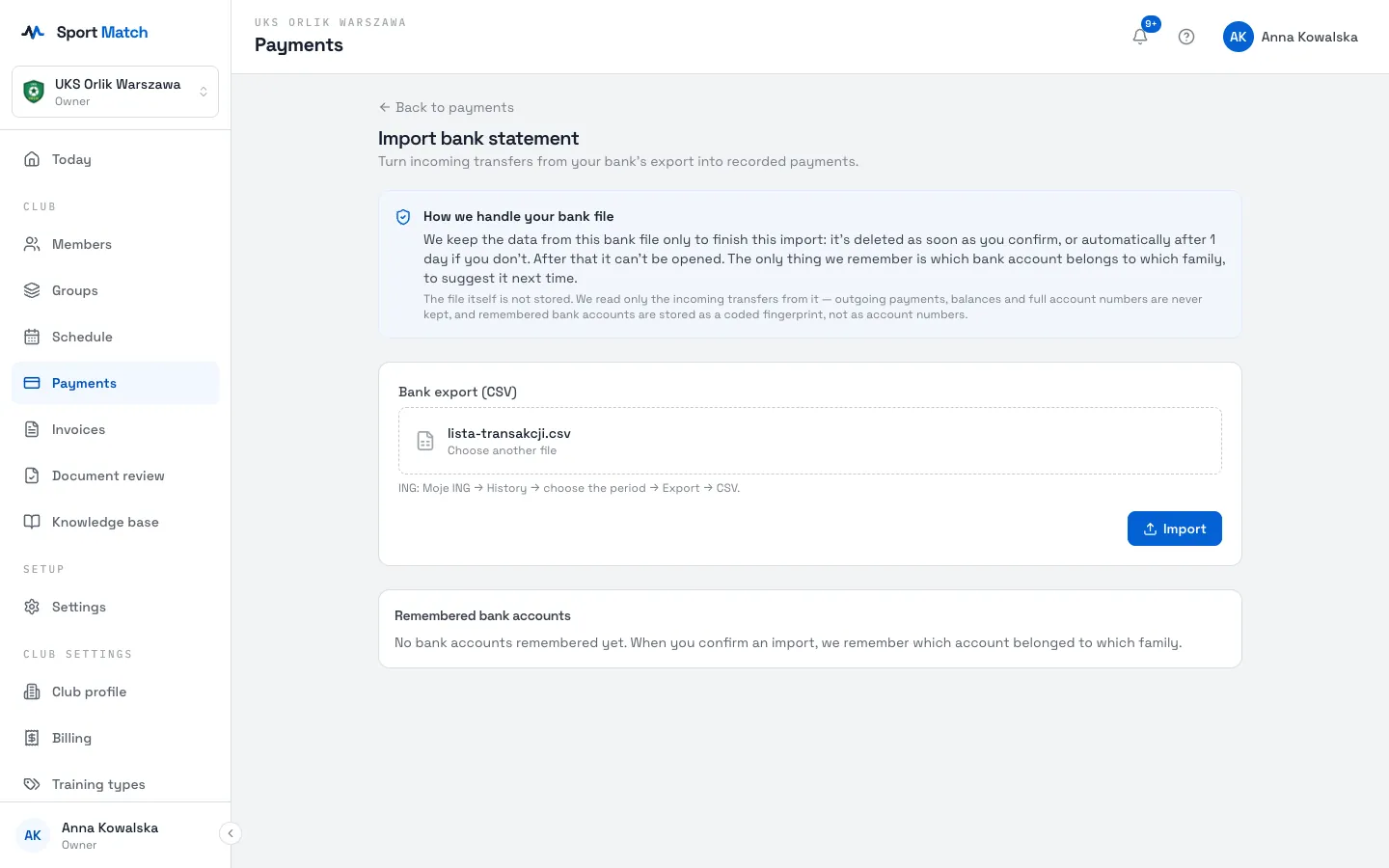
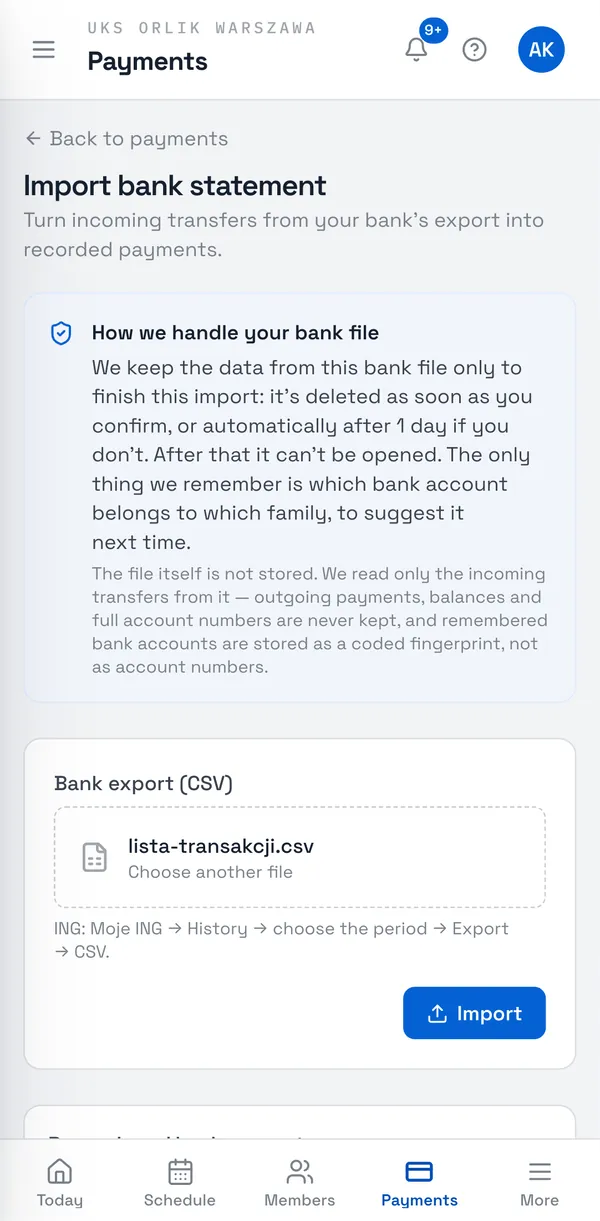
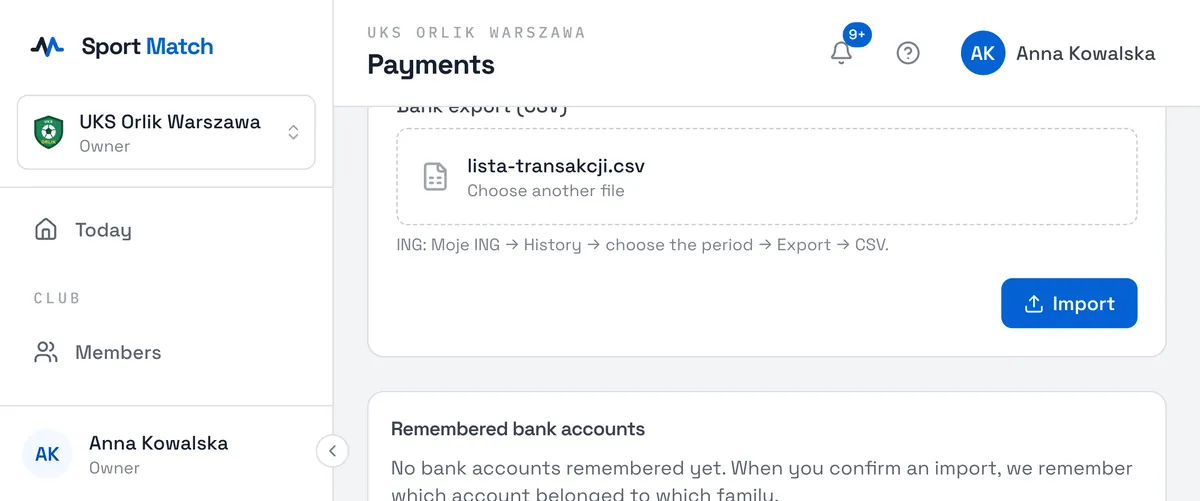
In Sport Match open Payments and choose Import bank statement. Pick the file you downloaded and choose Import.
-
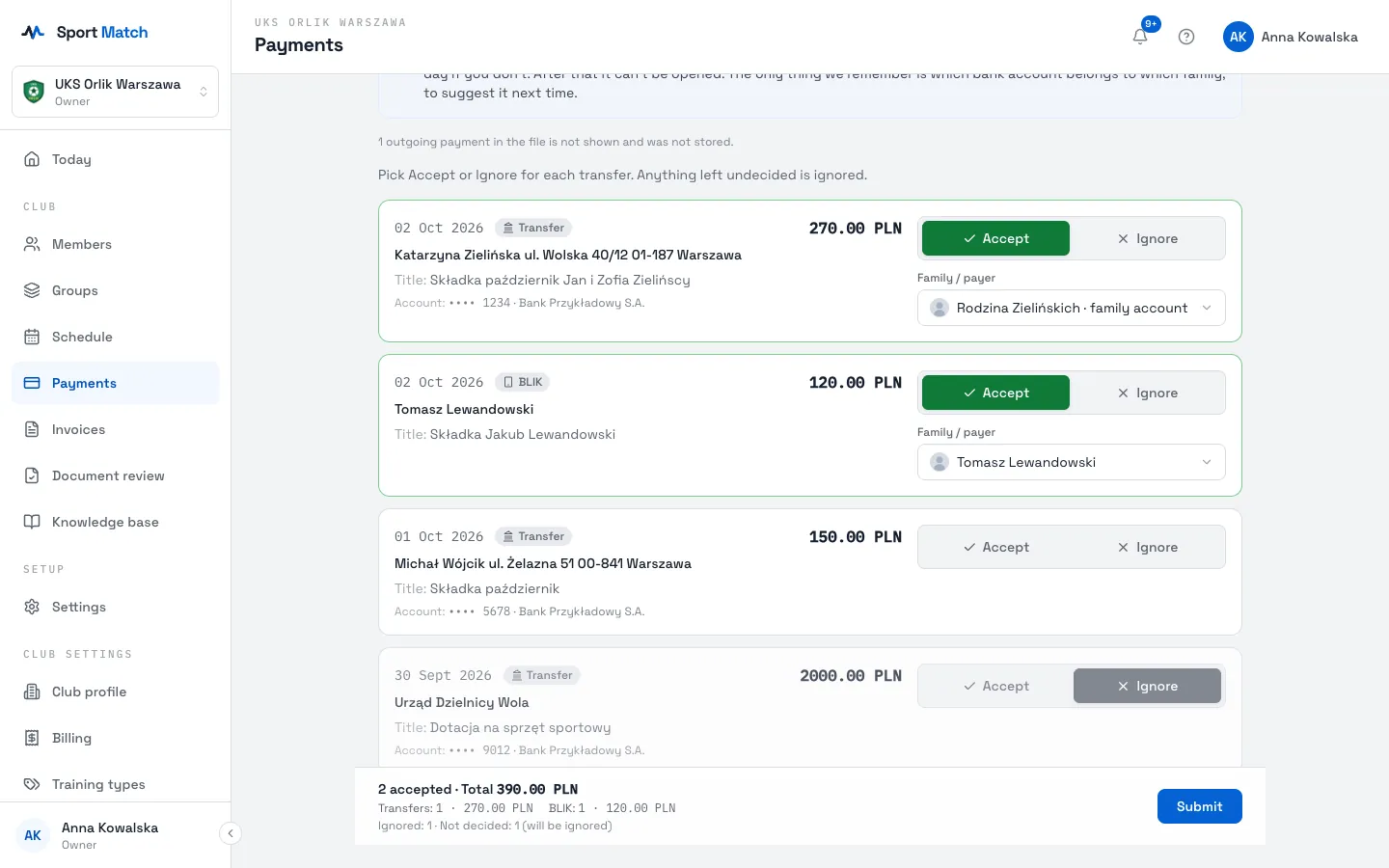
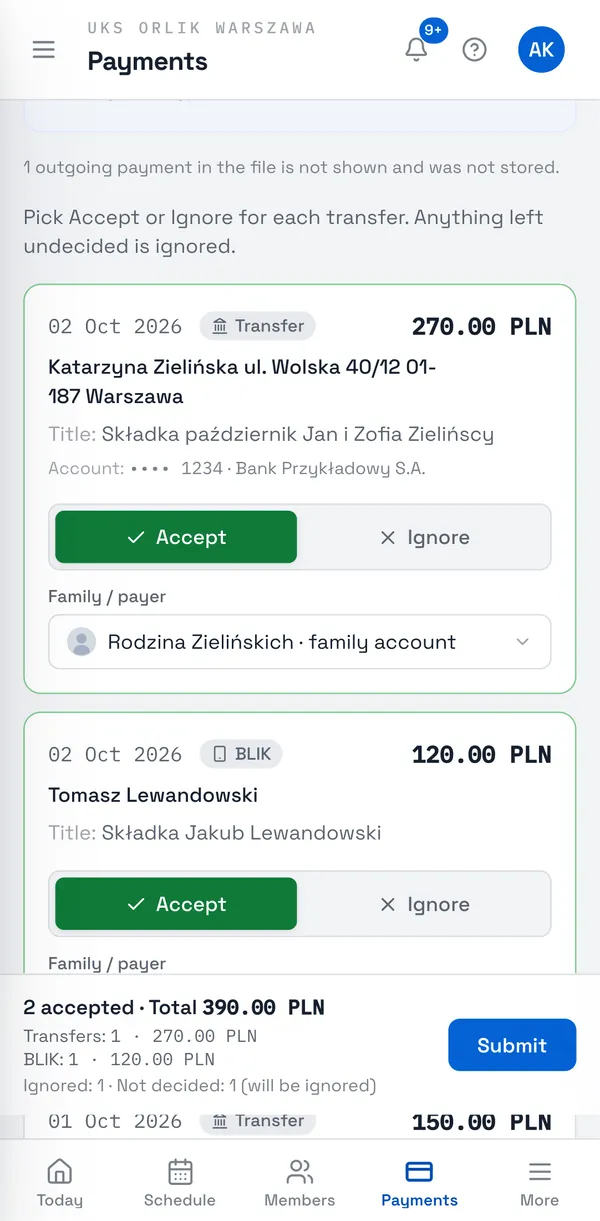
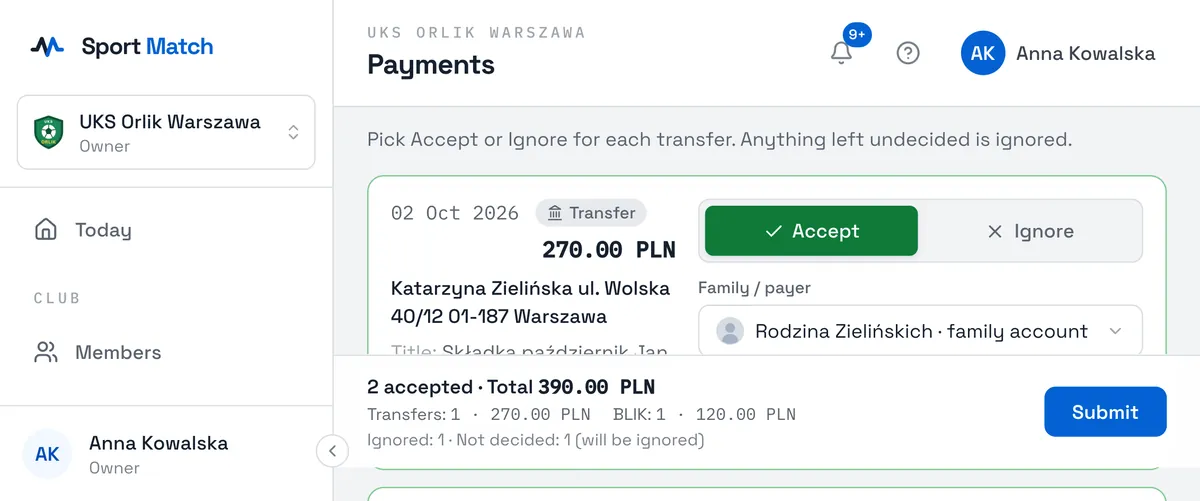
The app lists the money that came in: the sender, date, amount, title and kind — Transfer or BLIK. The club’s outgoing payments are left out. A payment that looks recorded already (the same amount around the same day) is flagged.
-
For each one choose Accept or Ignore. Ignore anything that isn’t a payment from a family — grants, refunds or transfers between the club’s own accounts, for example.
-
Once accepted, choose whose payment it is: the payer and, if needed, the family account. If an earlier import matched the same sender’s account, the app suggests the same person or family; check the suggestion before you keep it.
-
A running summary shows the payments you’ve accepted — how many and how much, Transfers and BLIK separately. You can stop and come back to the import later the same day.
-
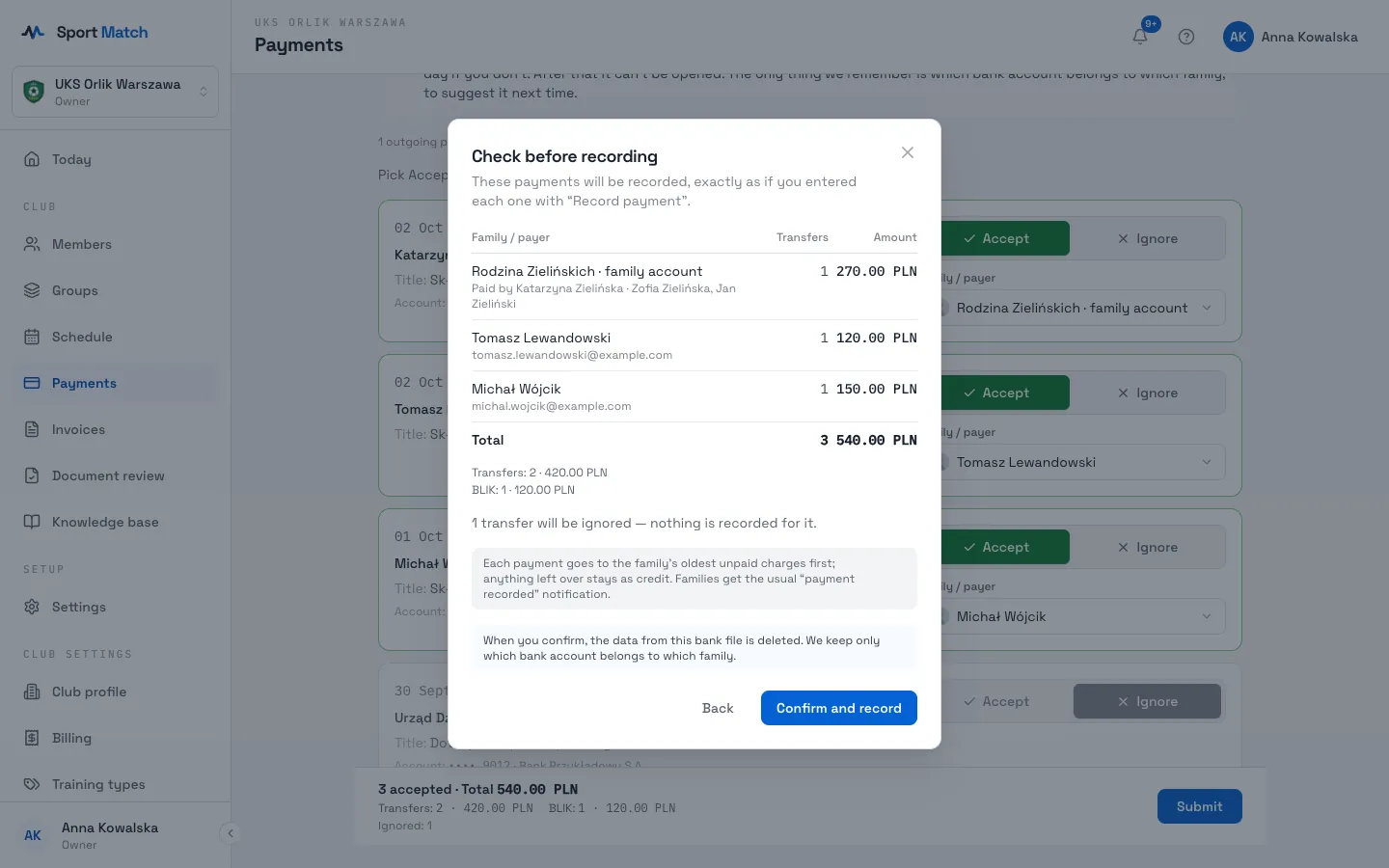
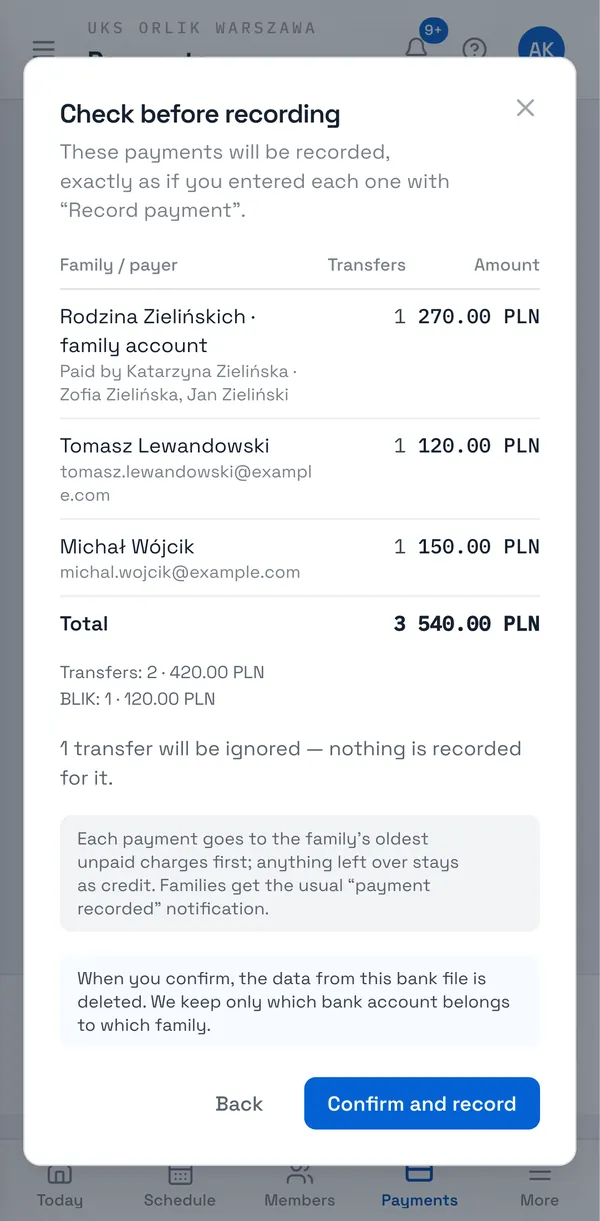
Choose Submit. You’ll see a summary for each family: how many payments, and how much, will be recorded. Check it and choose Confirm and record.
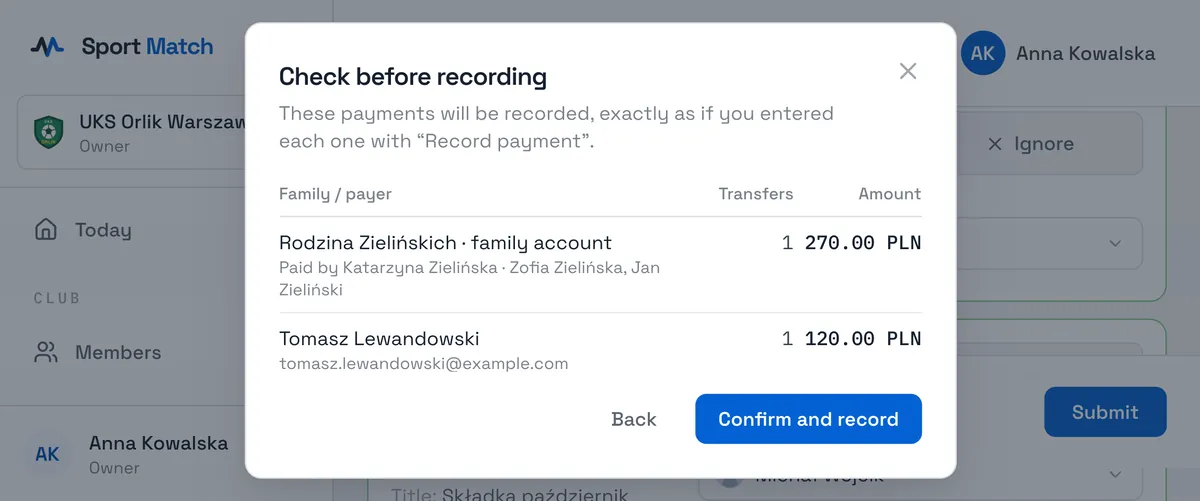
-
Done — the payments are in each family’s payment history and settle their charges, and the data from the file is deleted.
Tip: A mistake after confirming? Reverse an imported payment like one you recorded by hand — see Reverse the payment.
What happens to the file and the data
- The file itself is not kept. Sport Match reads only the incoming payments from it: the date, sender, title, amount and kind, and the sender’s account number only to recognise it at the next import. The club’s outgoing payments and the account balances are skipped.
- The loaded payments are deleted as soon as you confirm or cancel the import. An unfinished import is deleted automatically after 1 day — after that it can’t be opened, and you load the file again.
- Only one thing is remembered: which sender account belongs to which family or person — to suggest it next time. Sport Match doesn’t keep the full account number for this, and forgets an unused match by itself after about a year.
- Want the app to forget the matches? In the statement import choose Forget remembered accounts — the next imports start without suggestions.
How to download the CSV from your bank
Every bank does it a little differently, so each one has its own guide. When downloading, pay attention to three things:
- 1. The period
- set the from–to dates to cover only the period you are settling (one month, say). Less in the file means less to review — and less of the club’s information leaving the bank.
- 2. Incoming only
- if the bank lets you filter by type of operation, choose credits (incoming) only. The club’s spending isn’t needed to settle fees — Sport Match skips it anyway, but it’s better if it isn’t in the file at all.
- 3. No balance after each transaction
- if the bank lets you choose the export’s columns, untick the balance after the transaction — the club’s balance isn’t needed for the import. If your bank doesn’t offer this, that’s fine: Sport Match doesn’t read balances and doesn’t keep the file.
Guides for each bank
| Bank | Import in Sport Match | CSV download guide |
|---|---|---|
| ING Bank Śląski | yes | ready |
| PKO Bank Polski | coming soon | ready |
| Bank Pekao | coming soon | coming soon |
| Erste Bank Polska (Santander) | coming soon | ready |
| mBank | coming soon | ready |
| BNP Paribas | coming soon | ready |
| Bank Millennium | coming soon | ready |
| Alior Bank | coming soon | ready |
| Credit Agricole | coming soon | coming soon |
| Citi Handlowy | coming soon | ready |
| VeloBank | coming soon | coming soon |
| Nest Bank | coming soon | coming soon |
| BOŚ Bank | coming soon | ready |
| Bank Pocztowy | coming soon | coming soon |
| Banki spółdzielcze | coming soon | ready |
Frequently asked questions
My bank isn’t supported yet — what can I do?
For now, record payments by hand with Record payment. We are adding more banks’ formats step by step — tell us in the chat which bank your club uses and we’ll let you know when it’s ready. Please don’t send us real statements.
The app says the file is too large or has too many payments.
One file can be up to 2 MB with up to 1,000 incoming payments. Download a shorter period from your bank — one month, say — and import the other months separately.
Can I open the file in Excel before importing it?
Better not to save it again from Excel — it can change the date and amount formats or the encoding of Polish letters. Load the file exactly as the bank produced it.
Does the import replace online payments?
No. Payments made with Pay now (Przelewy24) still appear by themselves. The import is for money paid straight into the club’s account: bank transfers and BLIK phone transfers.
The same transfer is in two files — will it be recorded twice?
Only if you accept it twice. The app flags a payment that looks recorded already — choose Ignore for it.
Didn’t find an answer?
Write to us in the chat — it opens on this page, no login needed — or email contact@sportmatch.pl.