Payments and member balances
Under Payments you see who has what to pay and how much came in each month. The app bills the training fees, members pay online, and you add the payments made in cash or by bank transfer.
Screenshots
How fees are billed
Fees follow from the training type and price list of the group and the payment type the member has in that group:
- Subscription
- each session is billed automatically ahead of time, during the month at the commitment level’s rate (marked Provisional). After the month ends, if the member fell short of the attendance they committed to, the whole month is re-priced at the standard rate (Final). So the amount can only go up.
- Pay as you go
- a charge appears only once the coach marks the member as present at a session.
Members and parents pay with Pay now — online through Przelewy24 (BLIK, bank transfer, card). Those payments appear by themselves and settle the oldest charges straight away. See what it looks like for them: Payments and your balance.
Sport Match passes the money from online payments to the club once a week (a payout), to the bank account in your billing details. Your Sport Match subscription is also taken from the payouts. Payments you record by hand (cash, transfers to the club’s account) aren’t part of this — the club already has that money.
Member balances
-
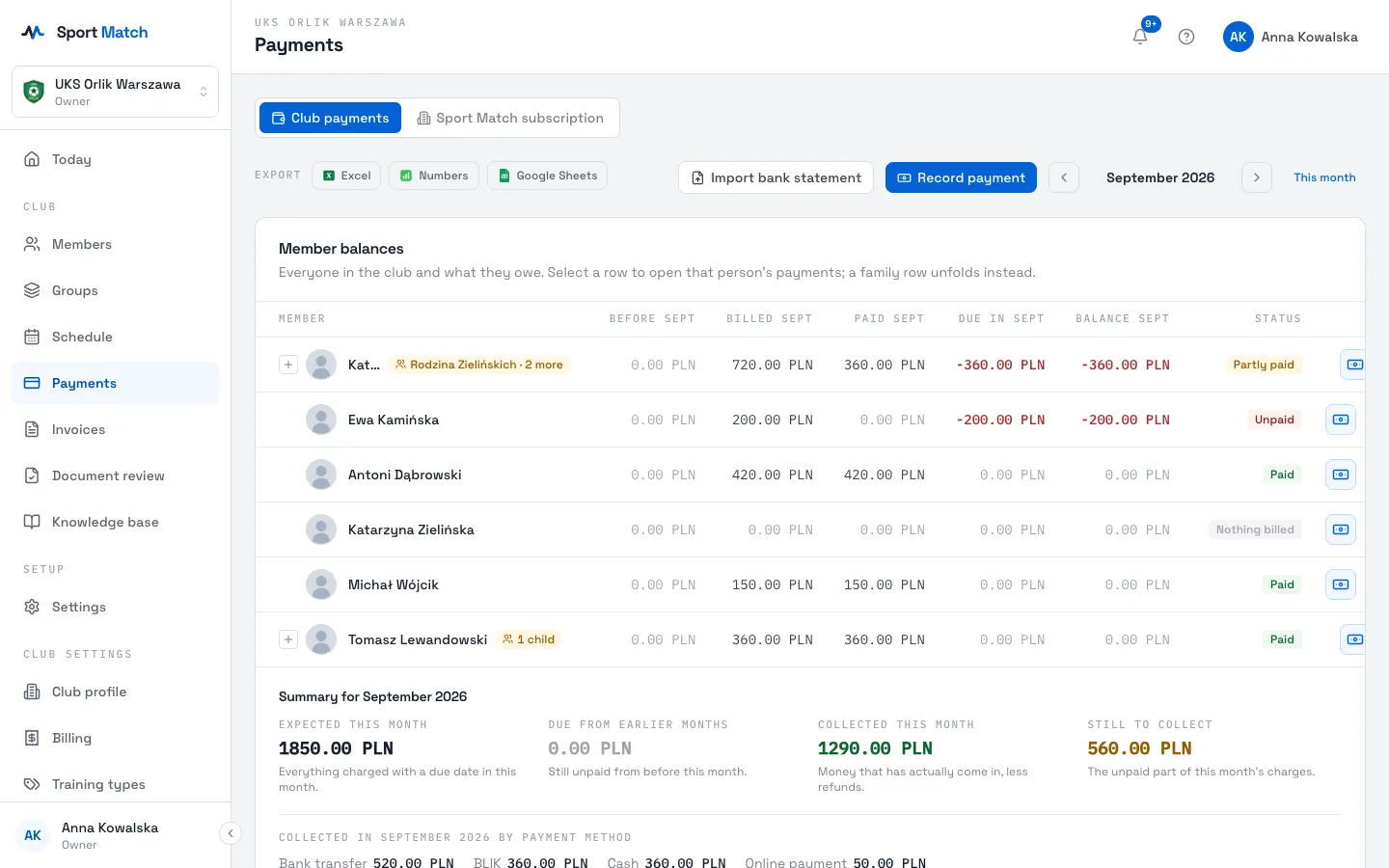
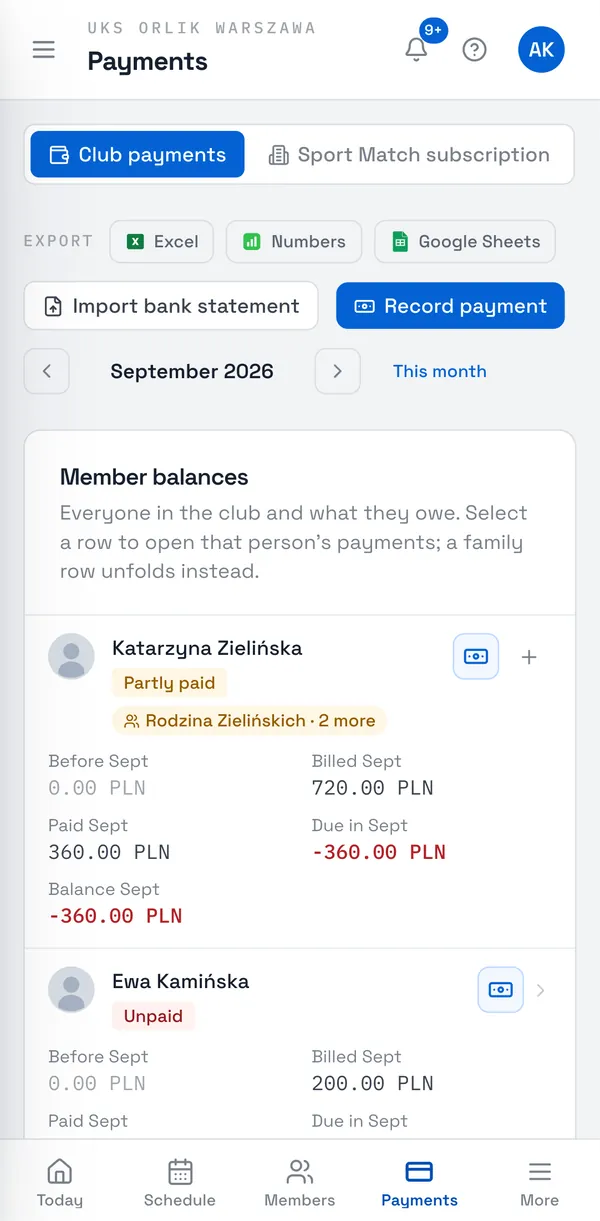
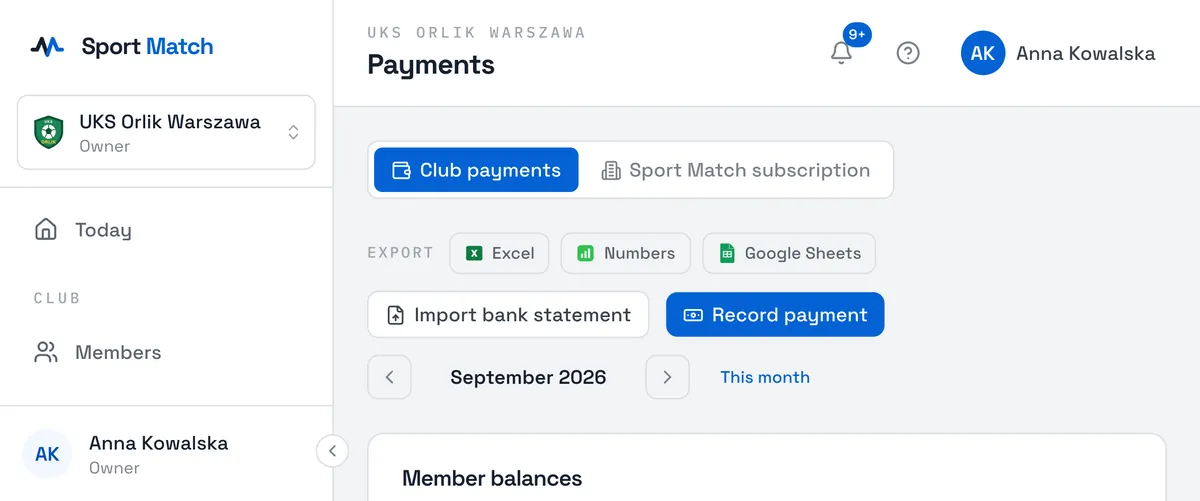
Open Payments. Use the arrows beside the month to go to the month you want; This month brings you back to today.
-
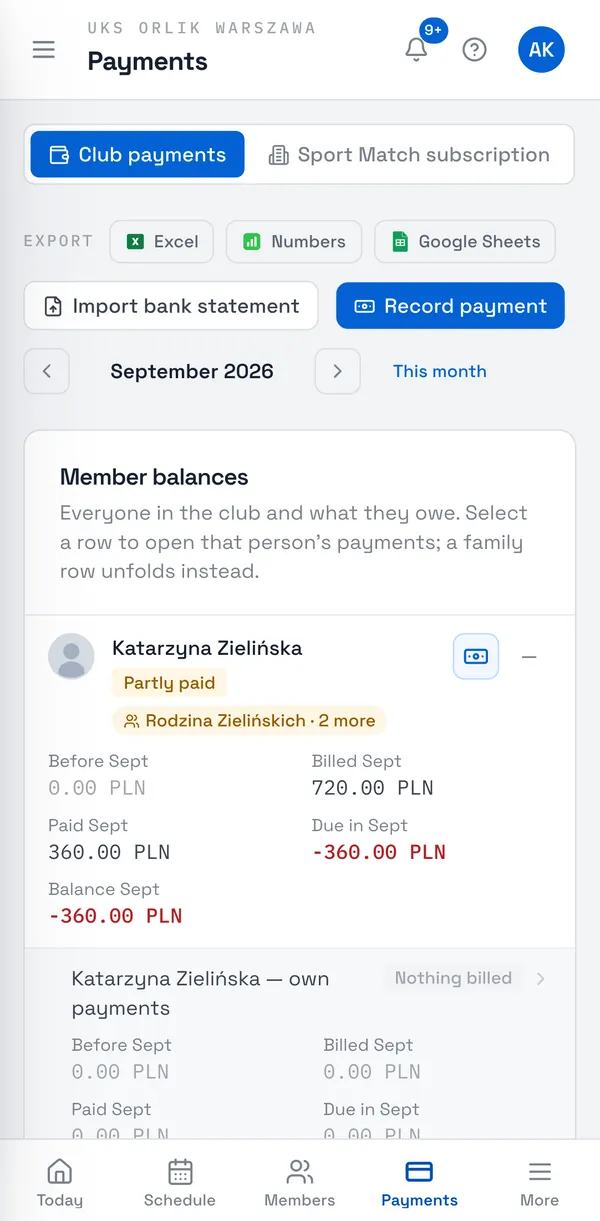
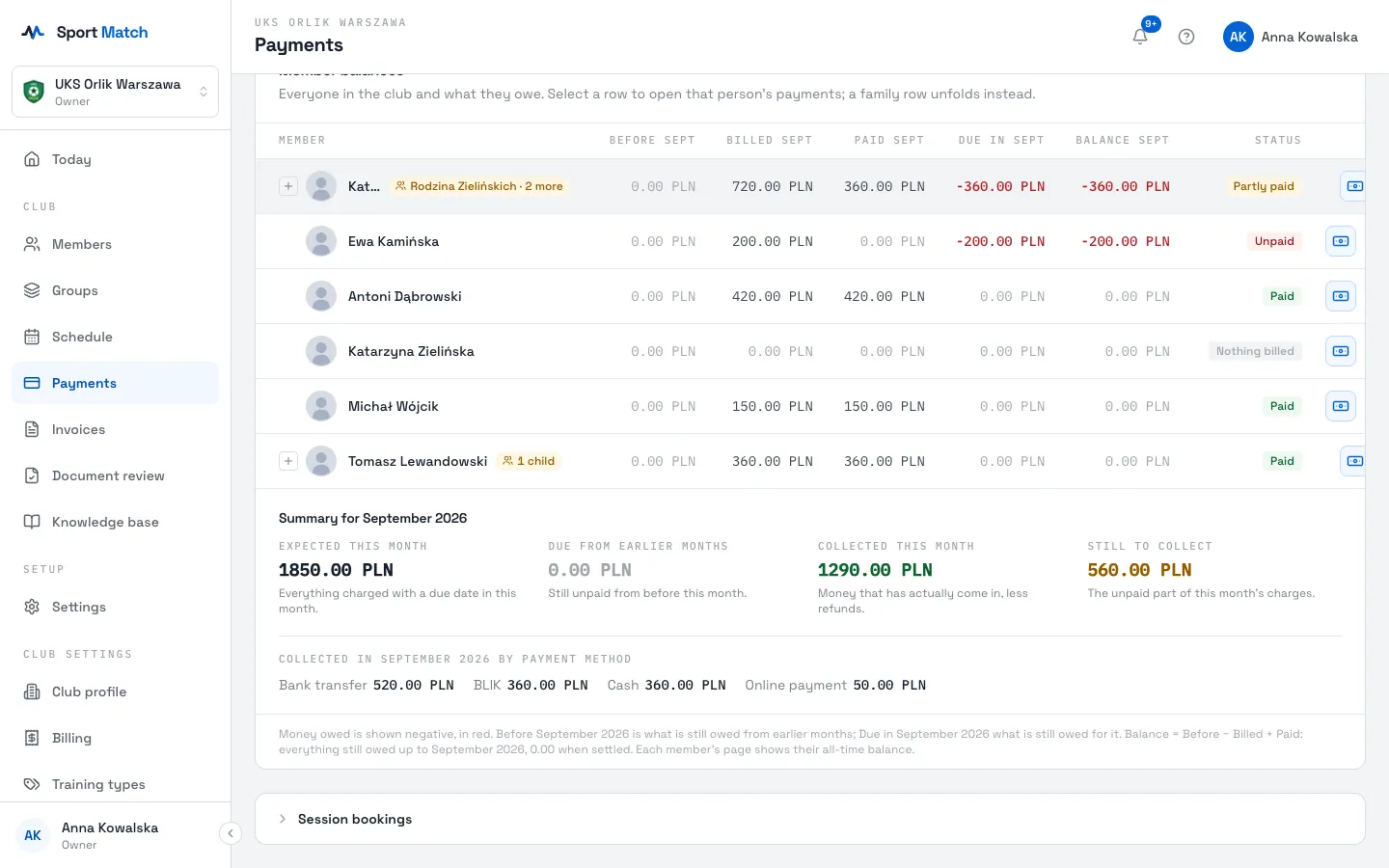
The Member balances table shows everyone: what was owed before, what was Billed and Paid this month, what is left, and the Balance. Amounts owed are negative and red. Status sums it up: Paid, Partly paid, Unpaid or Nothing billed.
-
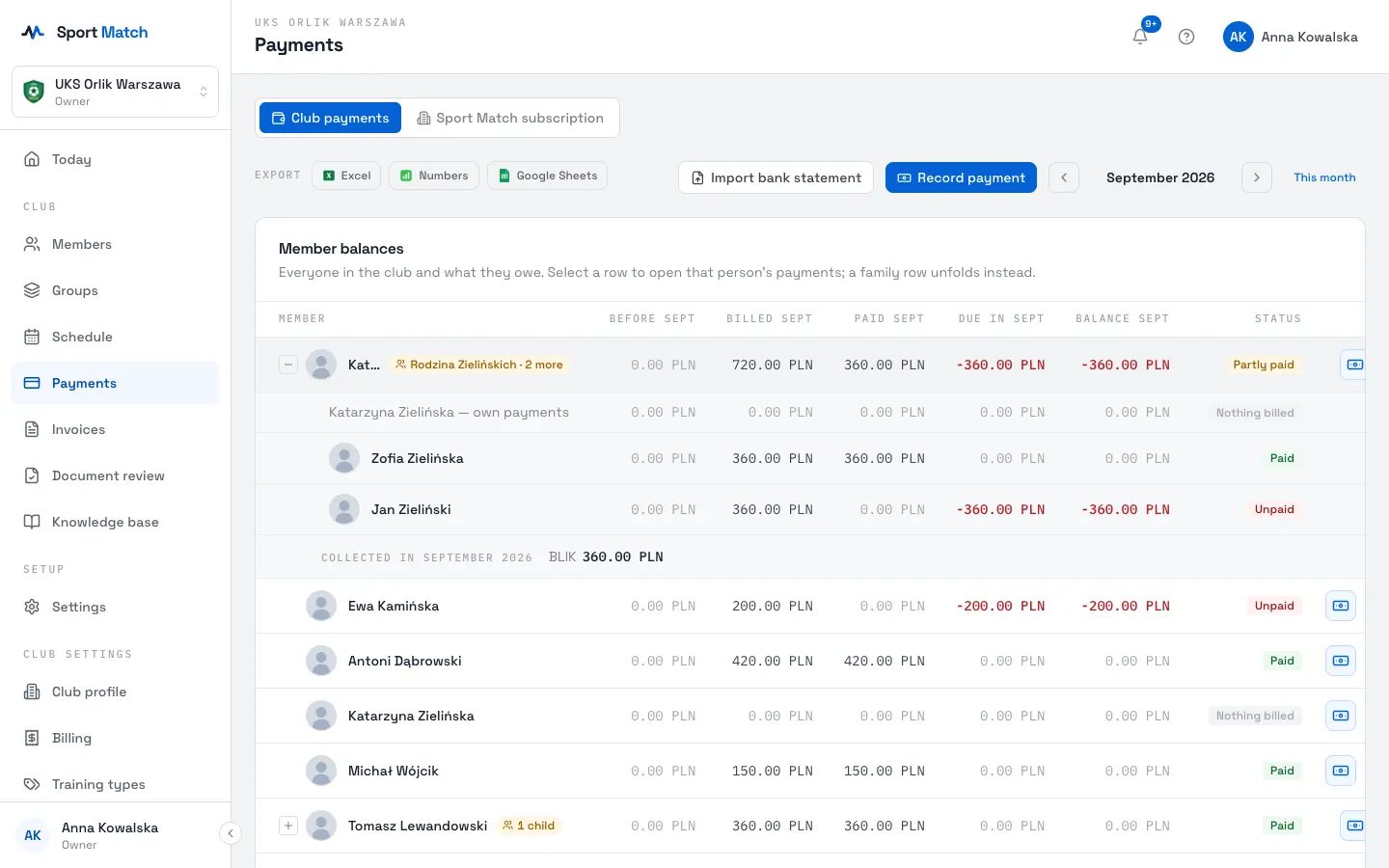
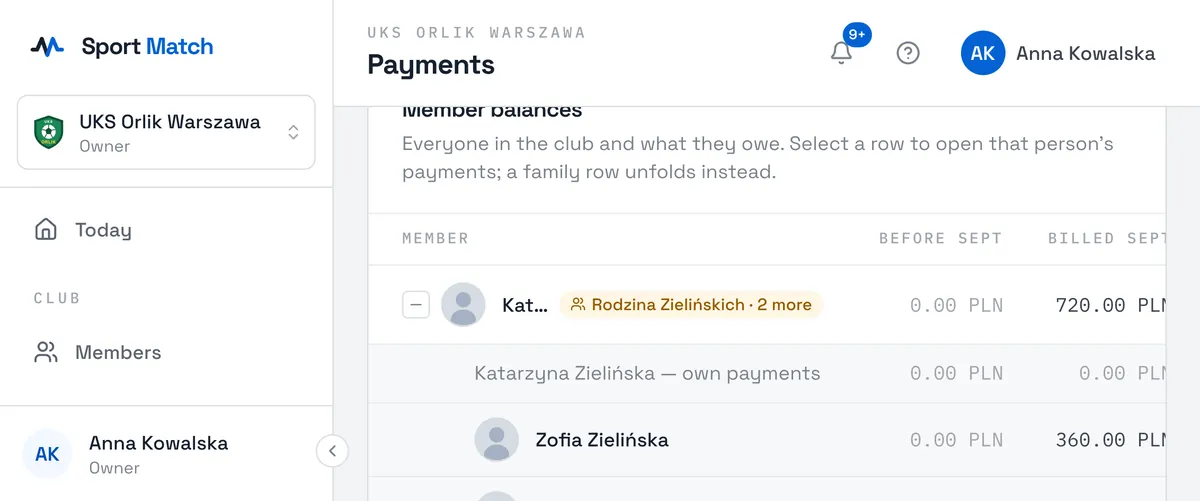
A row with a family badge (e.g. Rodzina Zielińskich · +2) totals the whole family account. Click it to unfold the people and the family’s payments. Clicking an ordinary row opens that person’s payments.
-
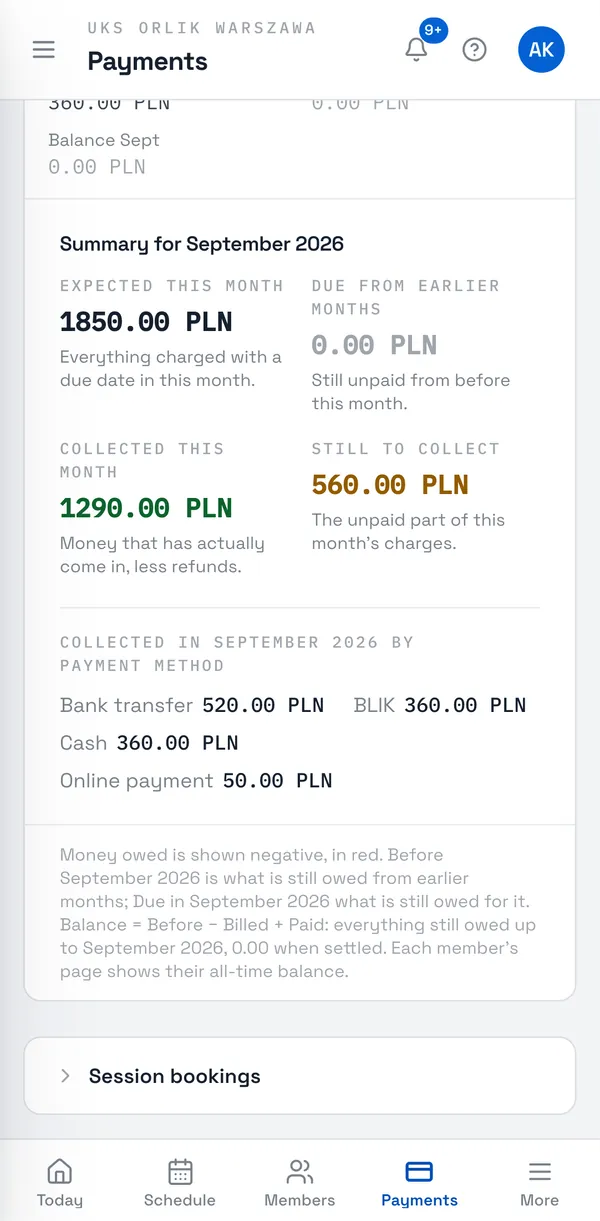
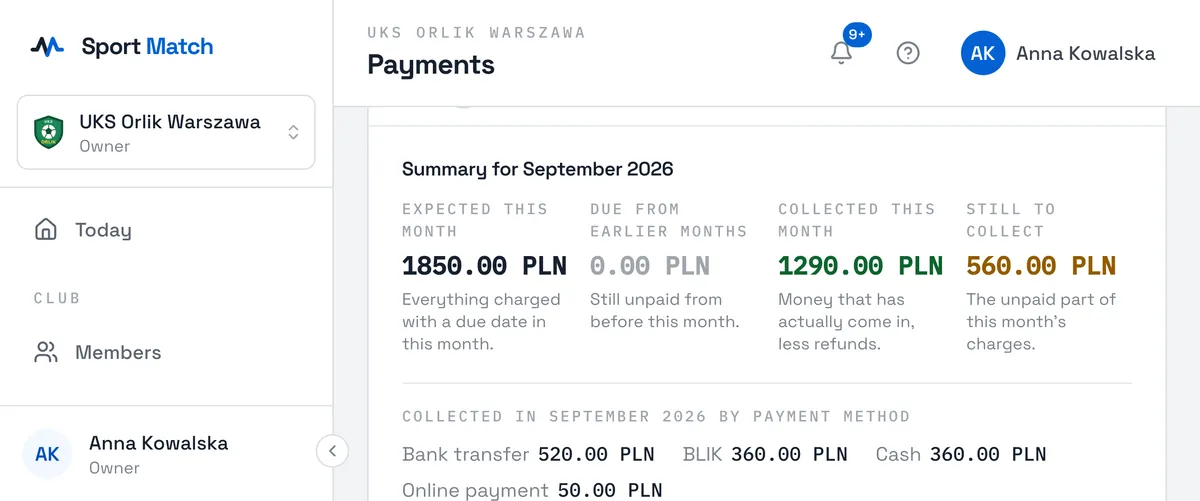
Below the table is the month’s Summary: what was due, arrears from earlier months, what came in, what is still to collect, and the money in by payment method.
Tip: On a phone the table is wider than the screen — swipe it sideways, or turn the phone.
Below the summary is Session bookings — the money for one-to-one sessions. Only the advance is collected through Sport Match; the rest is settled with the coach directly. More: Availability and one-to-one bookings.
Recording a cash or bank payment
When someone pays outside the app — cash to a coach, or a transfer to the club’s account — record it so their balance is right.
-
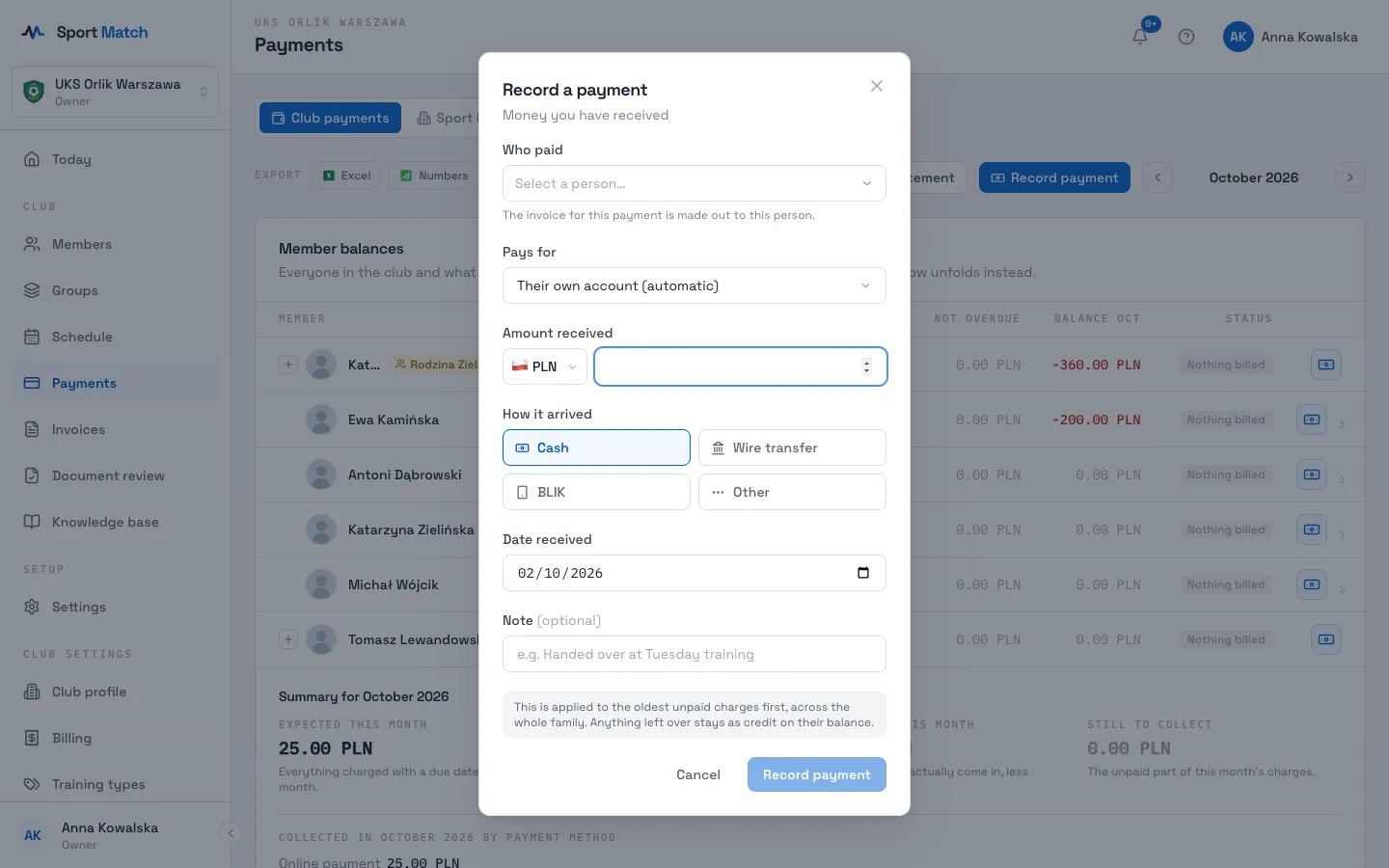
Under Payments (or on a member’s Payments tab) click Record payment.
-
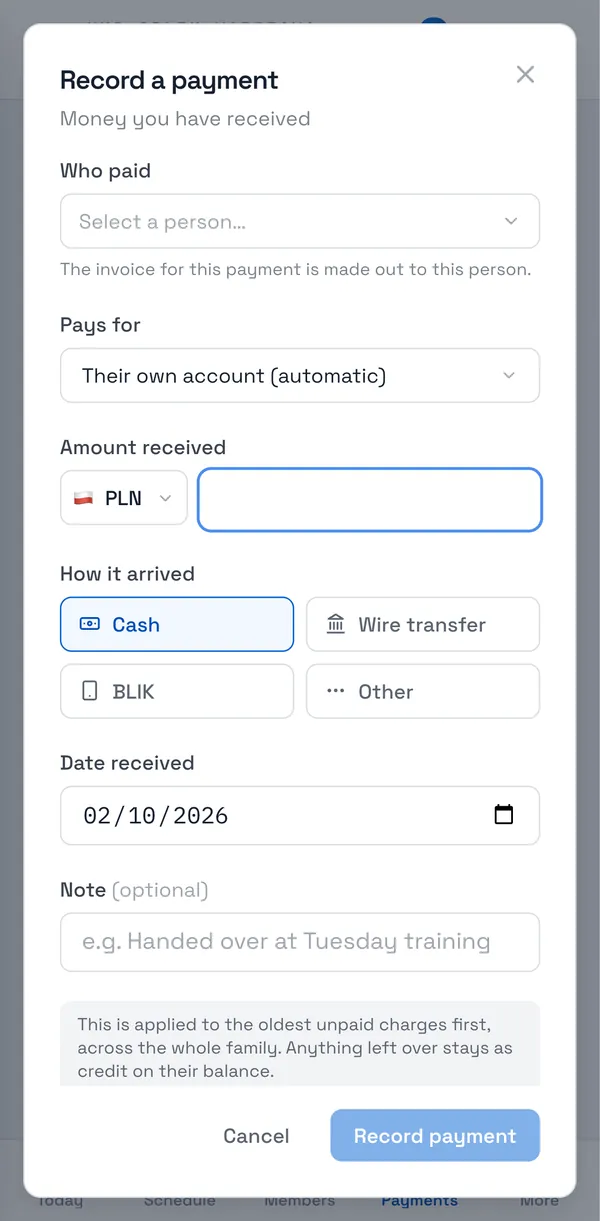
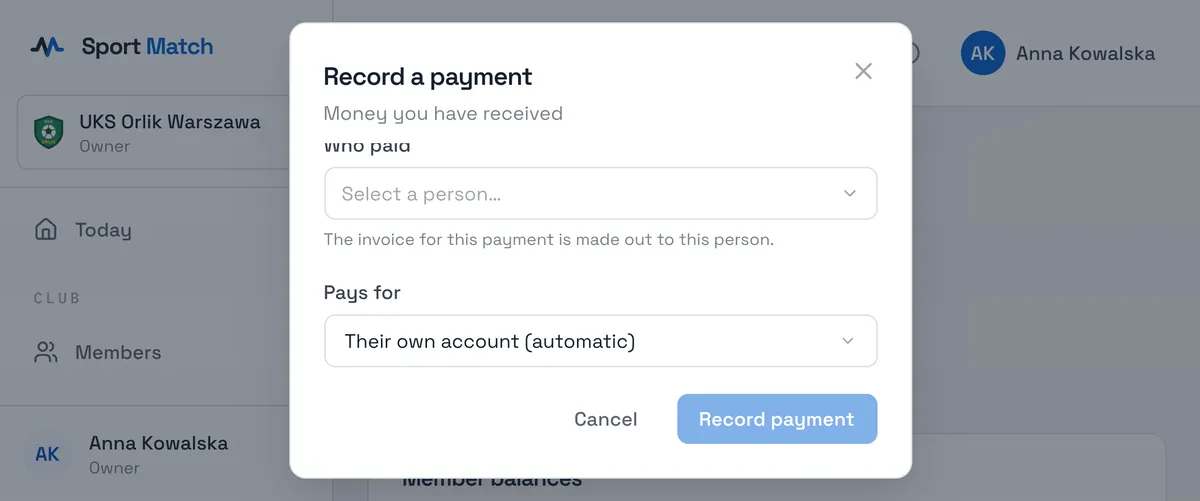
Choose Who paid — the invoice for the payment is made out to them. In Pays for you can pick a family account; by default it is the payer’s own account.
-
Enter the Amount received, choose How it arrived (Cash, Wire transfer, BLIK, Other) and the Date received. The Note is optional.
-
Click Record payment. The amount pays off the oldest unpaid charges across the whole family, and anything left over stays as credit on the balance.
A mistake? Reverse the payment
-
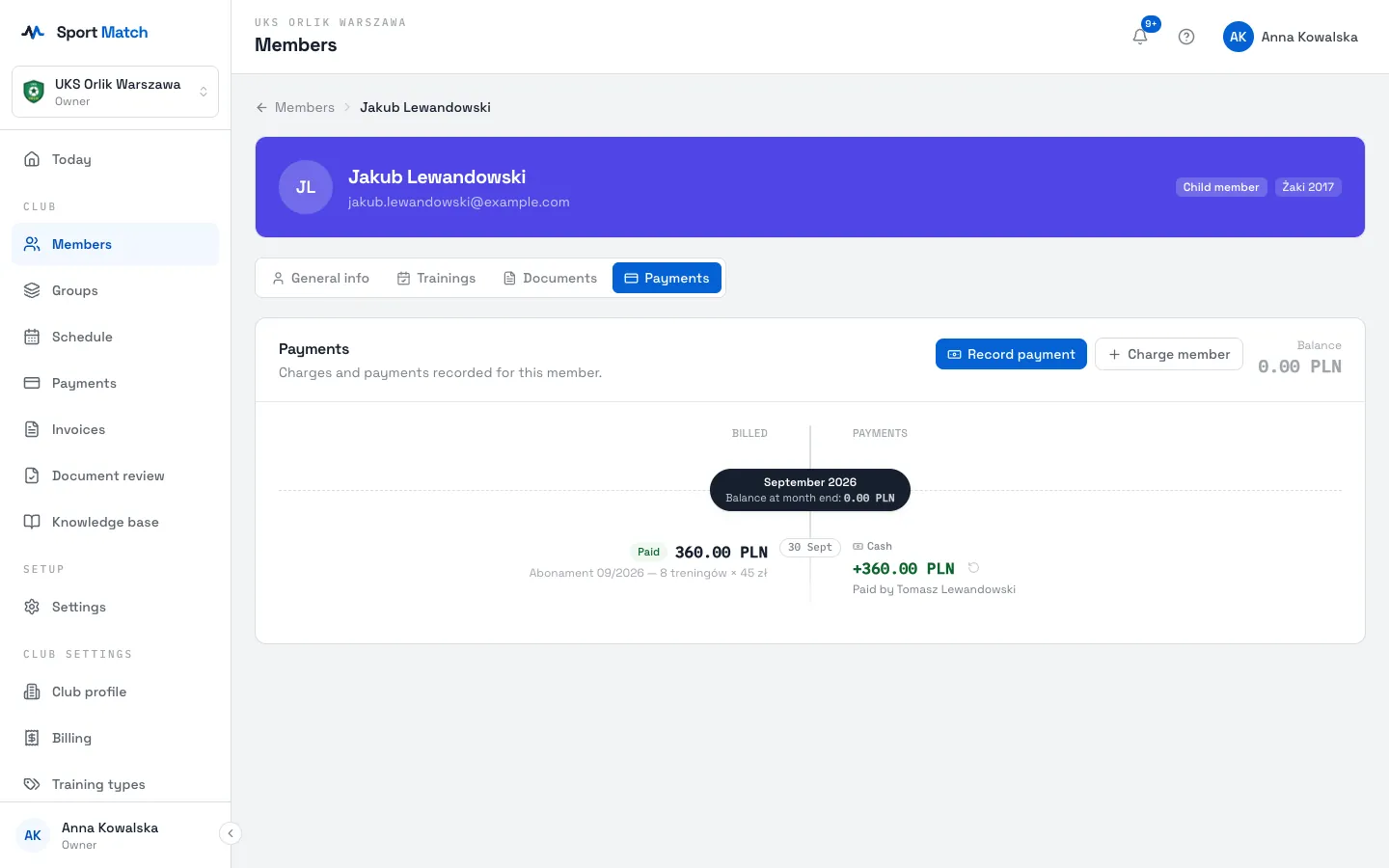
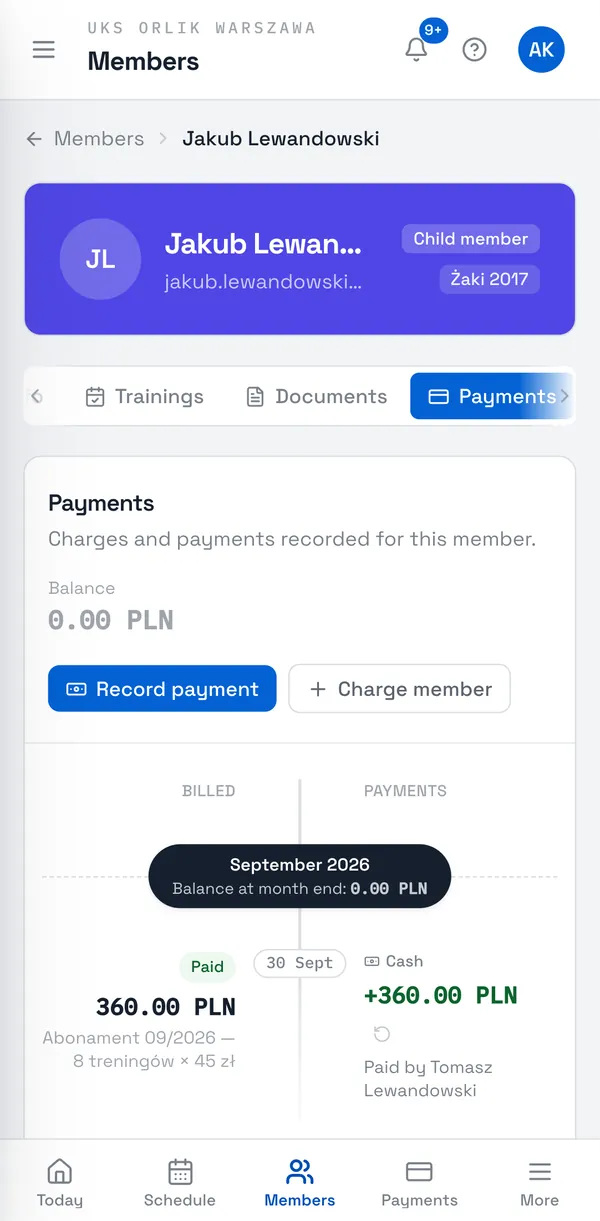
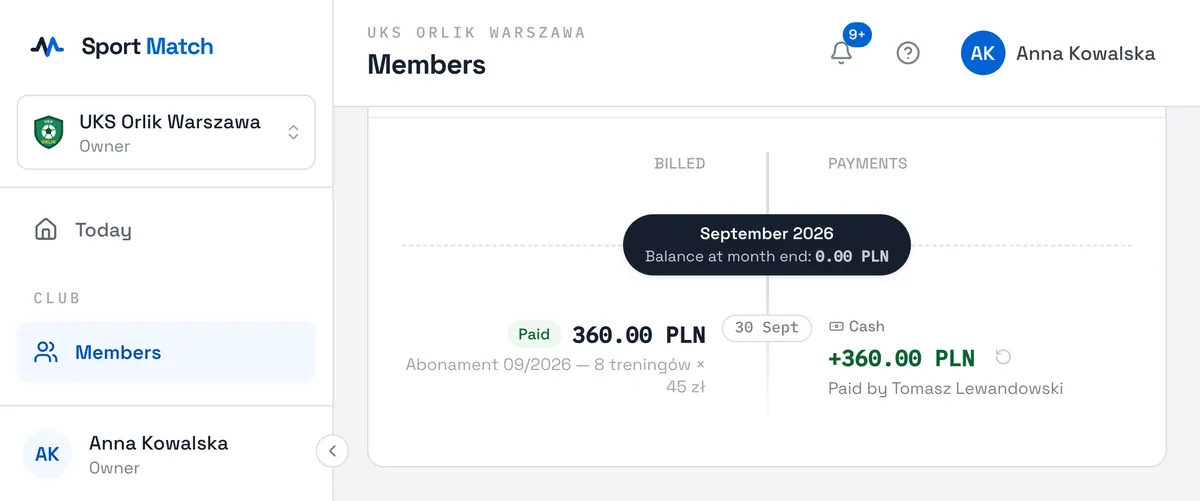
Open the member’s Payments tab. Next to a payment you recorded, click the arrow icon Reverse this payment and confirm.
-
The charges it paid go back to unpaid. Nothing is deleted — the payment is marked Reversed and a correction stays in the history.
Only payments you recorded by hand can be reversed. Online payments through Przelewy24 are handled by the payment operator — refunding one is described below.
Tip: Many transfers to record? Import them from your bank statement — Importing from a bank statement.
Refunding an online payment
-
Open the page of the person who paid and the Payments tab. Next to an online payment (Przelewy24) click the arrow icon Refund.
-
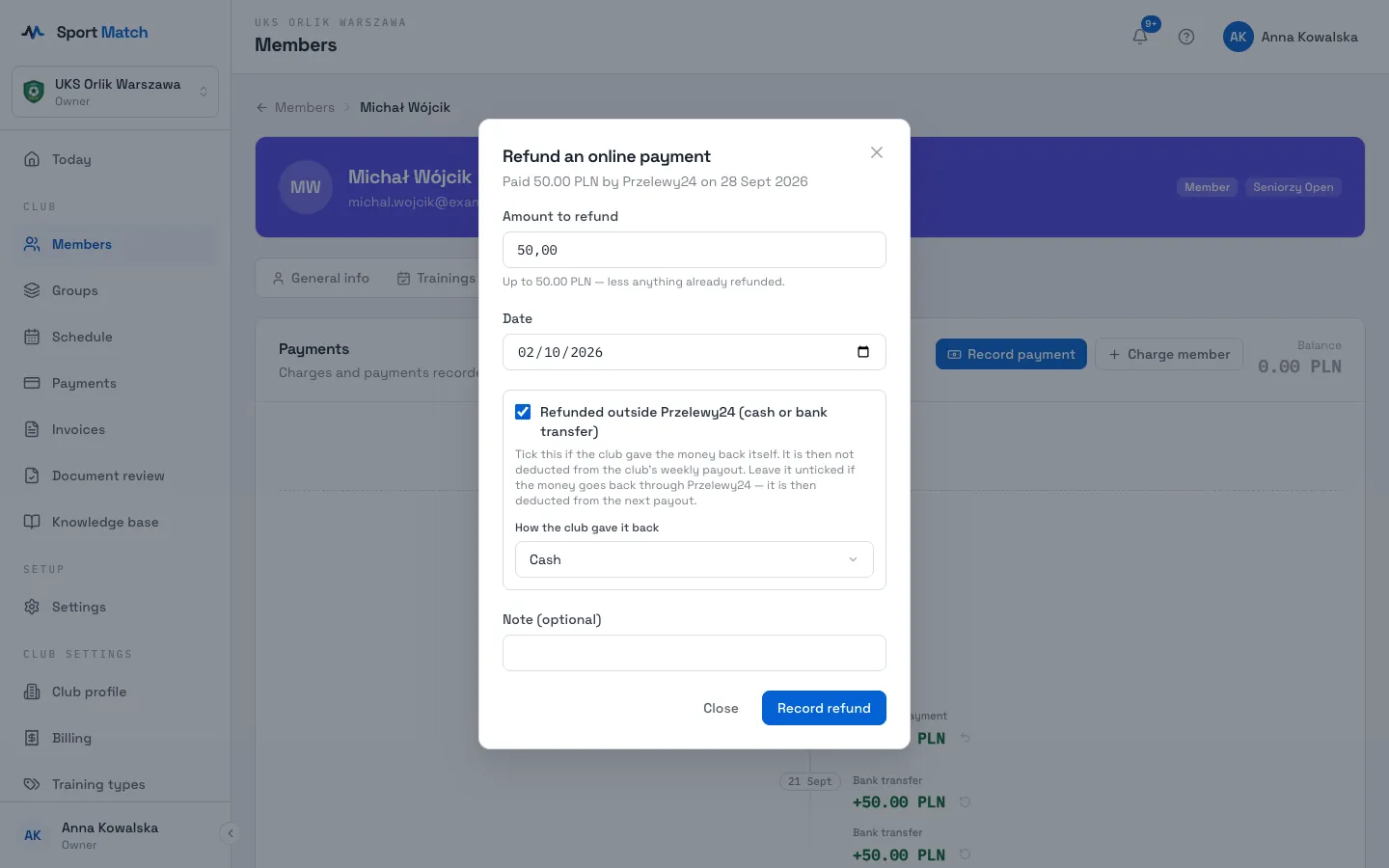
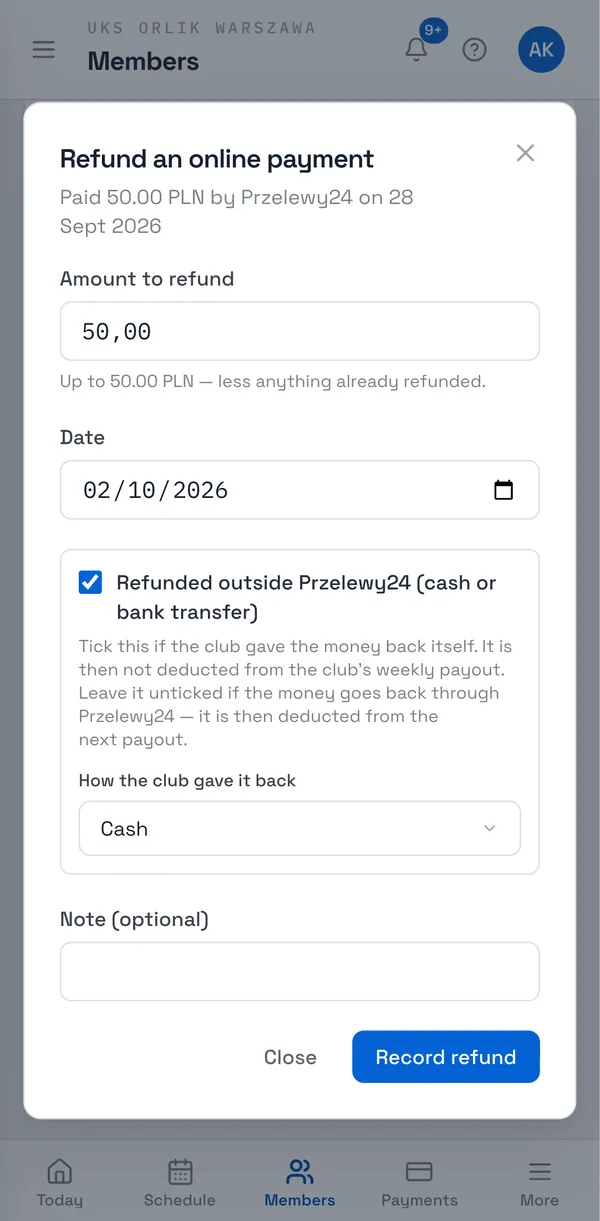
Enter the Amount to refund — at most what was paid, less anything already refunded — the Date and, if you like, a Note.
-
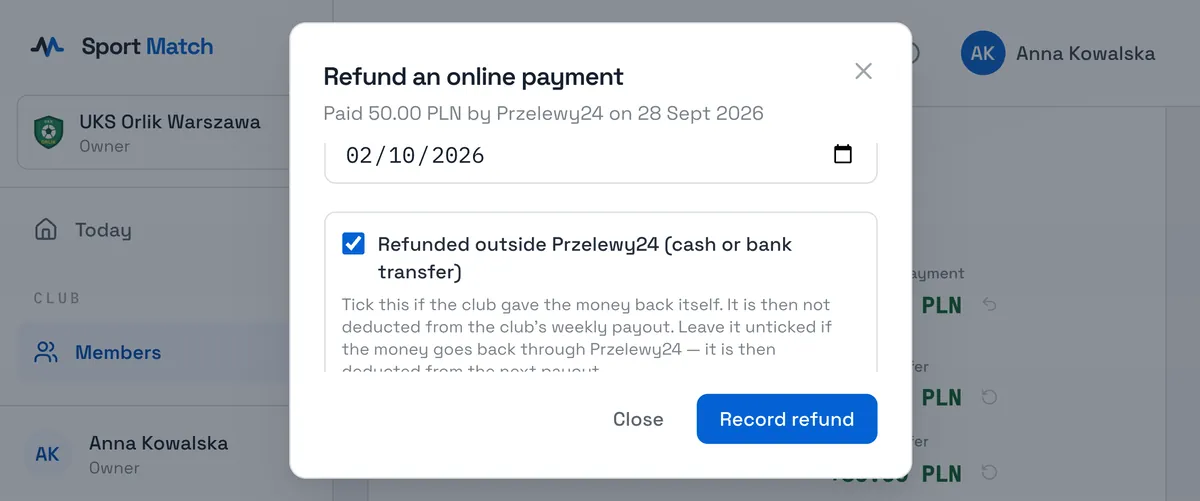
Did the club give the money back itself — in cash or by transfer from its own account? Tick Refunded outside Przelewy24 (cash or bank transfer) and choose How the club gave it back. The refund is then not deducted from the club’s weekly payout. Leave it unticked if the money goes back through Przelewy24 — it is then deducted from the next payout.
-
Click Record refund. The refund appears in the payer’s history and they are notified.
Charging a member for something extra
For a kit, a trip or an enrolment fee, add a charge by hand.
-
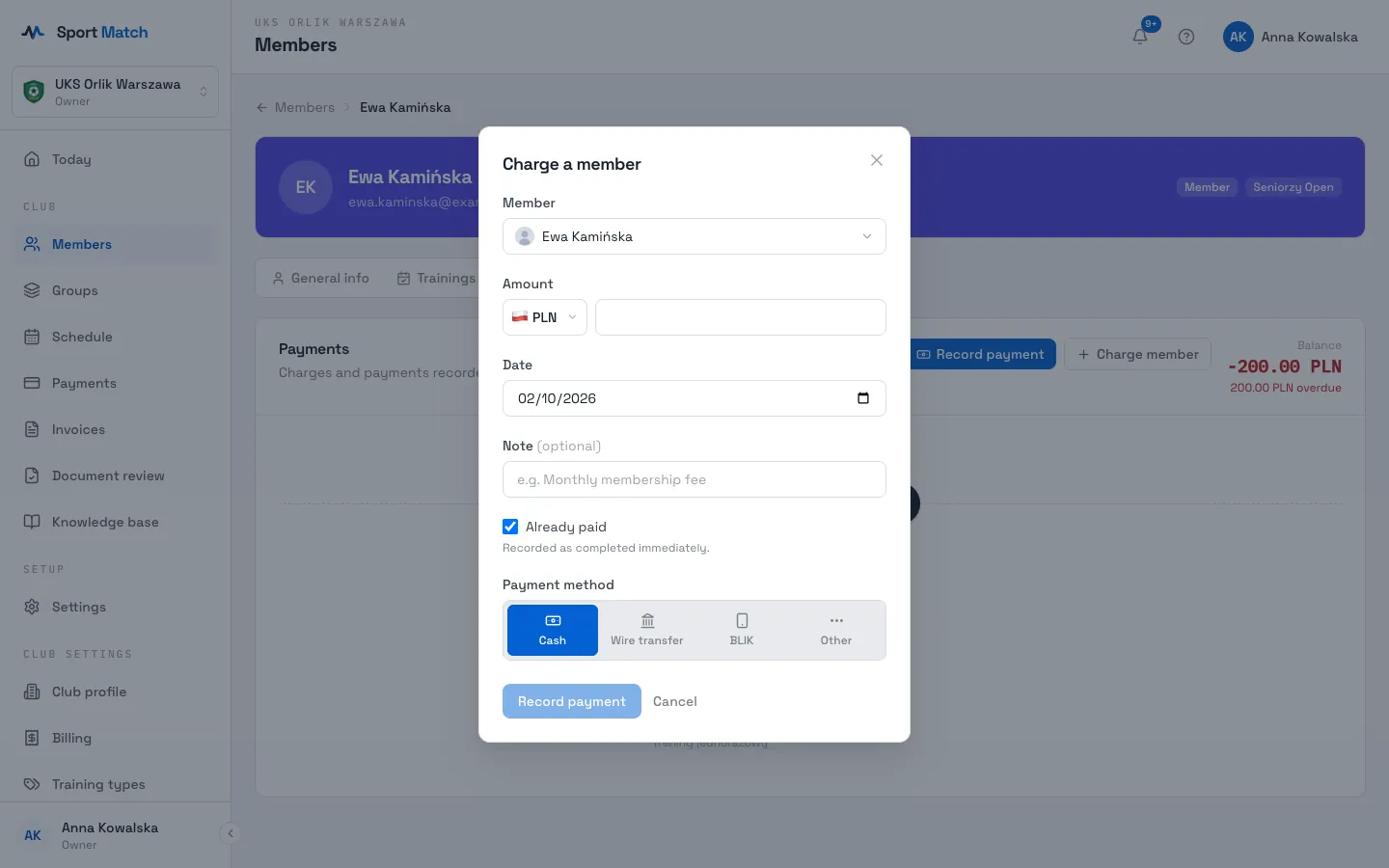
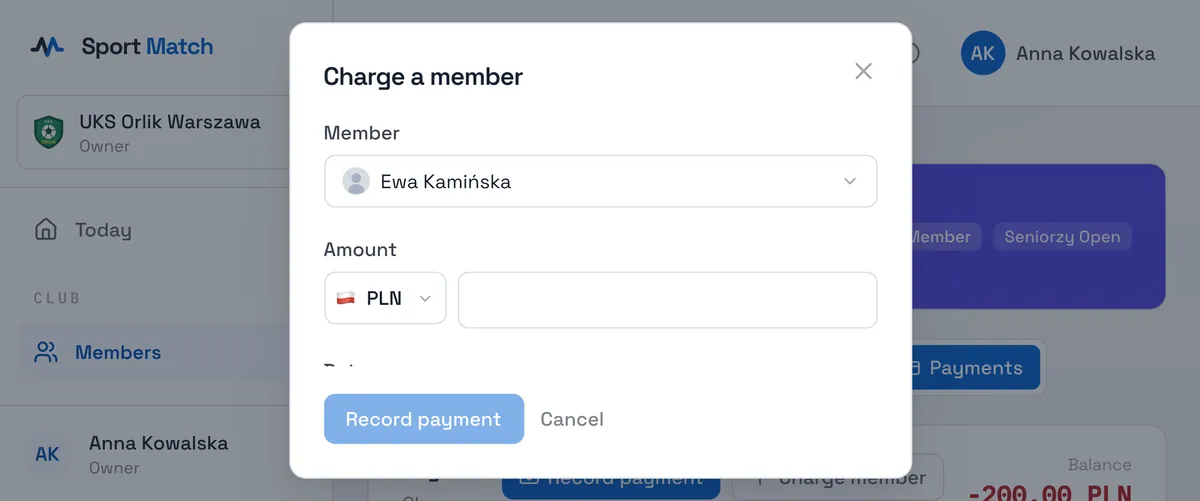
On the member’s page open Payments and click Charge member.
-
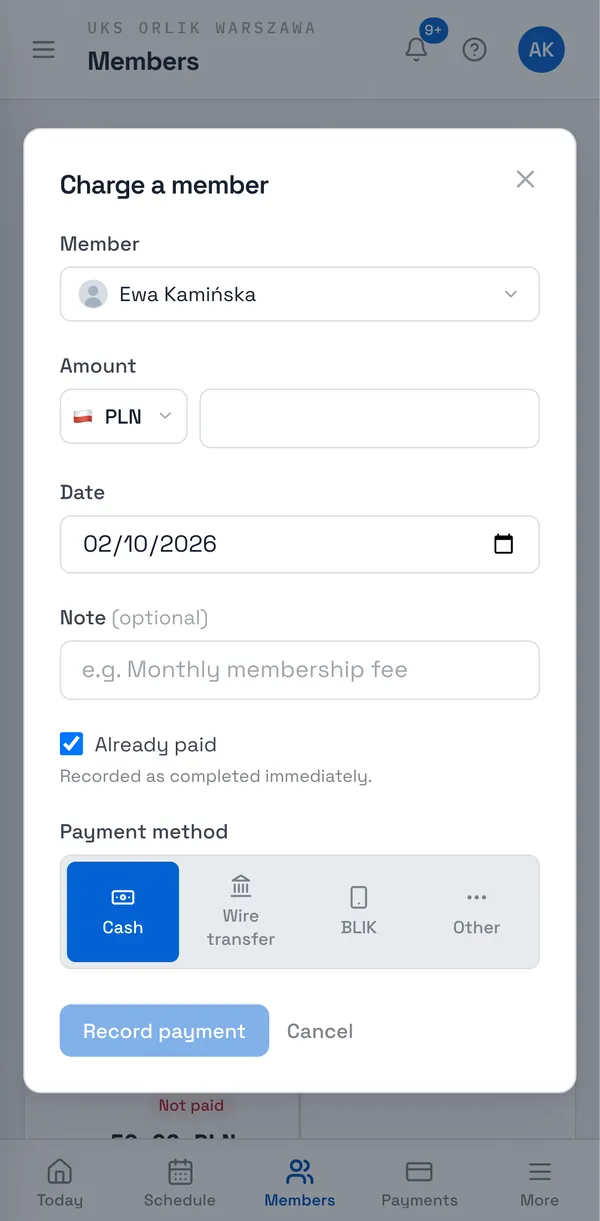
Enter the Amount, the Date and a Note (e.g. “Match shirt”).
-
If they have already paid, leave Already paid ticked and choose the payment method. Otherwise untick it — the charge waits to be paid, and the member settles it with Pay now.
-
Click Record payment.
Export to Excel, Numbers and Google Sheets
The Export buttons above the table save the selected month’s balances, summary and bookings to a file. Excel and Numbers download a ready file. Google Sheets downloads the file and opens a blank sheet — choose File → Import → Upload there.
Didn’t find an answer?
Write to us in the chat — it opens on this page, no login needed — or email contact@sportmatch.pl.