Members, guardians and families
Everyone who has accepted an invitation to your club is under Members. This is where you see who trains in which group and who is missing documents, link children to their parents and decide who pays for whom.
Screenshots
The roster
-
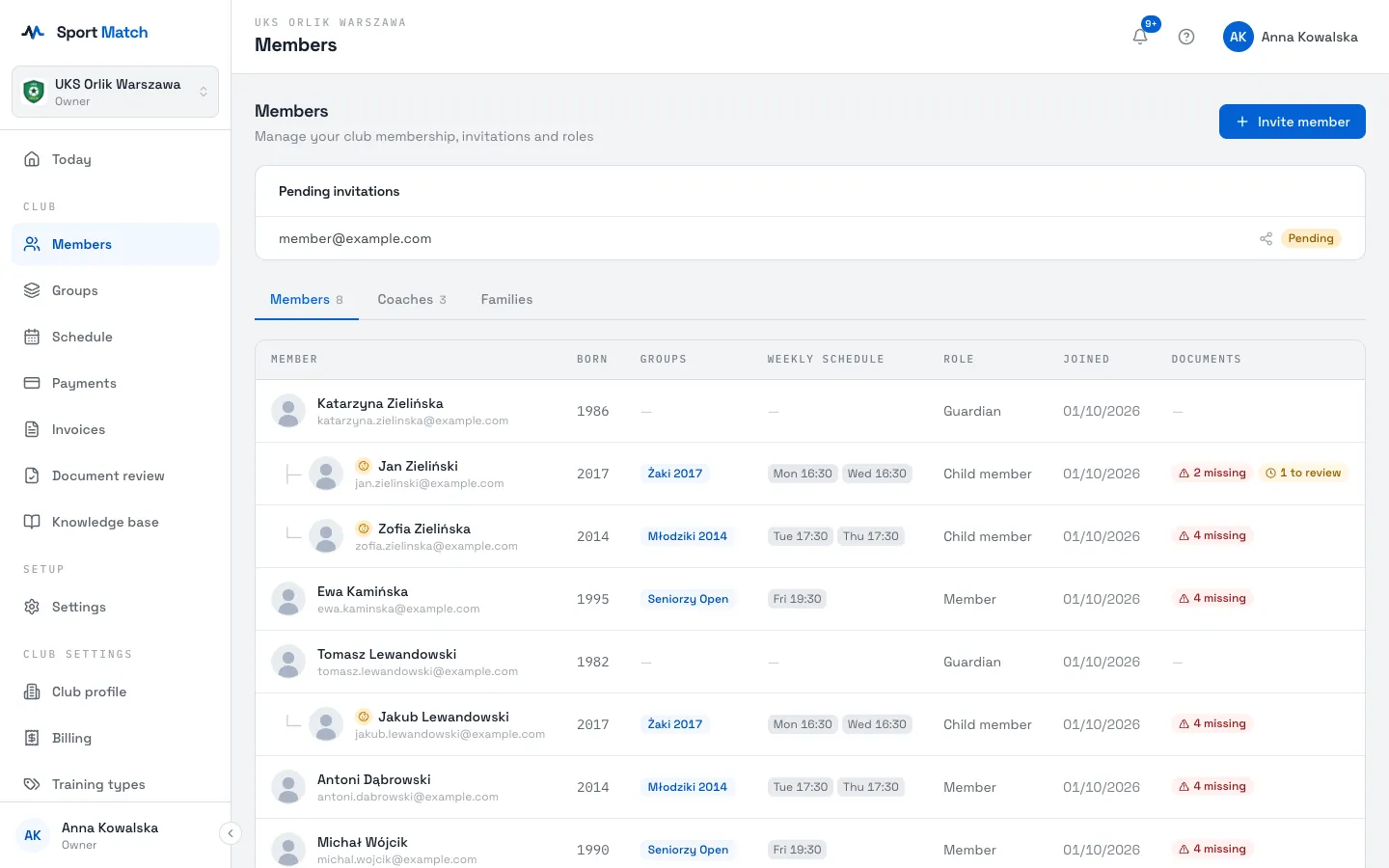
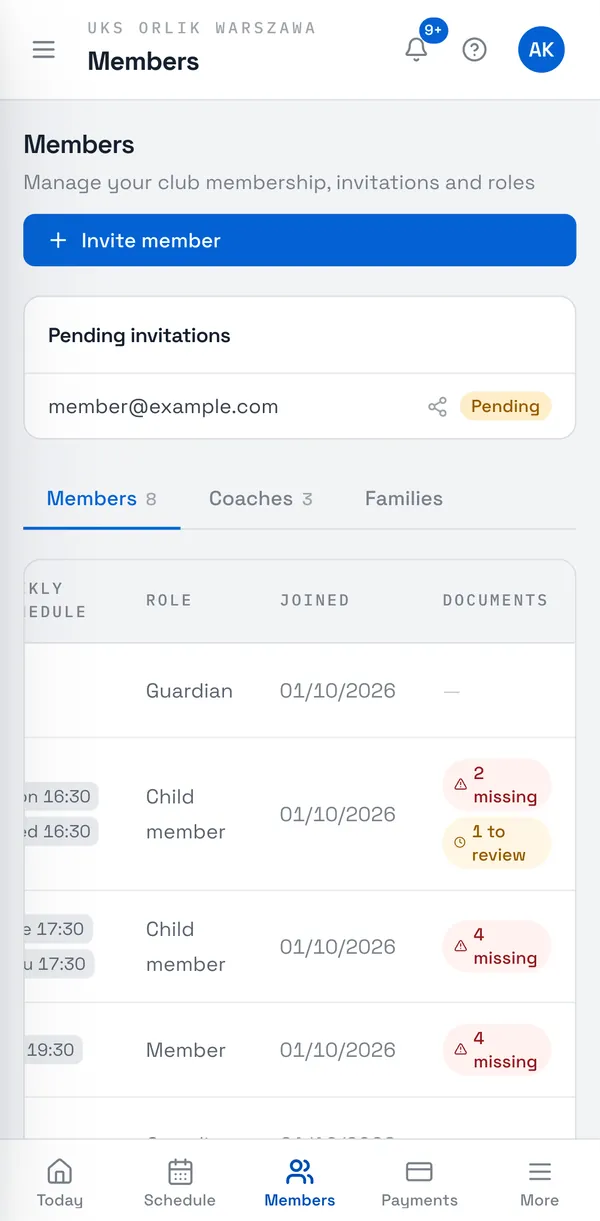
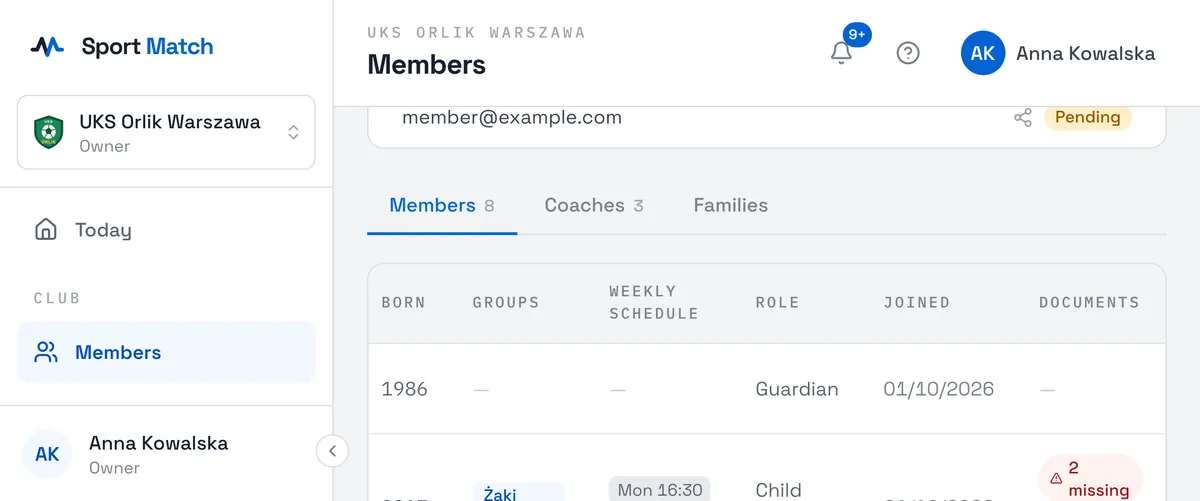
Open Members in the menu on the left (on a phone, in the bar at the bottom). At the top are your Pending invitations; below them the Members, Coaches and Families tabs.
-
Each row shows the year of birth, the member’s Groups, their Weekly schedule, Role and the date they joined. Children are listed under their parent.
-
The Documents column tells you at a glance what is missing: Complete, 3 missing or 1 to review. More in required documents.
-
Click a row to open that member’s page.
You add new members by inviting them — see Inviting members, parents and coaches.
Roles in the club
A role decides what someone sees: a Coach runs sessions and takes attendance, a Guardian handles their children’s matters, a Member and a Child member train. Someone becomes a guardian automatically when you pick them as a child’s parent (below).
-
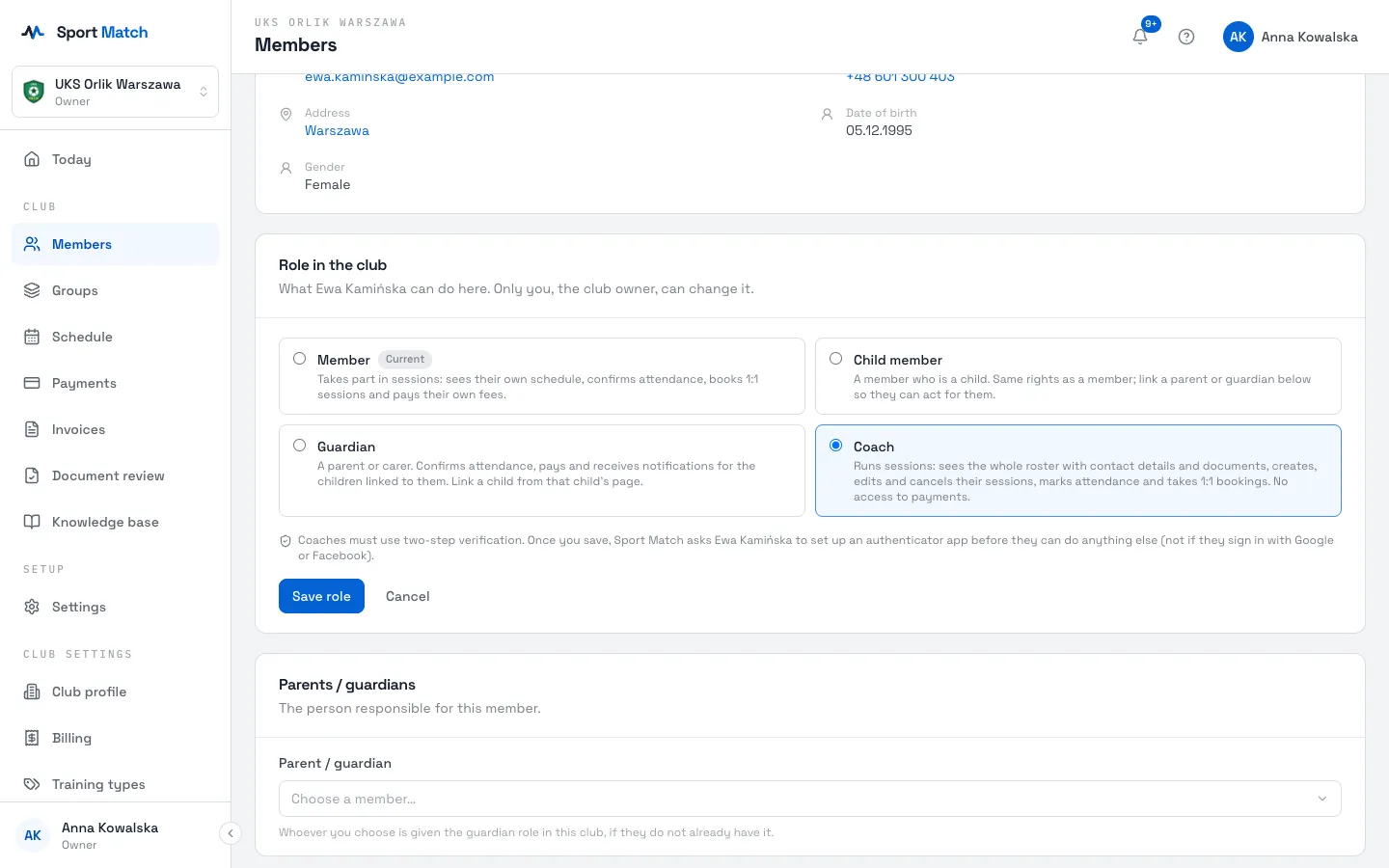
In Members, click the person to open their page. On the General info tab you’ll find the Role in the club section.
-
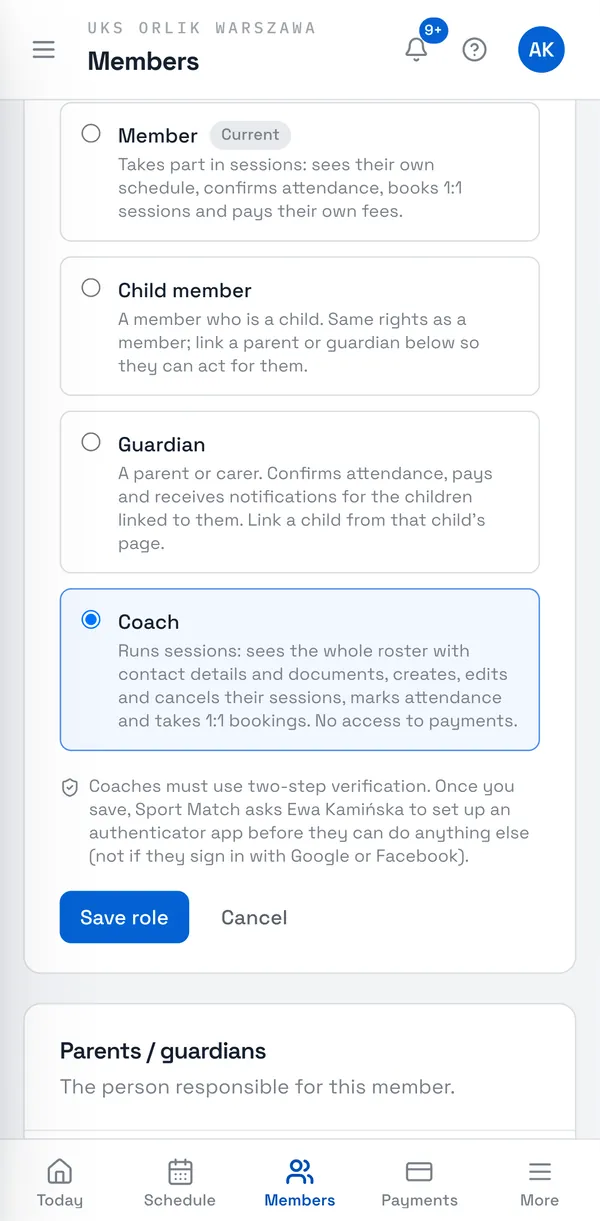
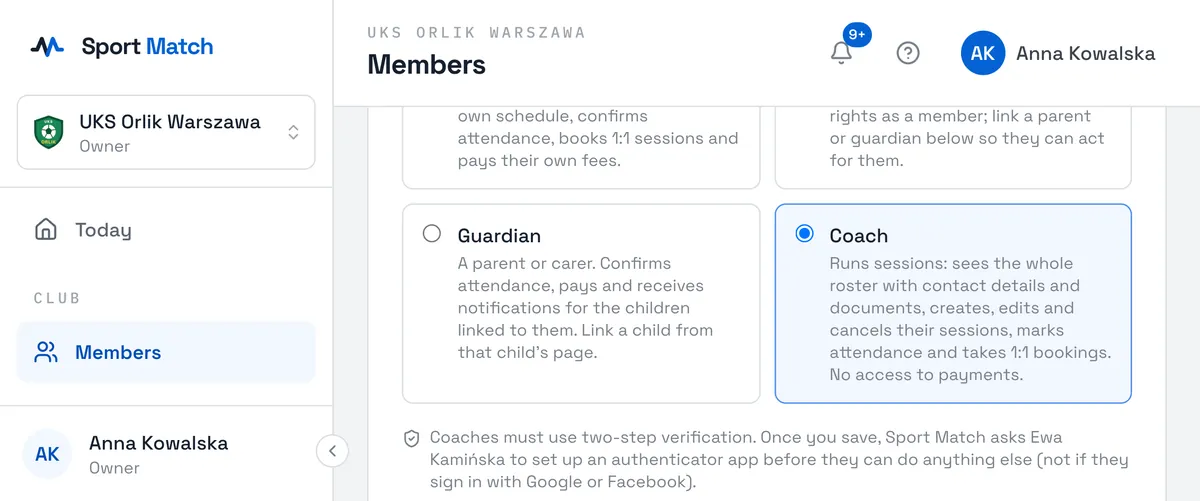
Pick a role: Member, Child member, Guardian or Coach. Each one says what the person will be able to do; the current one is labelled Current.
-
Choose Save role. The change applies straight away — a new coach shows up in the coach lists for groups and sessions, for example.
-
Taking the coach role away, or the guardian role from someone with linked children? The app first shows what they will lose — confirm with Yes, change to … or choose Cancel.
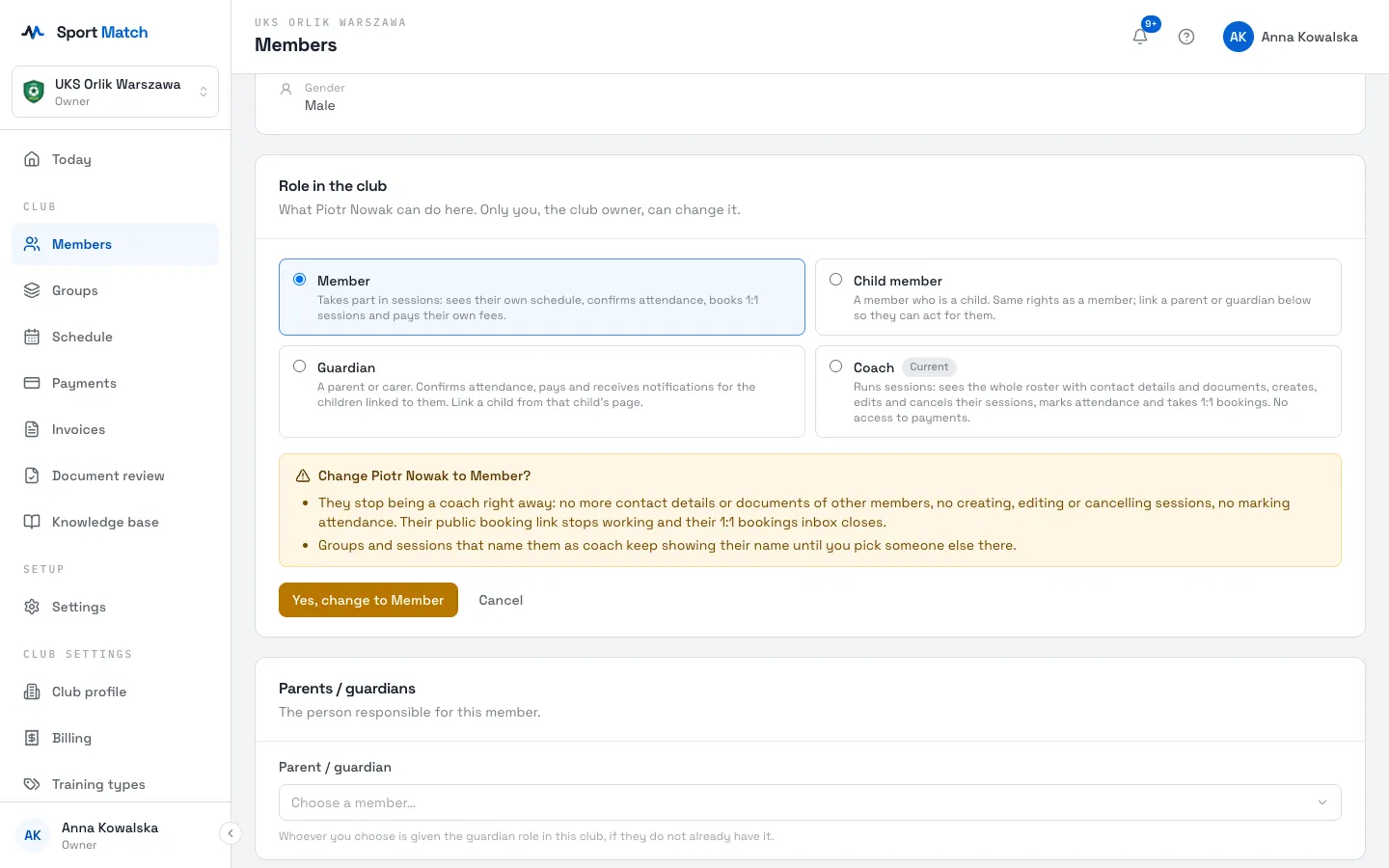
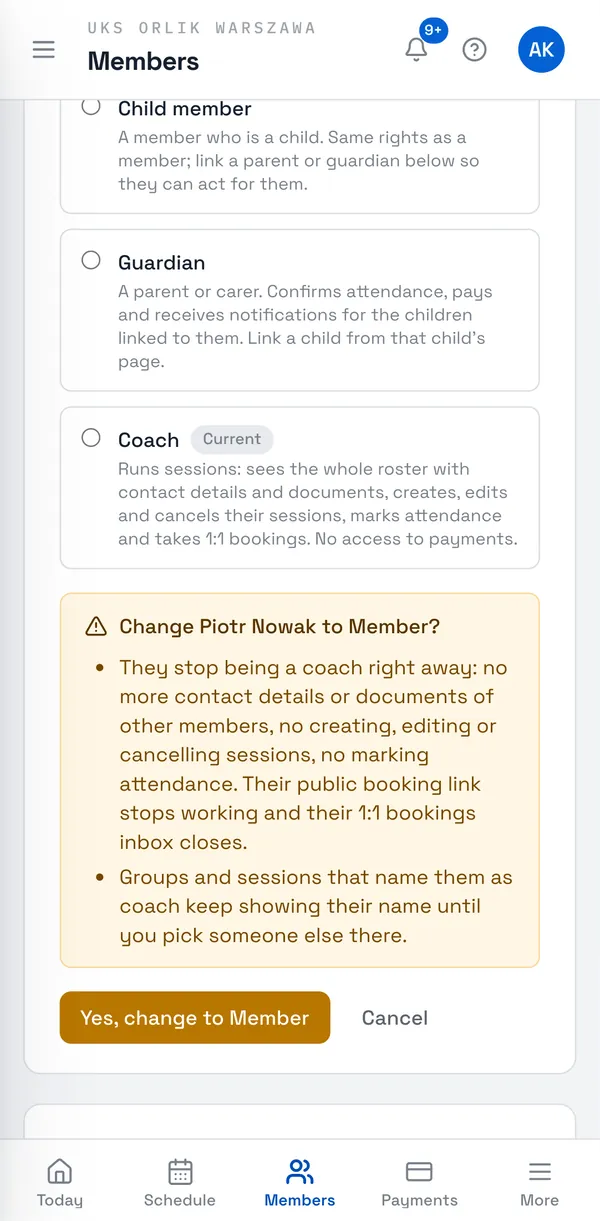
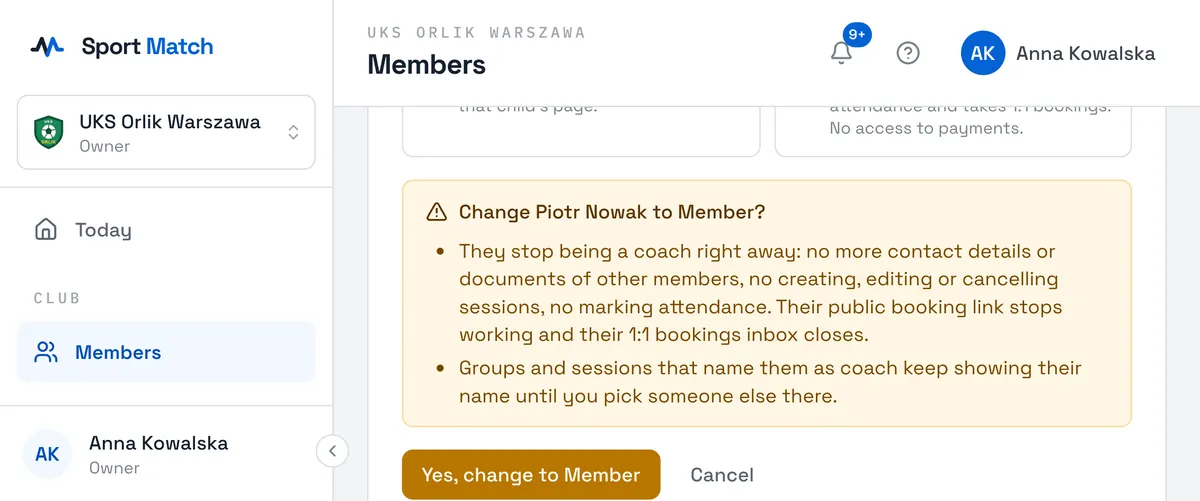
Only the club owner can change roles. Someone who has just joined shows No role assigned on the members list and counts as a member until you pick one — they can train, answer attendance and pay. Your own owner role can’t be changed here.
A member’s page
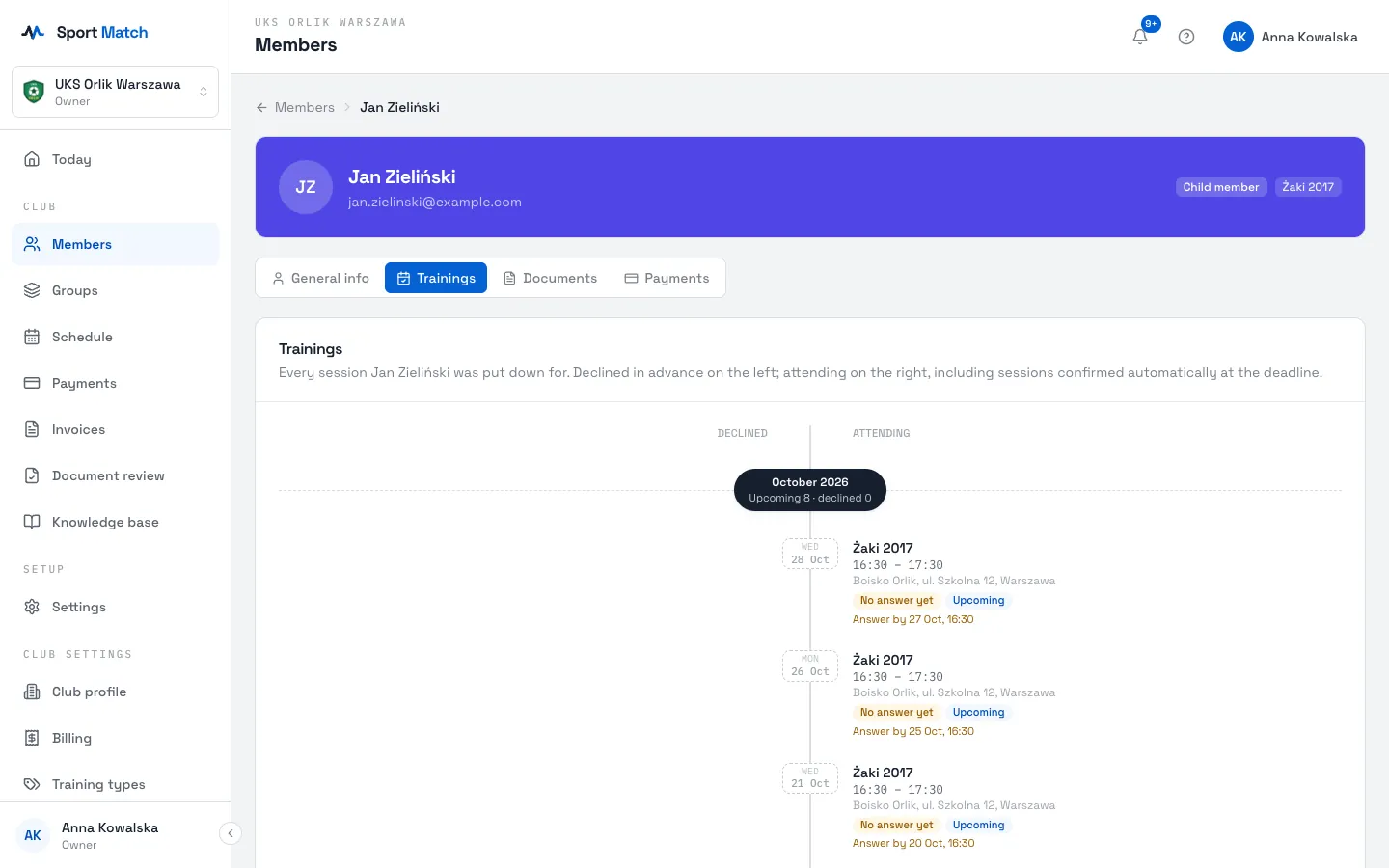
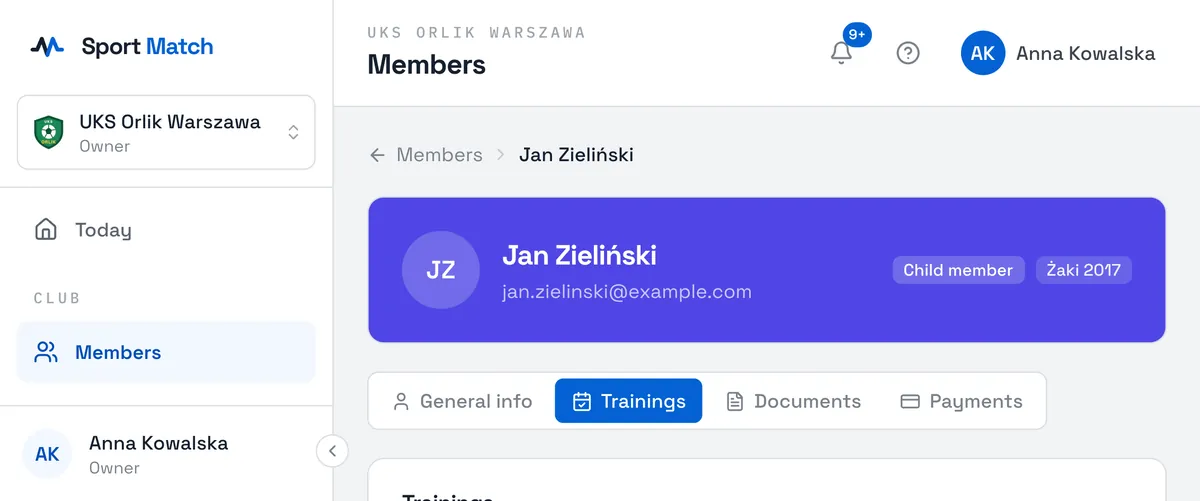
A member’s page has four tabs:
- General info
- contact details (phone, address, full date of birth), account status, parents and guardians, and billing.
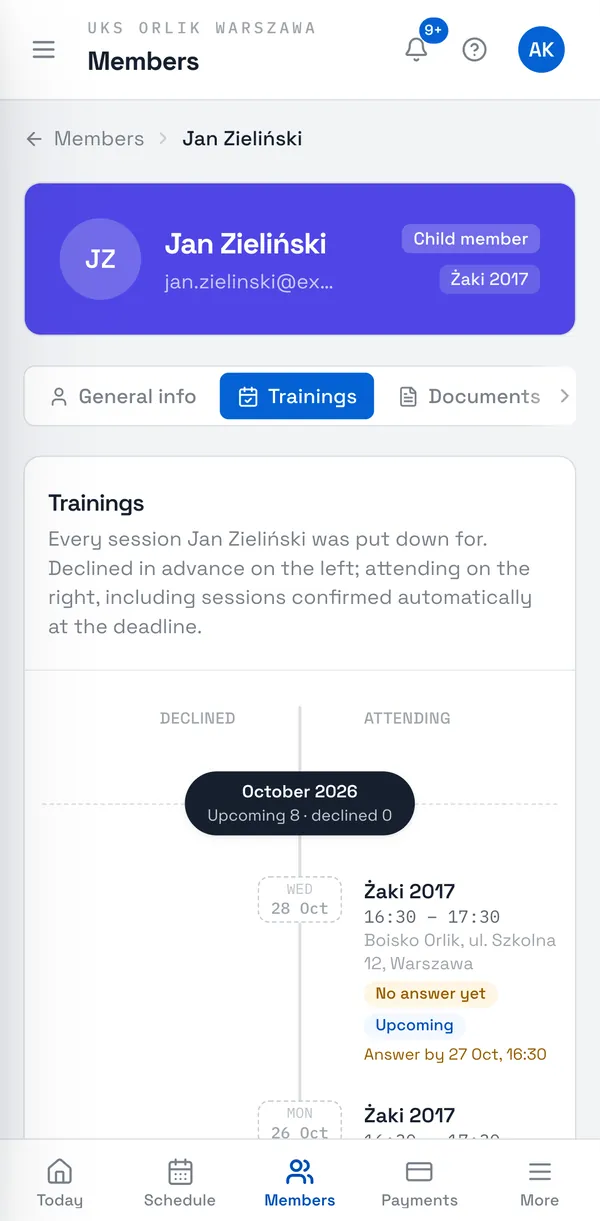
- Trainings
- every session the member is on — declines given in advance on the left, attendance on the right, with a summary for each month.
- Documents
- forms to download, uploaded documents and reviewing them.
- Payments
- the balance and the history of charges and payments — see Payments and member balances.
Tip: Until a member has activated their account (for example they were invited but haven’t signed in yet), you can fill in their details yourself with Edit details. Once the account is active, only they can change them.
Children’s parents and guardians
A child in Sport Match has an account of their own, and a parent handles their matters: confirming attendance, paying and handing in documents. A child can have several guardians — both separated parents, say, or a grandparent.
-
Open the child’s page under Members.
-
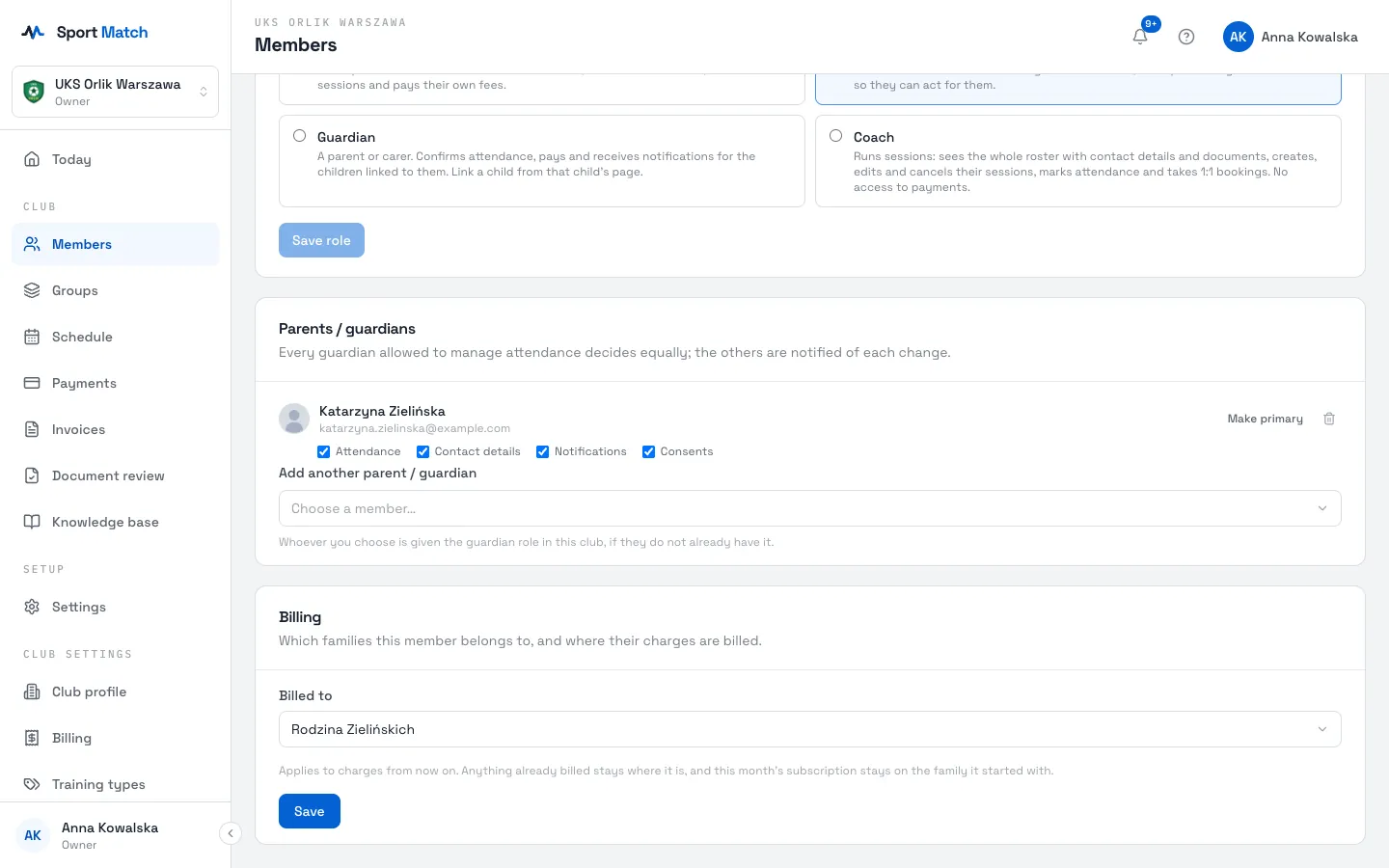
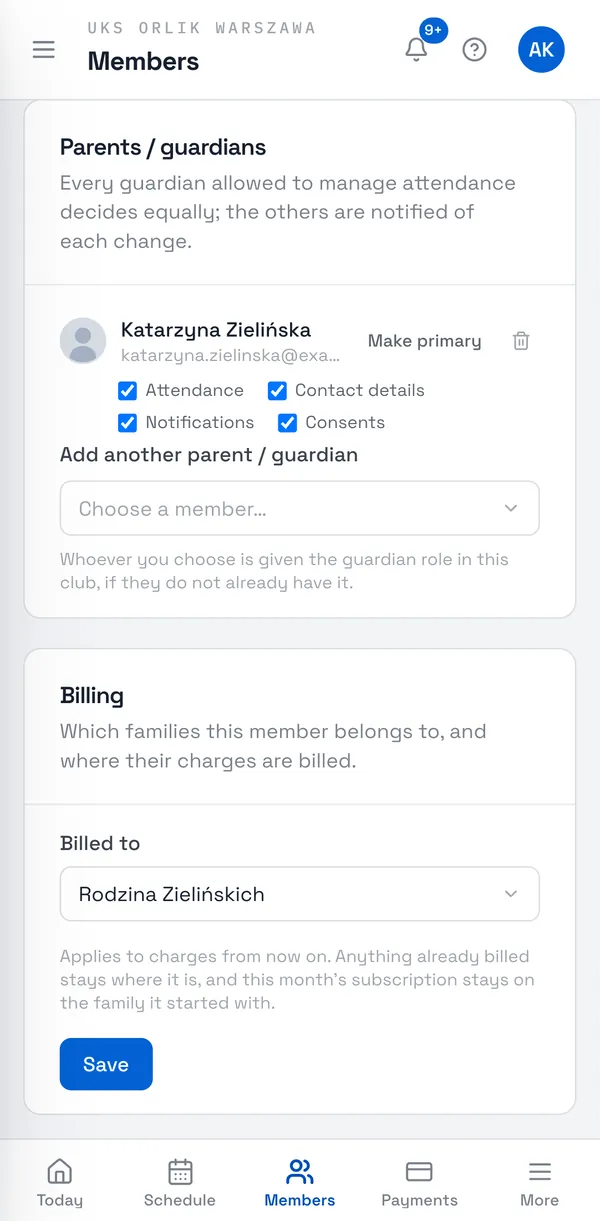
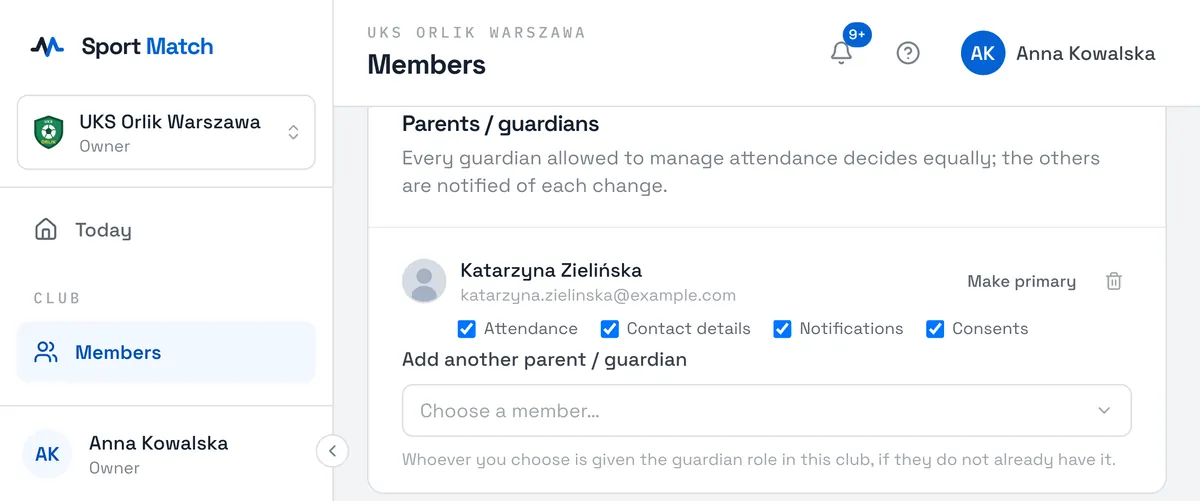
Under Parents / guardians, pick the person in Add another parent / guardian. Whoever you choose is given the guardian role in your club if they don’t have it yet.
-
For each guardian, tick what they may do: Attendance (confirm and decline sessions), the child’s Contact details, Notifications about the child, and Consents (handing in documents).
-
If only one parent should decide attendance, click Make primary next to them. Without a primary guardian everyone allowed decides equally, and the others are notified of each change.
A guardian only sees the child’s matters — never the other guardian’s contact details or payments.
Family accounts: who pays for whom
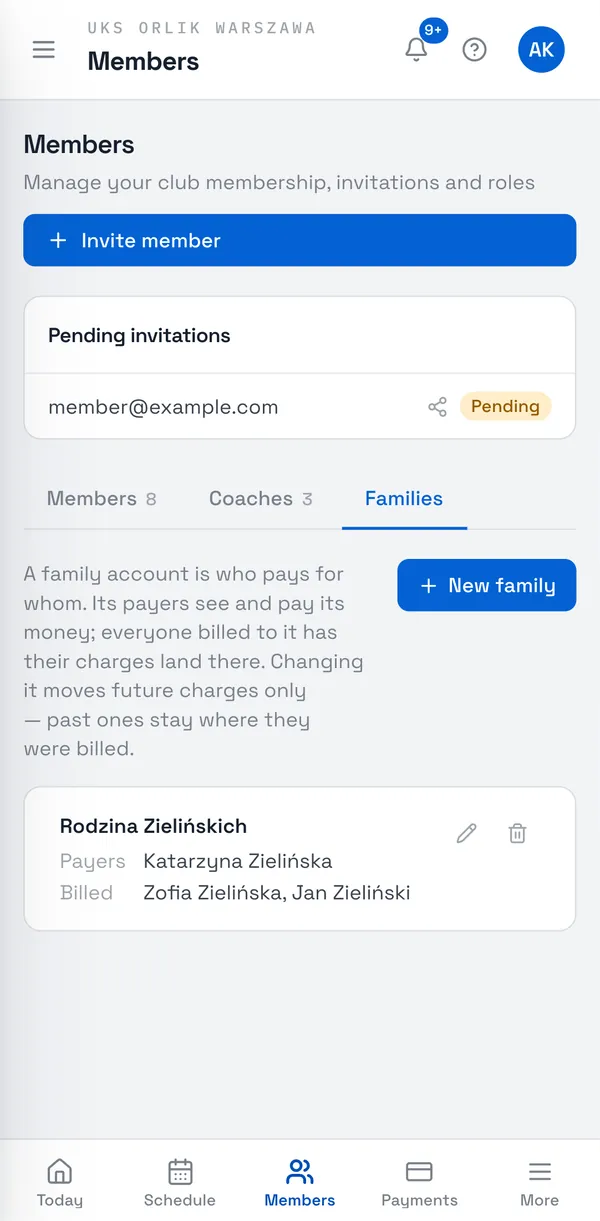
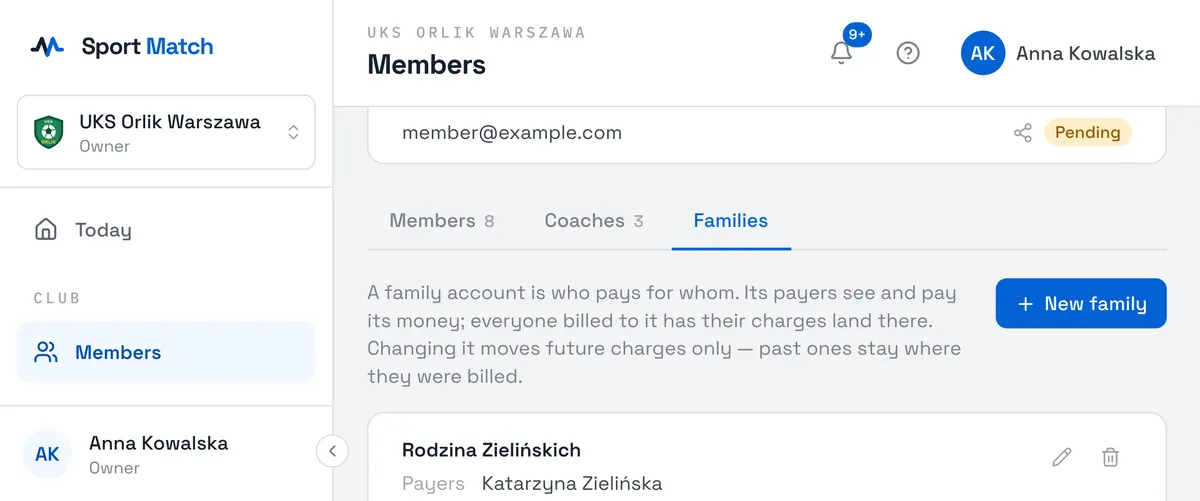
A family account links the people who pay with the people they pay for. Its payers see its charges and can pay them, and the charges of everyone billed to it land there. Useful when a child’s parents pay separately, or when an adult who trains also pays for their children.
-
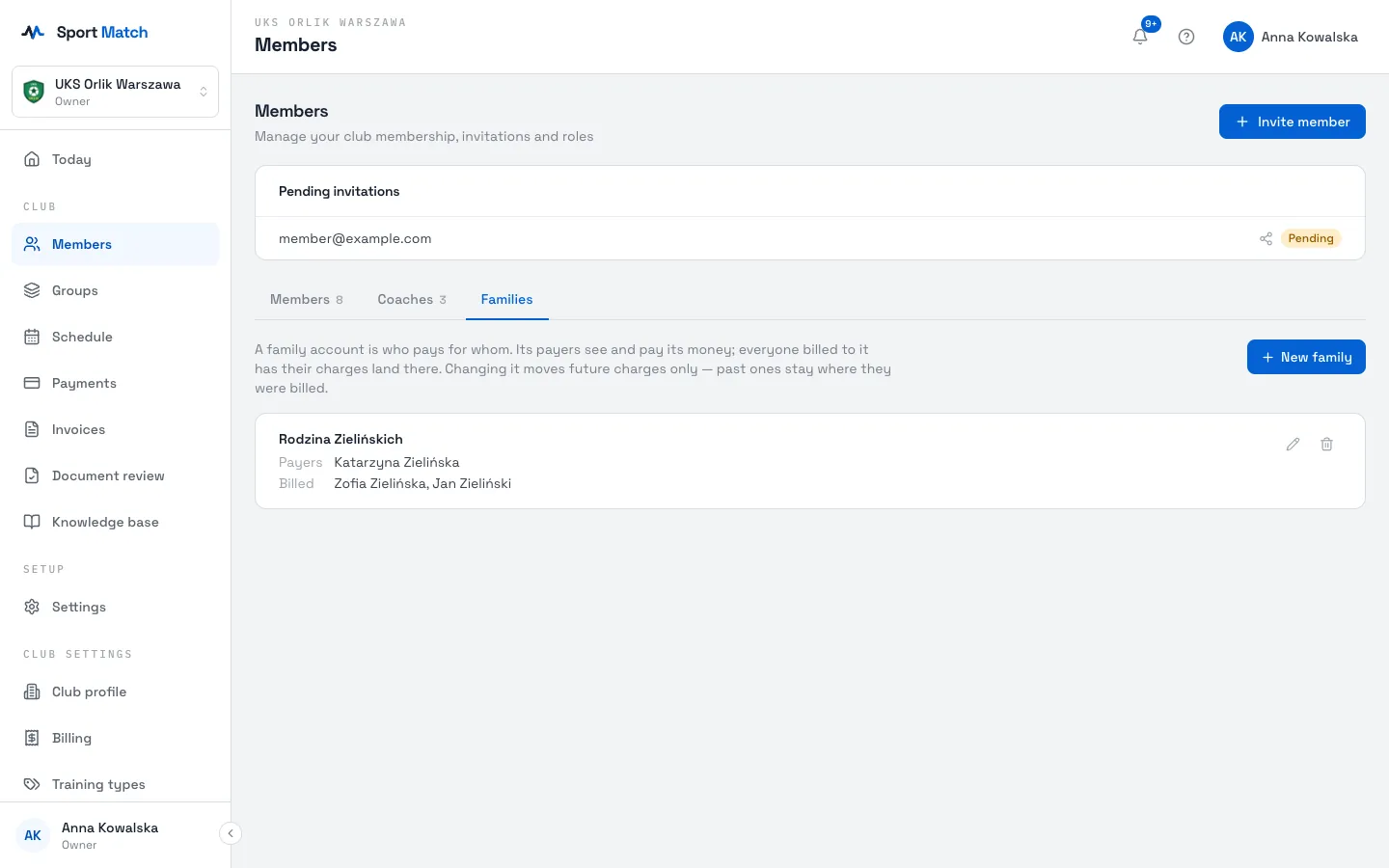
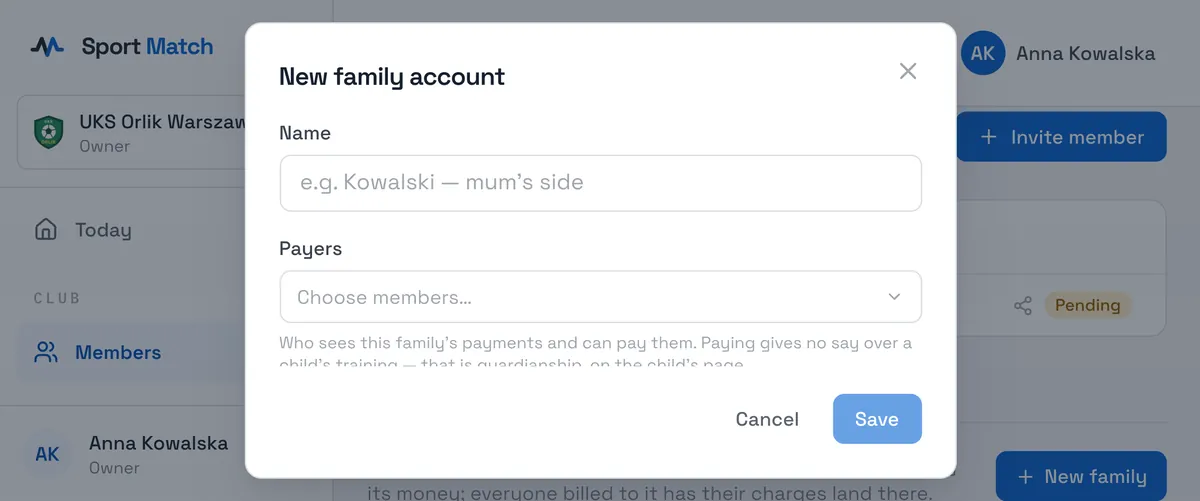
Under Members, open the Families tab and click New family.
-
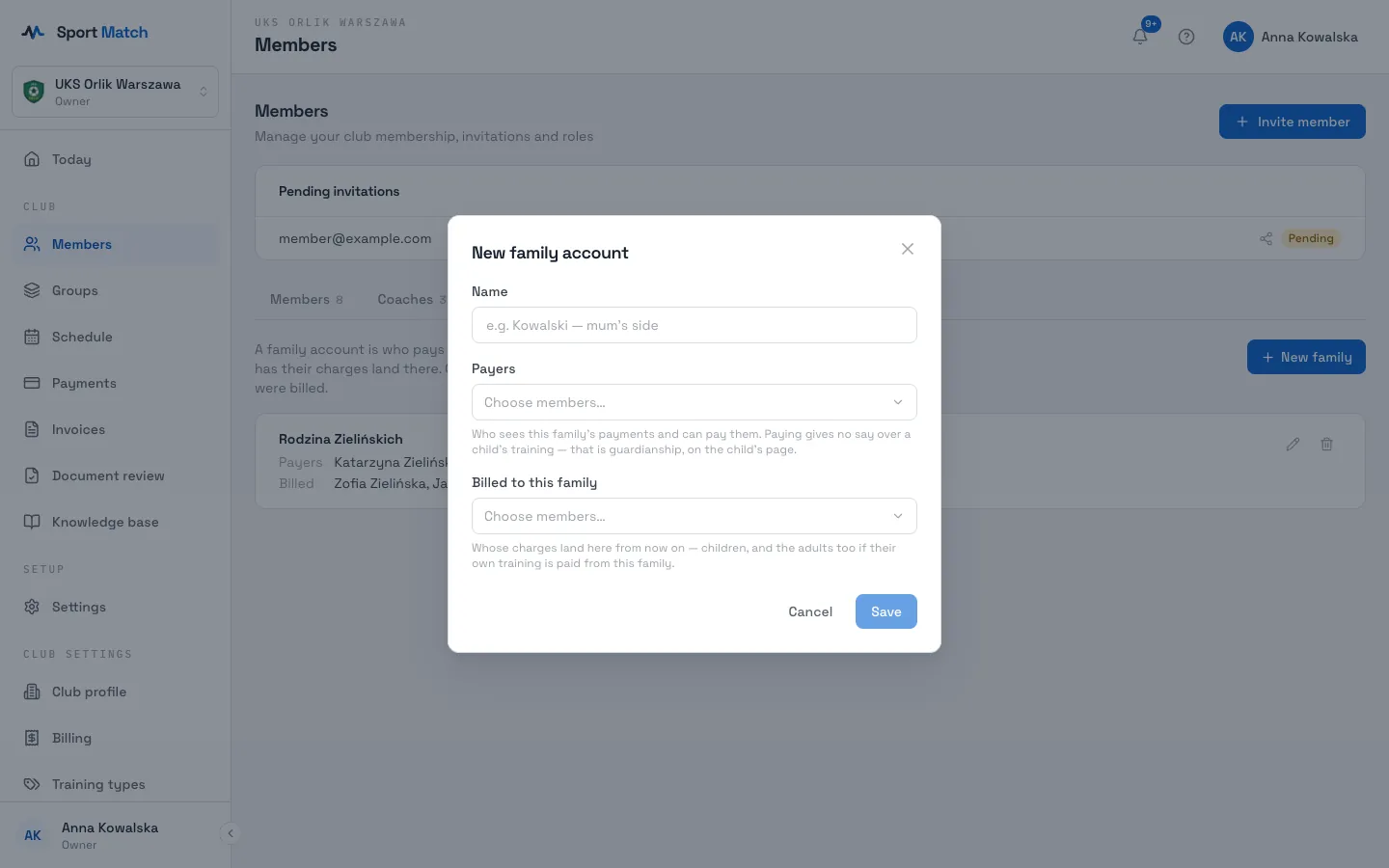
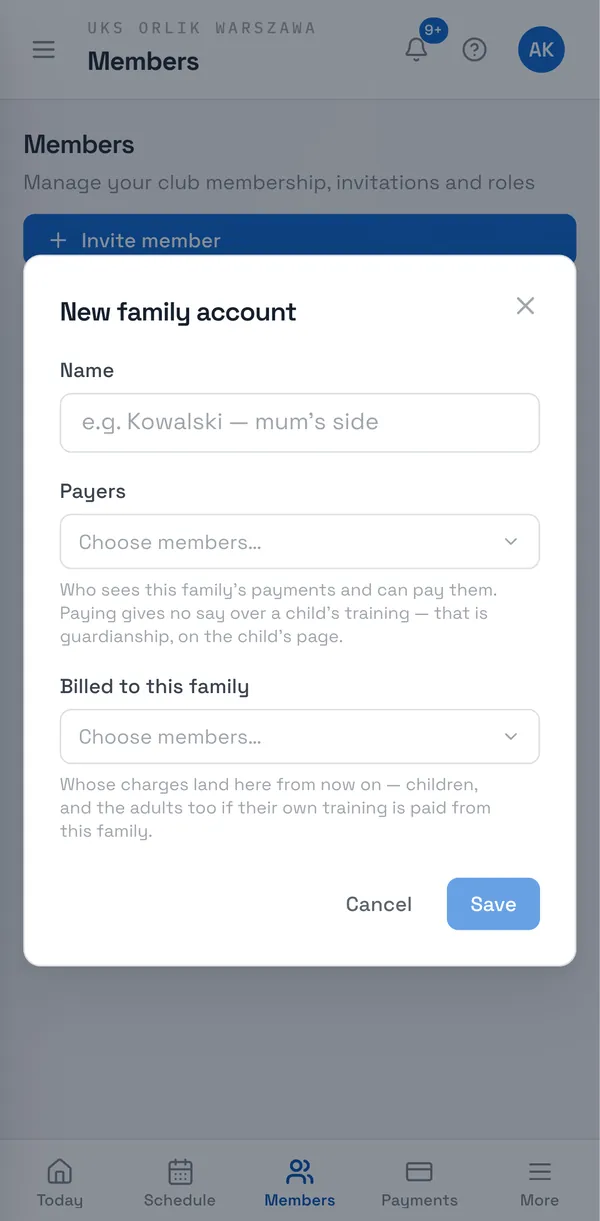
Enter a Name (e.g. “Kowalski — Anna’s account”), choose the Payers and who is Billed to this family, then Save.
-
On a member’s page, under Billing, you see and change where they are Billed to — a family, or Pays for themselves.
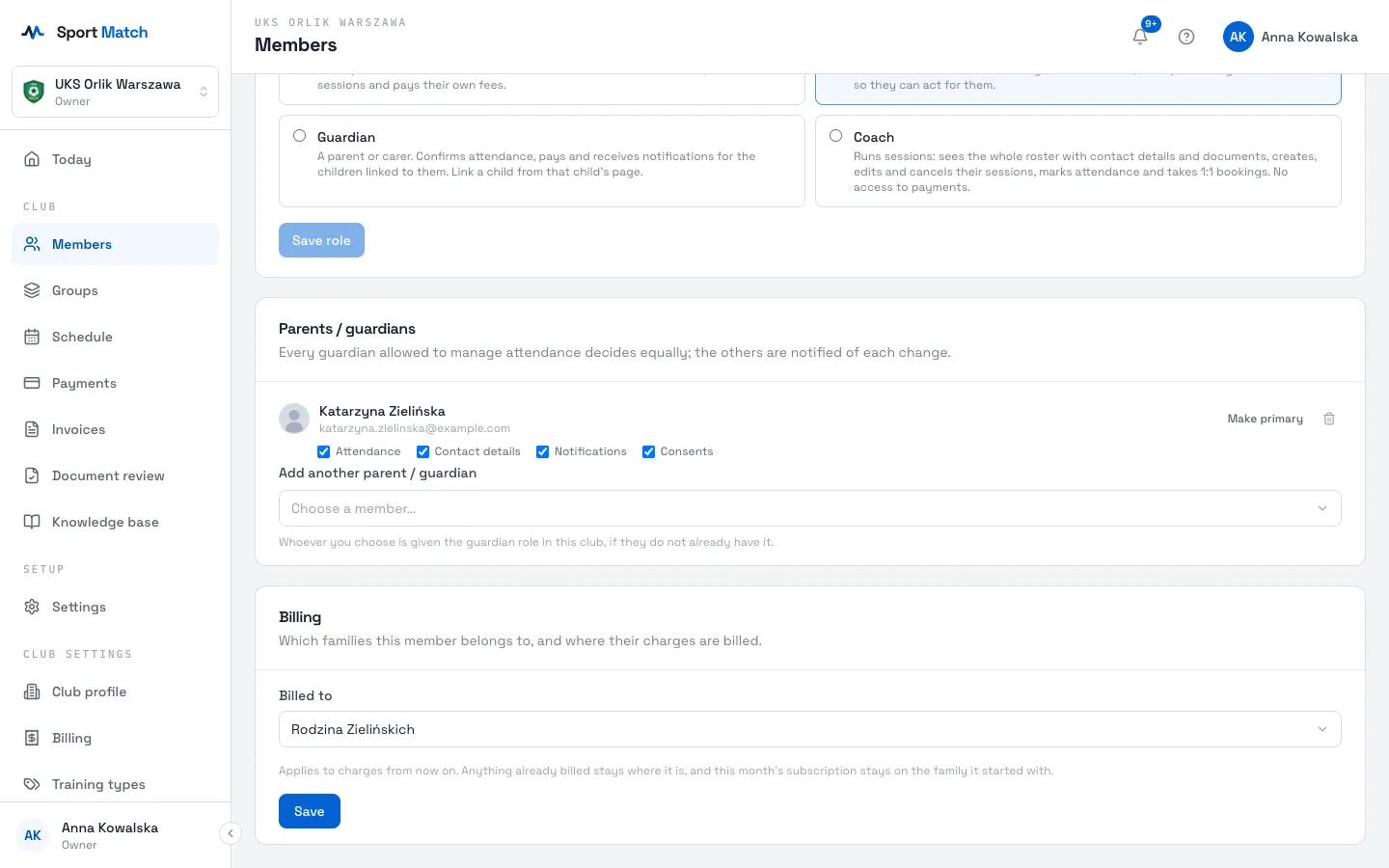
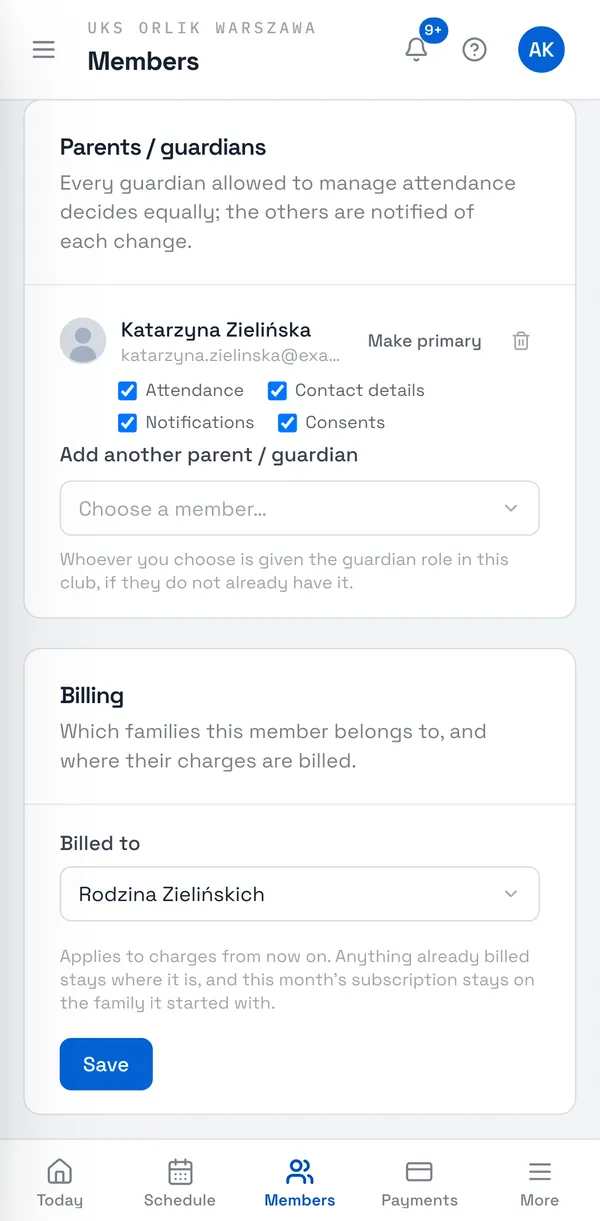
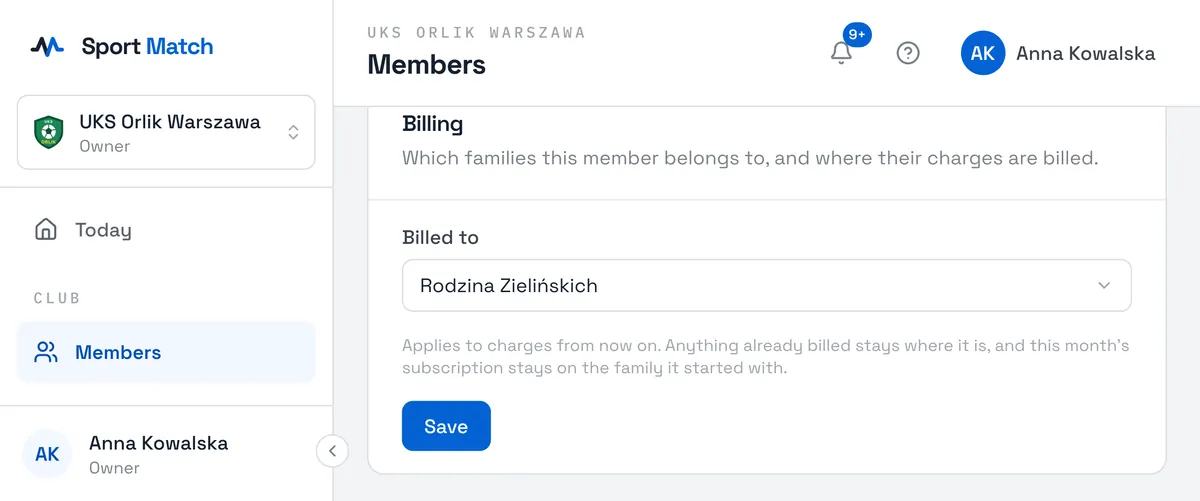
Important: A change only applies to future charges. Anything already billed stays where it is, and this month’s subscription stays with the family it started on.
A payment never crosses from one family to another. Someone who pays for two families divides each payment between them themselves at Pay now.
Frequently asked questions
A parent can’t see their child in the app
Check on the child’s page that this parent is listed under Parents / guardians. The child needs their own account in the club — they accept an invitation — before you can link them to a parent.
Why is there a family row in the payments table?
Because the children are billed to a family account. Click the row with the family badge to see each person.
Didn’t find an answer?
Write to us in the chat — it opens on this page, no login needed — or email contact@sportmatch.pl.