Billing details and bank account
Your billing details say who receives your members’ payments, and they go on your invoices and club documents. Open Club settings → Billing.
Screenshots
Payment recipient and account
-
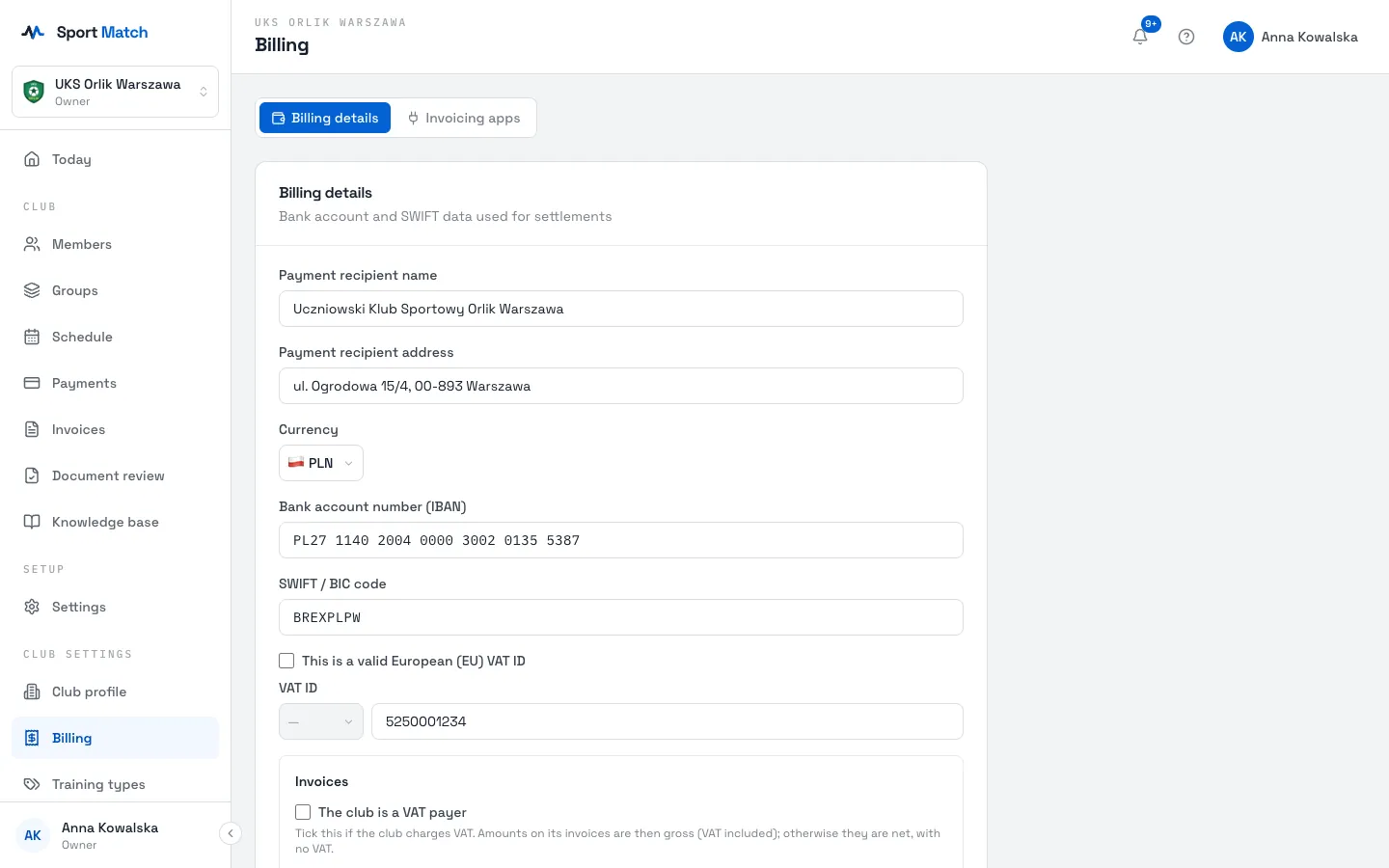
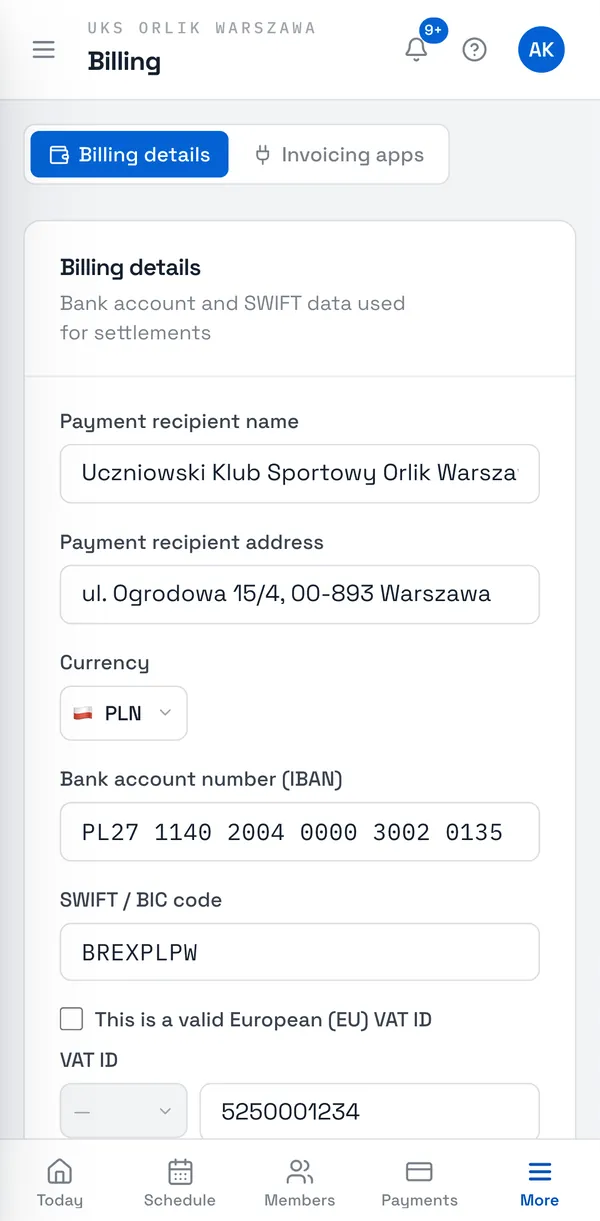
On the Billing details tab, enter the Payment recipient name and Payment recipient address — the way they should appear on invoices and documents (e.g. your association’s full name).
-
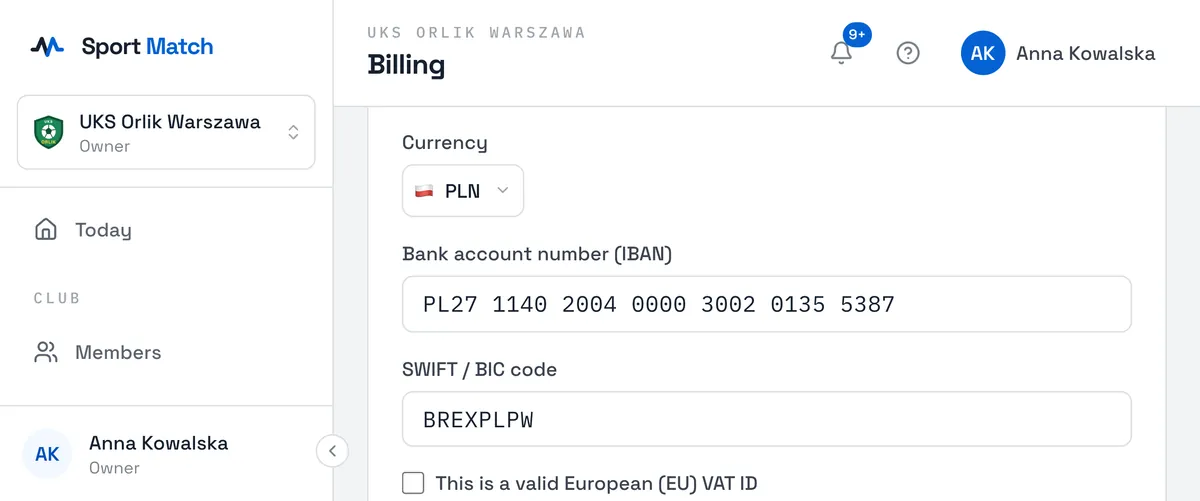
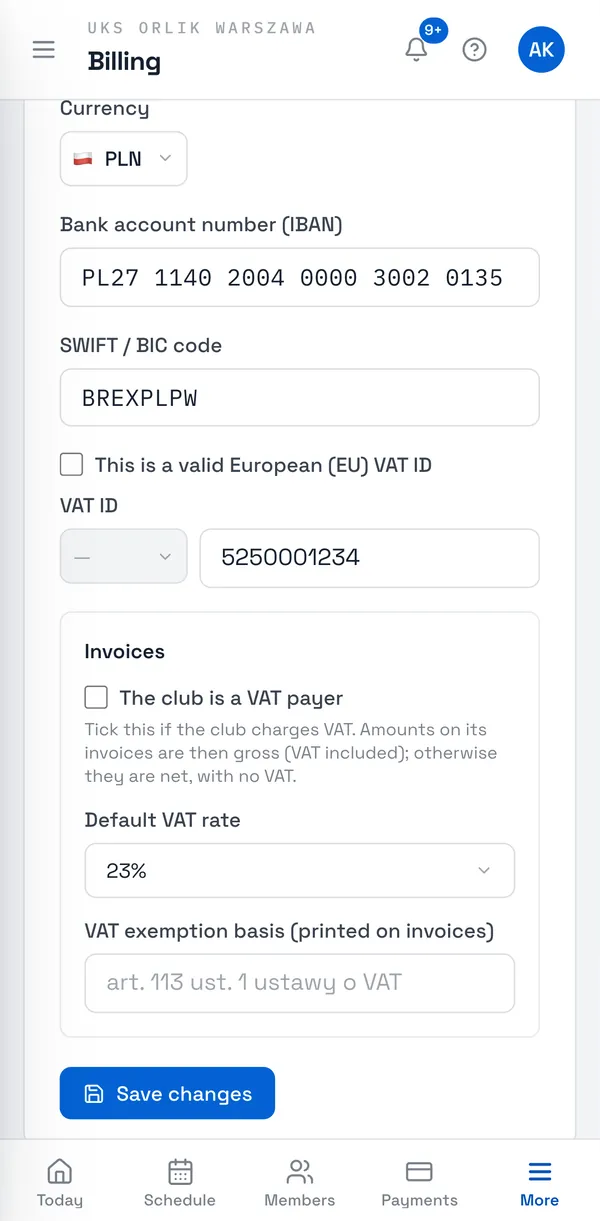
Choose the Currency, enter the Bank account number (IBAN) — the app groups the digits for you — and the SWIFT / BIC code.
VAT ID and VAT
-
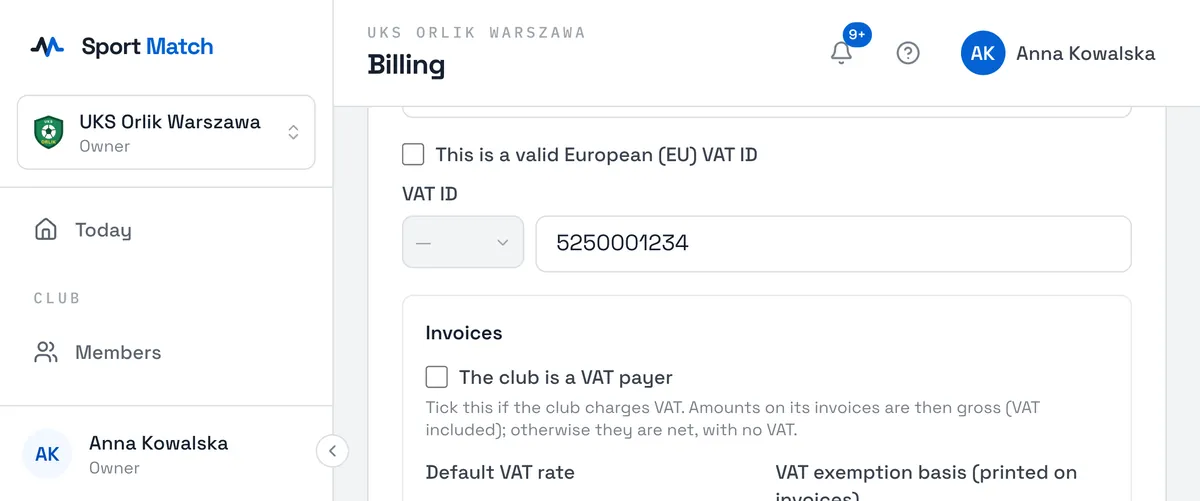
Enter the club’s VAT ID. If it is an EU VAT number, tick This is a valid European (EU) VAT ID and pick the Country prefix — the app checks it in the EU’s VIES system and shows VAT ID validated with VIES or VIES could not validate this VAT ID.
-
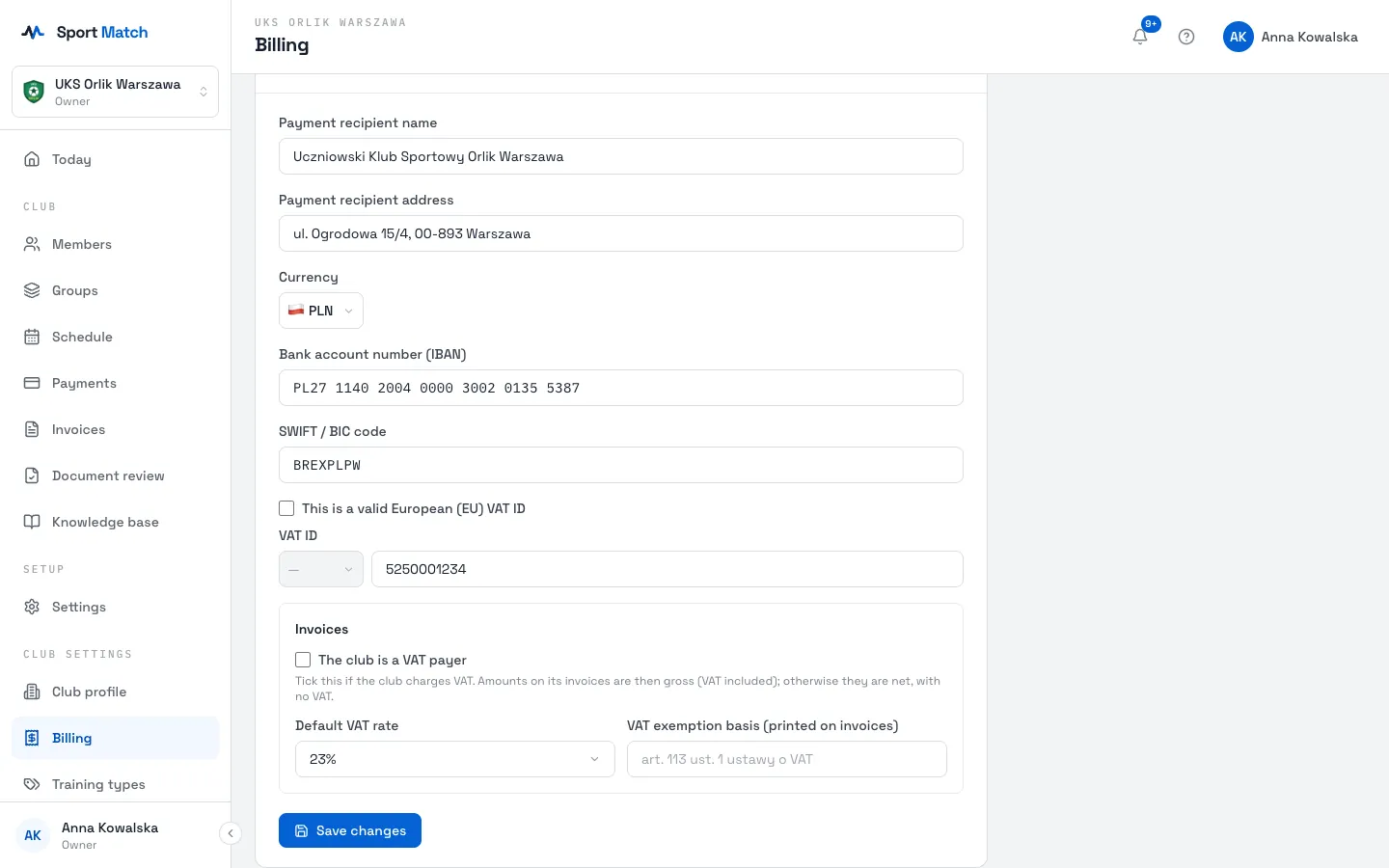
In the Invoices box, tick The club is a VAT payer if the club charges VAT — invoice amounts are then gross. Set the Default VAT rate. If the club is VAT-exempt, enter the VAT exemption basis (printed on invoices), e.g. “art. 113 ust. 1 ustawy o VAT”.
-
Choose Save changes at the bottom of the card.
If VIES is down for a moment, you’ll see VAT validation is temporarily unavailable — choose Retry validation later. Once VIES confirms an EU VAT number, the app treats the club as a VAT payer.
Where these details are used
- Invoices — the seller, VAT ID, VAT rate or exemption basis. → Invoices for payers
- Document templates — the recipient’s name and address fill the “data controller” and “controller address” variables in GDPR consents. → Document templates
- Payments — the currency your fees are charged in. → Payments and member balances
- Payouts — Sport Match pays the money from members’ online payments into this account every week. → How fees are billed
Invoicing apps
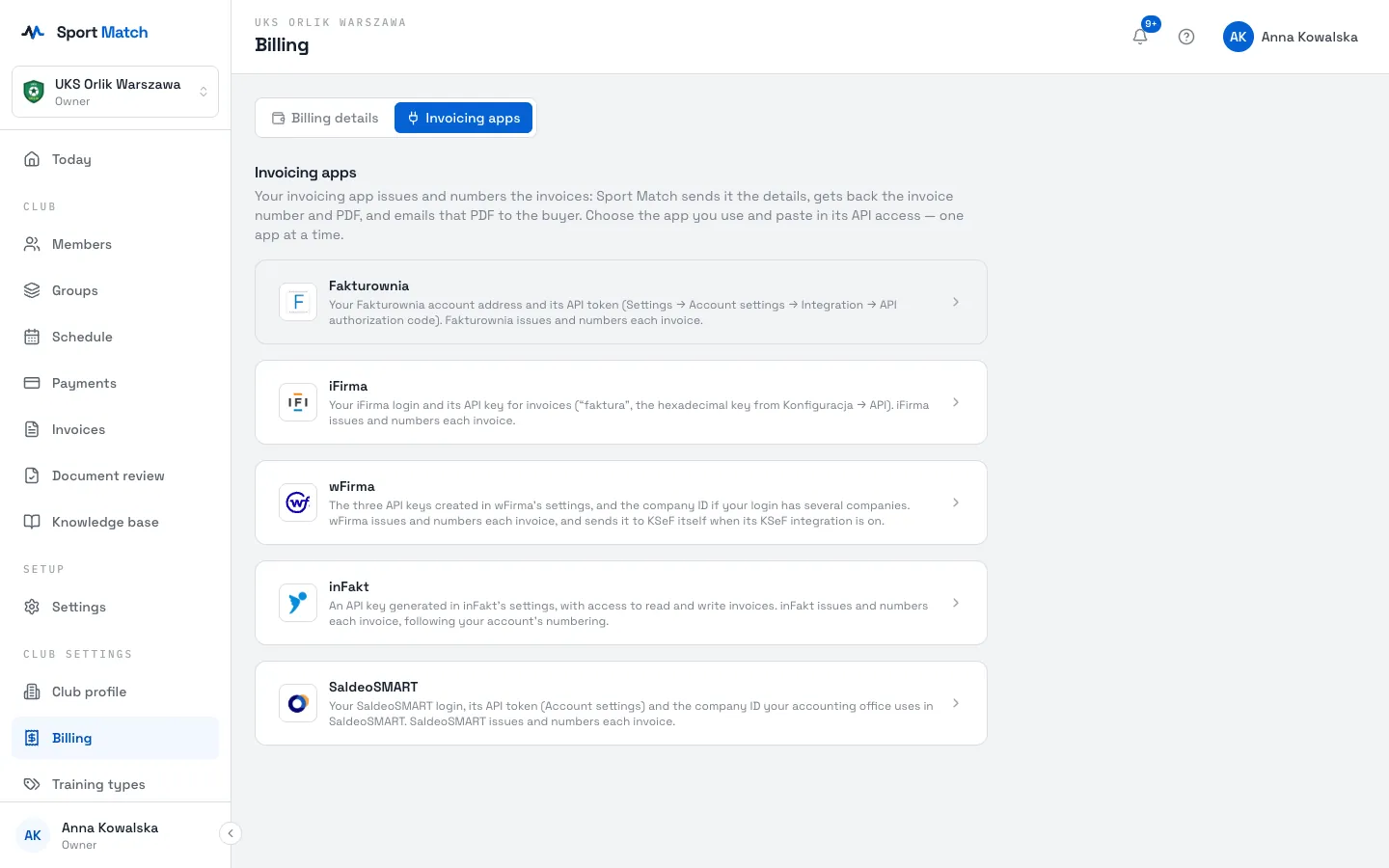
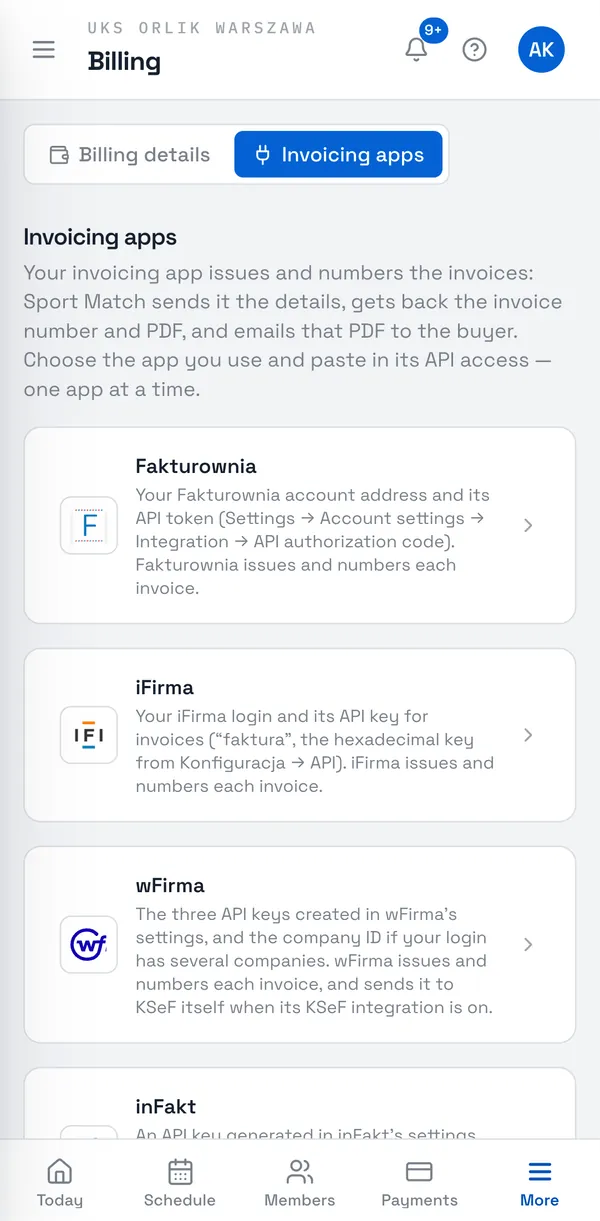
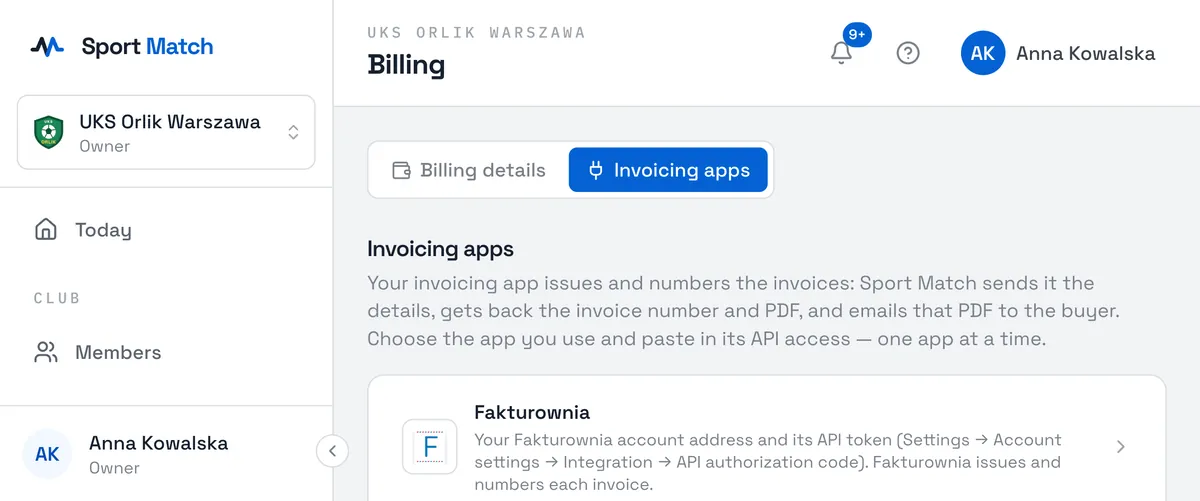
The second tab, Invoicing apps, connects Sport Match to your invoicing app — which is what issues and numbers your invoices. How to set it up: Invoices for payers.
Didn’t find an answer?
Write to us in the chat — it opens on this page, no login needed — or email contact@sportmatch.pl.