Invoices for payers
Sport Match prepares invoices for paid training, but doesn’t number them — your invoicing app does. The app hands it the details, gets back the number and the PDF, and emails the PDF to the buyer.
Screenshots
Connect your invoicing app
-
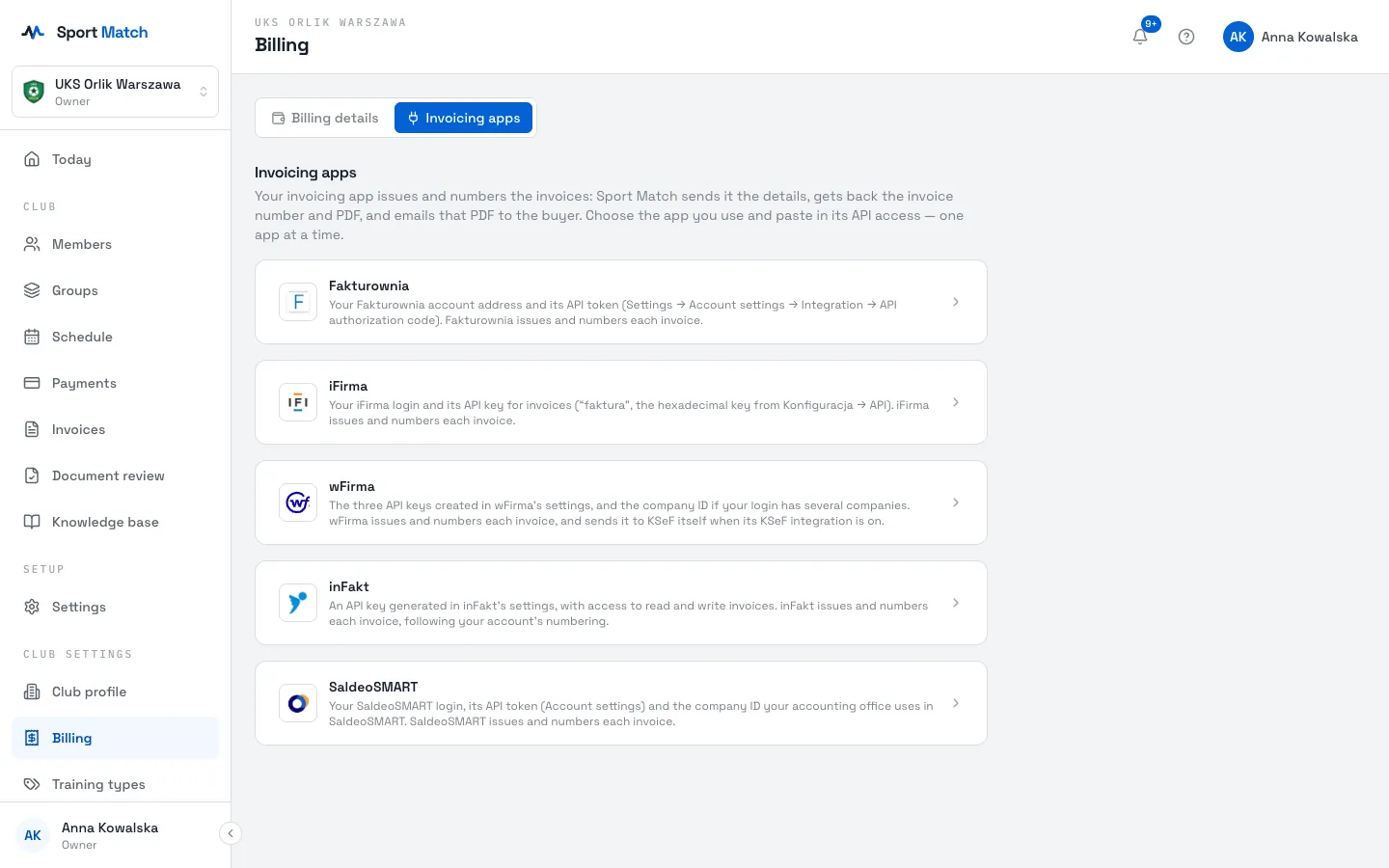
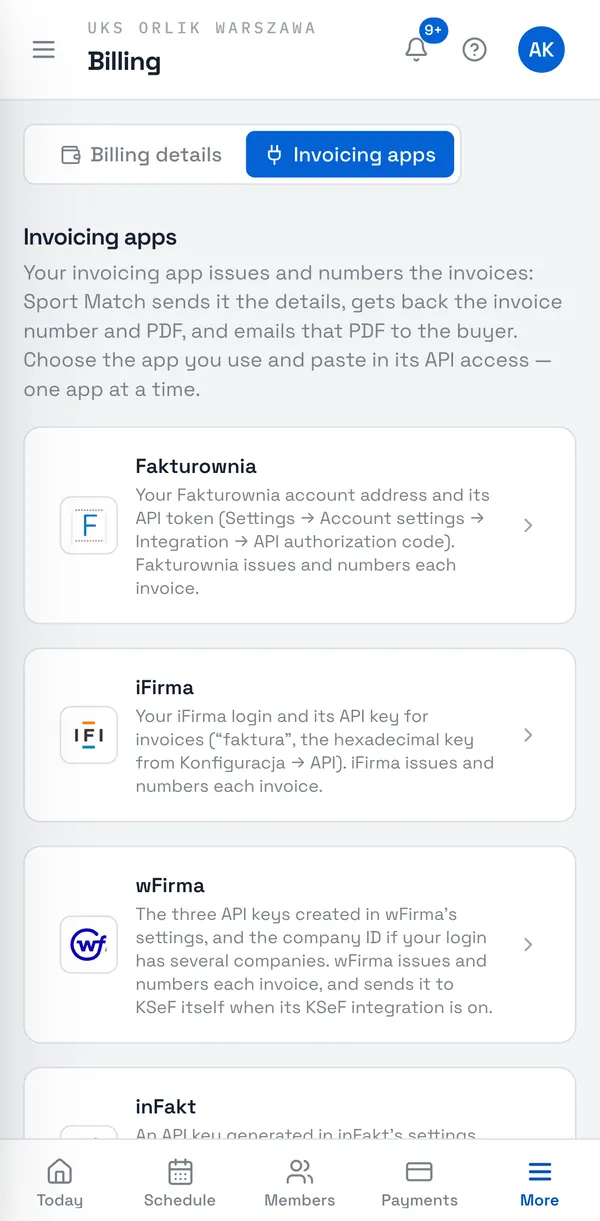
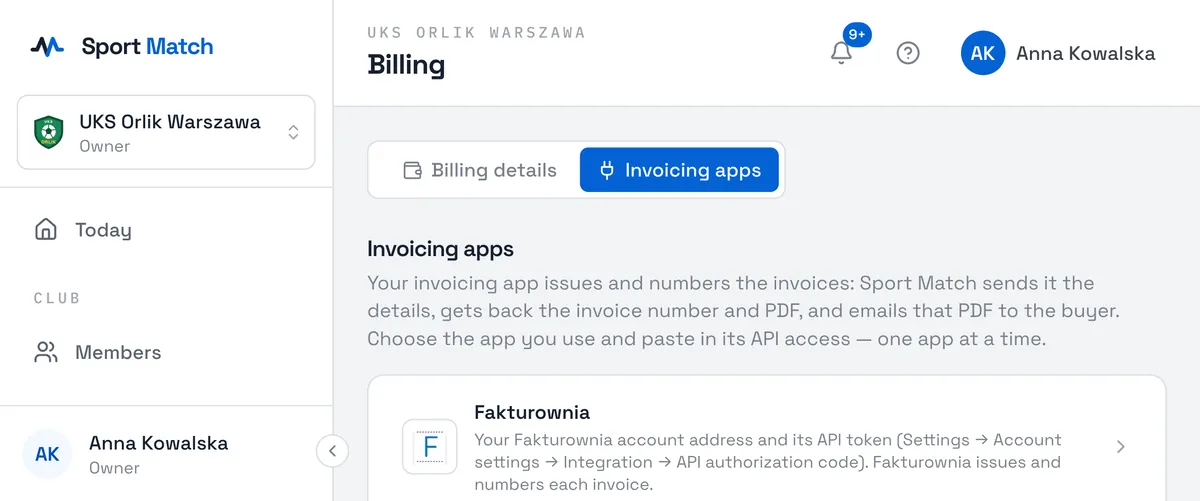
Under Club settings in the menu, open Billing and the Invoicing apps tab. You can choose Fakturownia, iFirma, wFirma, inFakt or SaldeoSMART.
-
Click your app and paste in its API access details — the description under the app’s name says where to find them in its settings.
-
If you want, tick Also send each invoice to KSeF — the app sends each invoice to KSeF once it has issued it (your KSeF access must be set up in that app). Tick Issue invoices here and click Save.
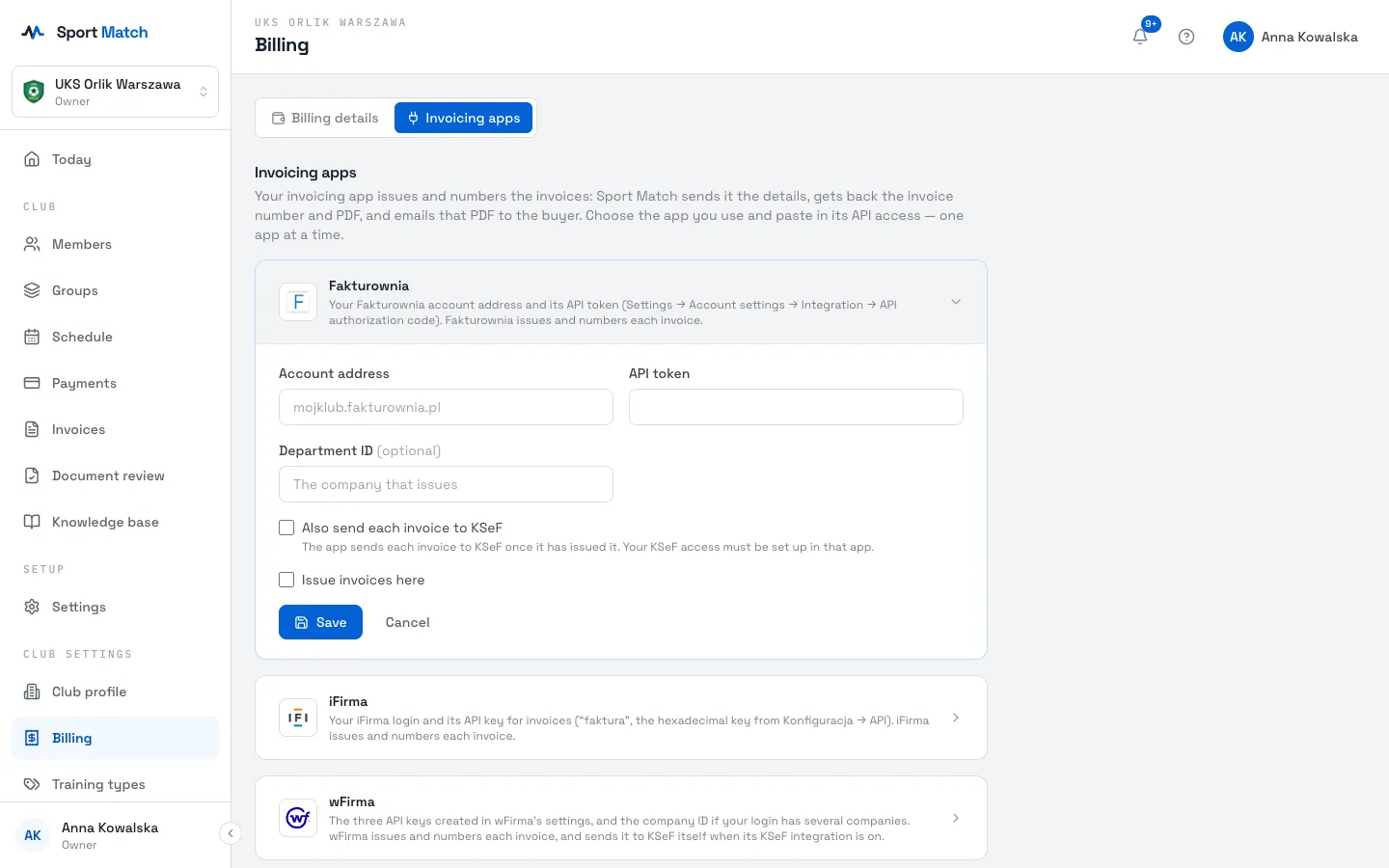
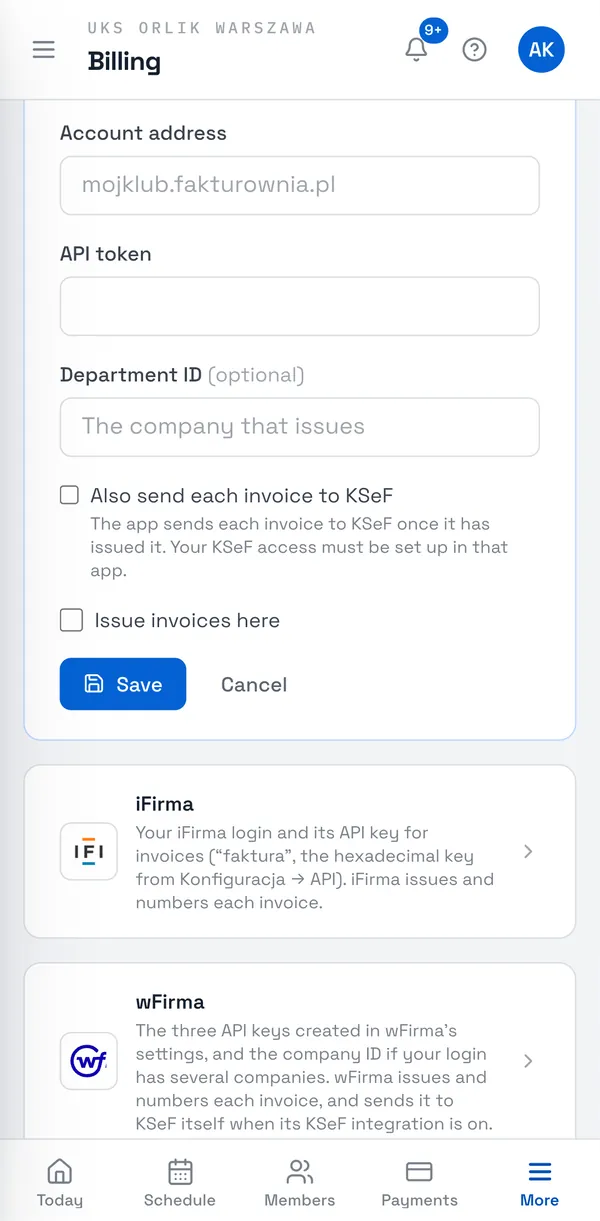
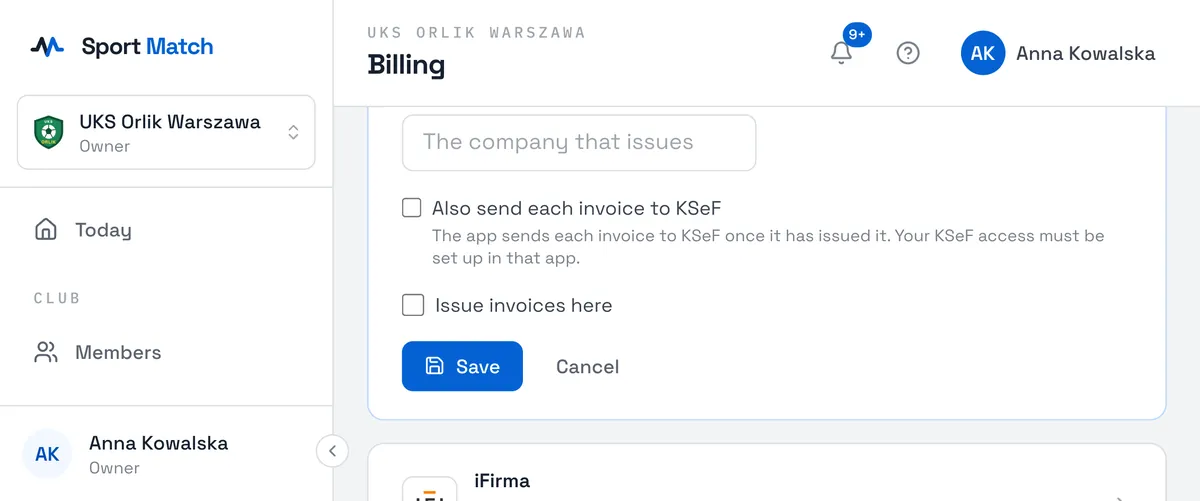
One app issues invoices at a time. A saved app shows Issuing invoices or Saved, not issuing; Disconnect removes the saved access details.
The seller details, the VAT rate and the VAT exemption basis come from the Billing details tab — see Billing details and bank account.
Draft invoices
-
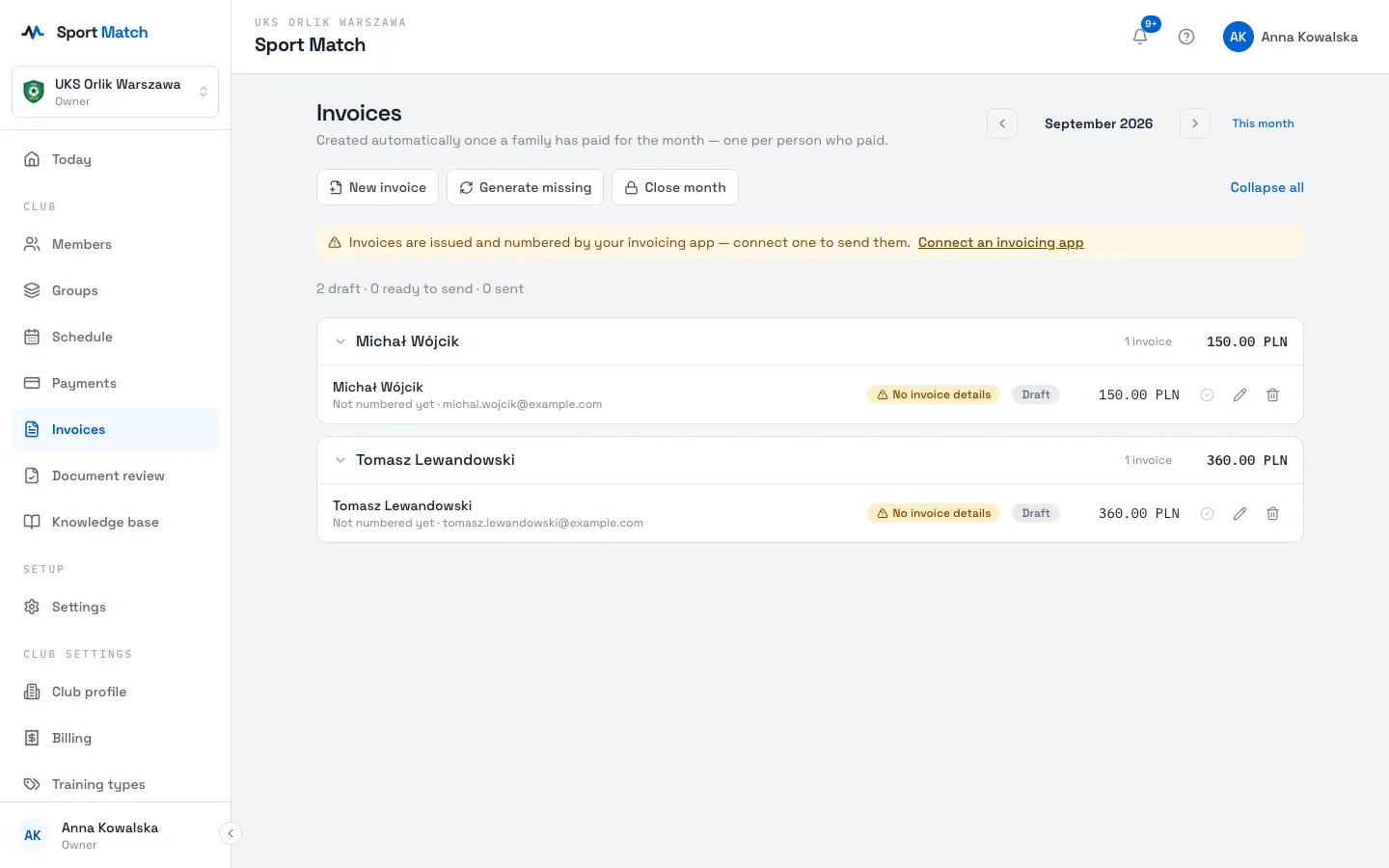
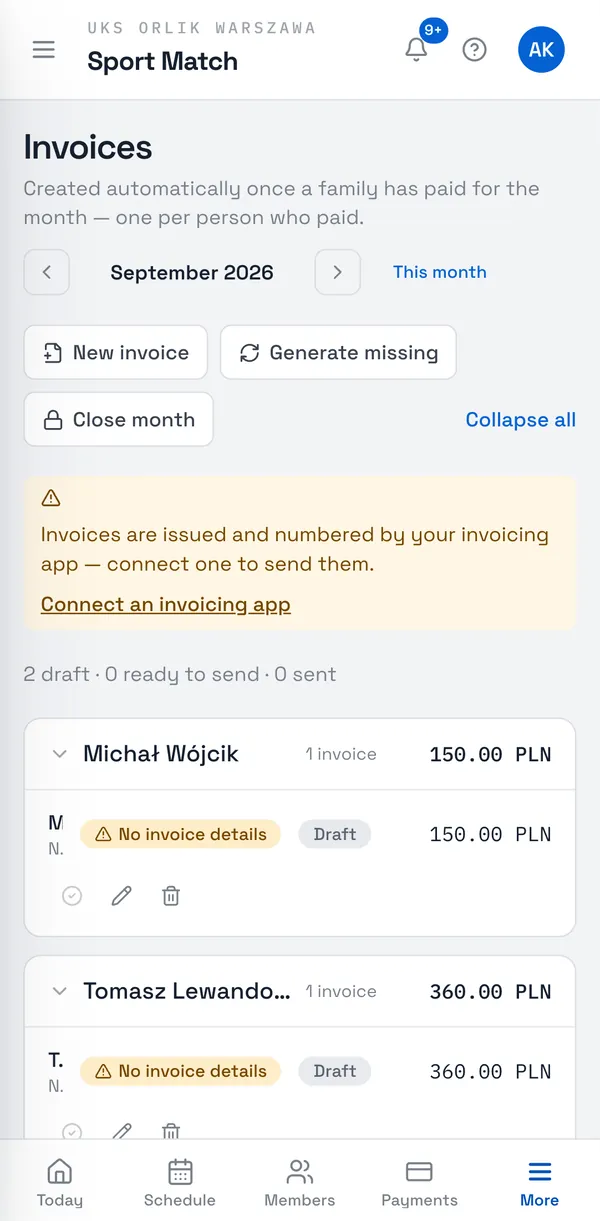
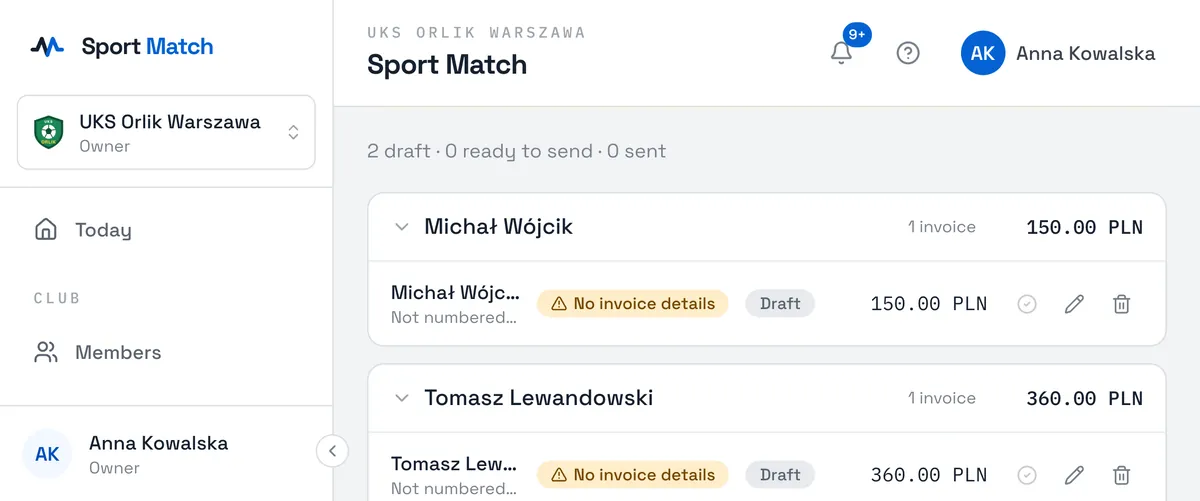
Open Invoices and pick the month with the arrows. A draft appears by itself once a family has paid everything due for the month — one for each person who paid.
-
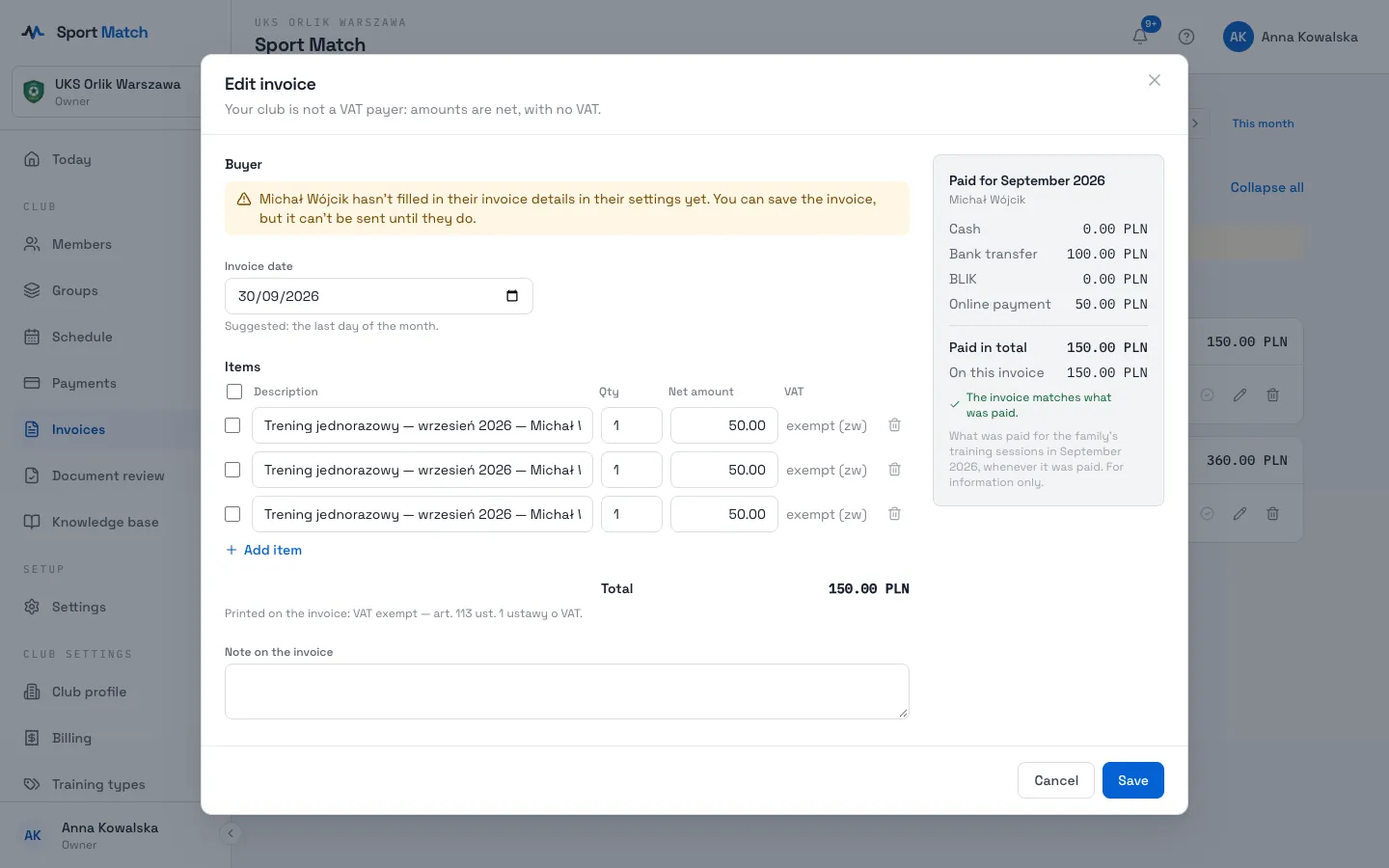
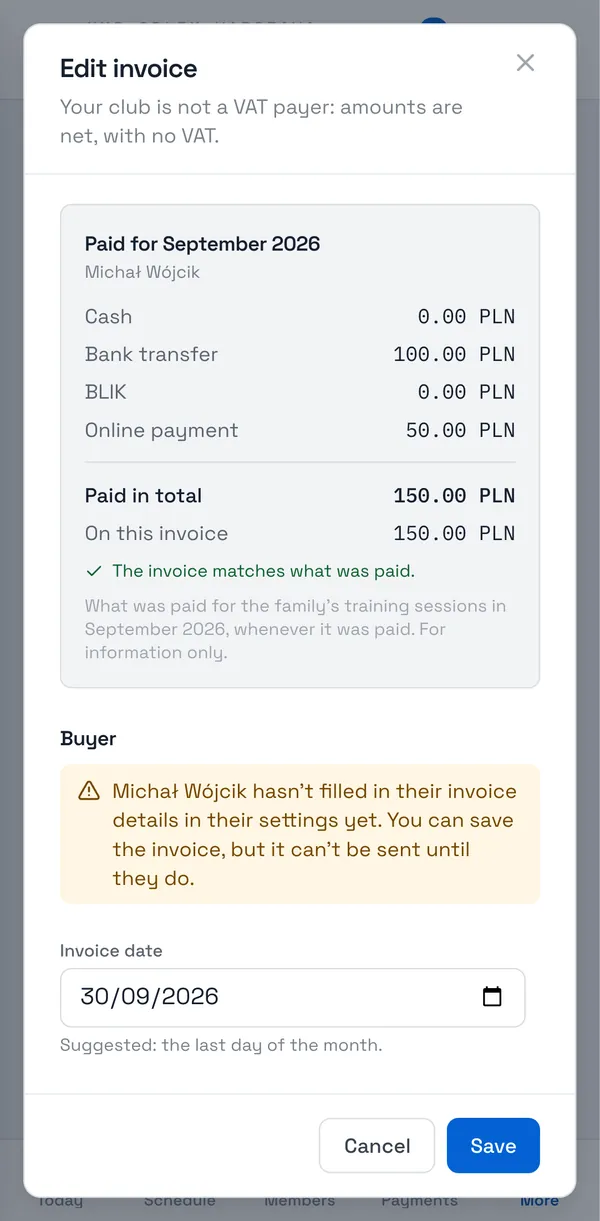
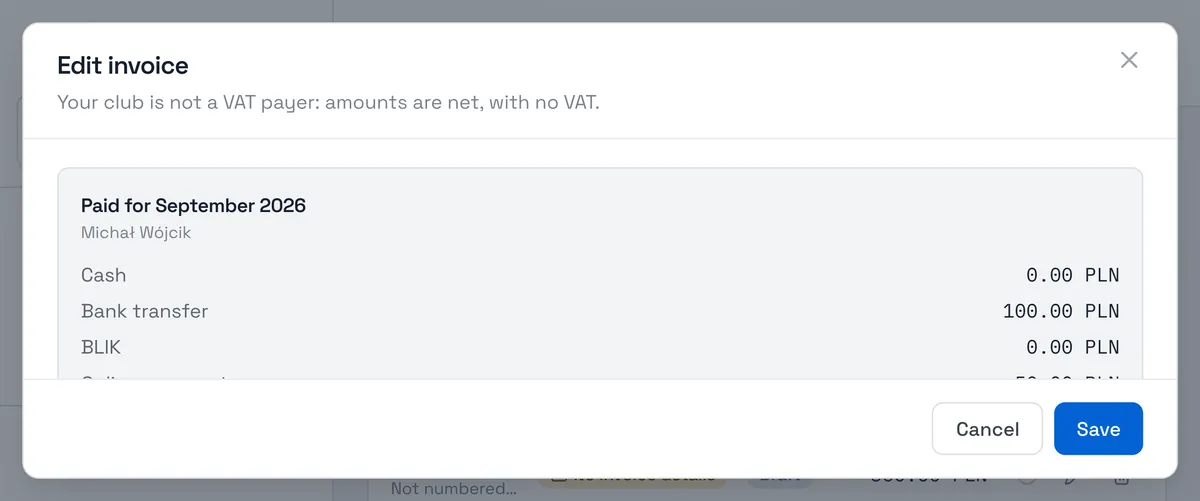
Click the pencil to check or correct a draft: the invoice date (the last day of the month is suggested) and the items. Beside them are the family’s payments for the month, so you can compare the amounts. Items with the same name can be merged.
-
Generate missing creates any drafts that aren’t there yet; New invoice lets you make one by hand.
Important: An invoice is made out to the details the payer saved in Settings → Invoice details (a company, say; left empty, it’s made out to them personally). While those are missing, the invoice shows No invoice details and can’t be sent — ask the payer to fill them in.
Sending invoices
-
For each draft you have checked, click Mark ready to send (the tick icon). Back to draft undoes it.
-
Click Send … ready invoices. In the Send invoices window you can open a Preview of each one, then confirm.
-
Invoices go out in the background, one every 5 seconds — you can leave the page. Your app numbers each one, and Sport Match emails the PDF to the buyer. Download a finished invoice with Download PDF.
-
If something goes wrong, the invoice shows Sending failed — what happened with an explanation. Not delivered — resend tries again; an invoice is never issued twice.
Closing a month
Close month ends invoicing for that month. Later payments towards its unpaid charges go on the next open month’s invoices.
Important: Closing a month can’t be undone.
Didn’t find an answer?
Write to us in the chat — it opens on this page, no login needed — or email contact@sportmatch.pl.