Availability and one-to-one bookings
Players book one-to-one sessions themselves in your free hours. You decide when you take bookings and price each request, and a 50% deposit paid online confirms the session.
Screenshots
Set your hours
-
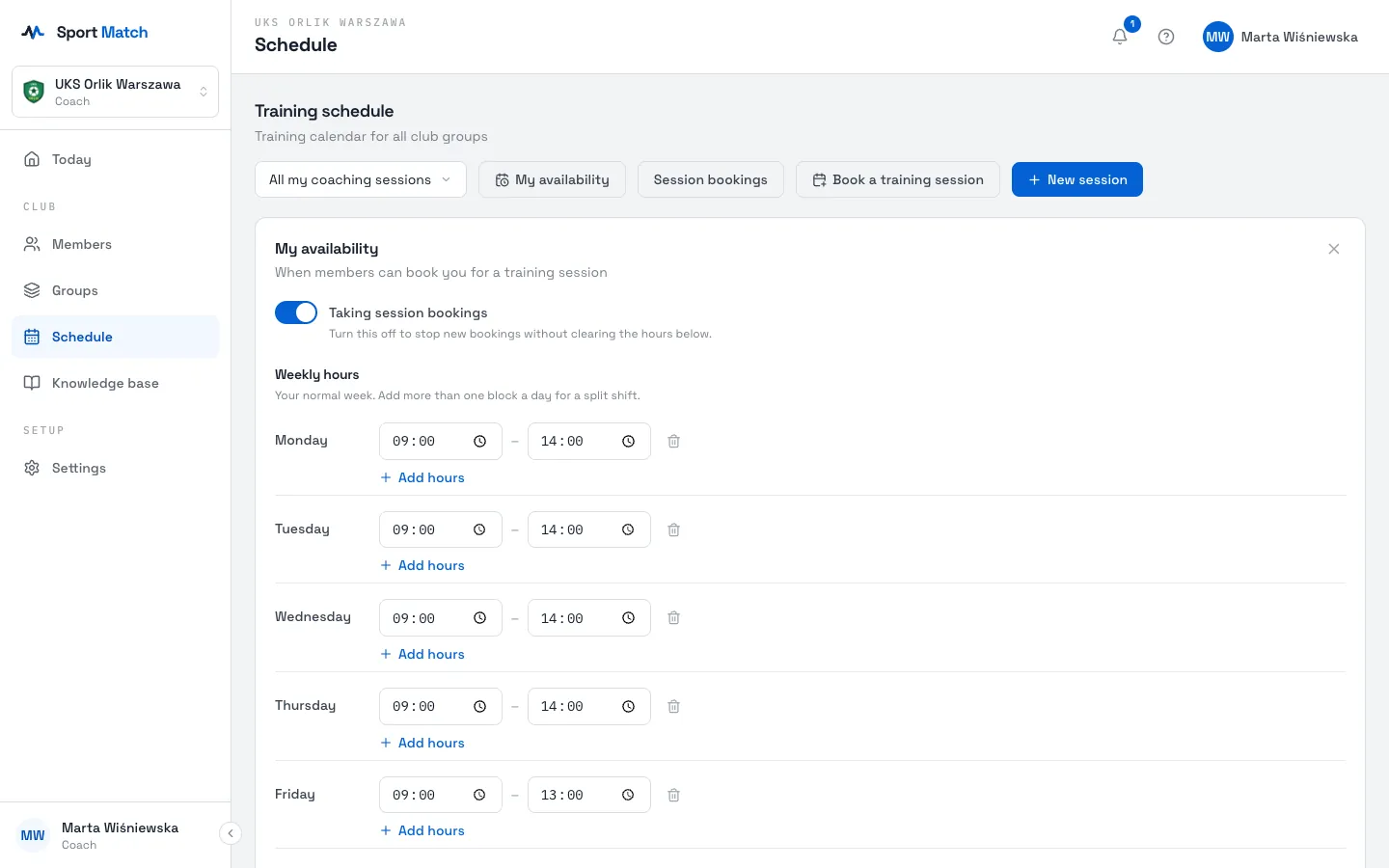
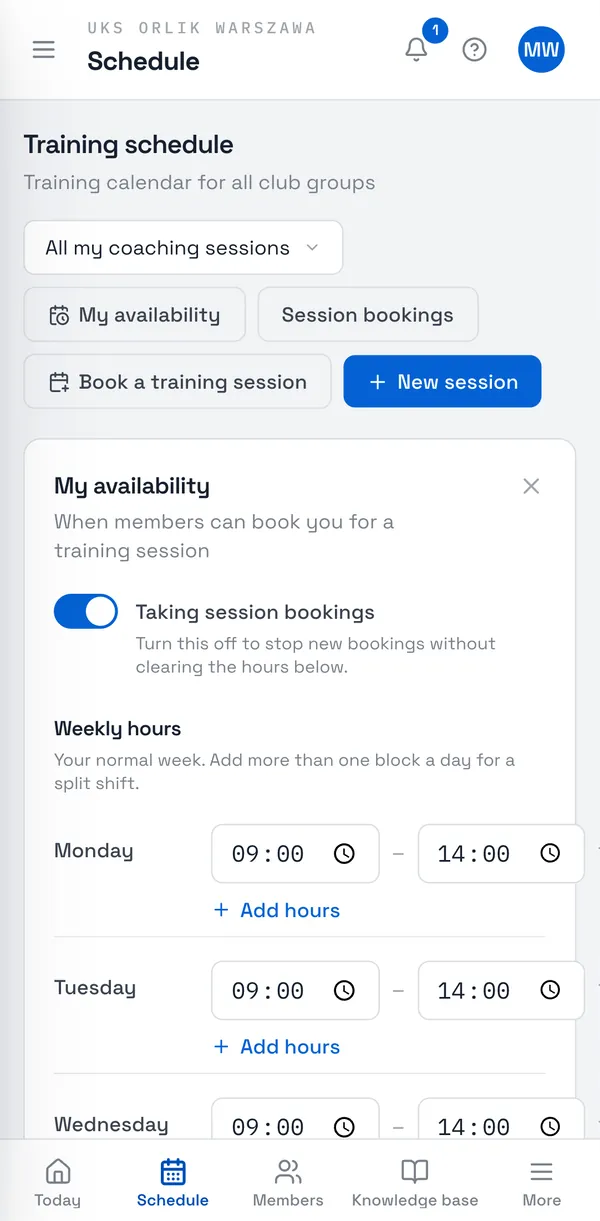
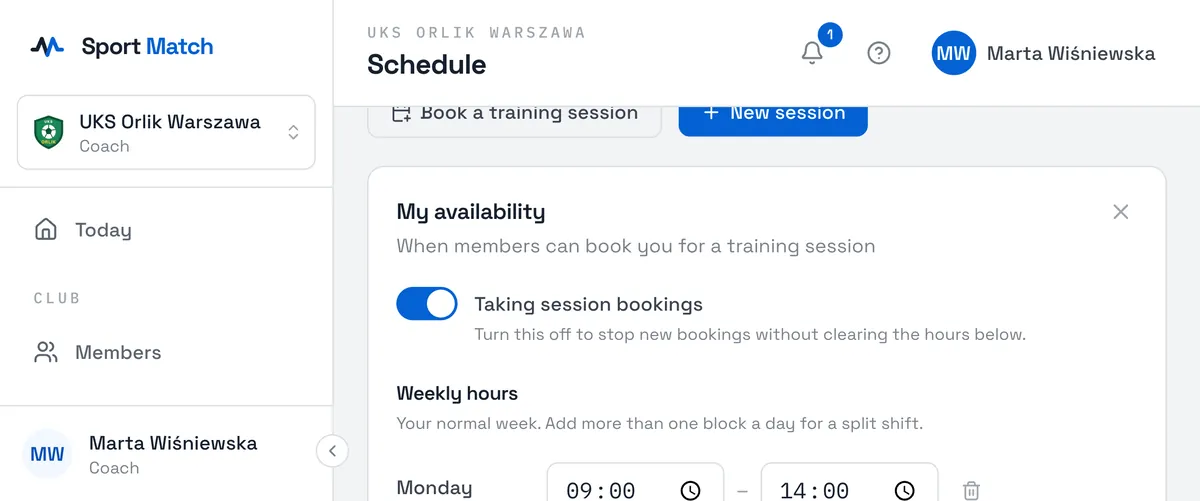
In Schedule click My availability.
-
Turn on Taking session bookings. Turning it off pauses new bookings without clearing your hours.
-
Under Weekly hours set a From–Until block for each day. Add hours adds a second block on the same day (say, morning and evening); the bin removes one. A day with no blocks is Not available.
-
Click Save availability at the bottom. Your free hours show in the calendar as an Available for sessions background.
Time off, extra hours and booking rules
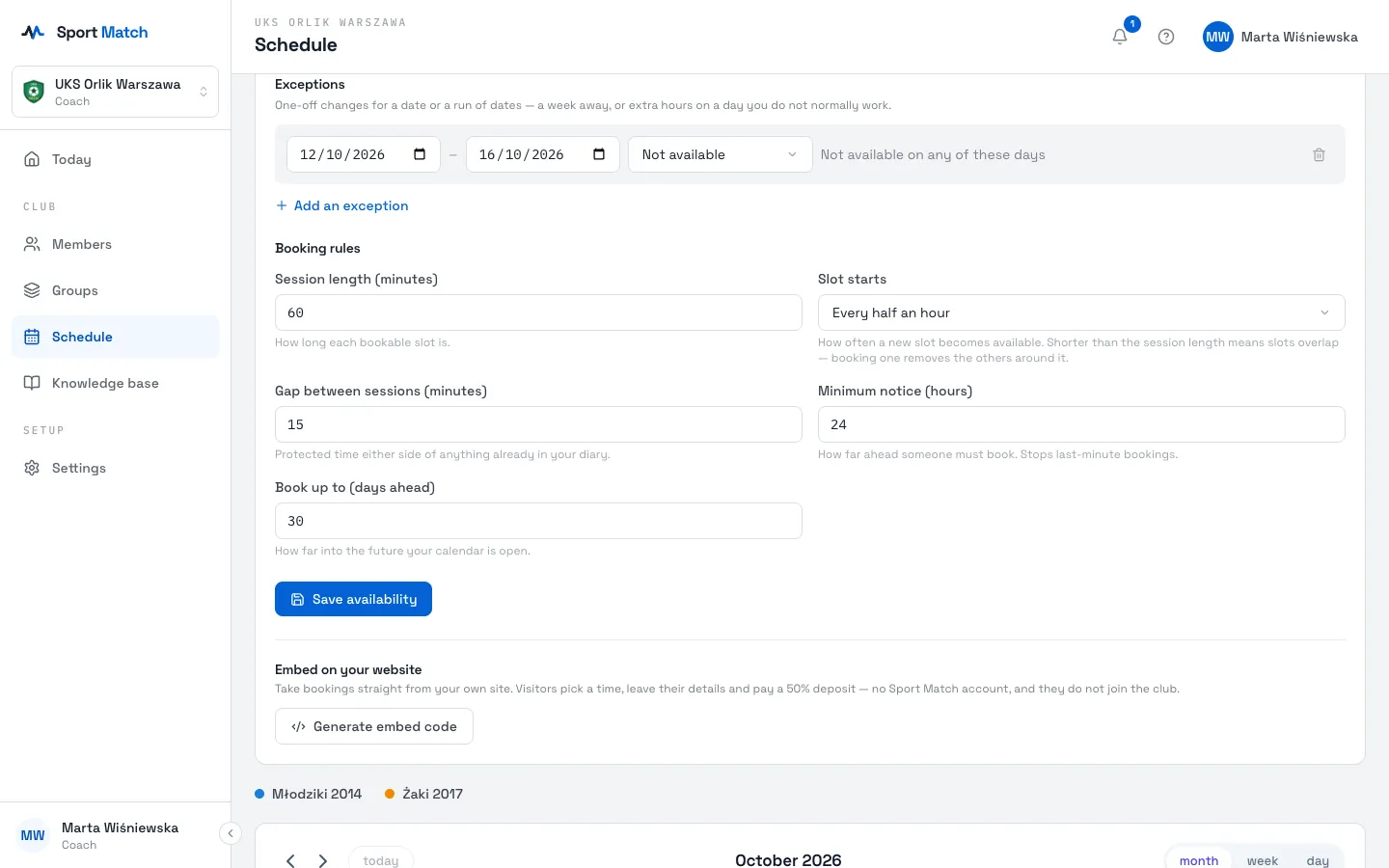
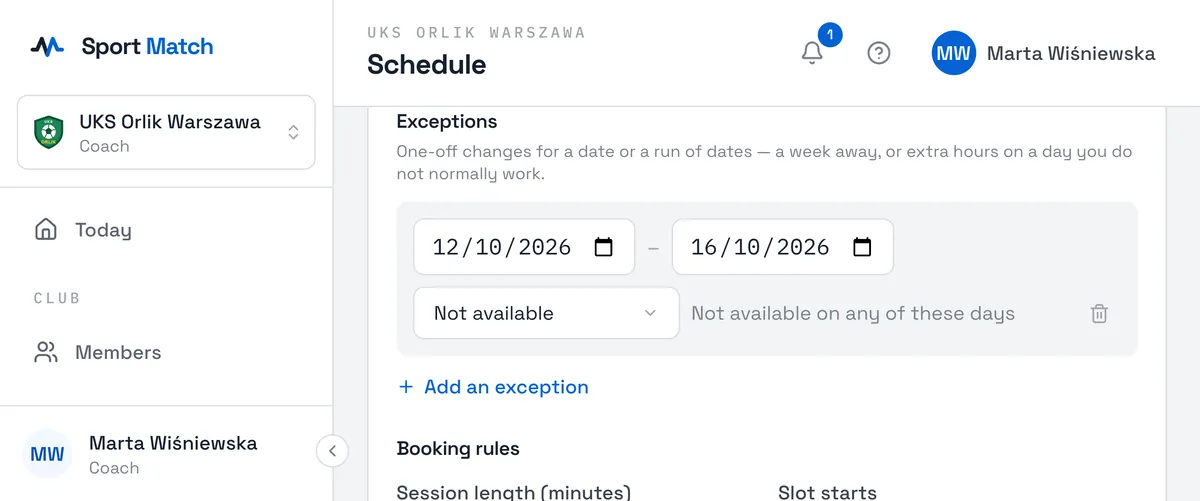
Under Exceptions click Add an exception, choose From–To dates and a Type of exception: Not available (a holiday, say) or Extra hours on a day you don’t normally work.
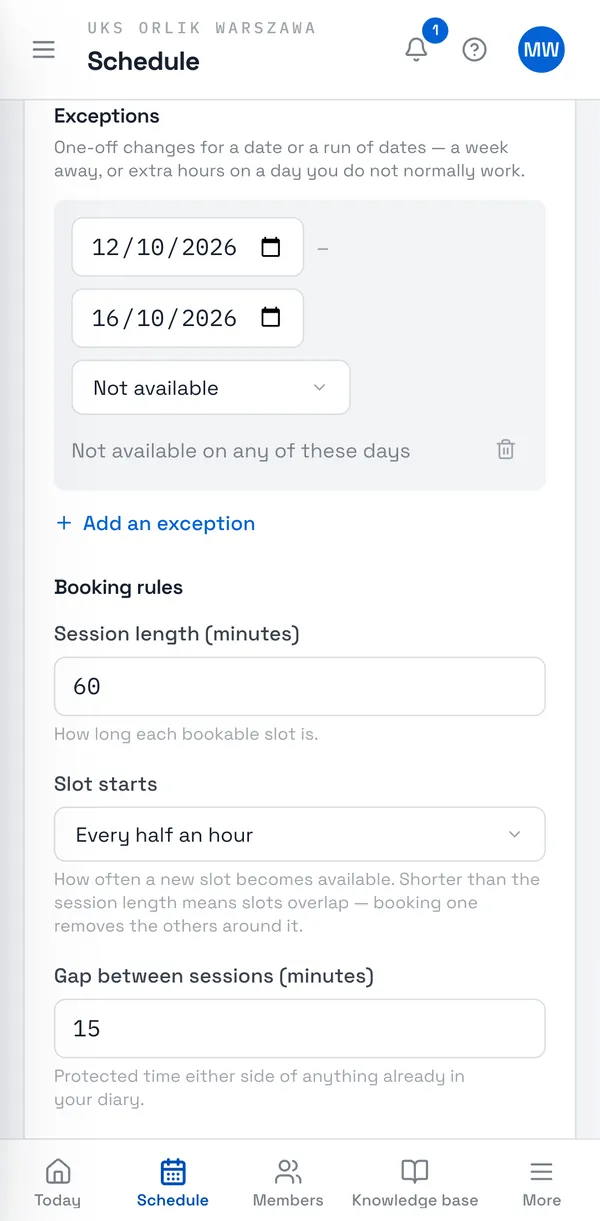
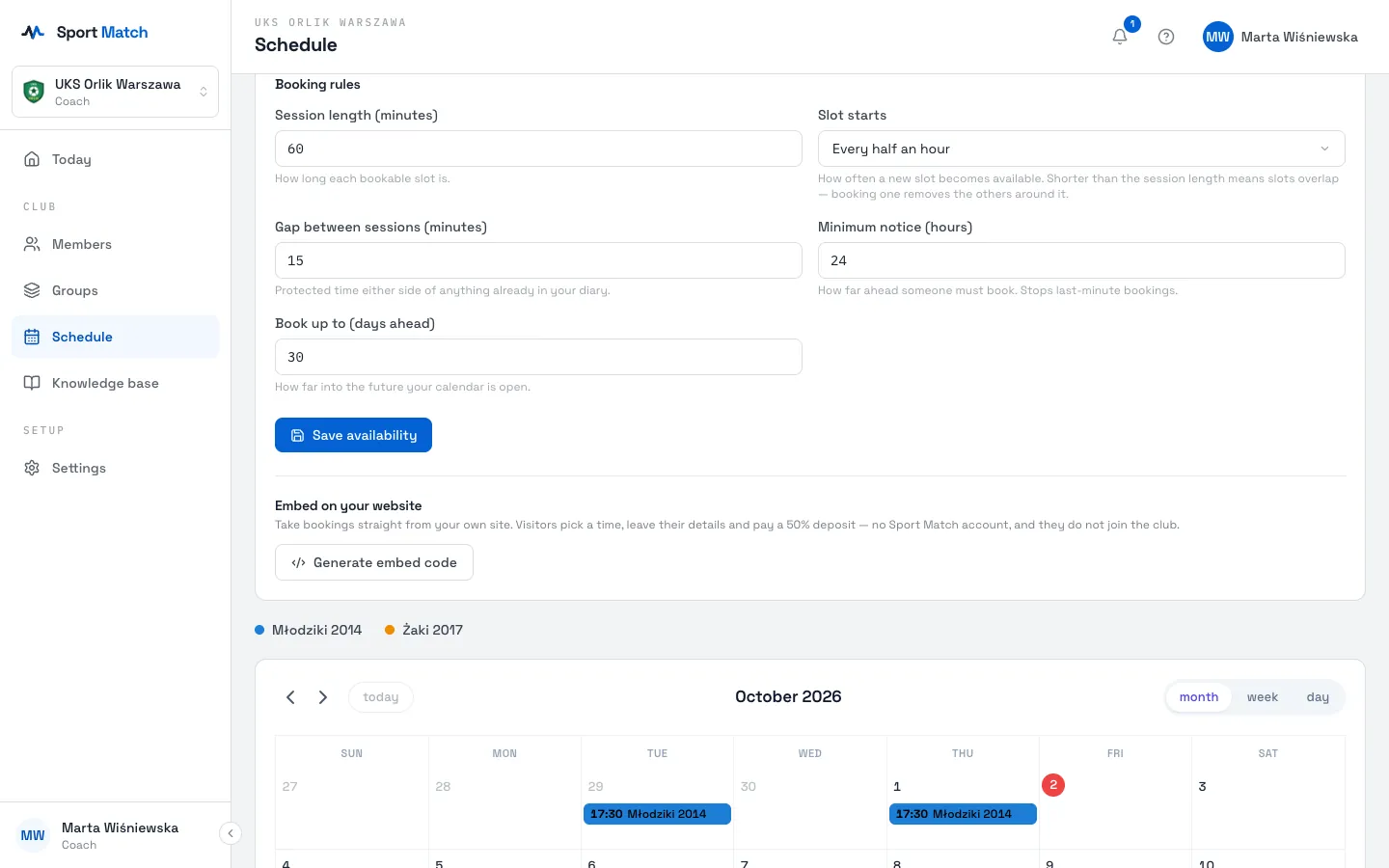
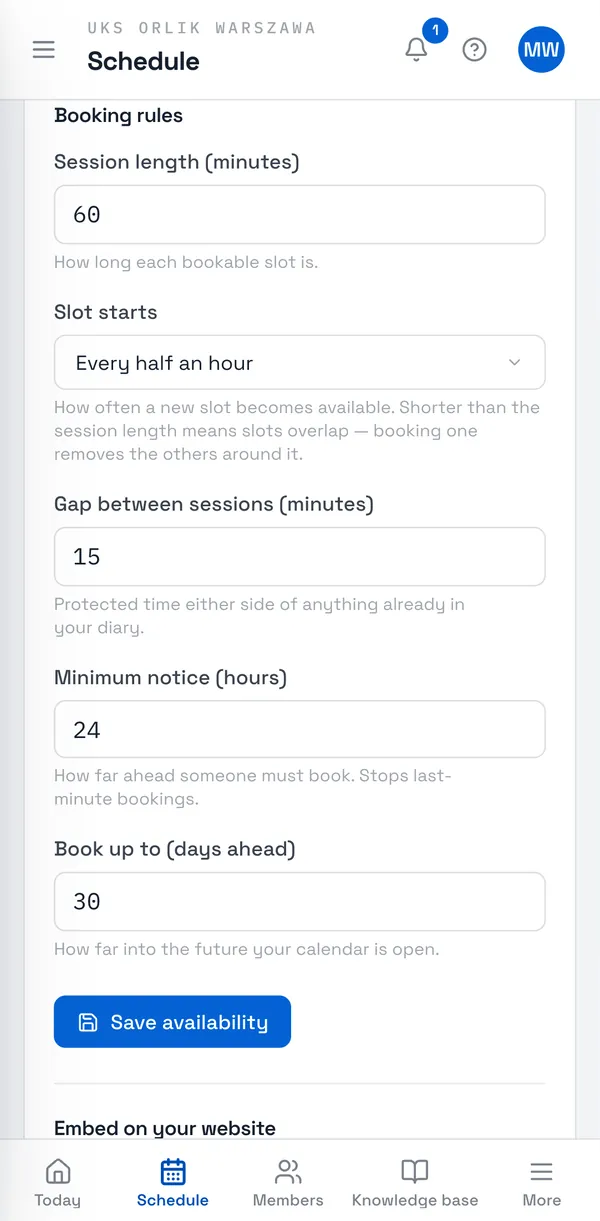
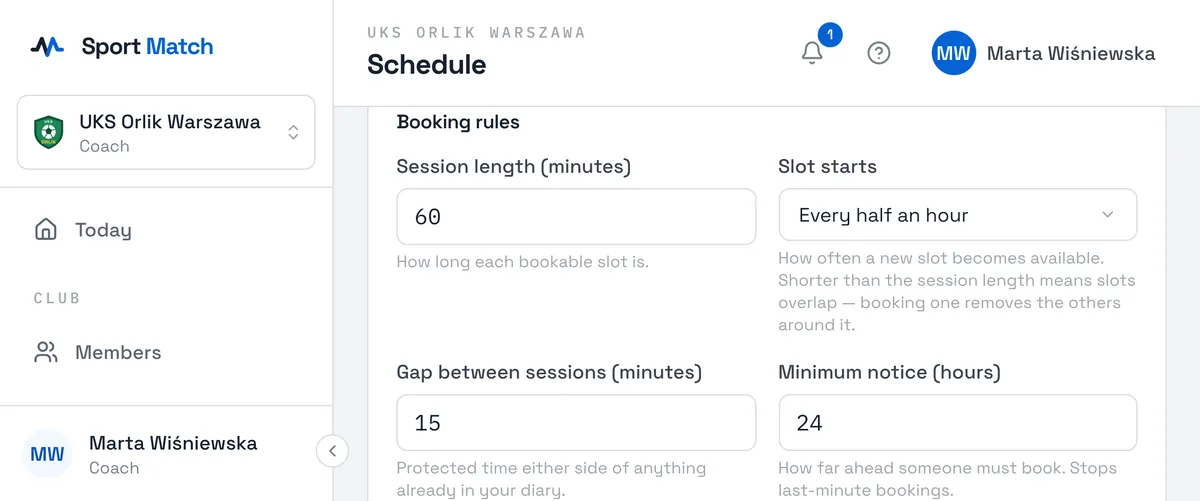
- Session length (minutes)
- How long one bookable slot is. Players can book several slots back to back.
- Slot starts
- Every quarter of an hour, Every half an hour or Every full hour. Shorter than the session length means slots overlap — booking one removes its neighbours.
- Gap between sessions (minutes)
- Protected time either side of anything already in your diary.
- Minimum notice (hours)
- Stops last-minute bookings.
- Book up to (days ahead)
- How far into the future your calendar is open.
Tip: Sessions you run and confirmed one-to-ones automatically block your time — nobody can book you over one of your sessions.
Handling bookings
Requests are under Session bookings → Booked with me. You also get a Session requested notification.
-
A club member’s request is Awaiting price. Enter Your price and click Send price — or Decline if you can’t do it.
-
The member accepts the price and pays a 50% deposit online. The status becomes Awaiting deposit; once it’s paid the session confirms itself and goes into the calendar.
-
To confirm sooner, use Confirm without the deposit — you take the risk, and the deposit stays owed.
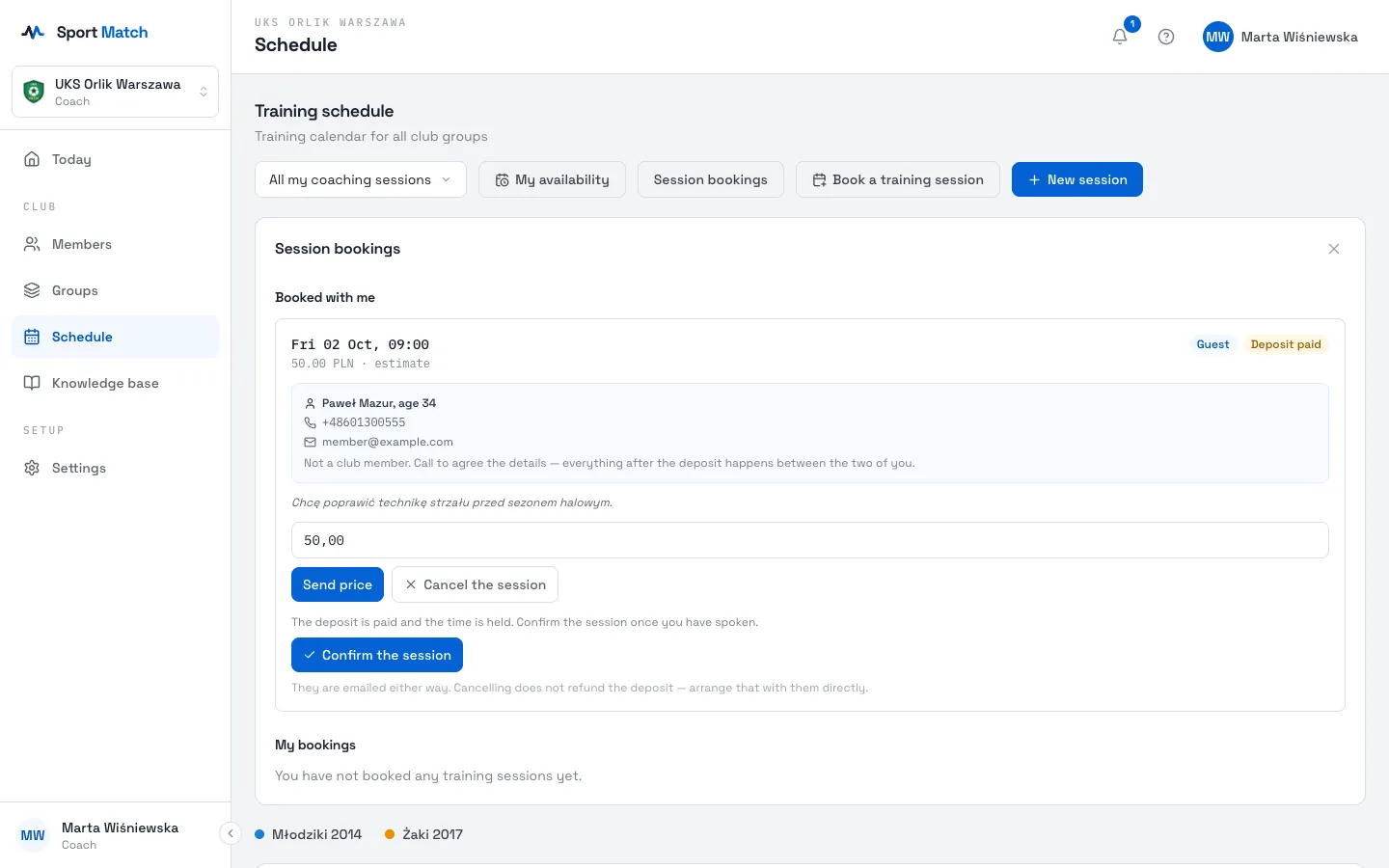
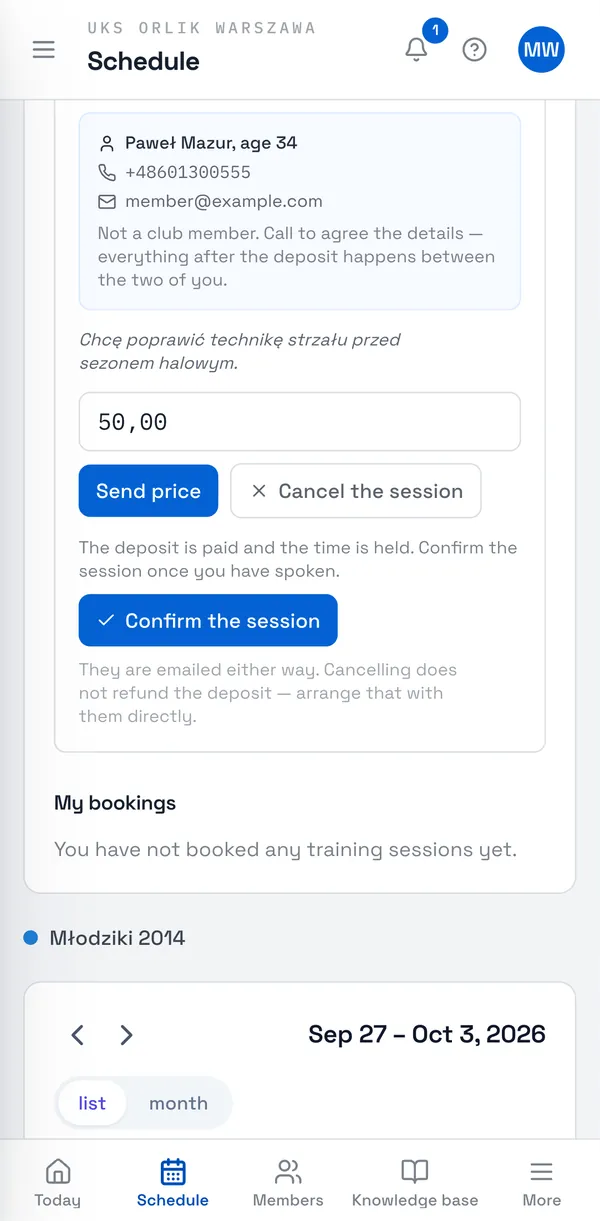
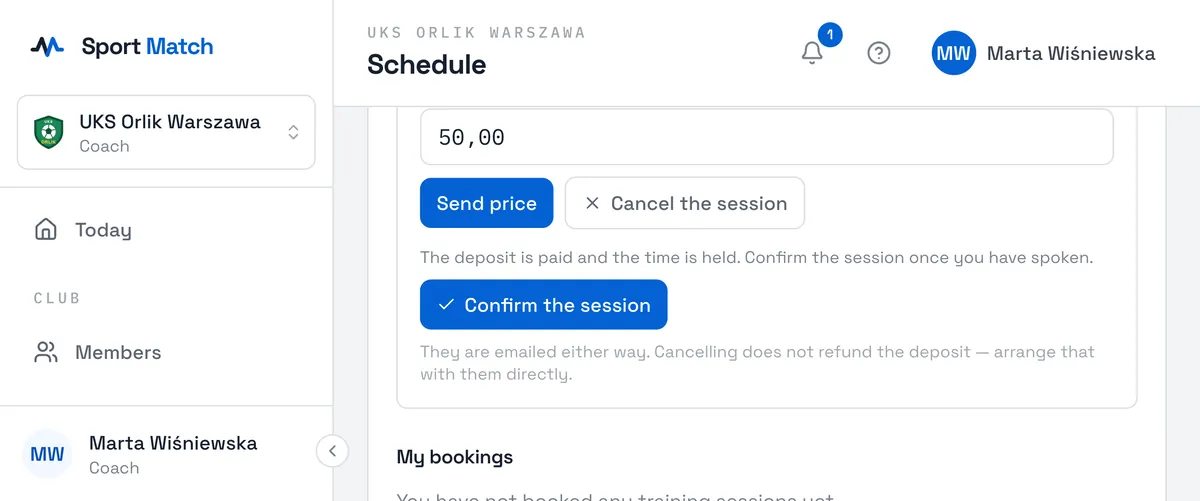
Bookings tagged Guest come from the widget on your website: the person isn’t a club member and has already paid a deposit on an estimate. Call them, agree the details and click Confirm the session or Cancel the session. Cancelling doesn’t refund the deposit — arrange that with them directly. Before a confirmed session the guest gets reminders the day before and an hour before it starts — by email and by text message to the number given with the booking. See The booking widget for your website.
Only the 50% deposit goes through Sport Match. You settle the rest with the player however you agree. Confirmed one-to-ones share one calendar colour, set by the owner in the club profile.
Didn’t find an answer?
Write to us in the chat — it opens on this page, no login needed — or email contact@sportmatch.pl.