Notifications
Training reminders, schedule changes, new charges and decisions about documents — you get them in the app and, if you like, by email, text message or push notification too.
Screenshots
The bell and the notification list
-
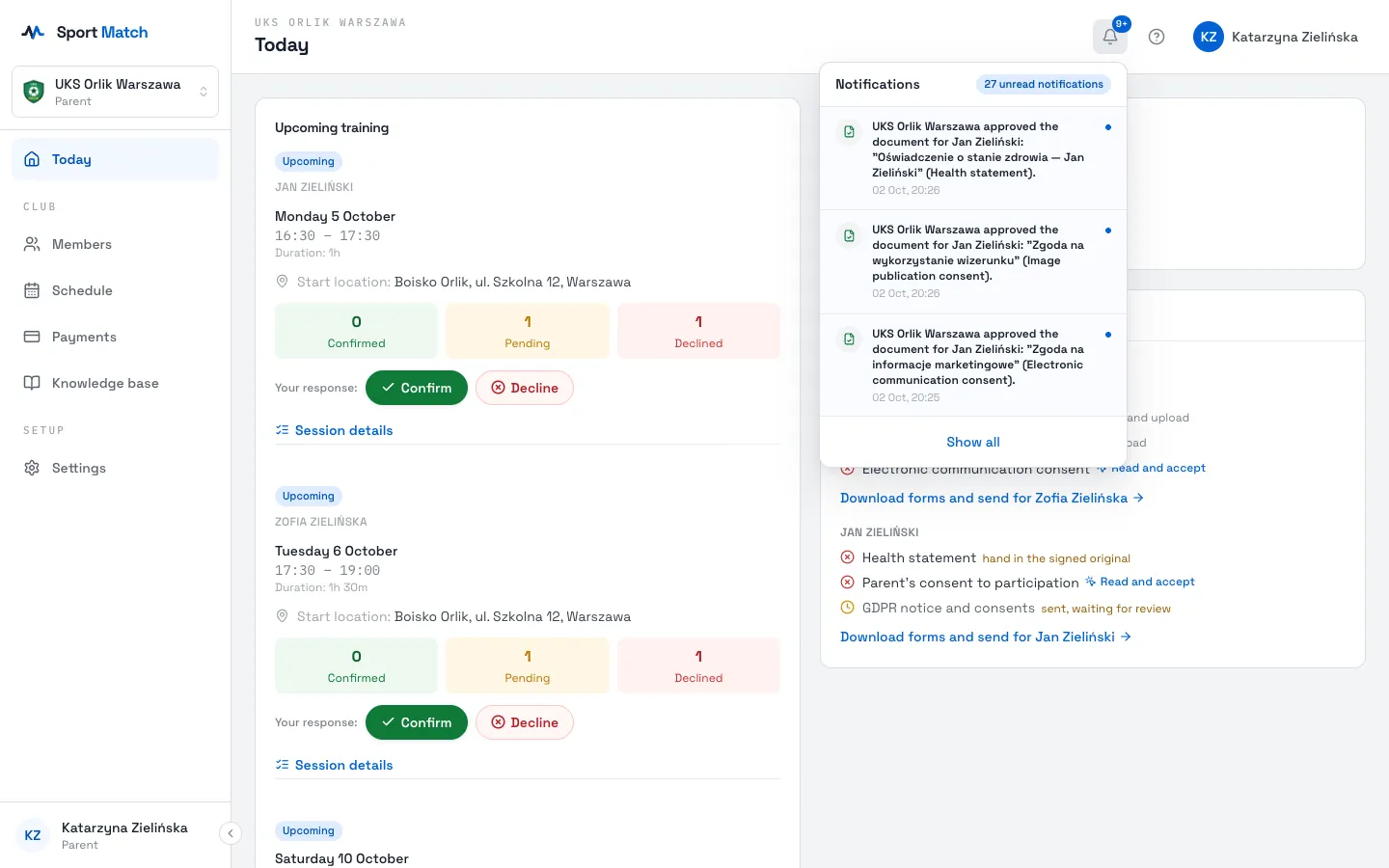
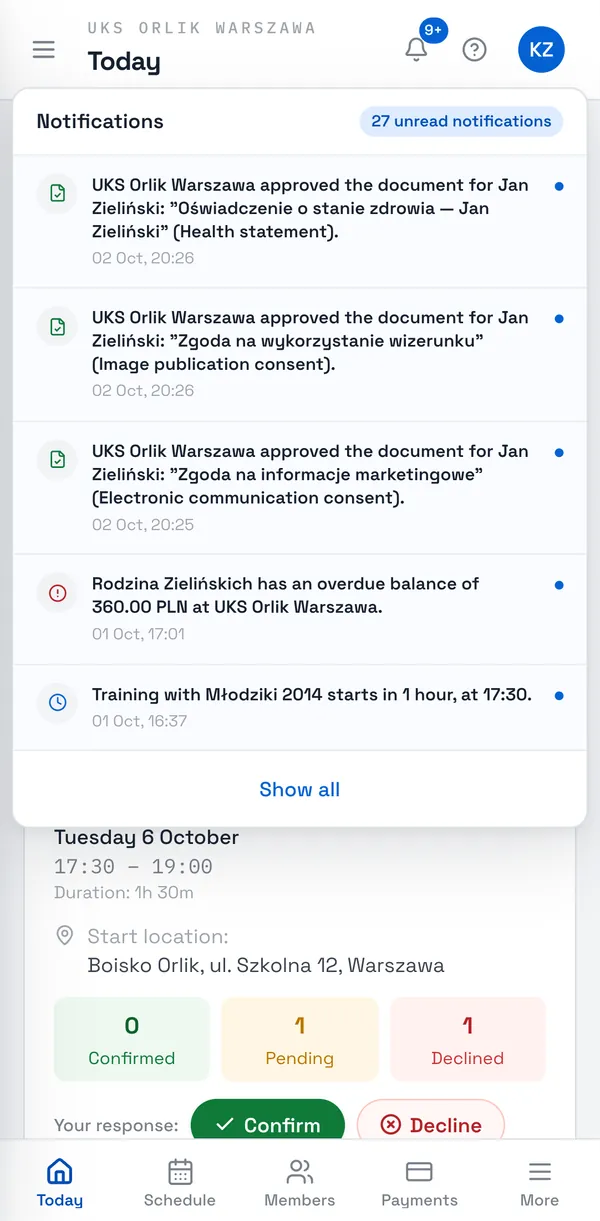
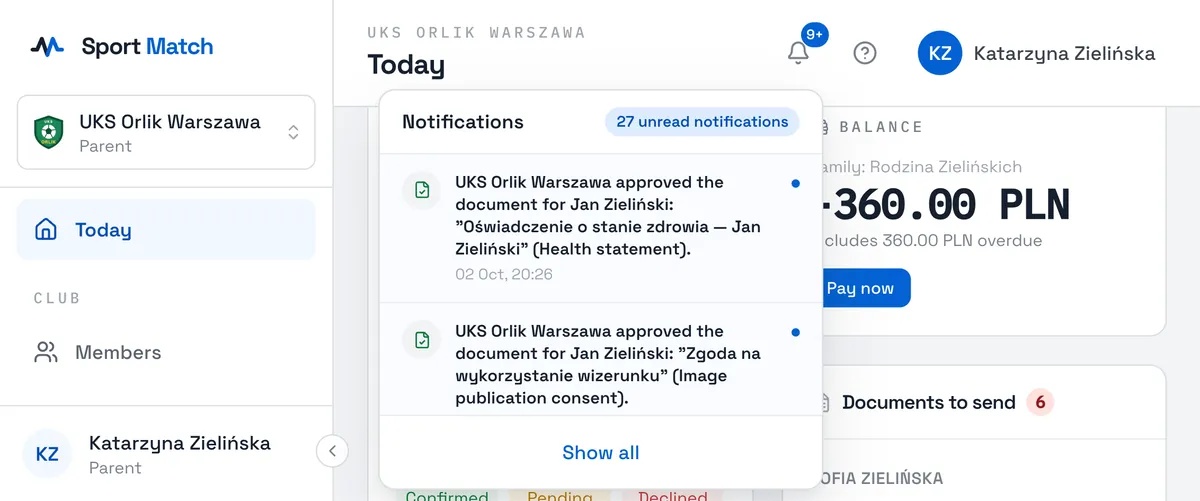
Click the bell at the top of the screen. The number on it counts unread notifications; the list shows the latest. Clicking one opens the page it’s about.
-
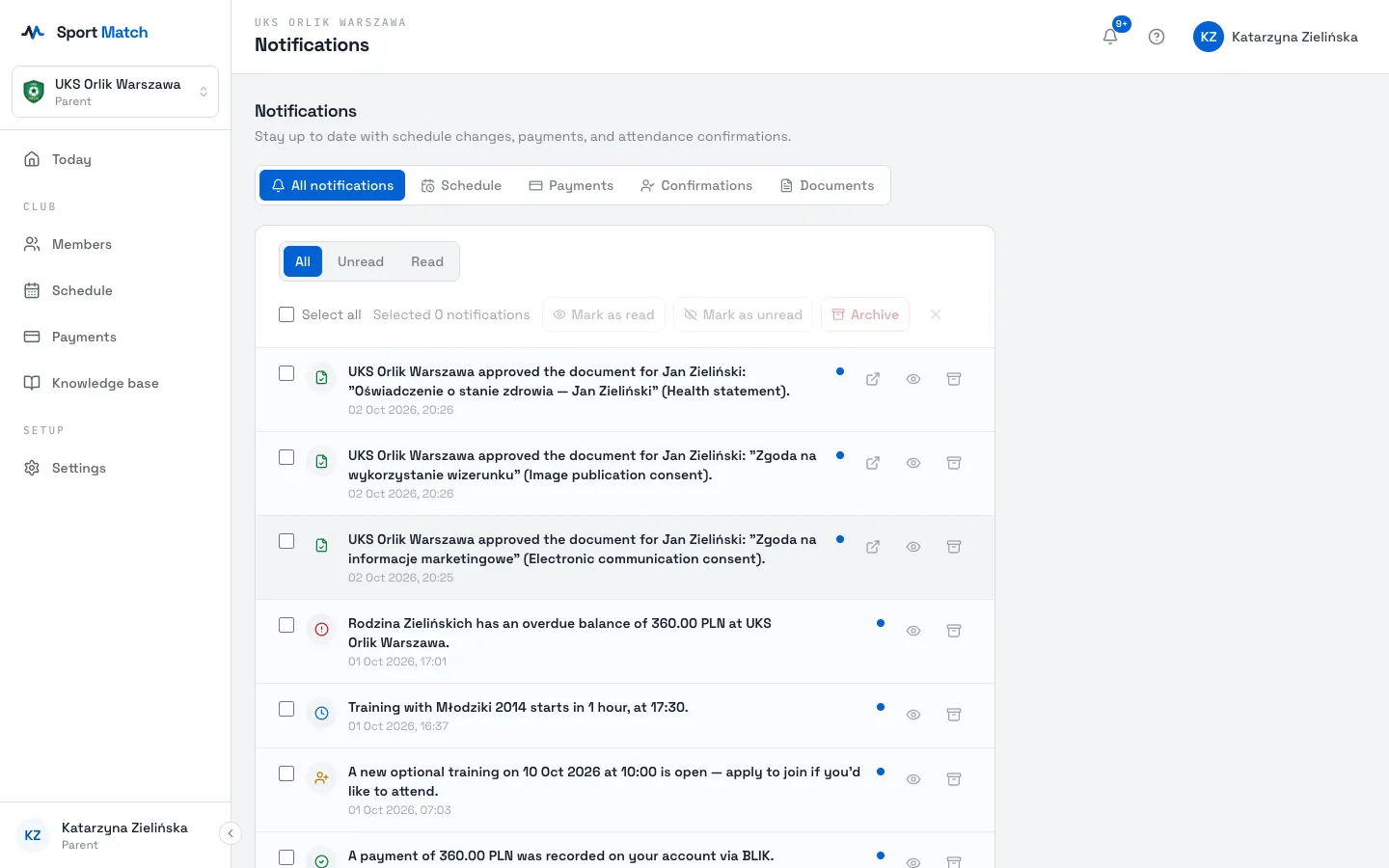
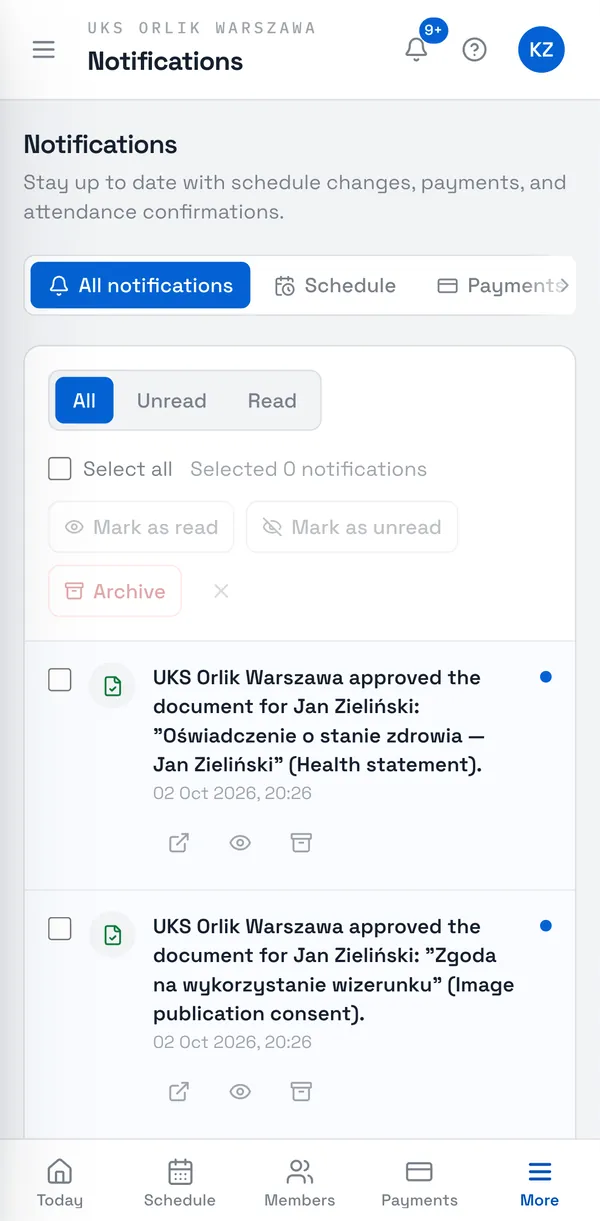
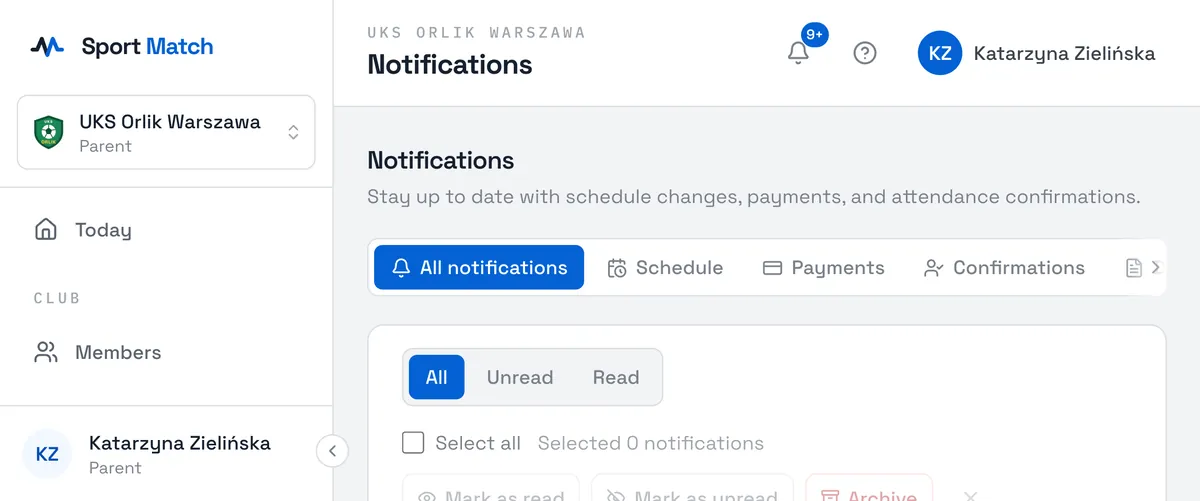
Choose Show all to open the Notifications page. The tabs at the top filter by subject (Schedule, Payments, Confirmations, Documents), and All / Unread / Read by state.
-
Select notifications (or Select all) and choose Mark as read, Mark as unread or Archive. The icons on each notification do the same for just that one.
Tip: A club invitation arrives as a notification with Accept and Deny buttons — you can answer without leaving the list.
Choose what you get, and how
-
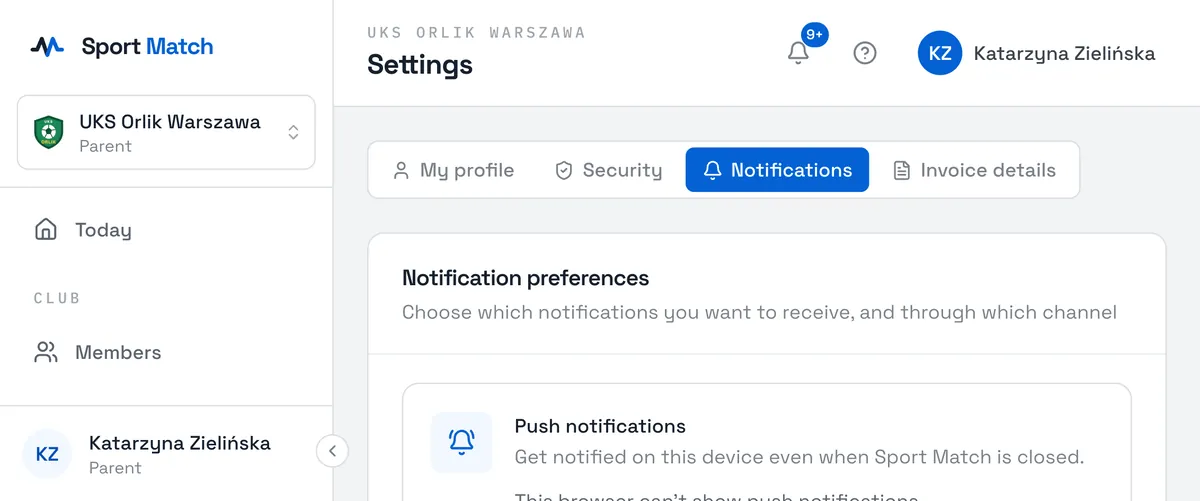
Open Settings → the Notifications tab.
-
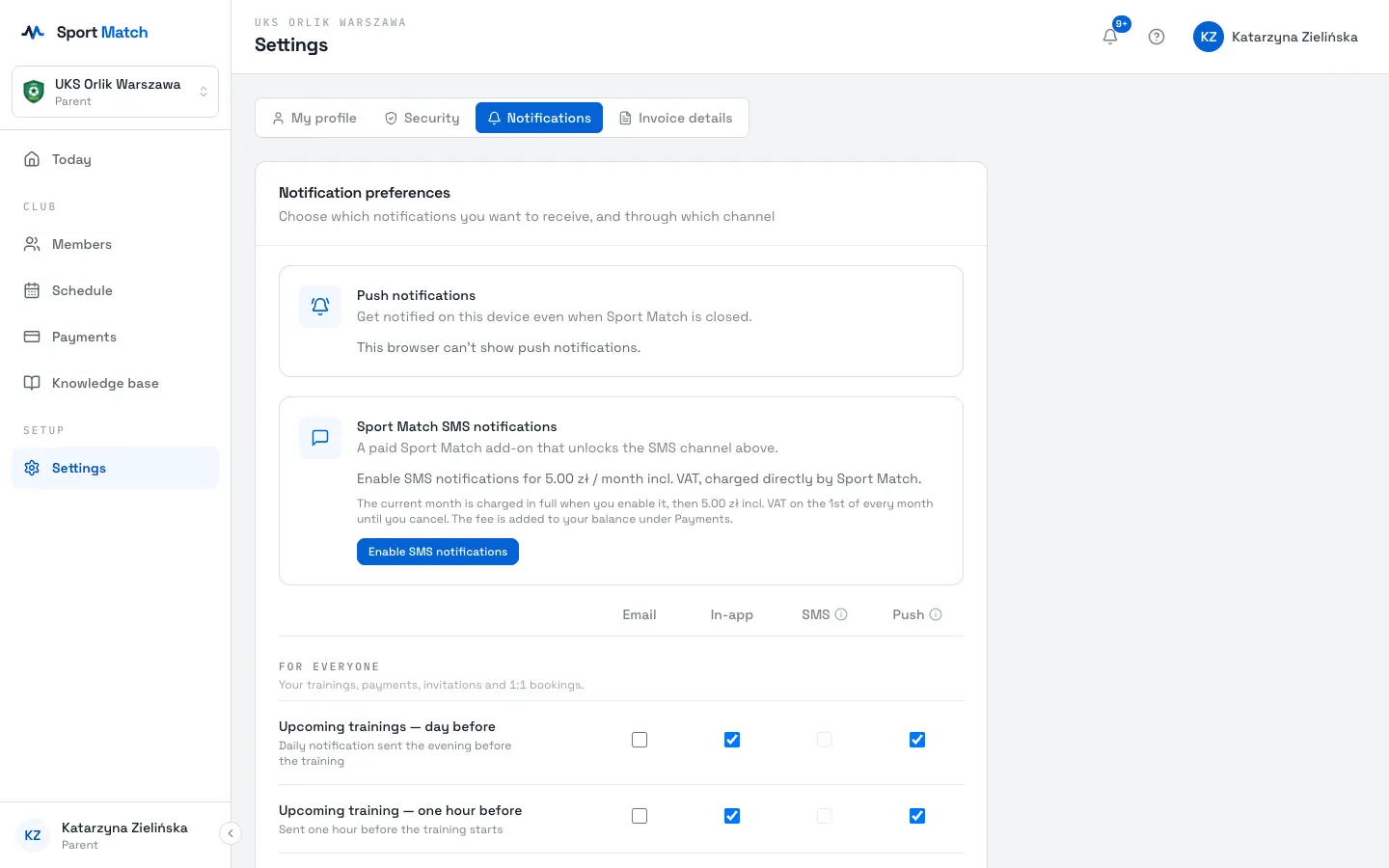
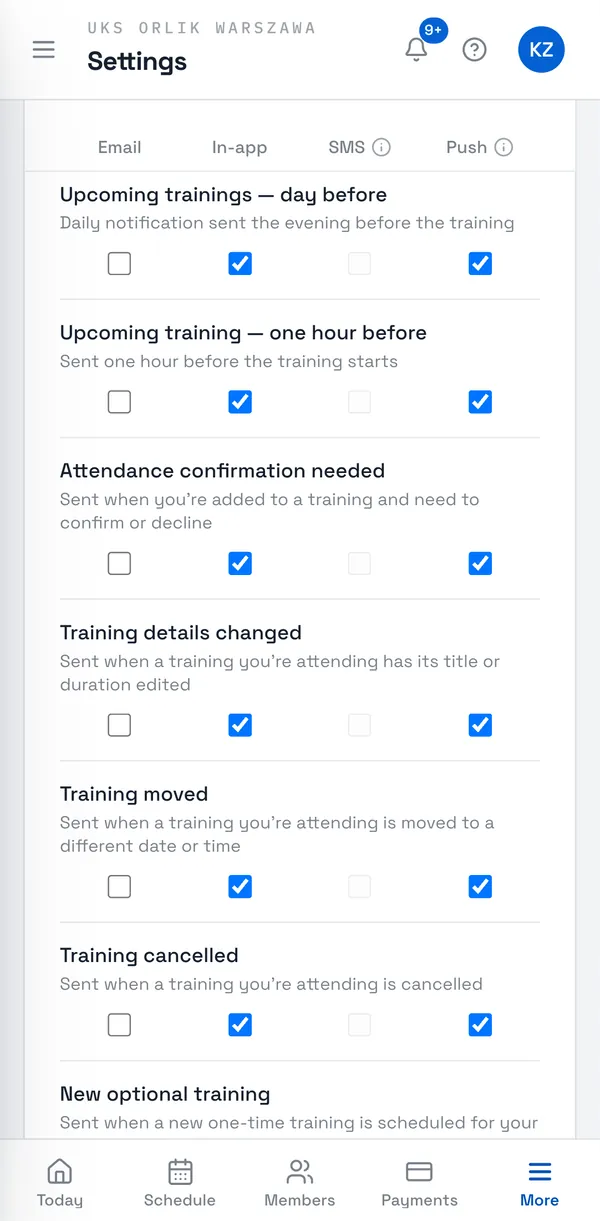
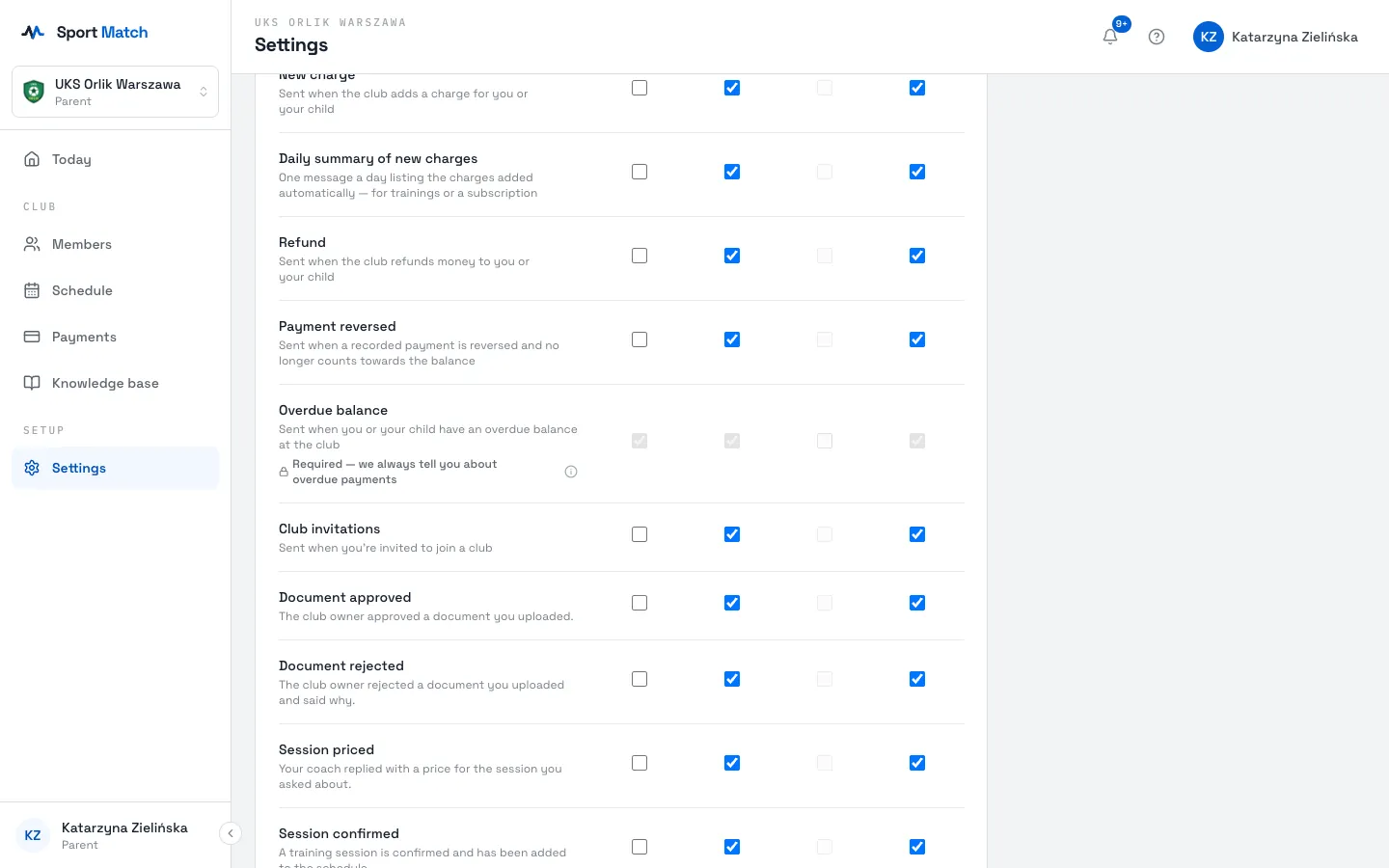
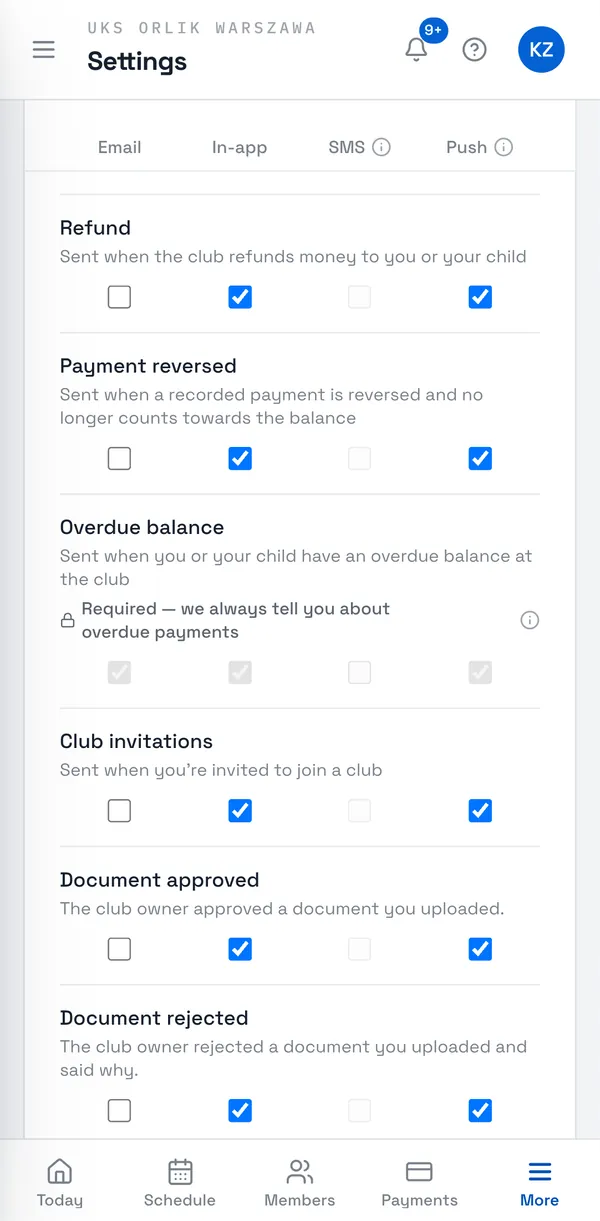
In Notification preferences each row is a kind of notification (e.g. Upcoming trainings — day before) and each column a channel: Email, In-app, SMS and Push. Tick where you want each one.
-
Choose Save preferences at the bottom.
As a child’s guardian you get notifications about them if the club gave you the Notifications permission. The Upcoming trainings — day before and Upcoming training — one hour before reminders cover booked one-to-one sessions too.
Overdue balance — always on
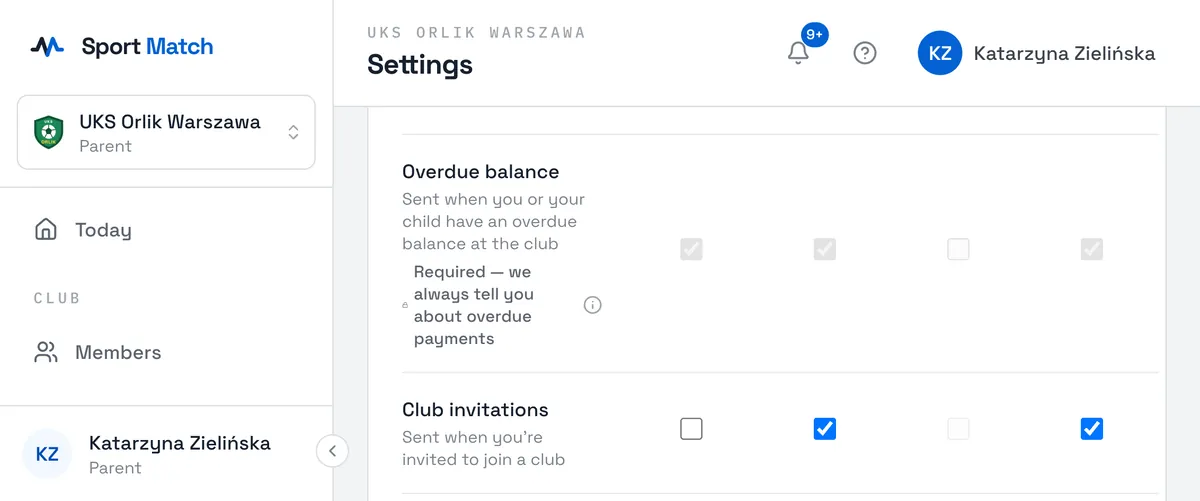
The Overdue balance row has every channel ticked and locked, labelled “Required — we always tell you about overdue payments”. That notice comes at most once a week — in the app, by email, as a push and by text message to your verified phone number, even without the SMS add-on. These texts cost you nothing.
Push notifications on your phone
Push notifications pop up on your phone or computer even when the app is closed. You turn them on separately on each device: in Settings → Notifications, on the Push notifications card, choose Turn on and allow notifications when the browser asks. Turn off this device switches them off.
Important: On iPhone and iPad, push notifications only work once the app is installed on the home screen — see Install Sport Match on your phone. If the card says this browser can’t show push notifications, open Sport Match in another browser or in the installed app.
Text messages (paid add-on)
The SMS column stays inactive until two things are true: your phone number is verified (My profile → Verify) and the Sport Match SMS notifications add-on is on. The add-on costs 5 PLN a month, VAT included, and is charged by Sport Match, not the club — turn it on with Enable SMS notifications on the same tab, and off with Cancel SMS subscription. The charge appears under Payments → Sport Match charges.
- When you turn it on, the current month is charged in full, then 5 PLN incl. VAT on the 1st of every month until you cancel.
- After you cancel, texts keep coming until the end of the month already charged; there are no further charges, and the current month is not refunded. Turning them back on before that month ends costs nothing extra.
- If you leave the club, the add-on stops by itself and there are no further charges.
Session changes in the WhatsApp or Apple Messages chat
If your club uses the Sport Match assistant on WhatsApp or Apple Messages, you can ask it about your sessions. When you ask about a particular session, the assistant asks: “Shall I message you here if this session changes time or place, or is cancelled?”. Choose 🔔 Yes, let me know — when the coach changes the start or end time, the start or end place, or cancels the session, you get a “before → after” message in the chat.
Important: WhatsApp only lets the assistant write to you for 24 hours after your last message in the chat. If the session is more than 12 hours away, the assistant tells you until when it can write. A change after that reaches the chat only once you write to it again — sending any message on the day, even “hi”, is enough. Apple Messages has no such limit.
Notifications that always arrive are the app’s own — Settings → Notifications (see above); they work regardless of the chat. Chat updates cover only that one session and end with it. Disconnect the chat under Settings → My profile → Connected chats — updates stop straight away.
Didn’t find an answer?
Write to us in the chat — it opens on this page, no login needed — or email contact@sportmatch.pl.