Profile and account settings
Your details, photo, ways to sign in and invoice details — all in Settings.
Screenshots
My profile
-
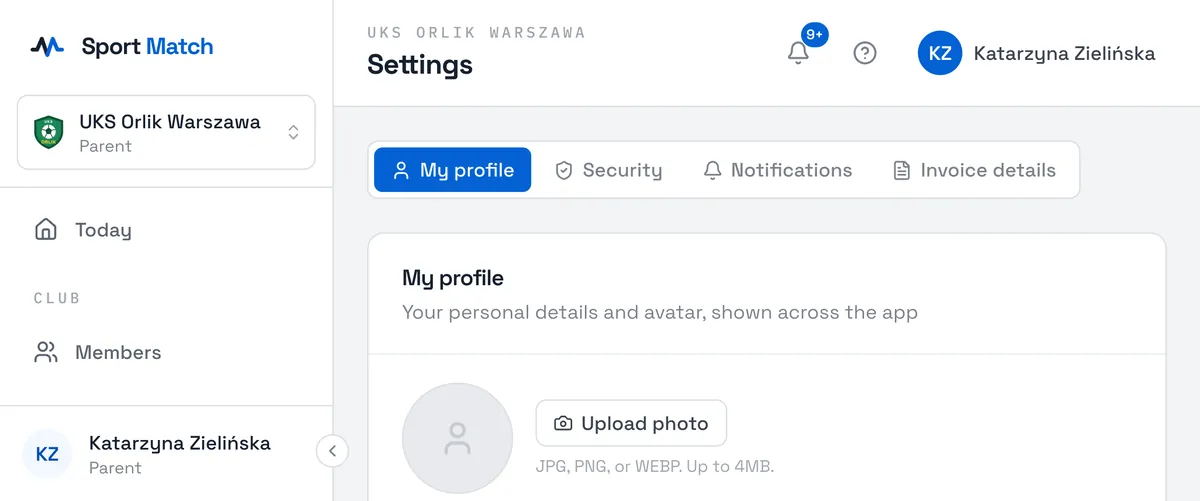
Open Settings (on a phone: More → Settings). The My profile tab opens.
-
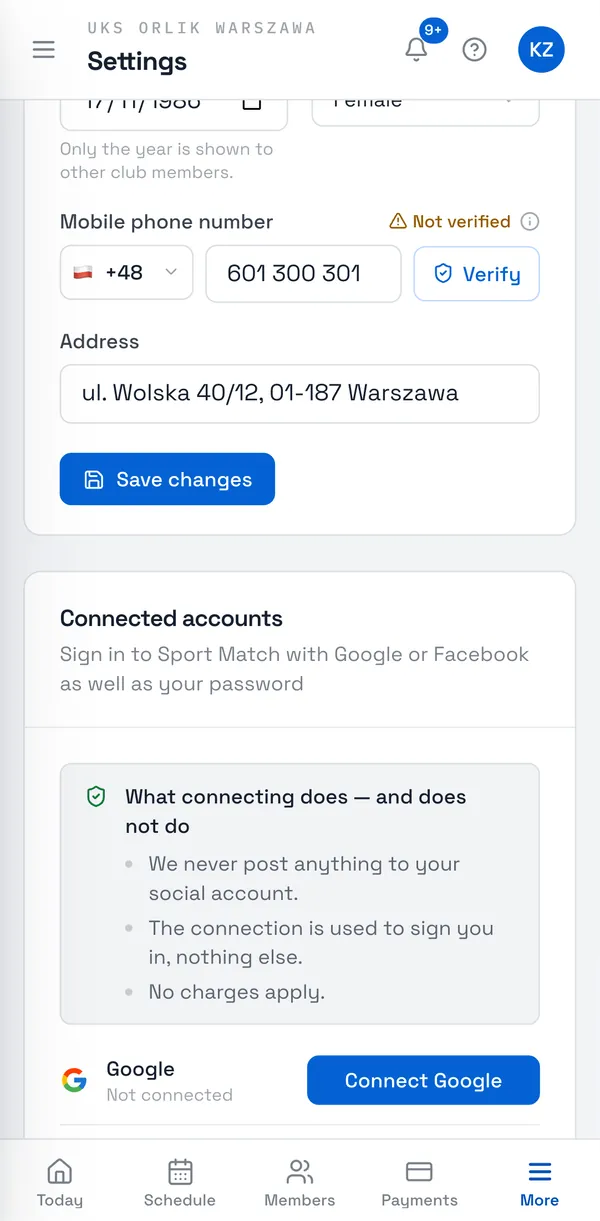
Upload photo adds a profile photo (JPG, PNG or WEBP, up to 4 MB) — it helps your club and coaches recognise you. Change your name, date of birth, gender, phone or address and choose Save changes.
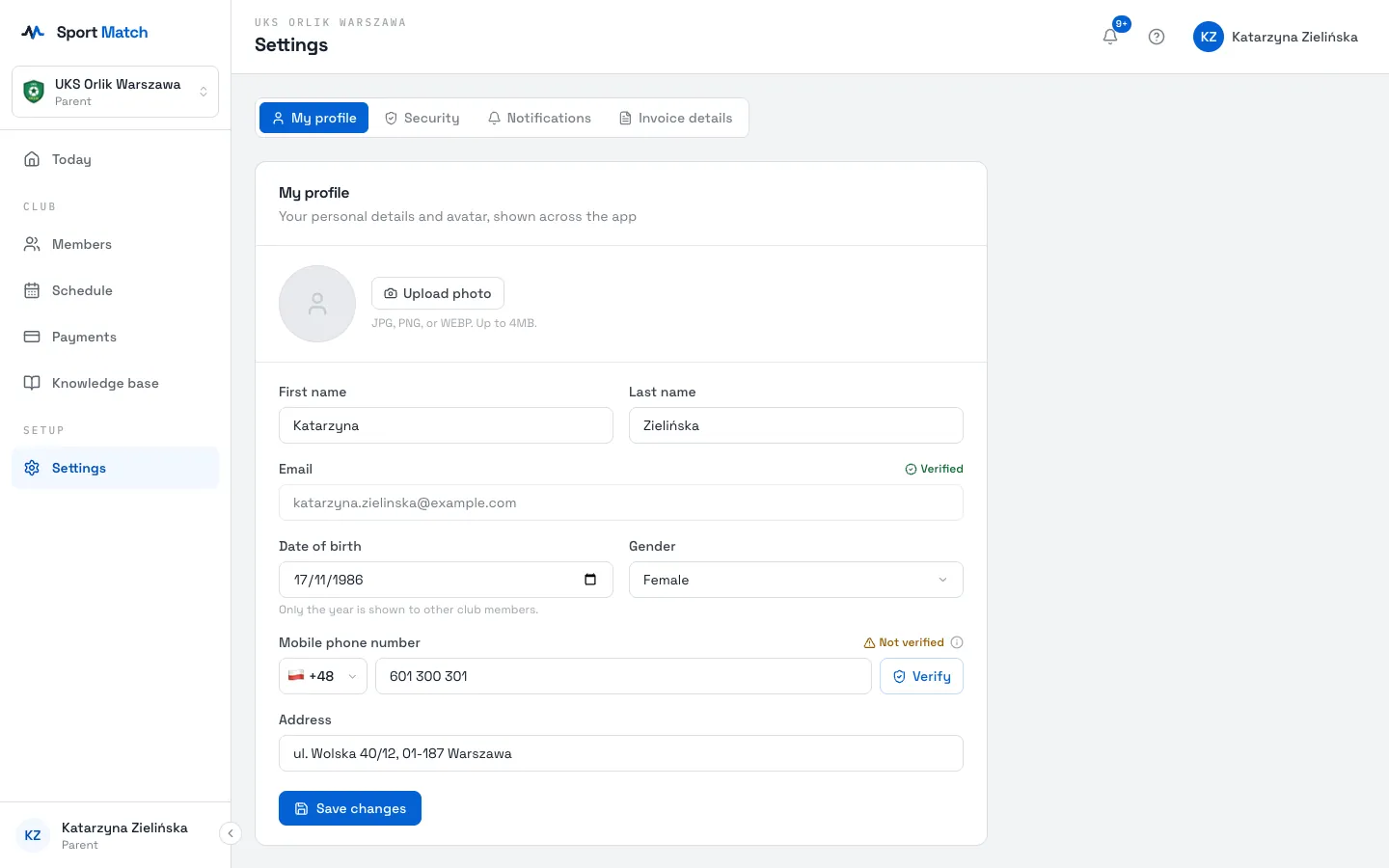
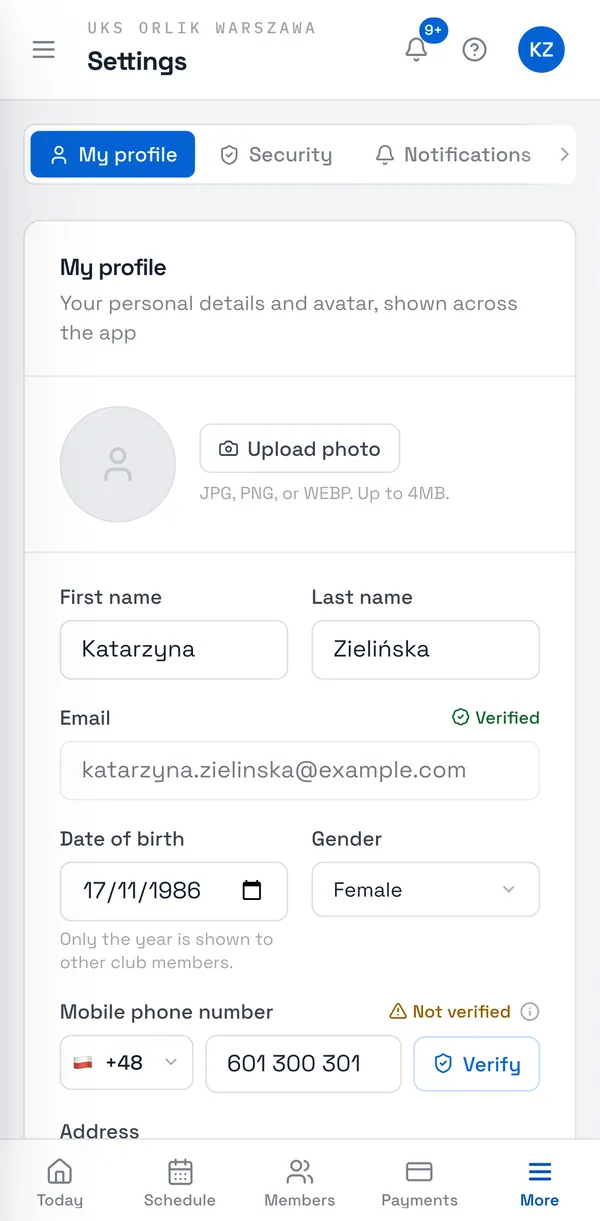
Other club members only ever see your year of birth. The full date, your address and phone are visible to the club owner and coaches.
Verifying your phone and email
Your phone number shows Verified or Not verified. Choose Verify, confirm with Send code and enter the 6-digit code from the text message. A verified number is needed for text-message notifications and for booking one-to-one sessions. You verify your email the same way, with a code sent to your inbox. The email address itself can’t be changed in the app.
Signing in with Google or Facebook
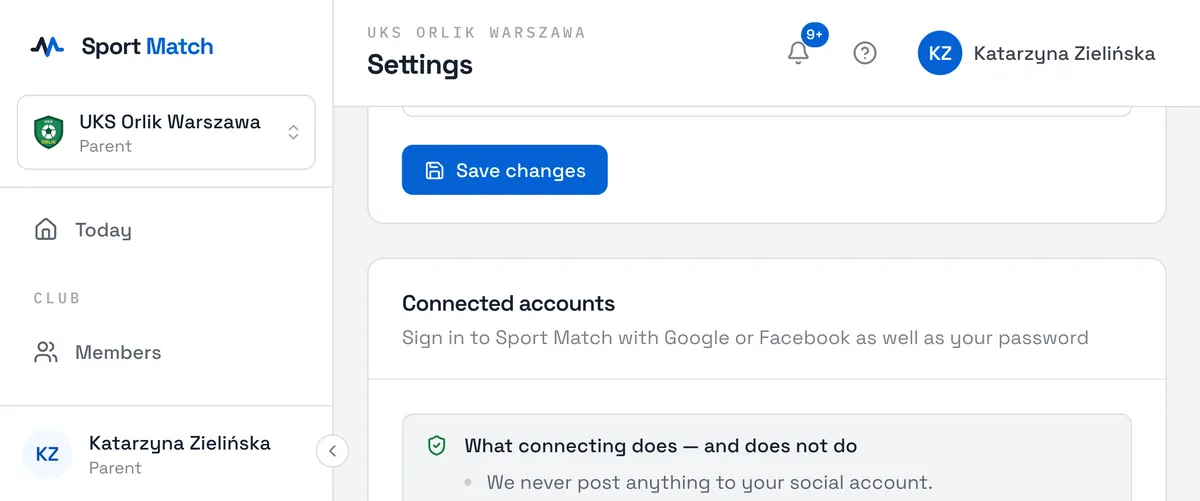
Below the form is Connected accounts. Choose Connect Google or Connect Facebook and sign in to that account — from then on you can also log in to Sport Match with it, as well as with your password. Disconnect removes the link. We never post anything to your social account.
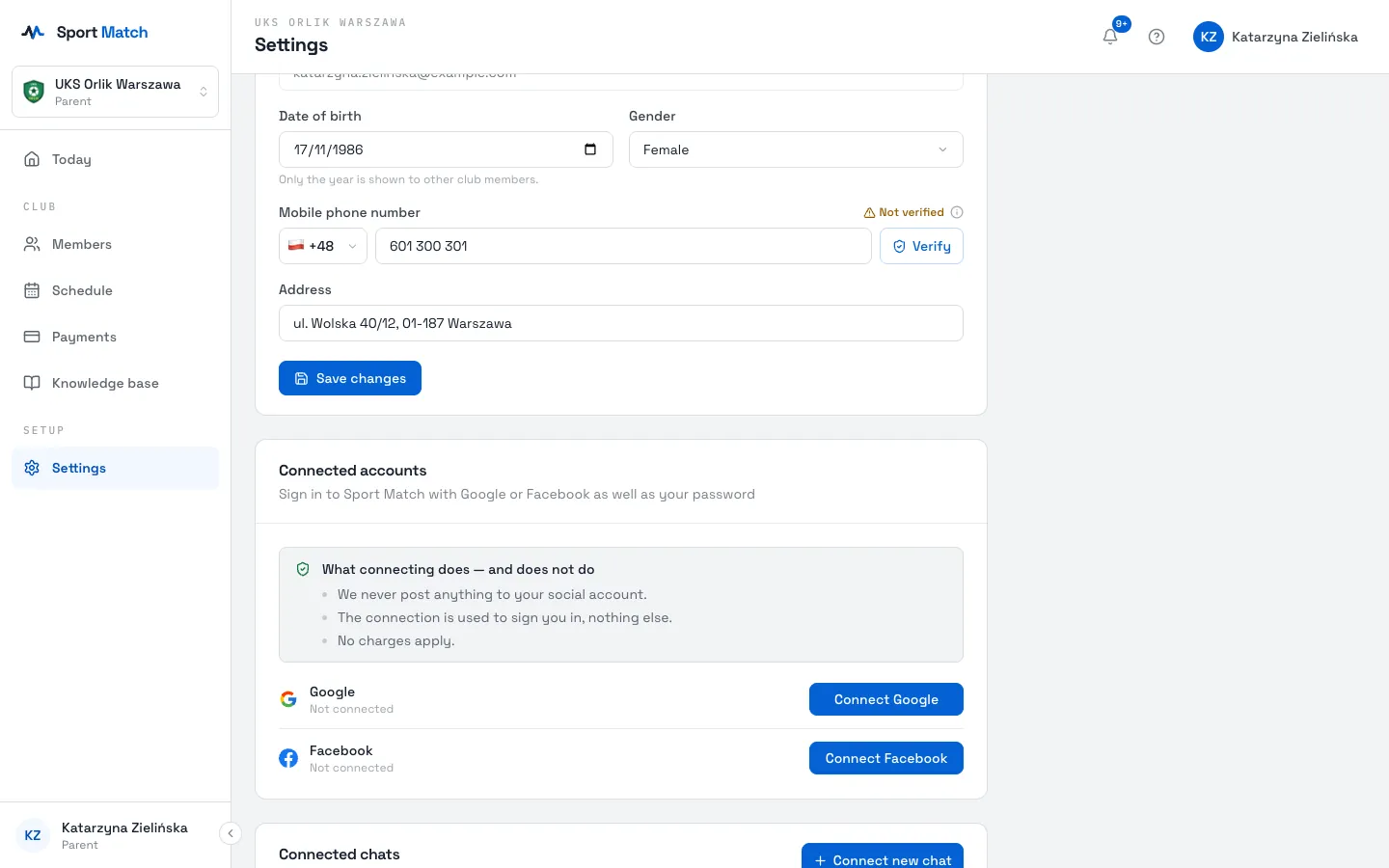
Tip: Signing in with Google or Facebook? Turn on 2-step verification there — see Keeping your account safe.
Further down, Connected chats lists chats with your club’s assistant on WhatsApp or Apple Messages, if your club uses one — and lets you disconnect them.
Signing in on this device
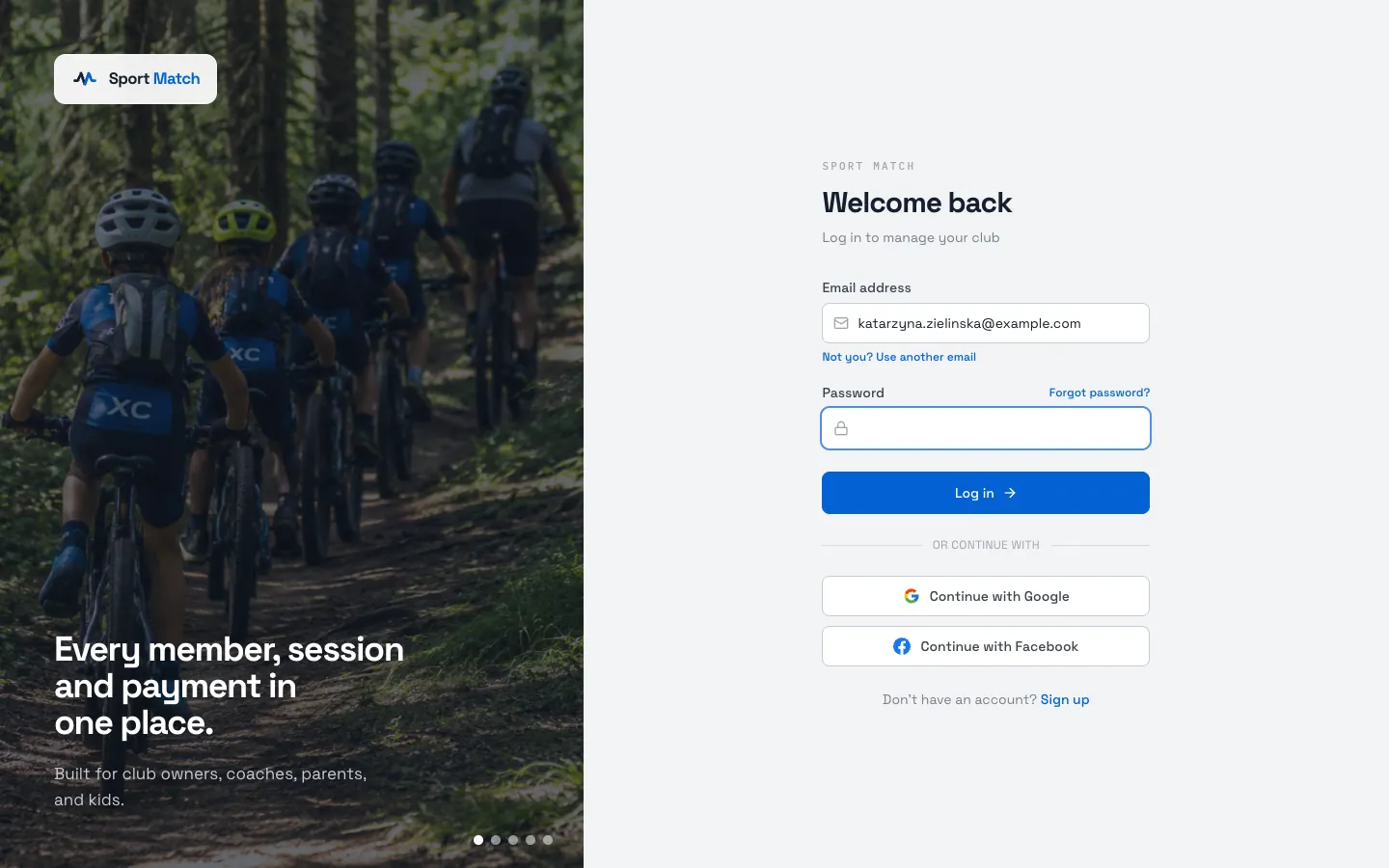
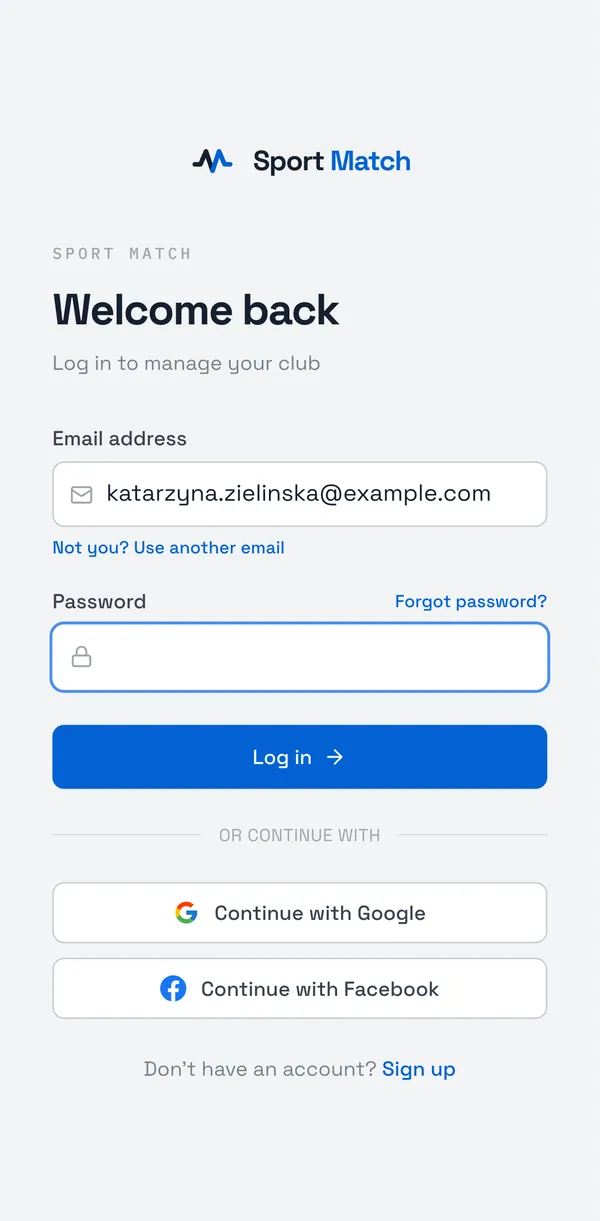
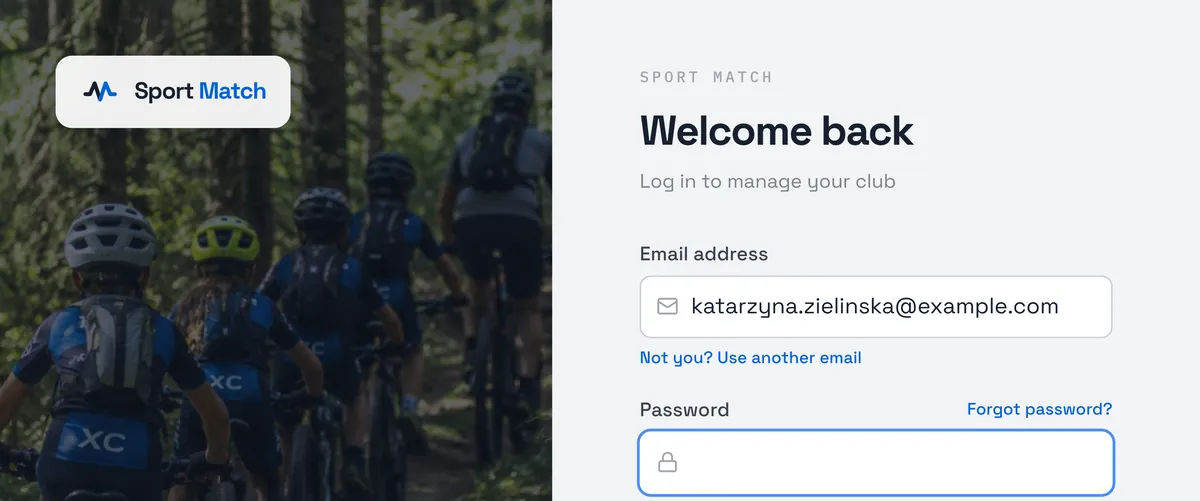
The login page remembers the email of the last person who signed in on this browser — even after logging out — so usually you only type your password or choose Sign in with a passkey. Someone else using it, like the other parent on a shared computer? Under the email field choose Not you? Use another email — the browser forgets the remembered address.
Keeping your account safe
Your Sport Match account gives access to your payments, documents and your family’s details — it’s worth protecting well.
- Sign in with a password? Use one you don’t use anywhere else, and never share it. Nobody from Sport Match or your club will ever ask for your password.
- Sign in with Google or Facebook? Then your Sport Match account is only as safe as that account. Turn on 2-step verification there: Google 2-Step Verification, Facebook two-factor authentication.
2-step verification in Sport Match
-
Open Settings → Security and choose Set up.
-
Scan the QR code with an authenticator app (e.g. Google Authenticator, Microsoft Authenticator, 1Password).
-
Type the 6-digit code. It’s optional for members and parents and can be turned off in the same place (club owners and coaches must have it — see Keeping your owner account safe).
Recovery codes. When you turn on two-step verification you get 10 one-time recovery codes — print them, download them or keep them in your password manager, away from your phone. If you lose your phone, one code gets you back in (login page → after your password → “Lost your authenticator app? Use a recovery code”). Settings → Security shows how many are left and warns when 3 or fewer remain; “Create new codes” replaces the whole set (sign in again first if asked).
Passkey (Face ID, Touch ID, Windows Hello)
Instead of your password you can sign in with a passkey — your face, fingerprint or phone screen lock (Android too). Choose Settings → Security → Add a passkey, then on the login page type your email and choose Sign in with a passkey. Remove passkeys in the same place. Signed in with Google or Facebook? Sign in with email and password to add one.
Invoice details
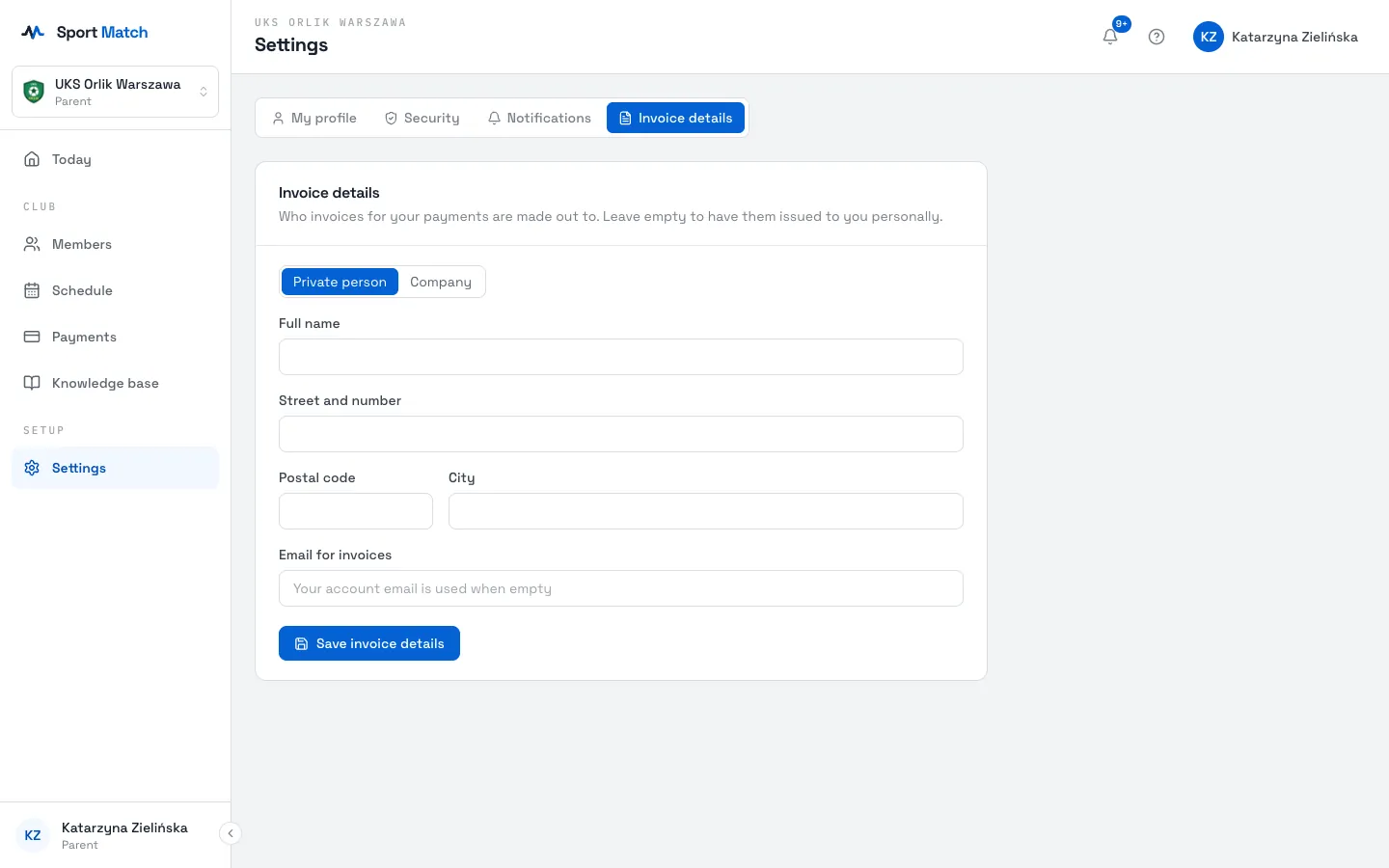
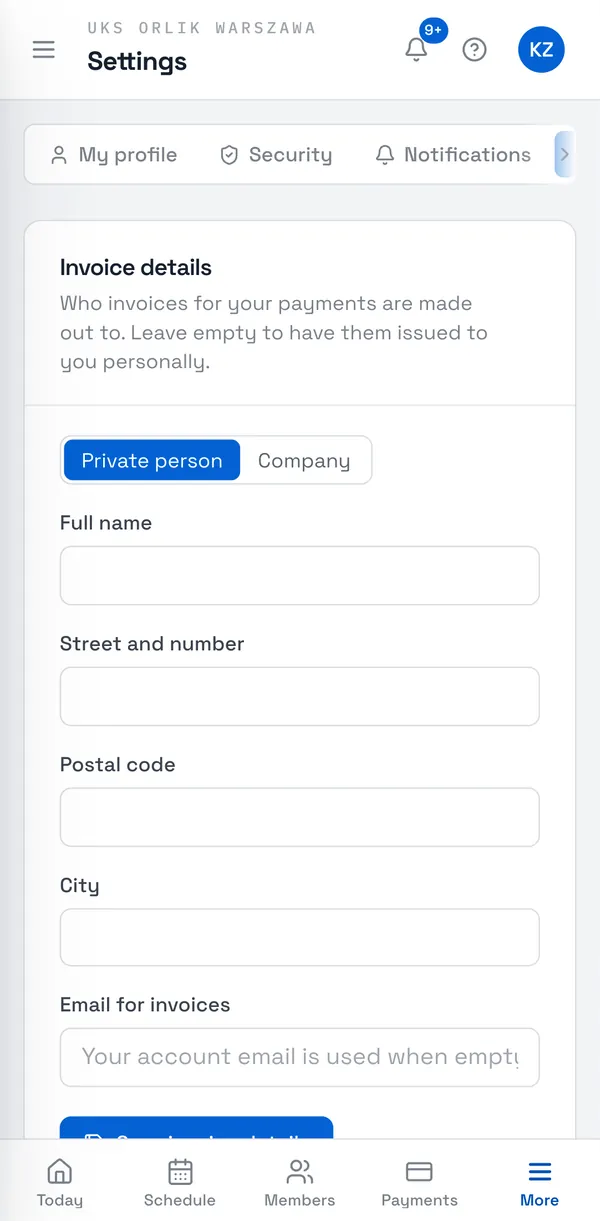
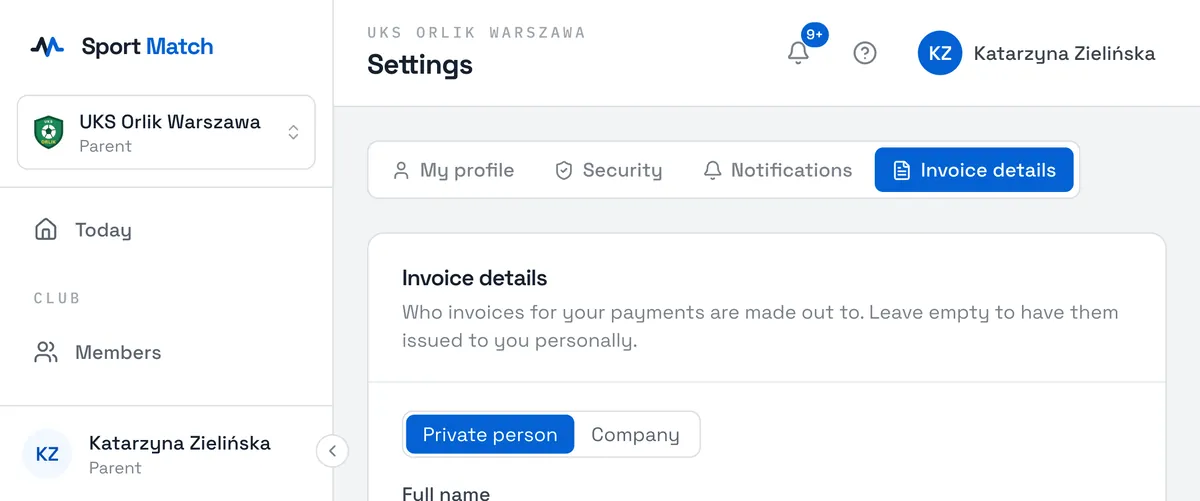
The Invoice details tab tells the club who to invoice for your payments. Leave it empty to be invoiced as a private person. Choose Company to enter company details, fill in the fields and choose Save invoice details. You can leave Email for invoices empty — we’ll use your account email.
Language and theme
Click your name in the top-right corner and choose Language (Polish or English) or Theme (Bright, Dark, OS-based). Your language is saved to your account, so it applies on every device — including emails and notifications.
Frequently asked questions
The login page shows someone else’s email
The browser remembers the last person who signed in on it. Choose Not you? Use another email under the email field and type yours.
I forgot my password
On the login page choose Forgot password?, enter your email and choose Send code. Enter the code from the email and set a new password.
How do I delete my account?
Write to us from the help menu (? → Chat with us) or at contact@sportmatch.pl.
Didn’t find an answer?
Write to us in the chat — it opens on this page, no login needed — or email contact@sportmatch.pl.