The schedule and managing sessions
Group sessions appear in the schedule by themselves — the club builds them from each group’s weekly plan about three months ahead. You can add extra sessions, move one, change its place or cancel it, and players are notified.
Screenshots
The calendar
-
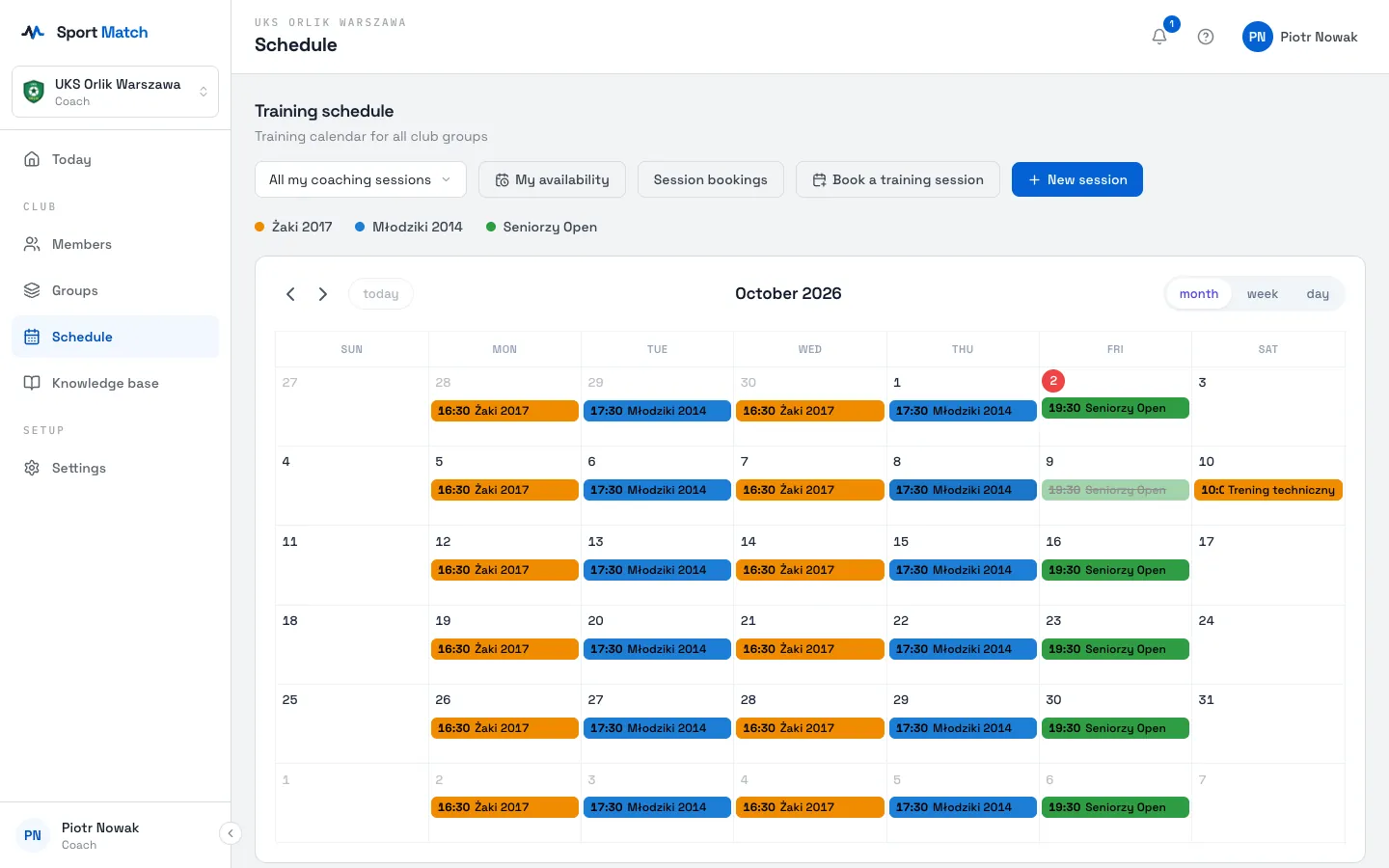
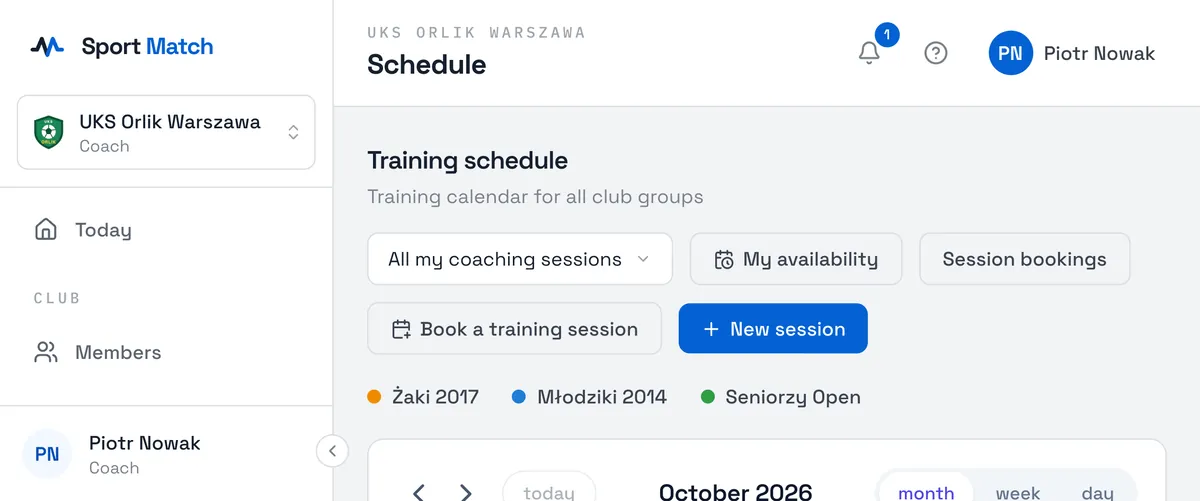
Open Schedule. At the top, choose what to show: All my coaching sessions (the default) or All club events.
-
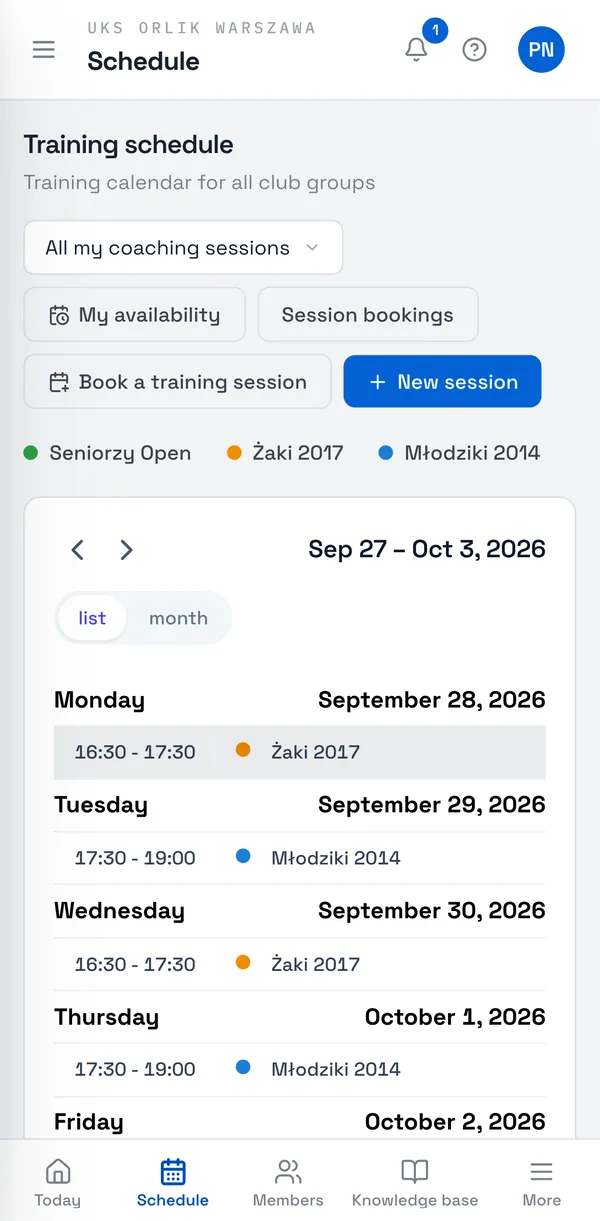
On a computer switch between Month, Week and Day; the arrows move through time and Today jumps back. On a phone the schedule opens as a week list.
-
Colours are groups — the legend is above the calendar. Struck-through sessions are cancelled. Click a session for its details and attendee list.
Adding a session
-
Click New session.
-
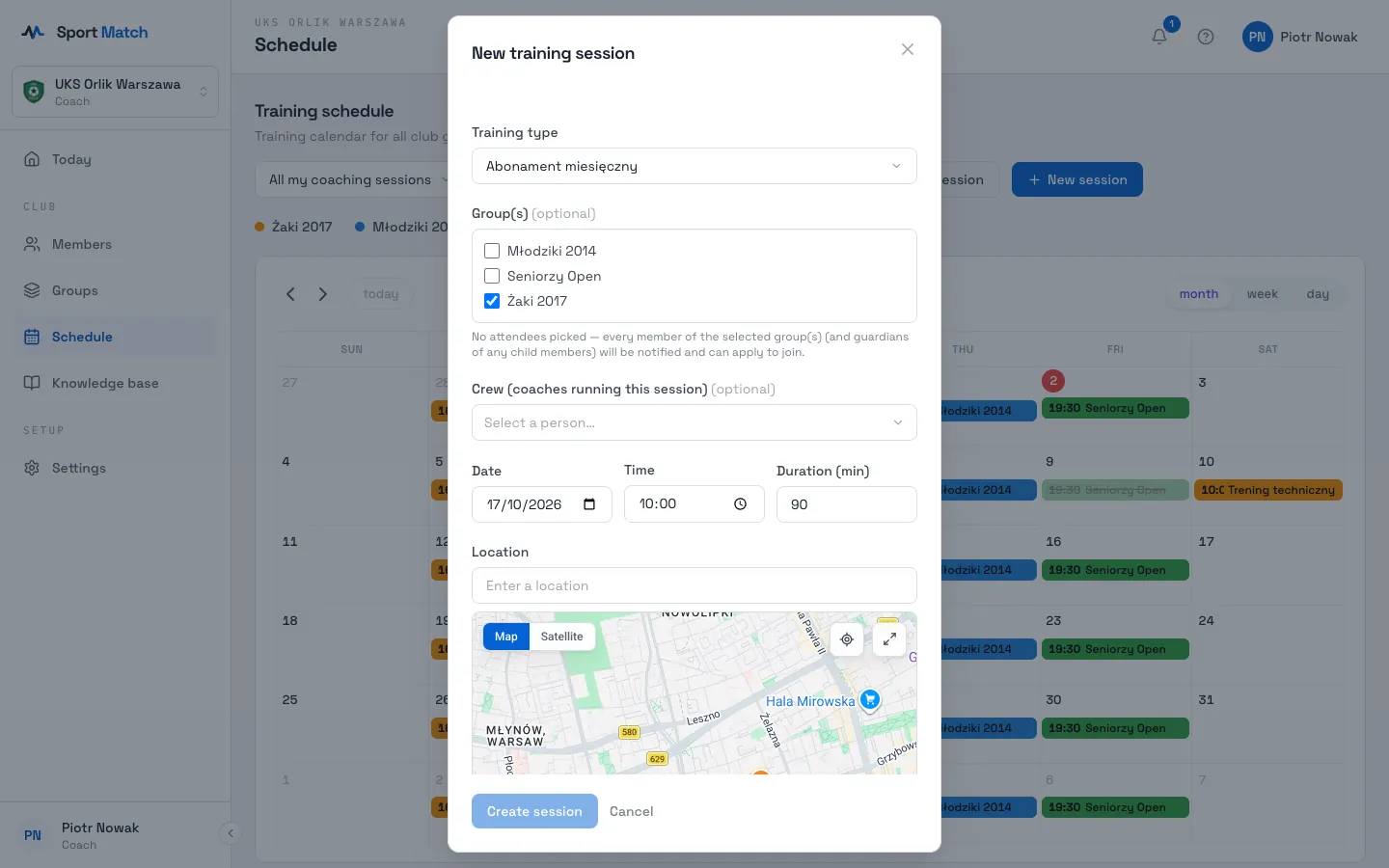
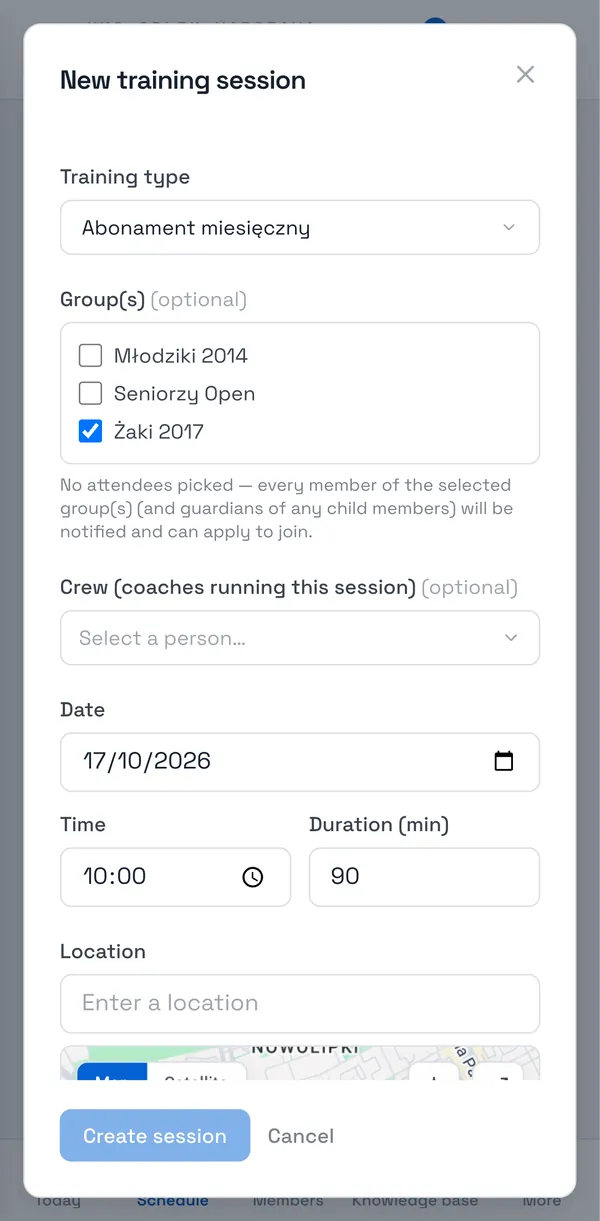
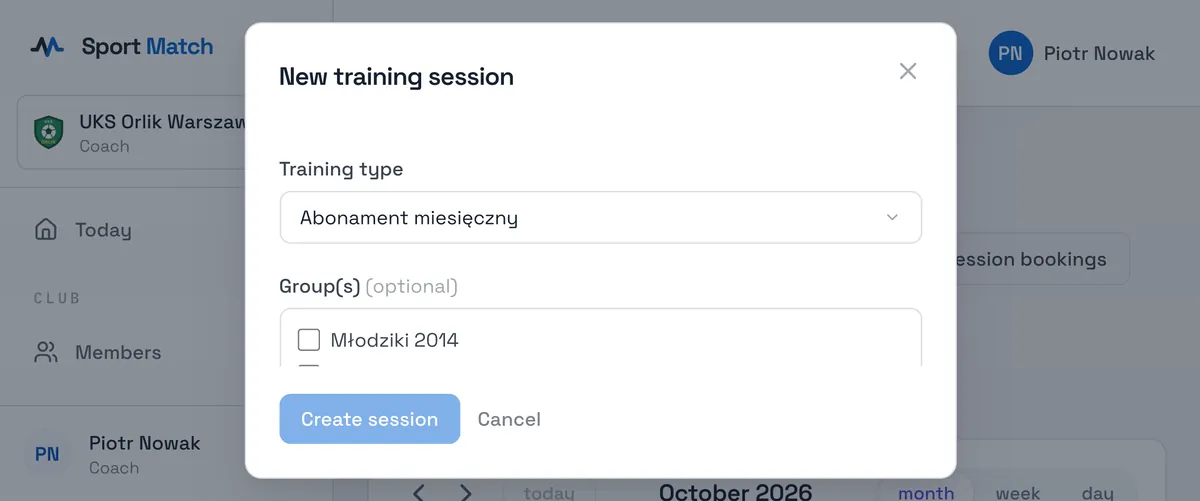
Pick a Training type — it decides what attendees pay. Tick Group(s) if the session is for a particular group.
-
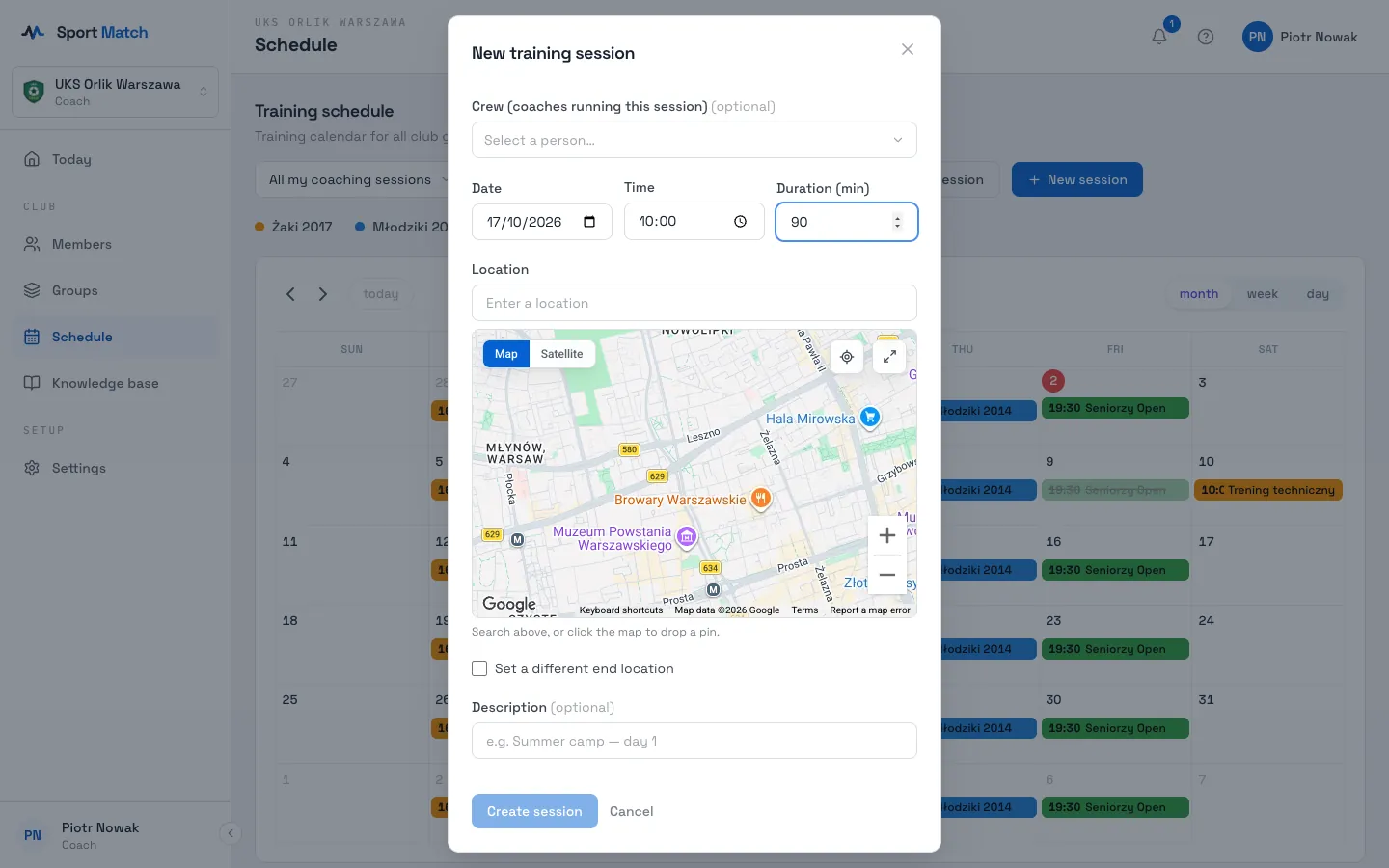
In Crew (coaches running this session) pick who runs it. Only they (and the owner) can then edit it and take attendance.
-
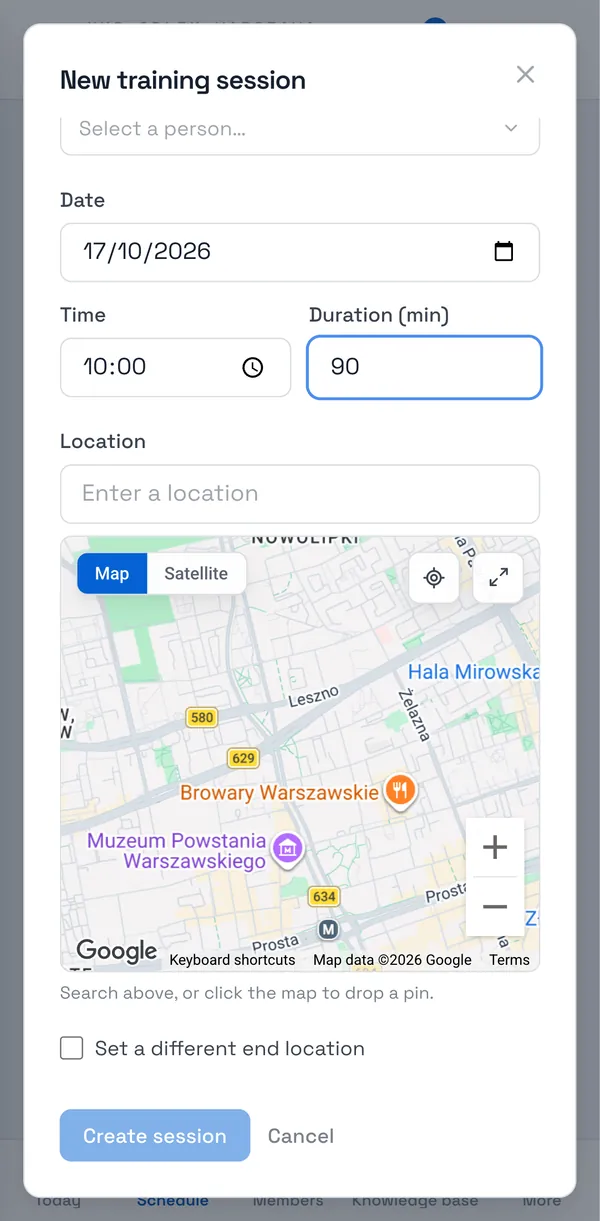
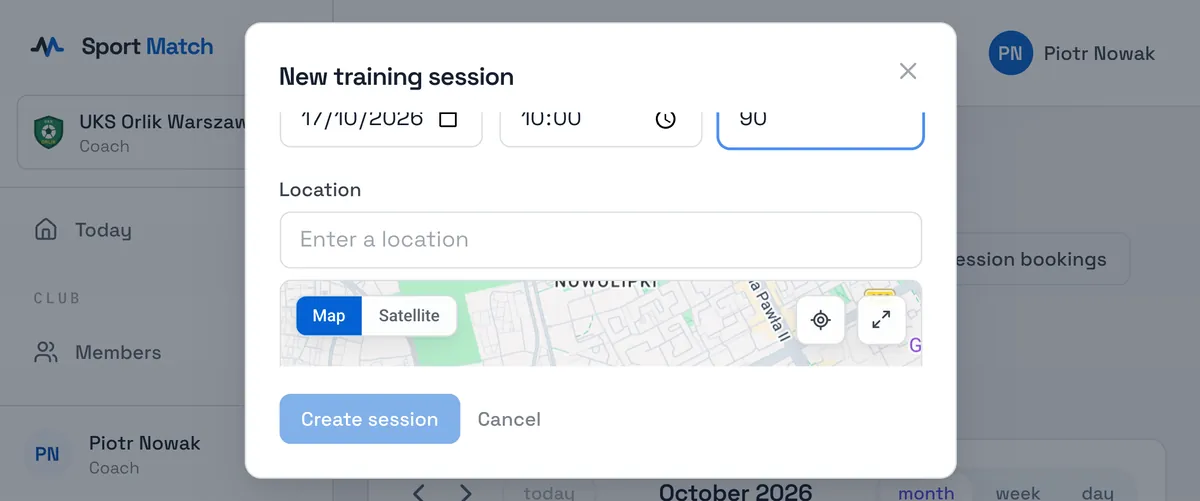
Set the Date, Time, Duration (min) and Location (if it ends somewhere else, tick Set a different end location). Add a Description, e.g. “Friendly match”.
-
Pick players under Attendees and click Create session. Each of them is asked to confirm.
Tip: Tick a group but leave Attendees empty and you get an open session players sign up for themselves — see Open sessions with sign-up.
Changing the time, length or place
-
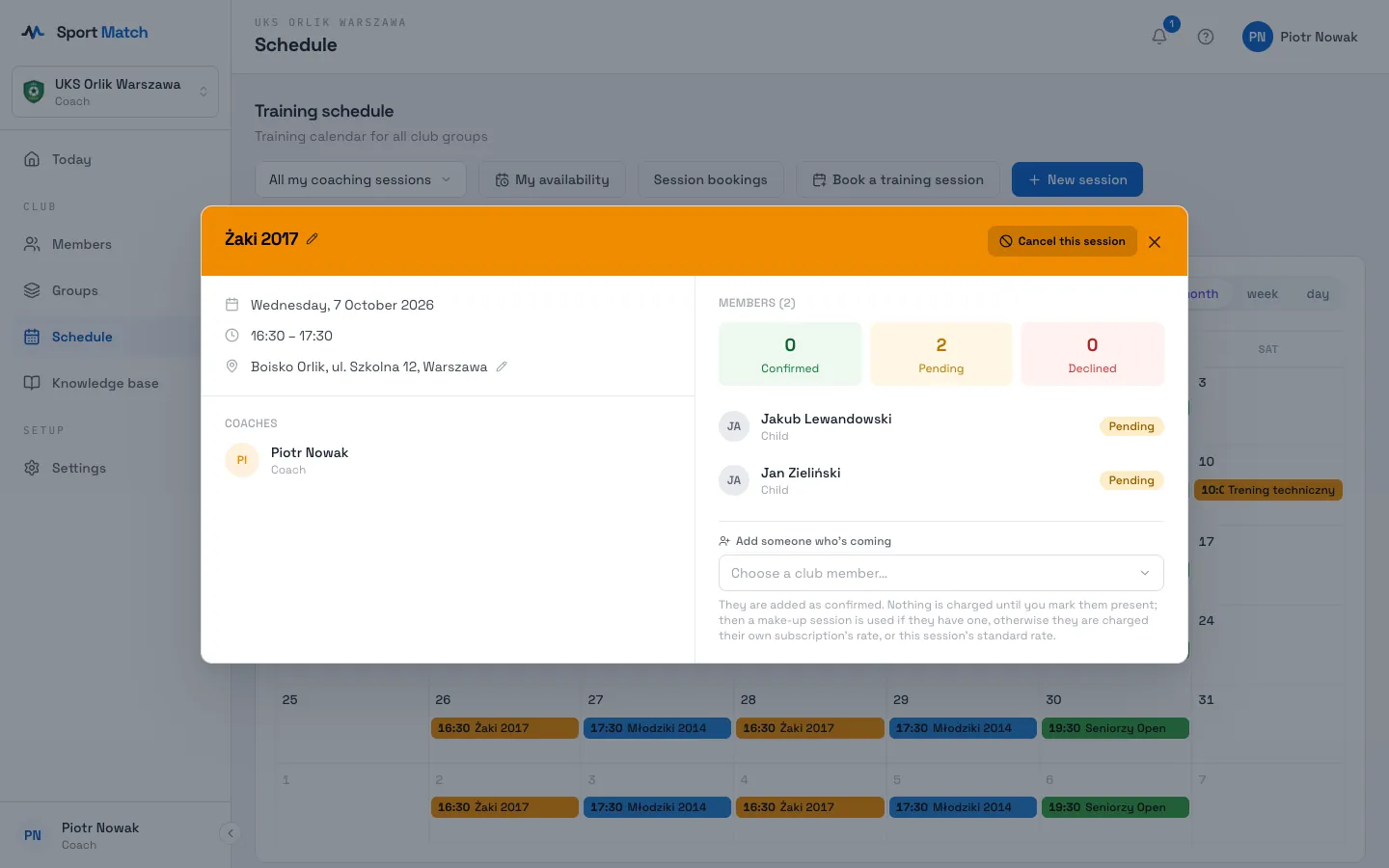
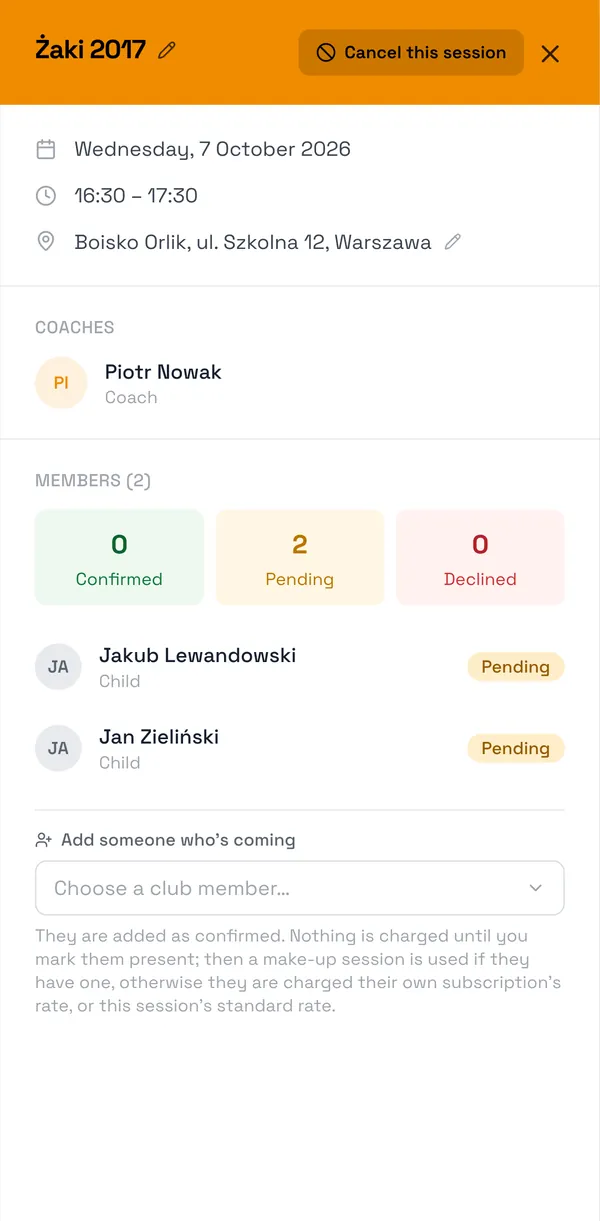
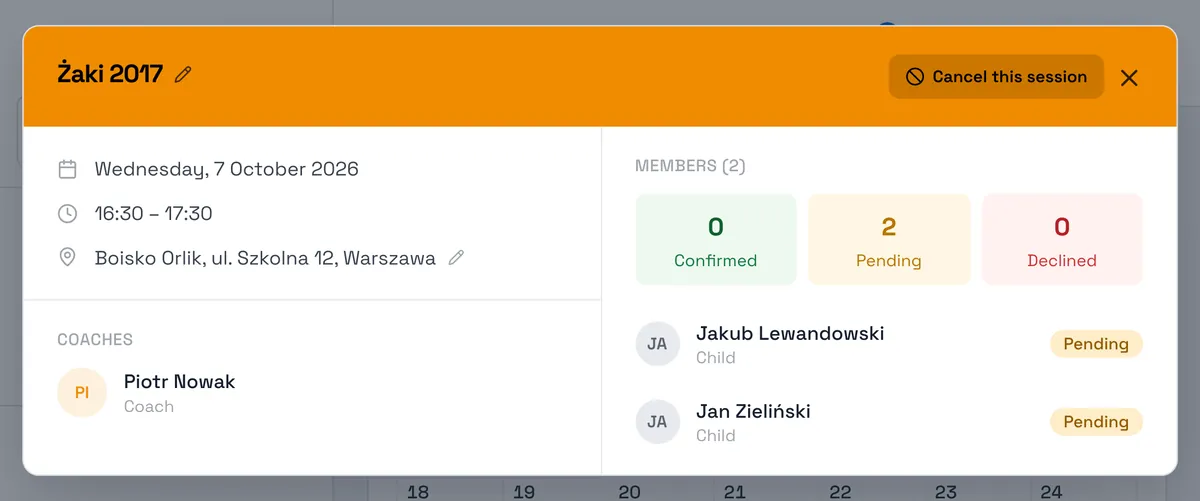
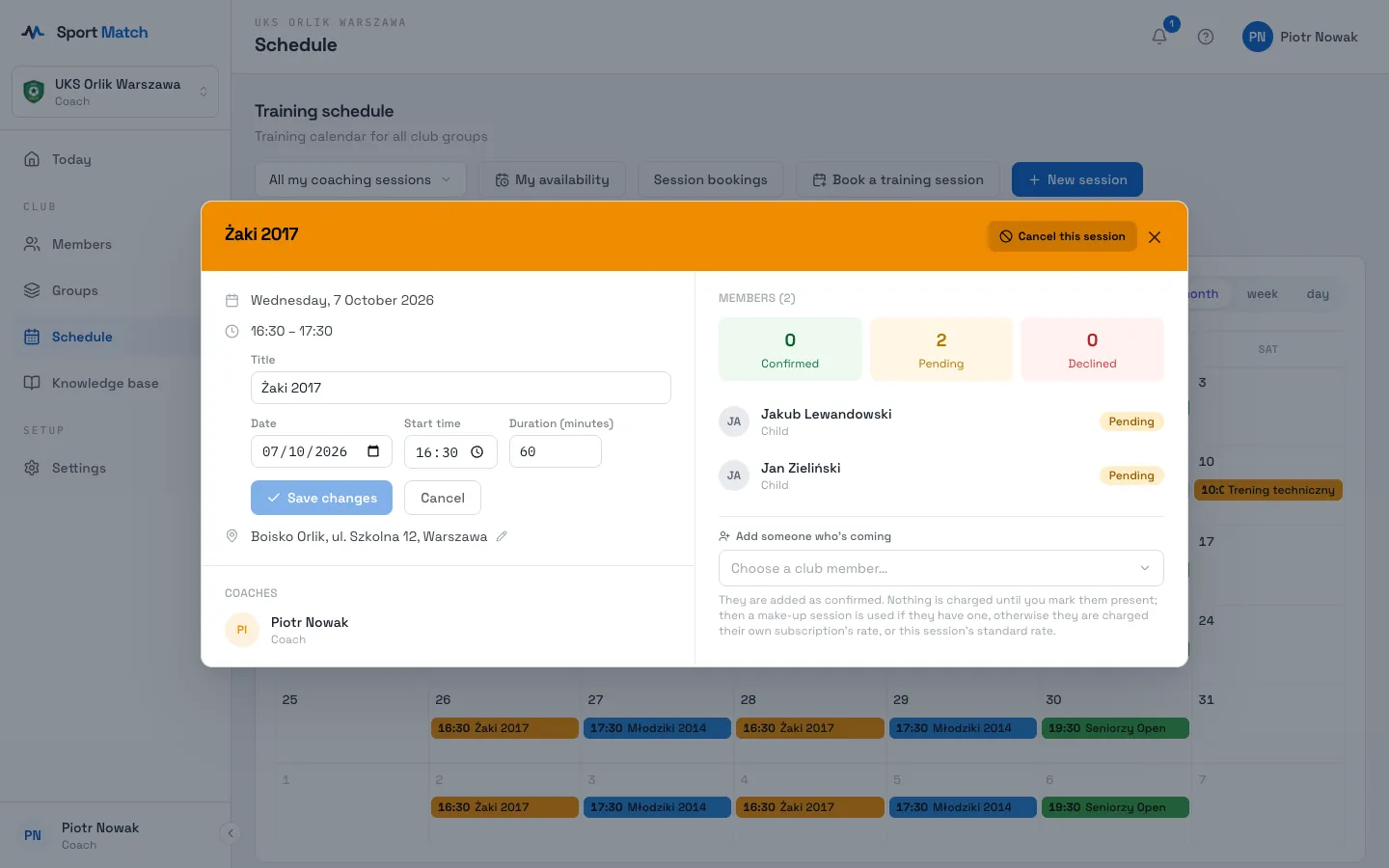
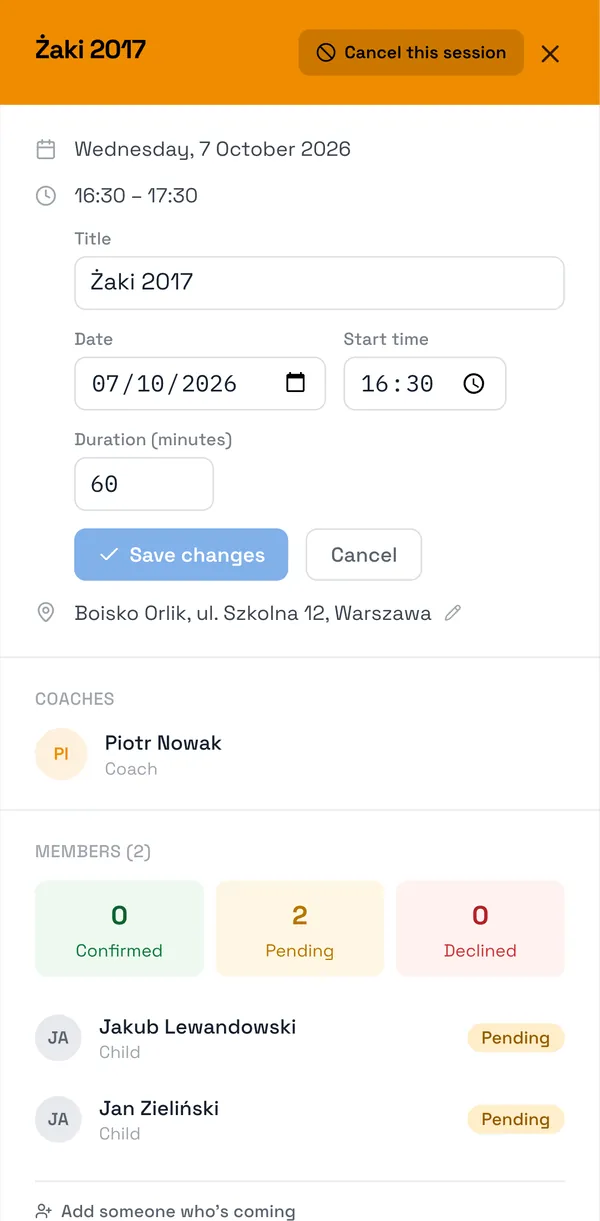
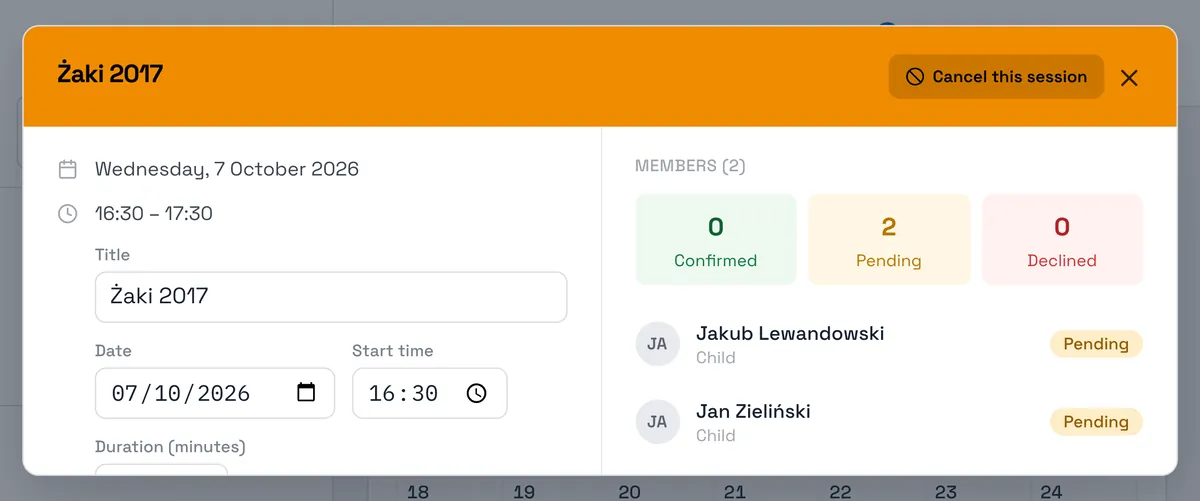
Click the session in the calendar. In the header, next to its name, is the pencil Edit date, time and duration.
-
Change the Title, Date, Start time or Duration (minutes) and click Save changes.
-
Check the Confirm these changes summary and choose Save and notify. Everyone’s attendance answer is cleared — each person has to confirm again — and everyone is notified.
Important: Less than 24 hours before the start, the date and time are locked — only the length can still change. A new time can’t be in the past either.
Change the place with Edit location next to the address, then Save location. Changing the length also re-prices charges already made (a session twice as long counts as two).
Cancelling a session
-
Open the session and click Cancel this session in the header.
-
Answer Cancel this session for everyone? with Yes, cancel it. Attendees and the other coaches get a Training cancelled notification.
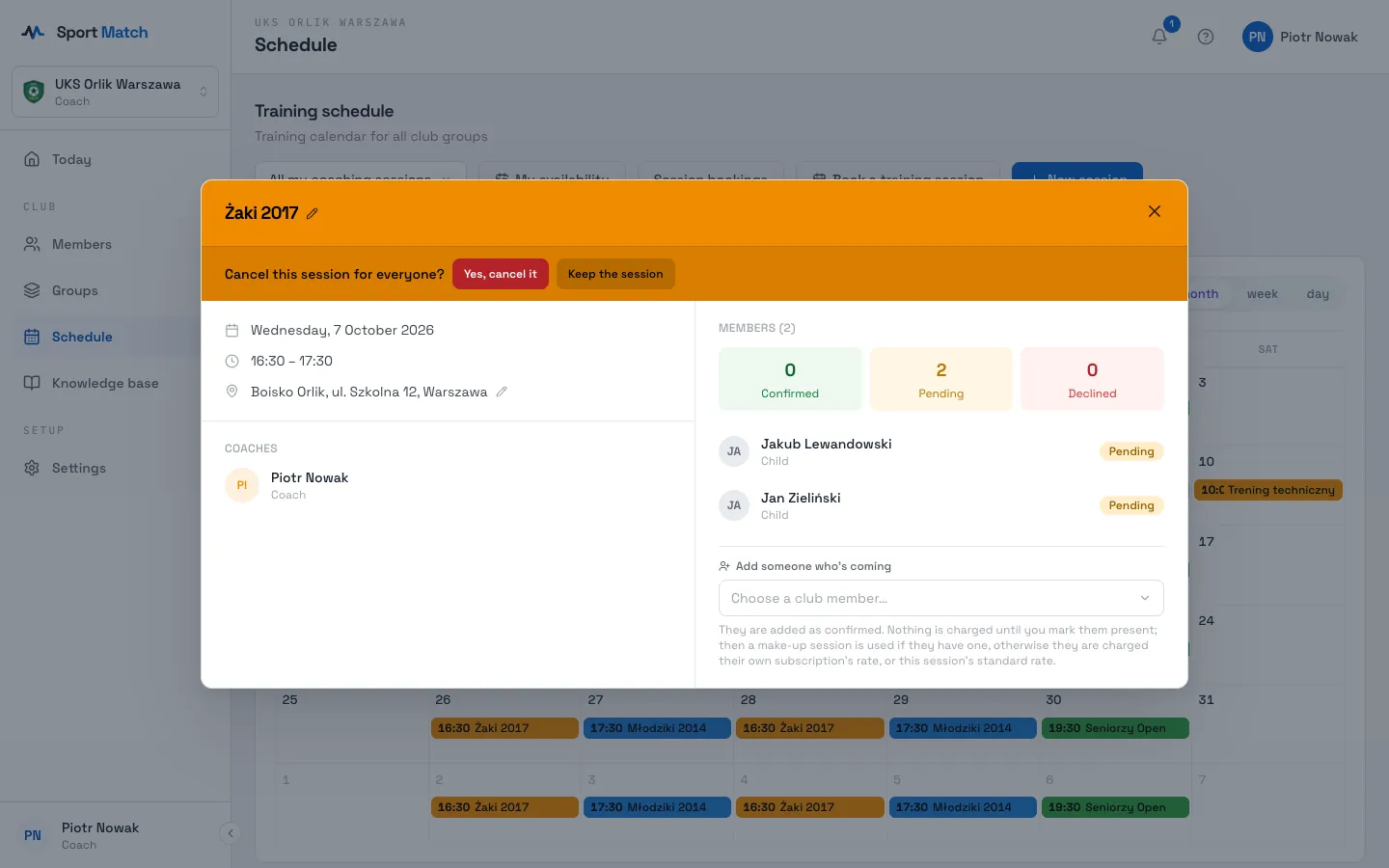
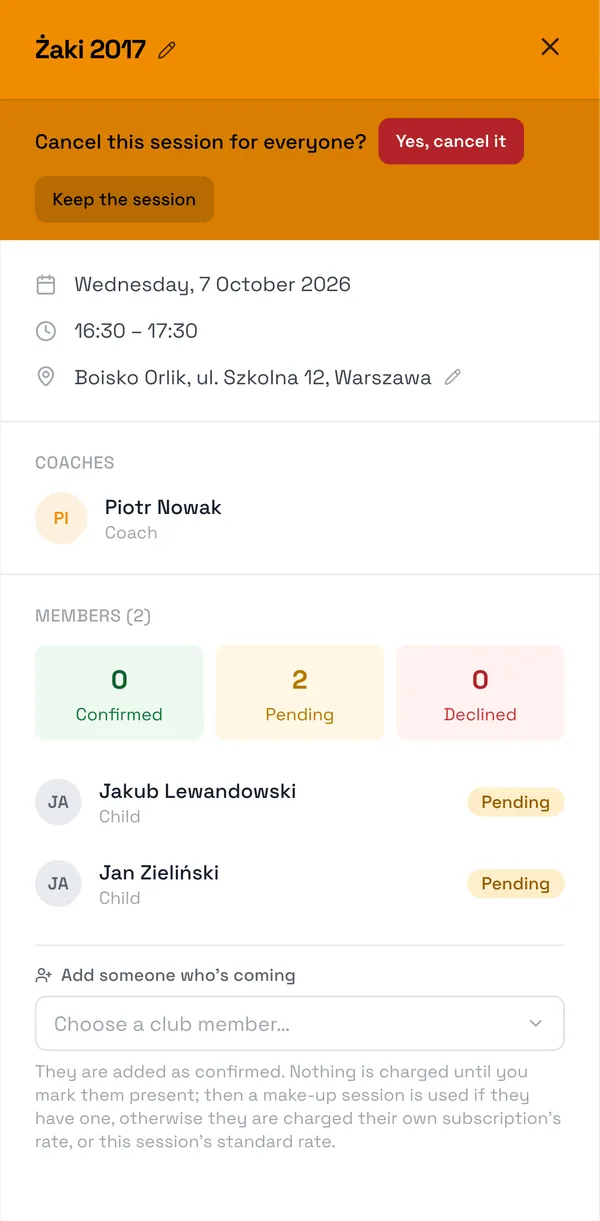
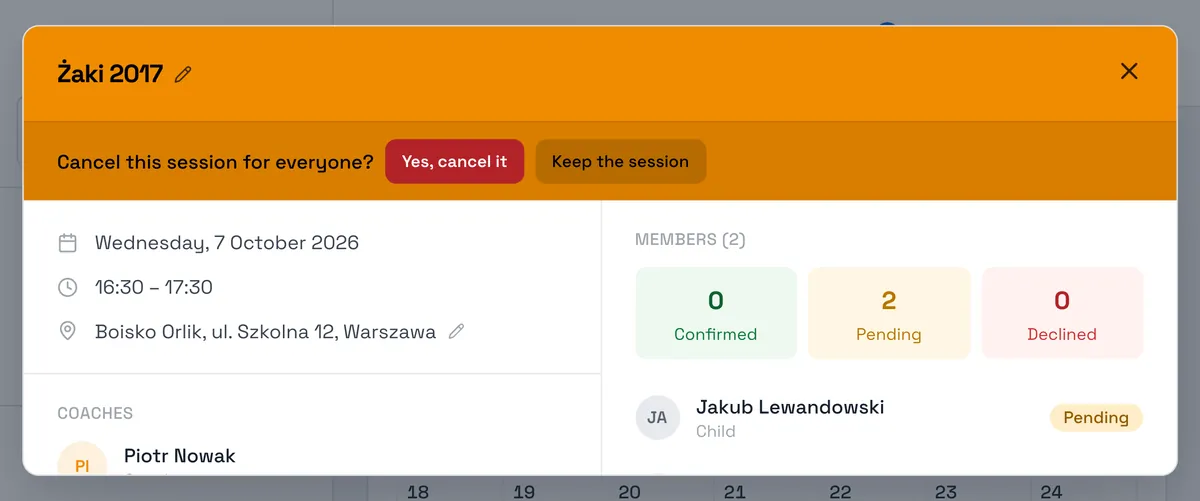
A cancelled session stays in the calendar struck through, is not billed and no longer collects answers. Sessions can’t be deleted in the app — cancelling is the way to take one off.
Who can change a session
| Who | Time, length, cancelling, attendance | Location |
|---|---|---|
| Club owner | every session | every session |
| A coach in the crew | yes | yes |
| The group’s leading coach (session without a crew) | yes | yes |
| An additional group coach (session without a crew) | no | yes |
| The coach who created a session with no group | yes | yes |
Frequently asked questions
Why don’t I see every session in the club?
By default you see only your own sessions. Switch to All club events above the calendar.
I changed the time and players are “pending” again — why?
Any change of time or length clears the answers, because they were about the old time. Players are notified and confirm again; anyone who doesn’t answer is confirmed automatically 24 hours before the session.
Didn’t find an answer?
Write to us in the chat — it opens on this page, no login needed — or email contact@sportmatch.pl.