Taking attendance
Attendance in Sport Match is two different things: the player’s answer before the session (“I’ll be there” / “I won’t”) and your mark, once the session has started, of who actually turned up. Payments follow the second.
Screenshots
Before the session: who’s coming
Open the session in Schedule (or Session details on Today). The counters show how many players confirmed, how many haven’t answered and how many declined. The list is split into Confirmed, Automatically confirmed, Awaiting response and Declined; hover a status to see when the answer was given.
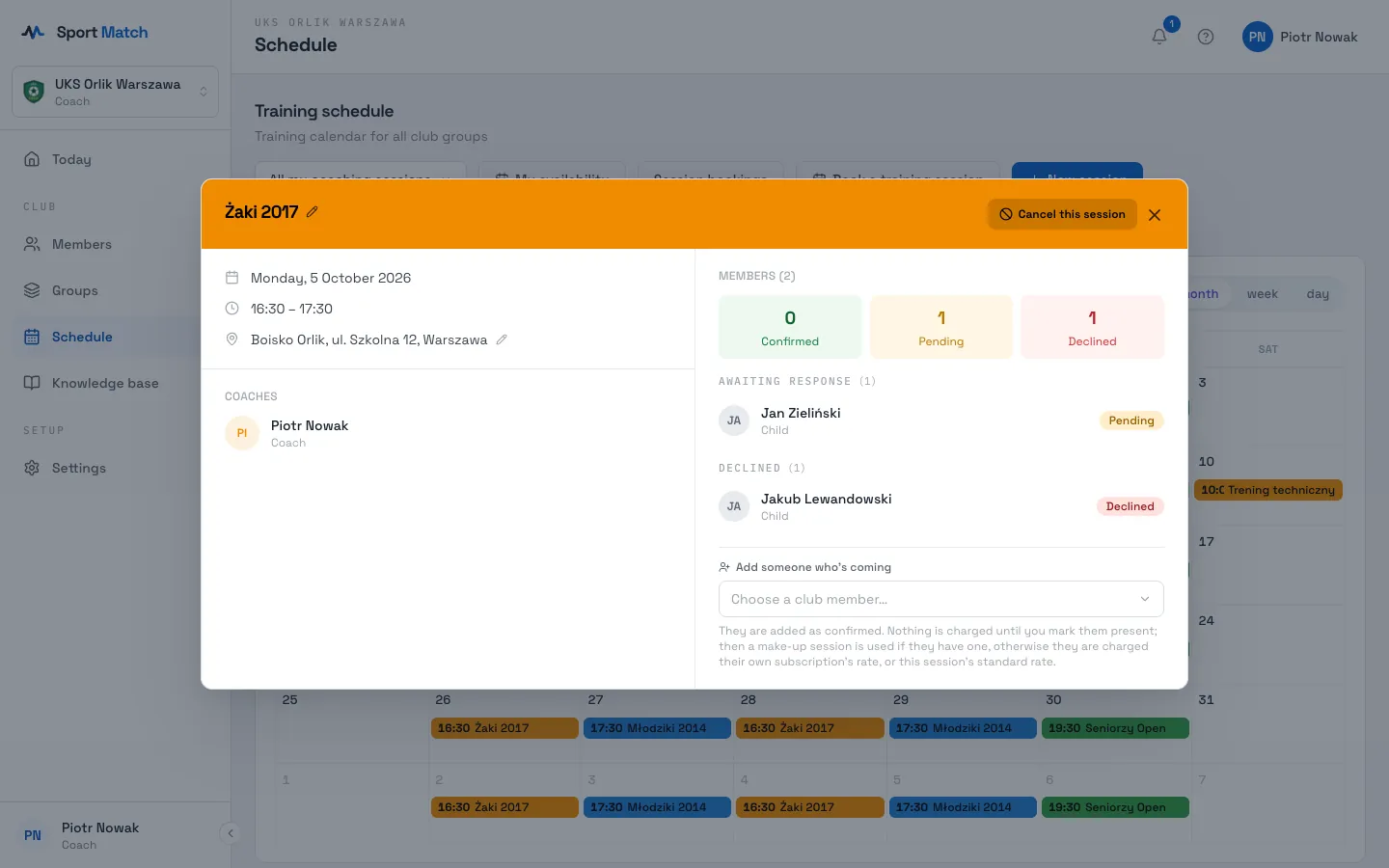
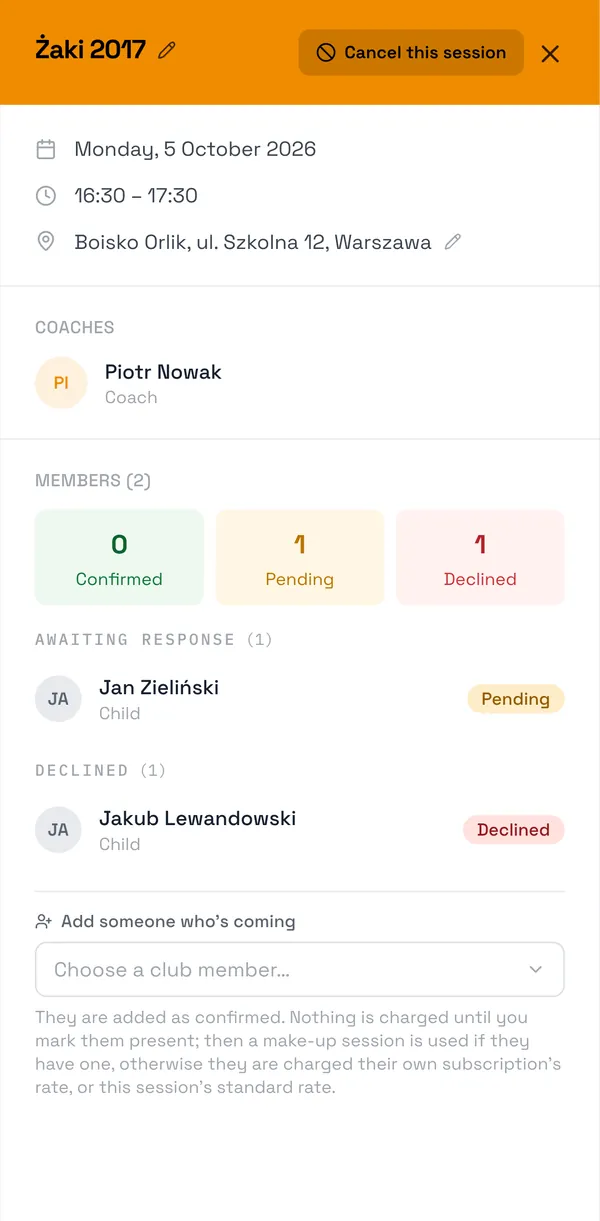
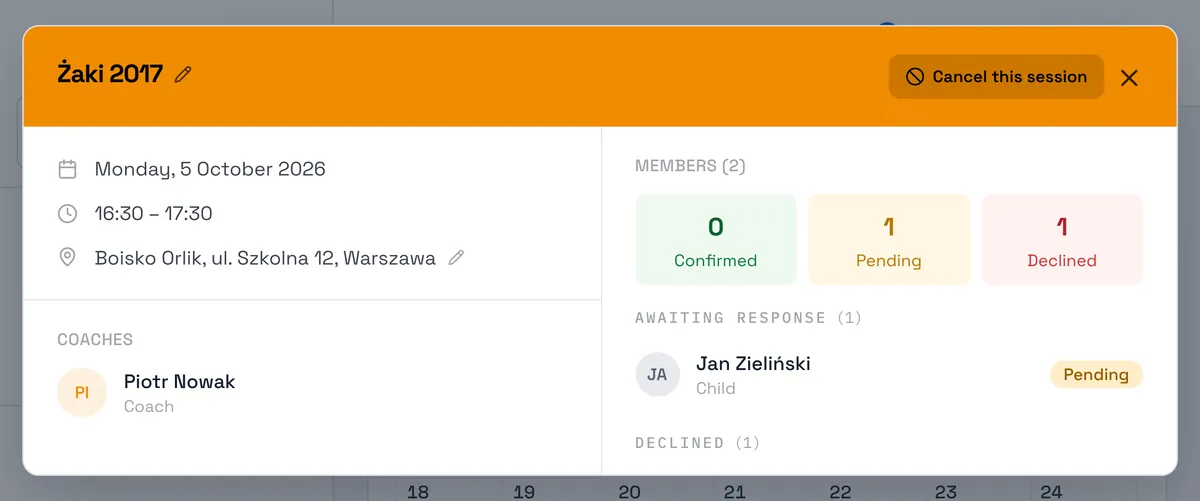
Players (or their parents) answer until 24 hours before the session. Anyone who hasn’t answered by then is confirmed automatically. A declined answer reaches you as an Attendance declined notification.
Once it starts: who actually came
-
Once the session has started, open it in the schedule. The marking buttons only appear from the start time.
-
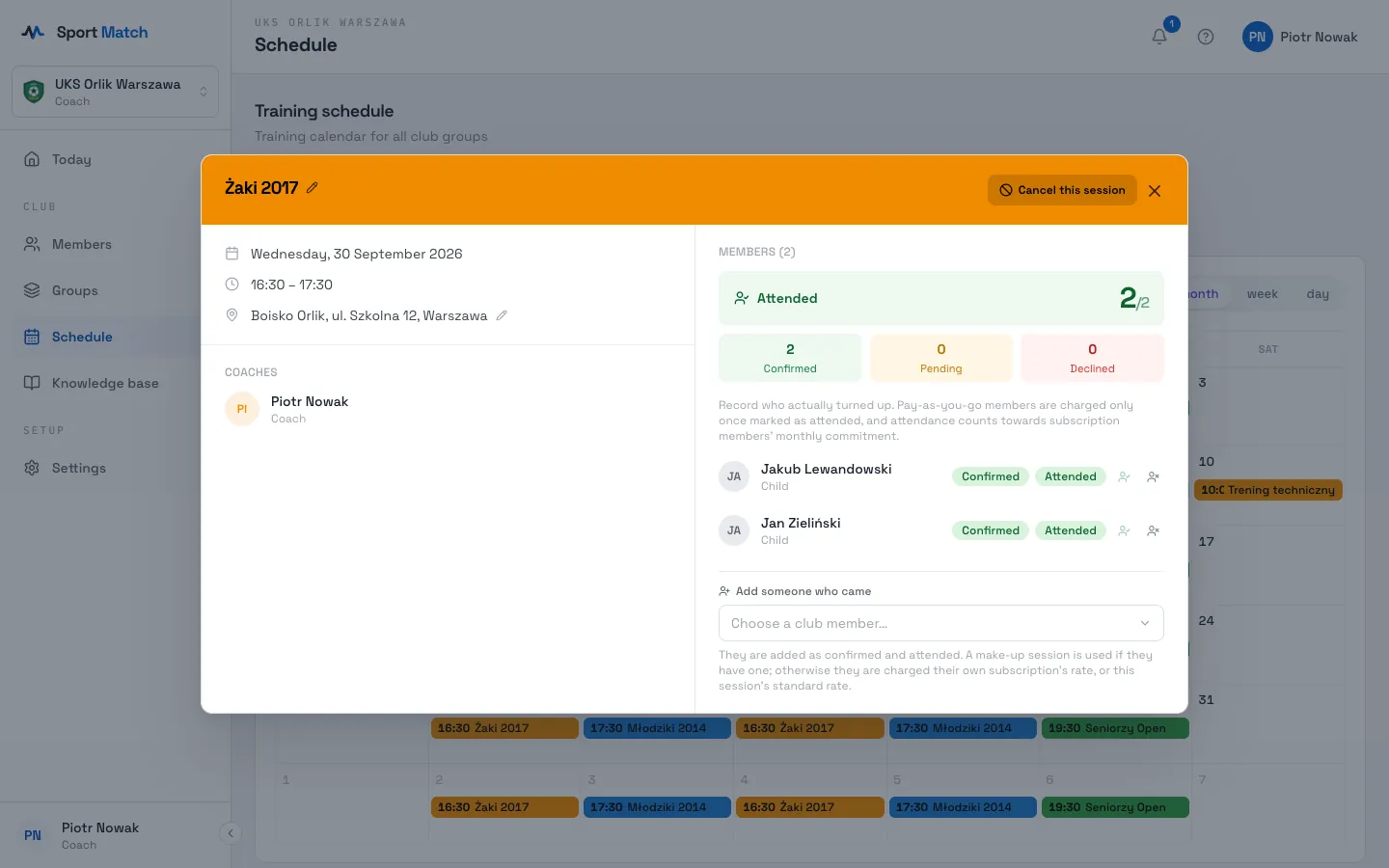
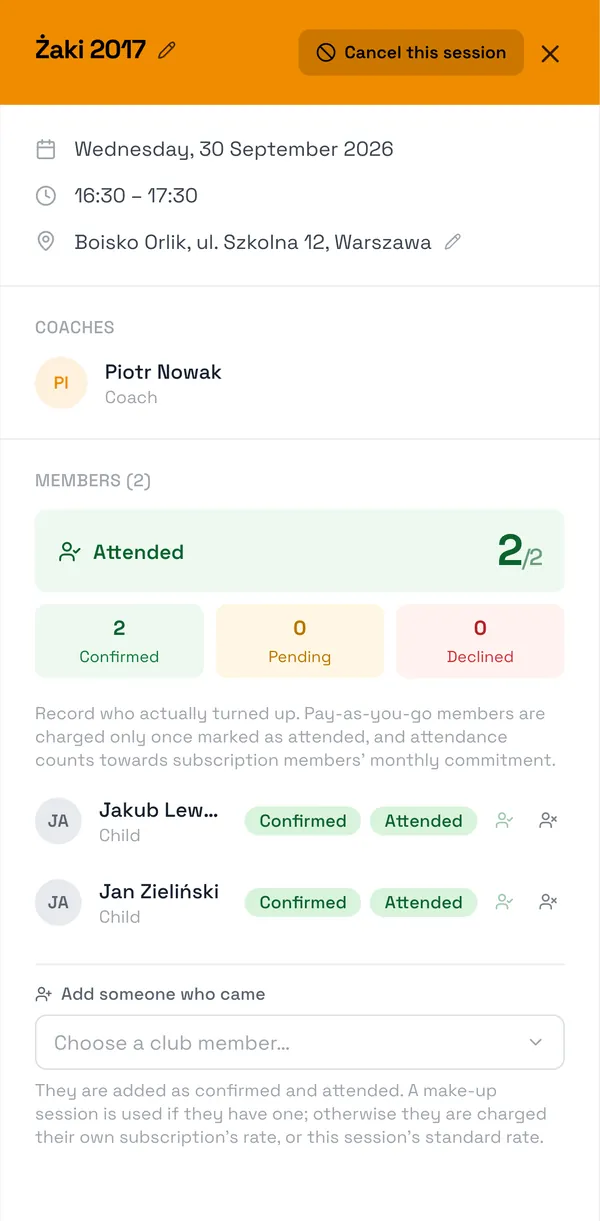
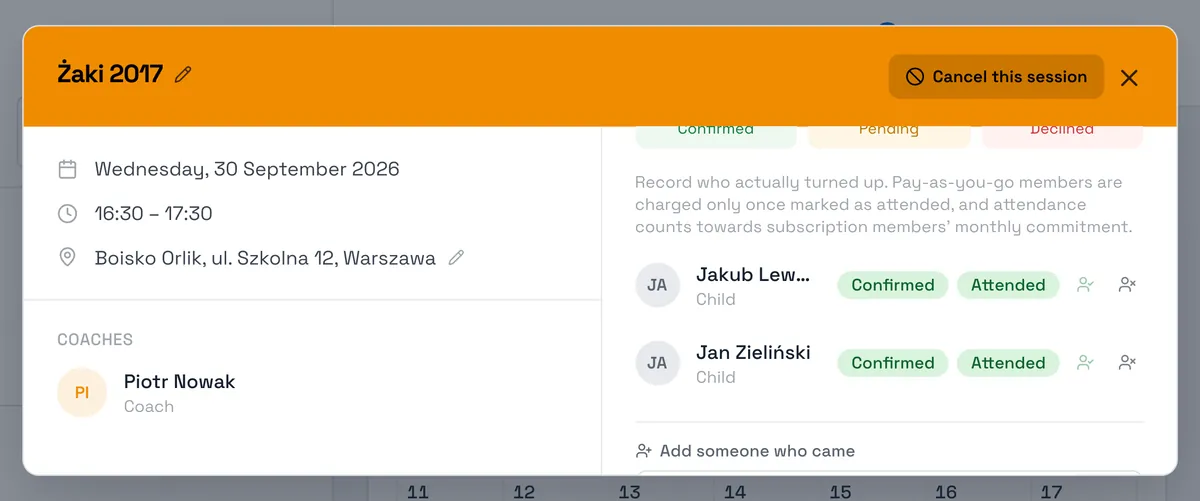
Next to each player click Mark as attended or Mark as absent. Attended or Did not attend appears by their name, with a counter of who was there at the top.
-
Fix a mistake with the same buttons. Each mark saves straight away.
- The answer (player)
- Confirmed / Declined before the session. Helps you plan it.
- Attendance (coach)
- Attended / Did not attend once it starts. The club bills from this.
Important: Pay-as-you-go players are only charged once you mark them as attended — an unmarked session isn’t billed. For subscription players, attendance counts towards their monthly commitment.
Someone who isn’t on the list
-
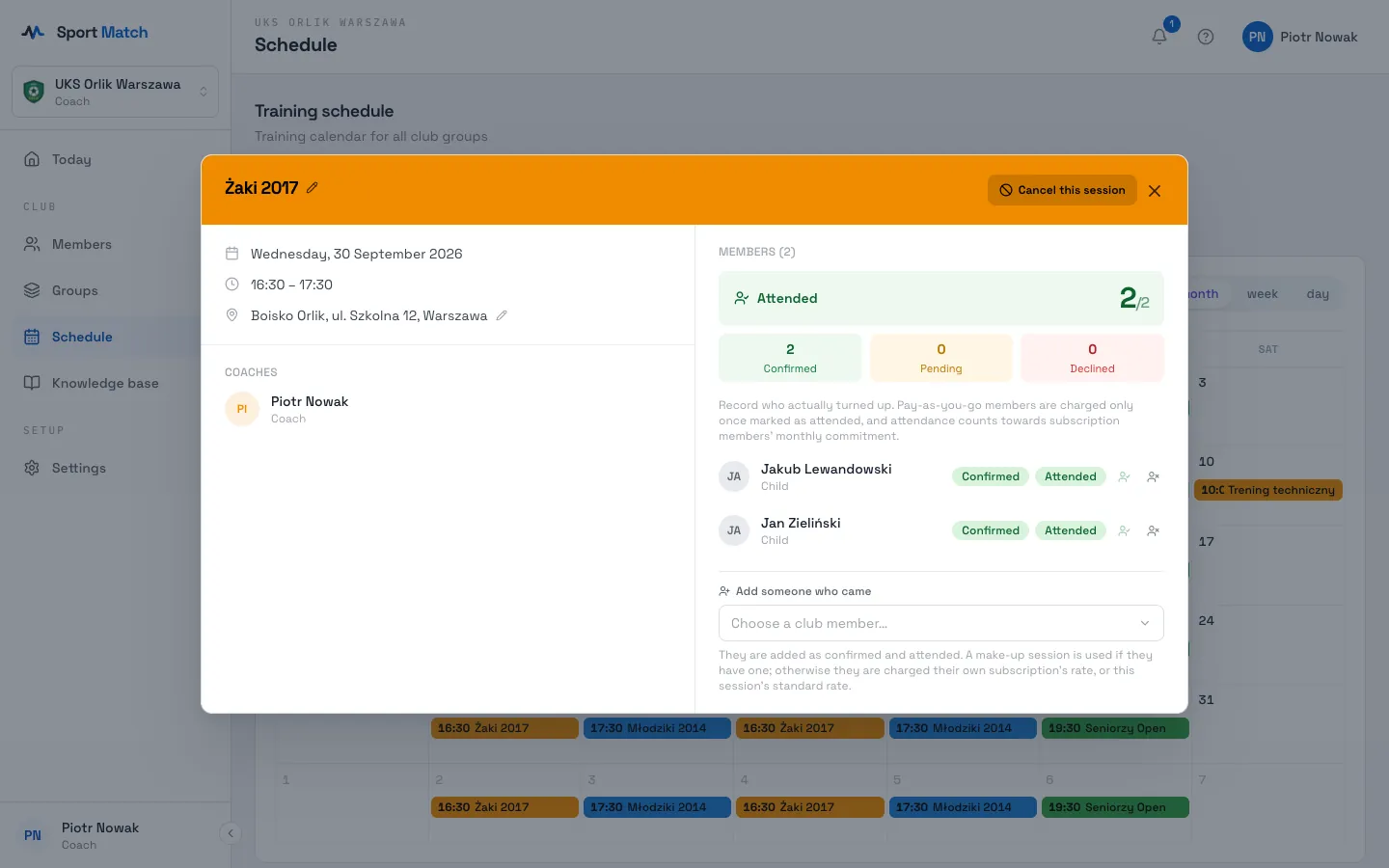
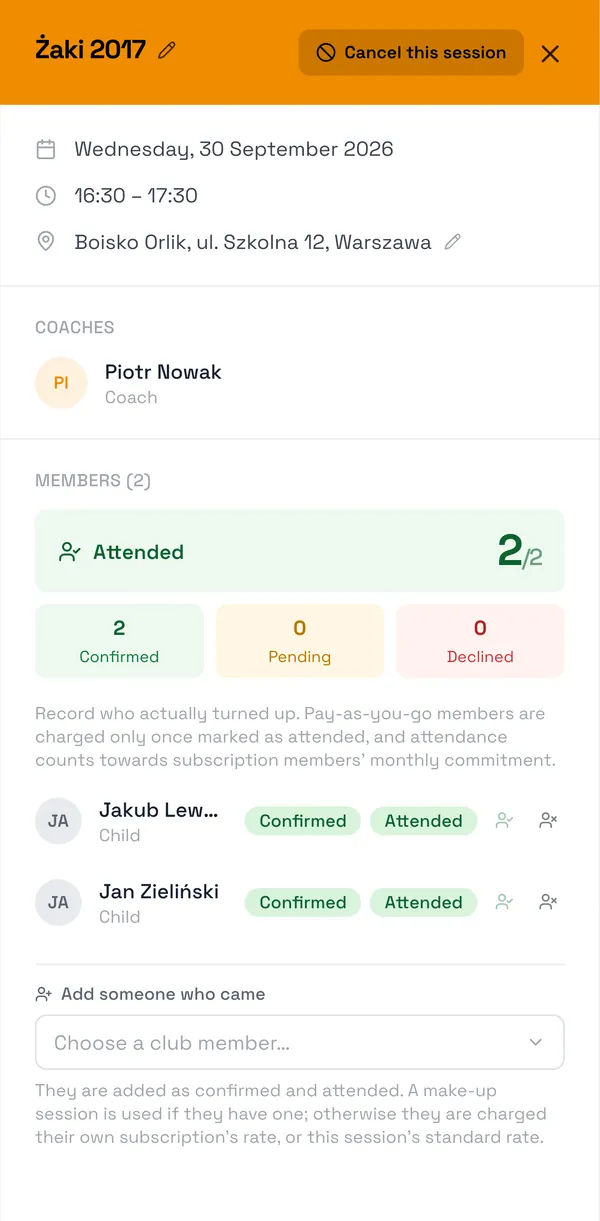
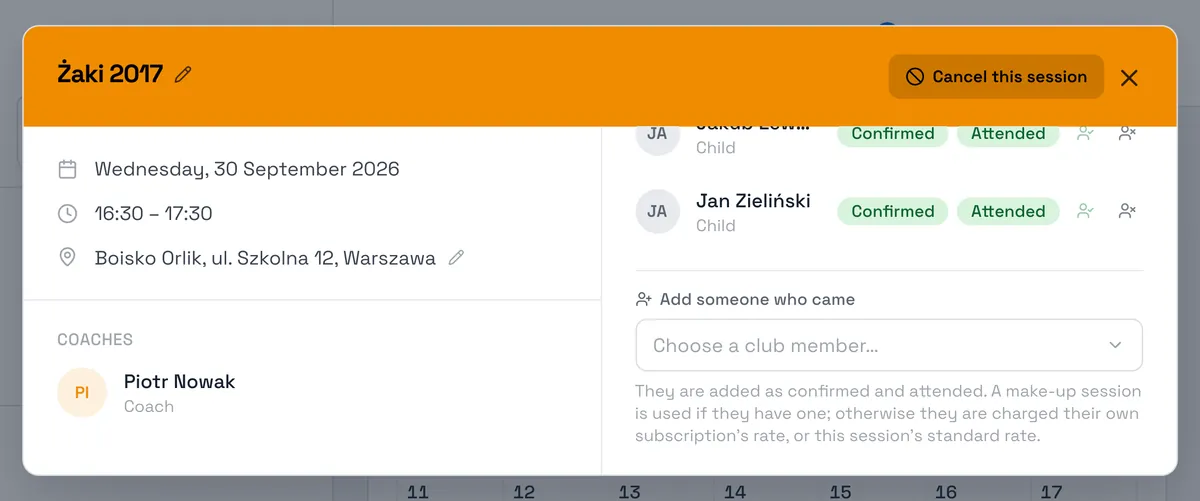
In the open session, below the attendee list, find Add someone who came (before the start: Add someone who’s coming).
-
Choose them from Choose a club member…. They appear on the list tagged Added by the coach.
After the start they are added as confirmed and attended. A make-up session is used if they have one; otherwise they pay their own subscription’s rate or this session’s standard rate. Added before the start they are only confirmed — the charge comes when you mark them present.
Nobody can be added to a one-to-one session or a cancelled one.
Frequently asked questions
I forgot to take attendance — now what?
You can mark attendance after the session has ended too — open it in the schedule (use the arrow to go back to the right week). Until you do, pay-as-you-go players aren’t charged for it.
A player confirmed but didn’t come
Mark them as absent. Their answer stays in the history, but billing follows your mark.
Didn’t find an answer?
Write to us in the chat — it opens on this page, no login needed — or email contact@sportmatch.pl.