Getting started as a coach
As a coach you see what you need at the pitch: your next session, your groups, player lists with their parents’ contact details, and the schedule. Money and club settings stay with the club owner.
Screenshots
How you become a coach in a club
You join a club like any member — through the owner’s invitation (a link or a QR code). The club owner gives you the coach role — on your page under Members, in the Role in the club section (see Members and families). How joining works: Joining a club.
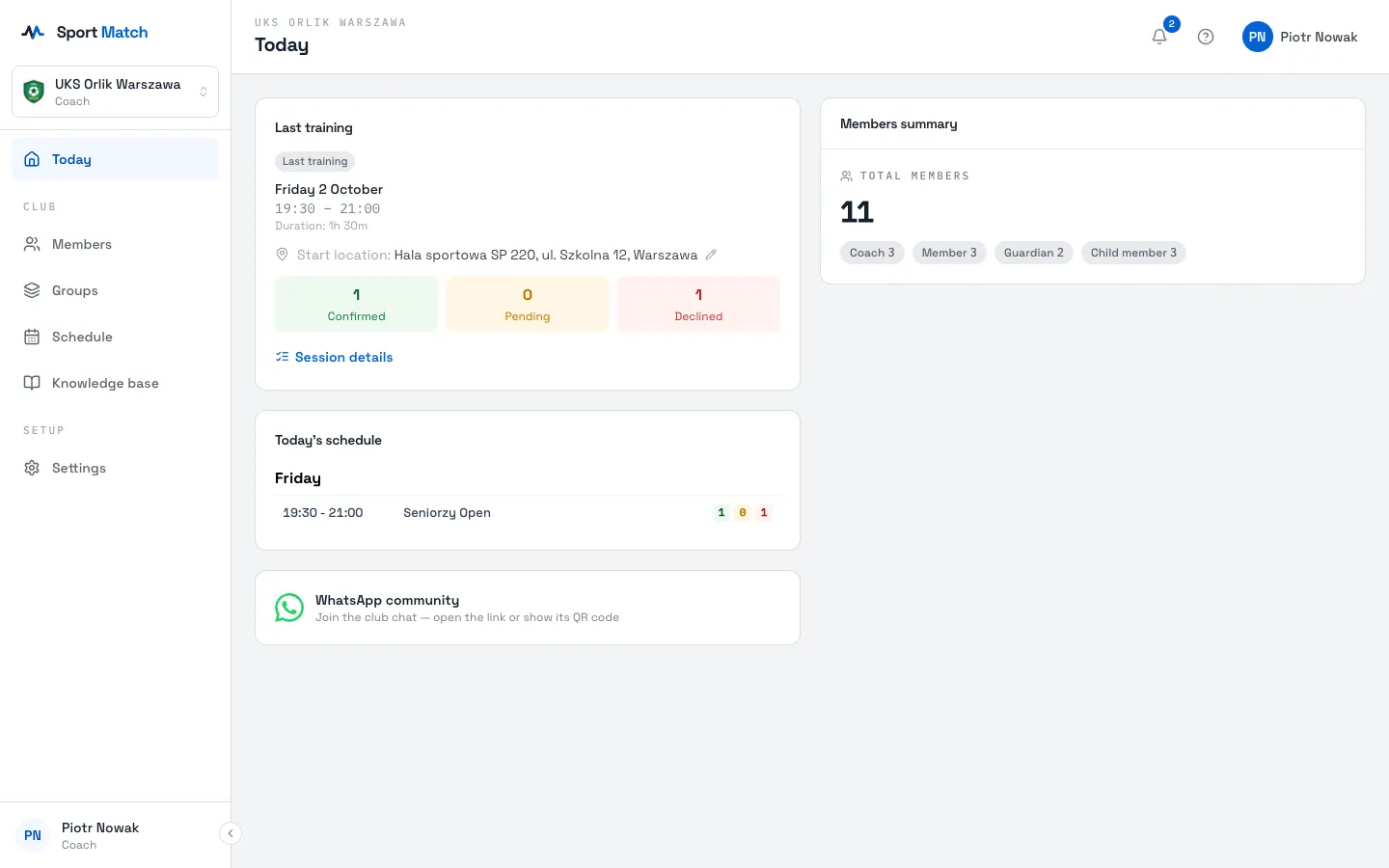
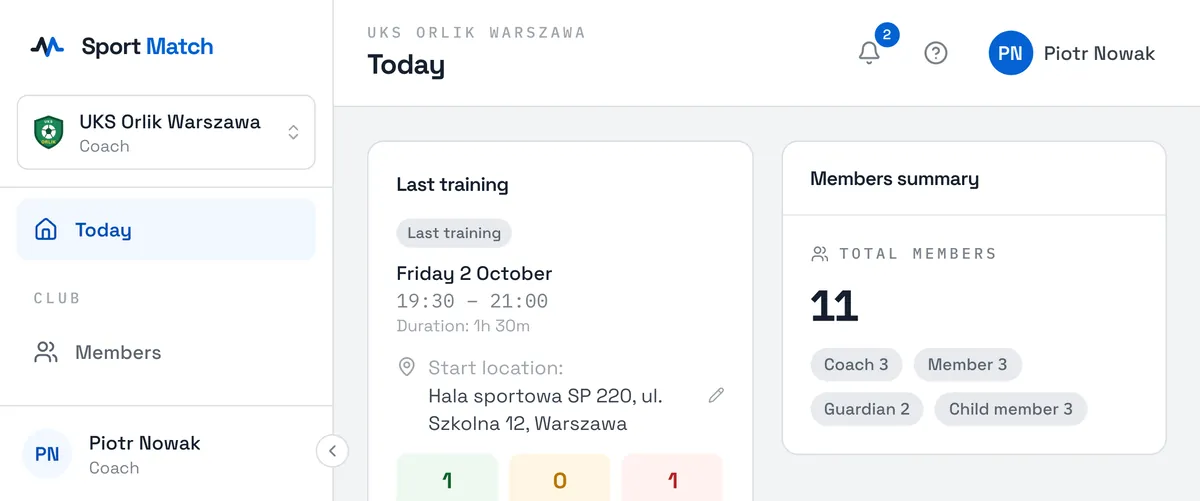
Once you are a coach, the club name in the top-left corner says Coach underneath. If you coach in several clubs, click the club name and pick another one from the list.
What’s in the menu
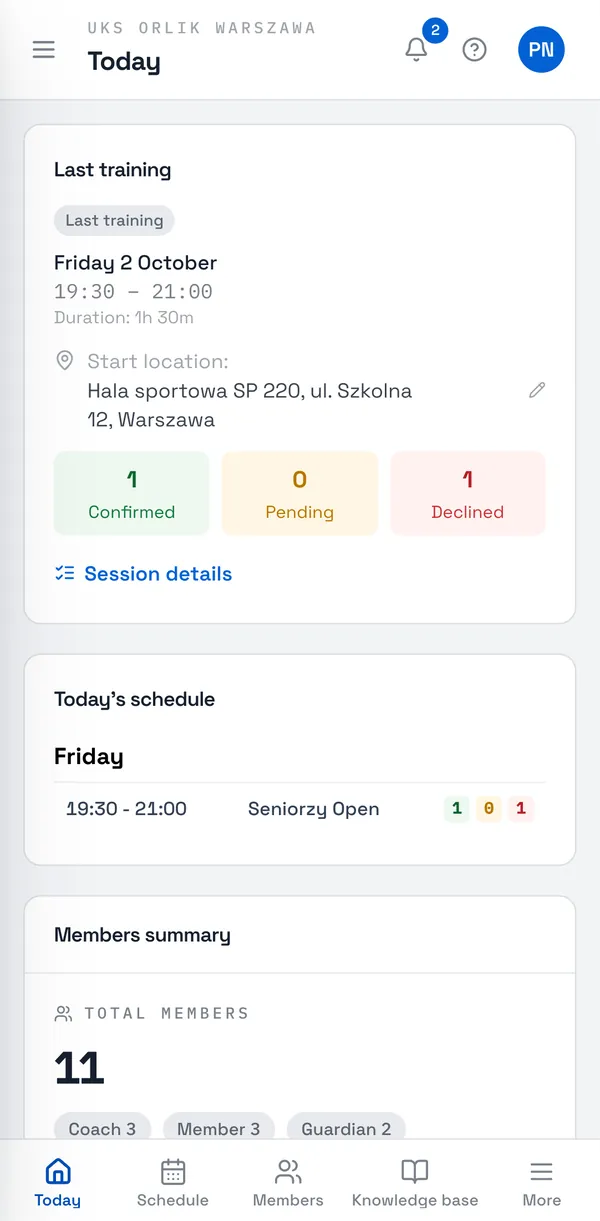
- Today — your next session with how many people confirmed, are still pending or declined, today’s schedule and a members summary.
- Members — every player and coach in the club, with their parents’ contact details.
- Groups — the groups you coach.
- Schedule — the session calendar, your availability and one-to-one bookings. See The schedule and managing sessions.
- Knowledge base — the club handbook, which you can also edit.
- Settings — your profile and notifications.
Coaches don’t see Payments, invoices or the club settings — those belong to the owner. On a phone the most-used pages are on the bottom bar; the rest are under More.
Tip: You can see players’ details and their parents’ contacts, so as a coach you must use 2-step verification if you sign in with email and password. As soon as the owner makes you a coach, Sport Match asks you to set it up (about a minute, with an authenticator app on your phone); you can then add a passkey (Face ID, Touch ID) too. It can’t be turned off while you are a coach. Signing in with Google or Facebook? Turn on 2-step verification there instead. Details: Keeping your account safe.
Your groups and where they train
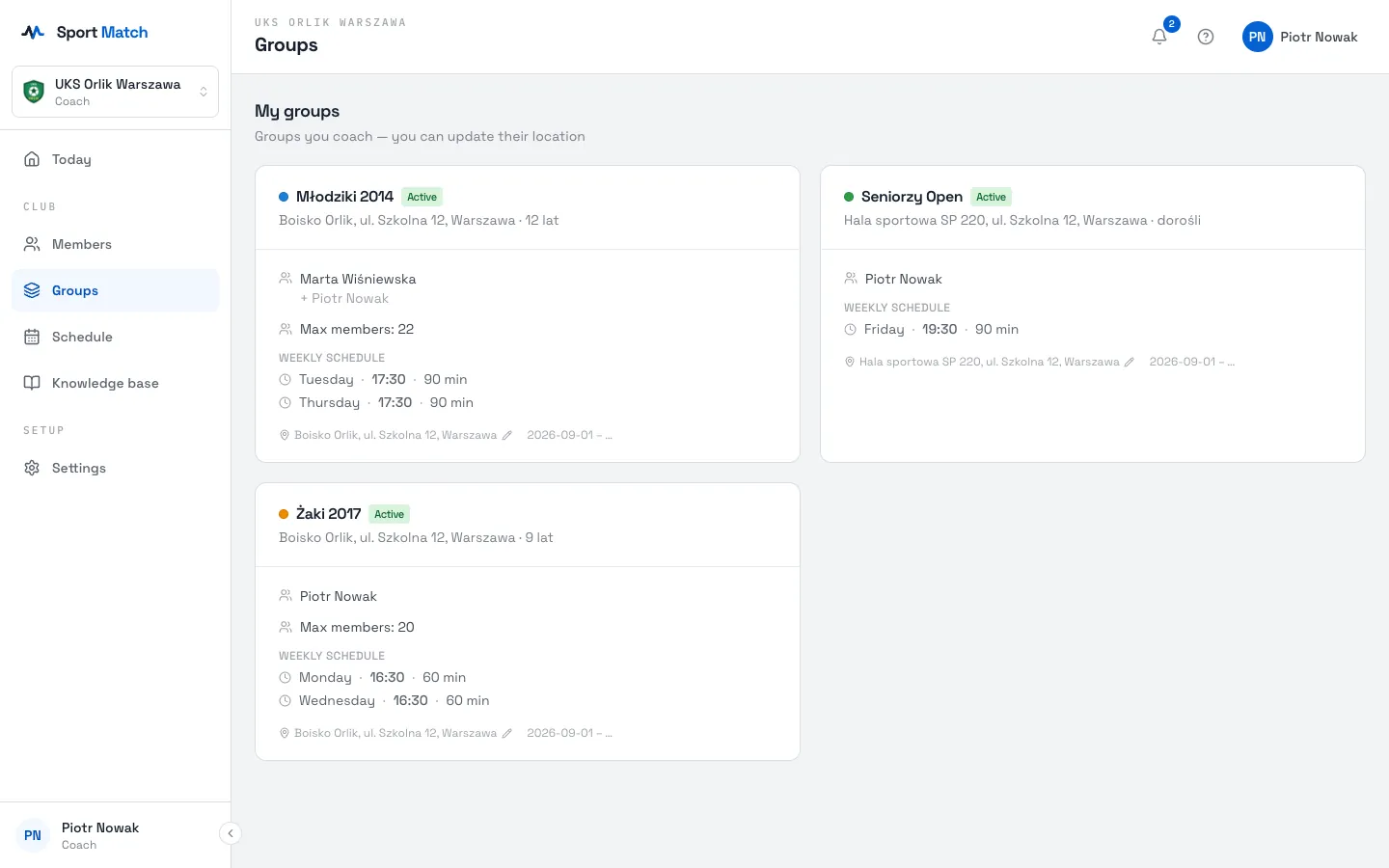
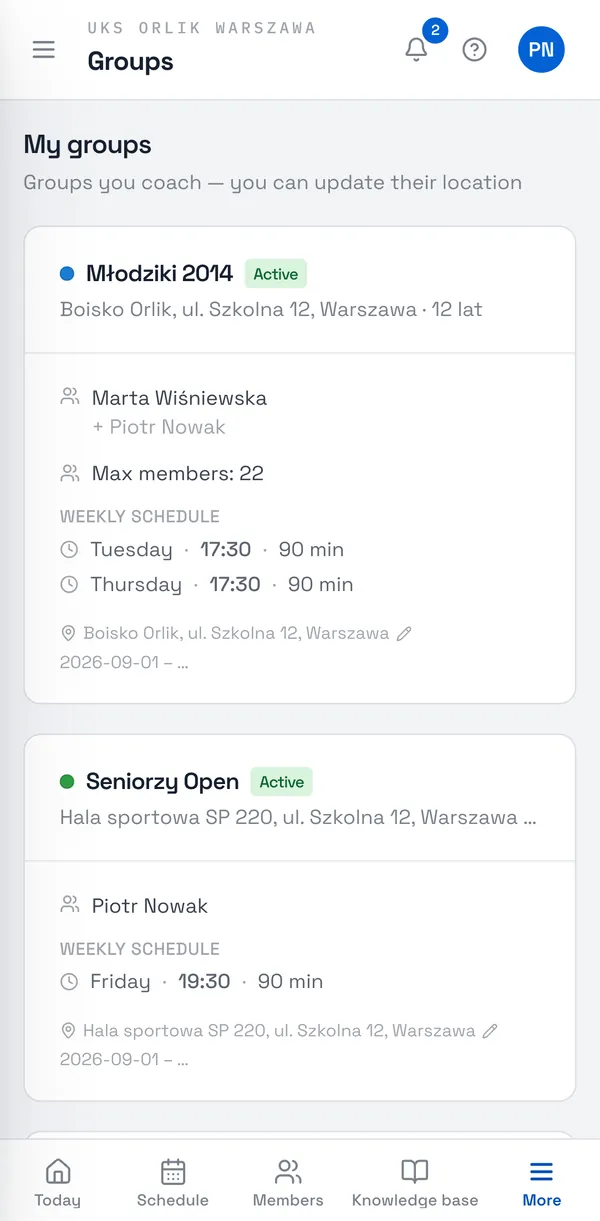
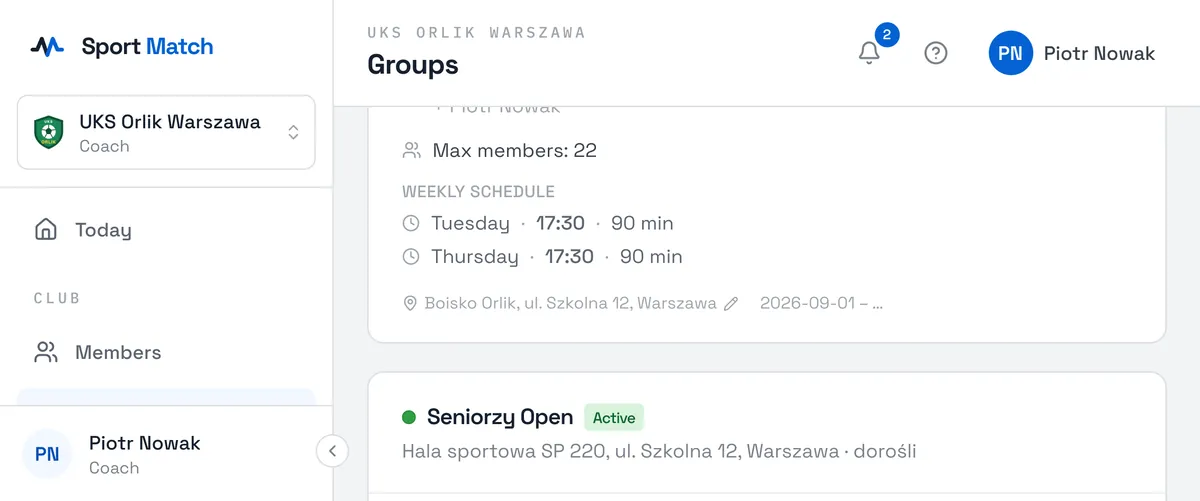
Under Groups you see My groups — every group you lead or help coach, with its weekly schedule and where it trains. The owner sets the roster, times and pricing; you can change the location.
-
Open Groups.
-
Next to the group’s address, click the pencil — Edit location.
-
Type the address or drag the pin on the map, then save. New sessions of the group use the new location.
Tip: To change the place of just one session, open it in the schedule and choose Edit location.
Player pages
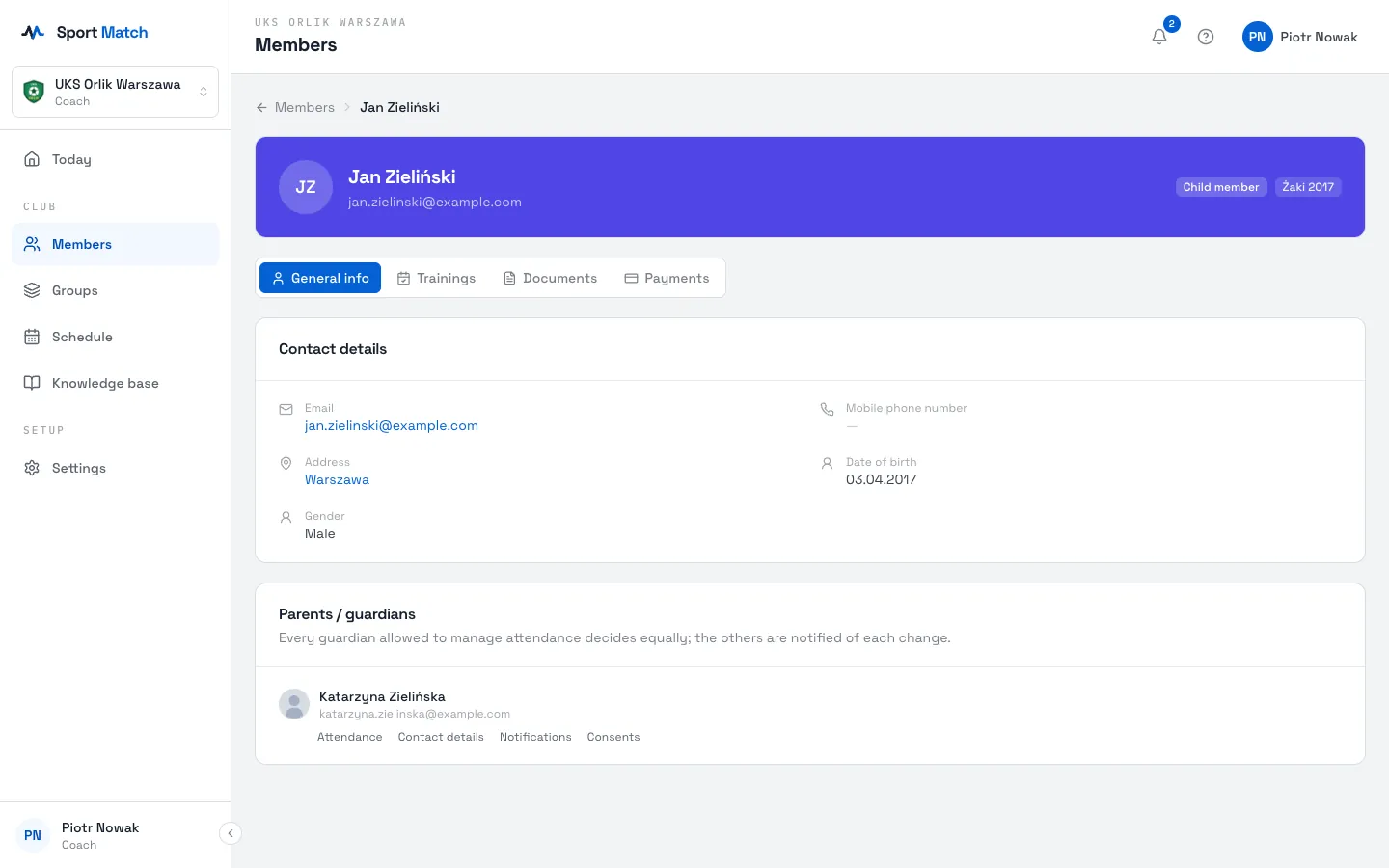
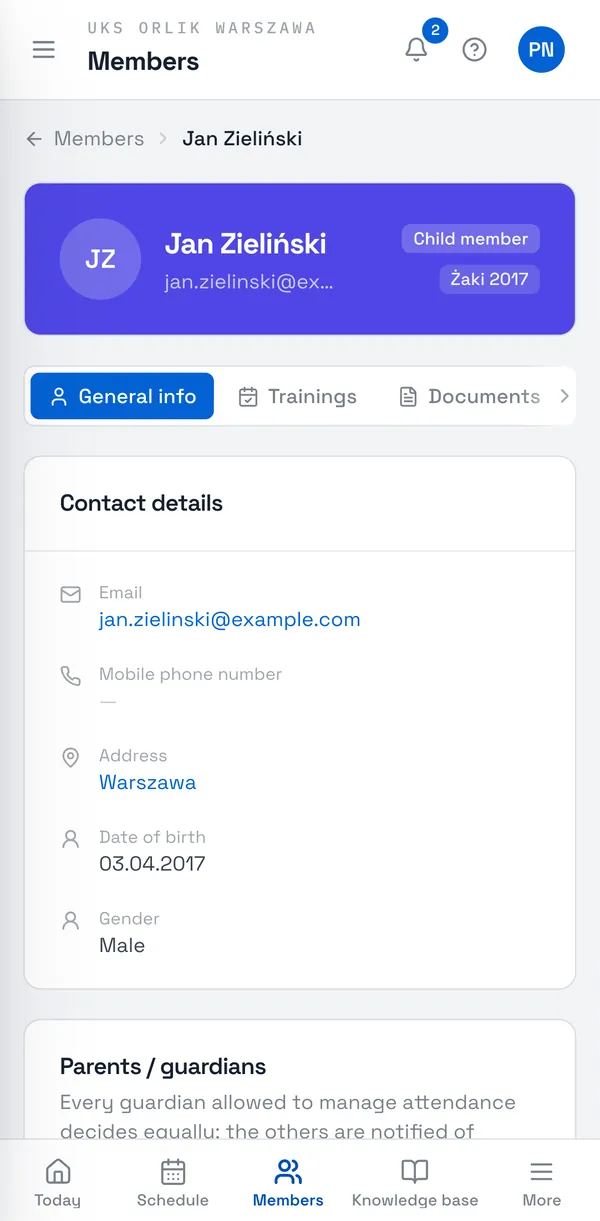
Under Members you have the player list (children appear under their parents) and a Coaches tab. Click someone to open their page: contact details, parents and guardians, groups, attendance history on the Trainings tab and the documents they handed in. Only the owner sees players’ payments.
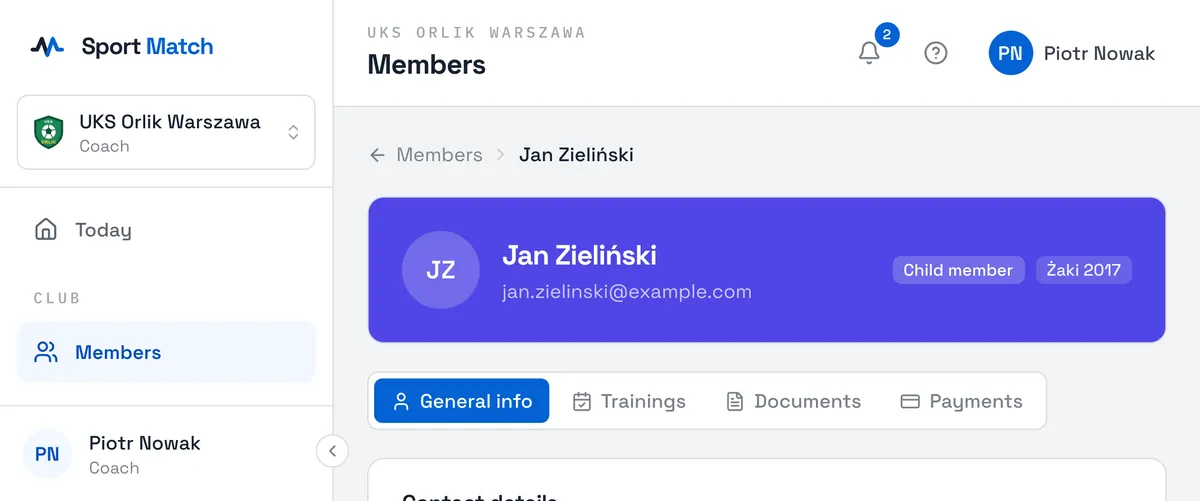
Only the club owner can invite new members or change their roles.
Notifications for coaches
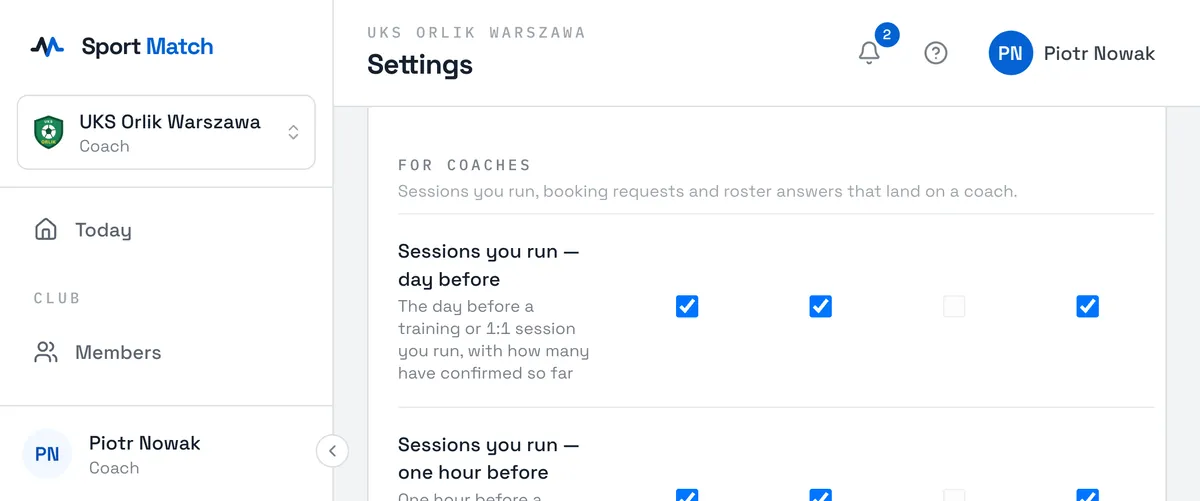
Under Settings → Notifications there is a For coaches group: reminders of the sessions you run (Sessions you run — day before and Sessions you run — one hour before), one-to-one booking requests (Session requested, Session accepted, Session cancelled, Booking from your website) and your players’ answers (Attendance confirmed, Attendance declined). Pick a channel for each: in-app, email or push.
A reminder of a session you run — a group training or a one-to-one — comes the day before and an hour before it starts, with the answers so far, e.g. “You’re coaching Żaki 2017 tomorrow at 17:00 — 8 confirmed, 3 not answered yet, 1 declined.” It goes to the coaches running that session, or — when nobody is set to run it — to the group’s coaches; a session with no coach at all reminds the club owner.
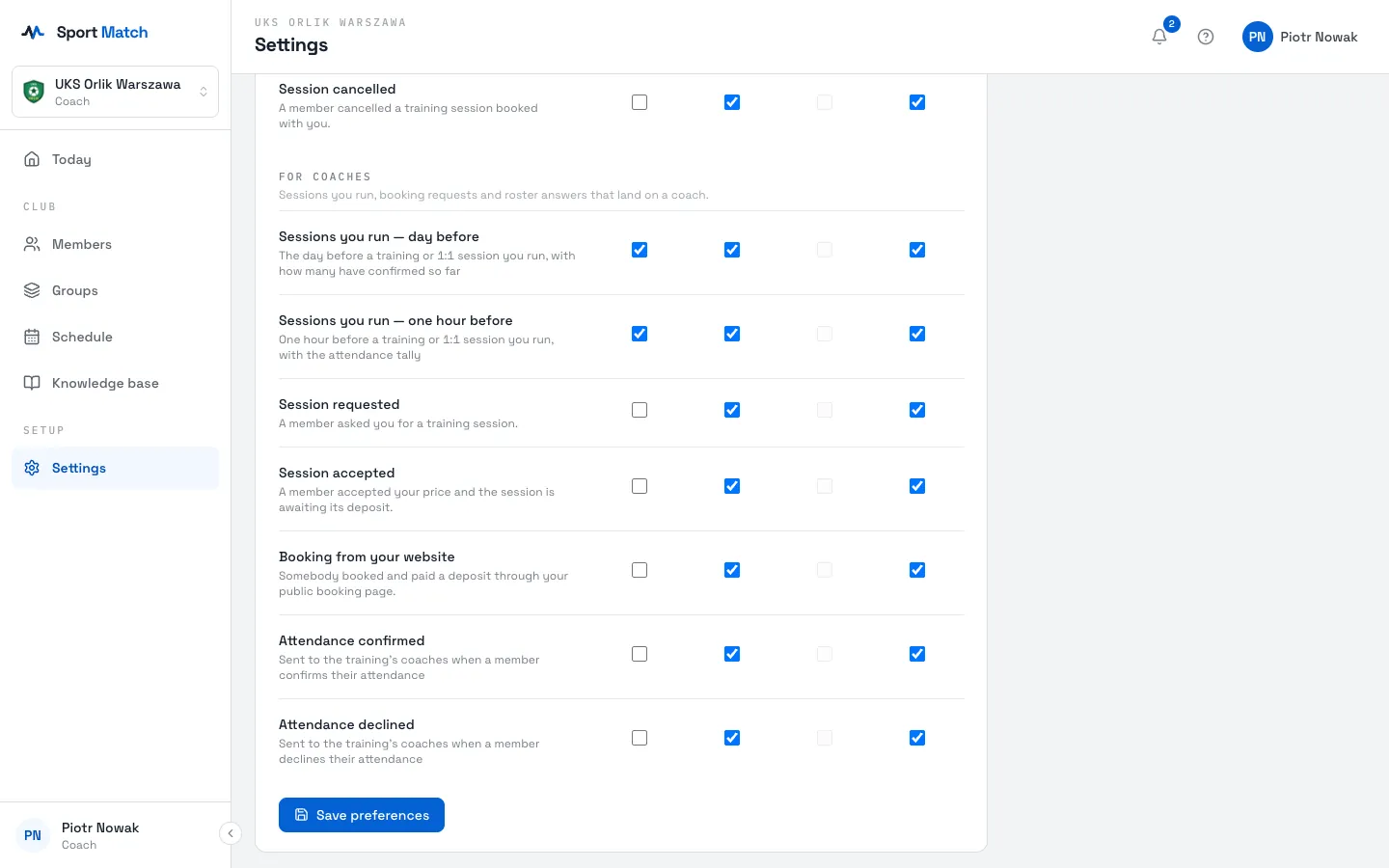
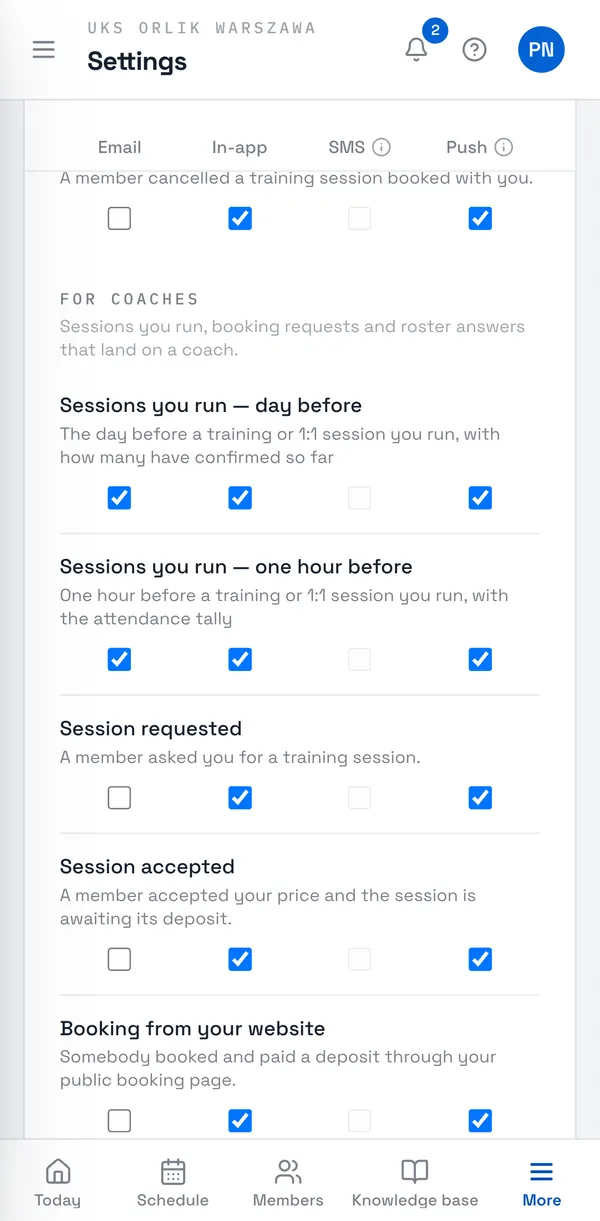
SMS notifications aren’t available for the coach role. More about channels: Notifications.
Didn’t find an answer?
Write to us in the chat — it opens on this page, no login needed — or email contact@sportmatch.pl.