Groups and weekly schedules
A group is a regular squad with a coach and a weekly schedule, e.g. “Żaki 2017, Mondays and Wednesdays at 16:30”. Sport Match turns the schedule into sessions on the calendar about 3 months ahead. Open Groups in the sidebar.
Screenshots
Add or edit a group
-
Choose Add group. To change an existing group, choose the Edit pencil on its card.
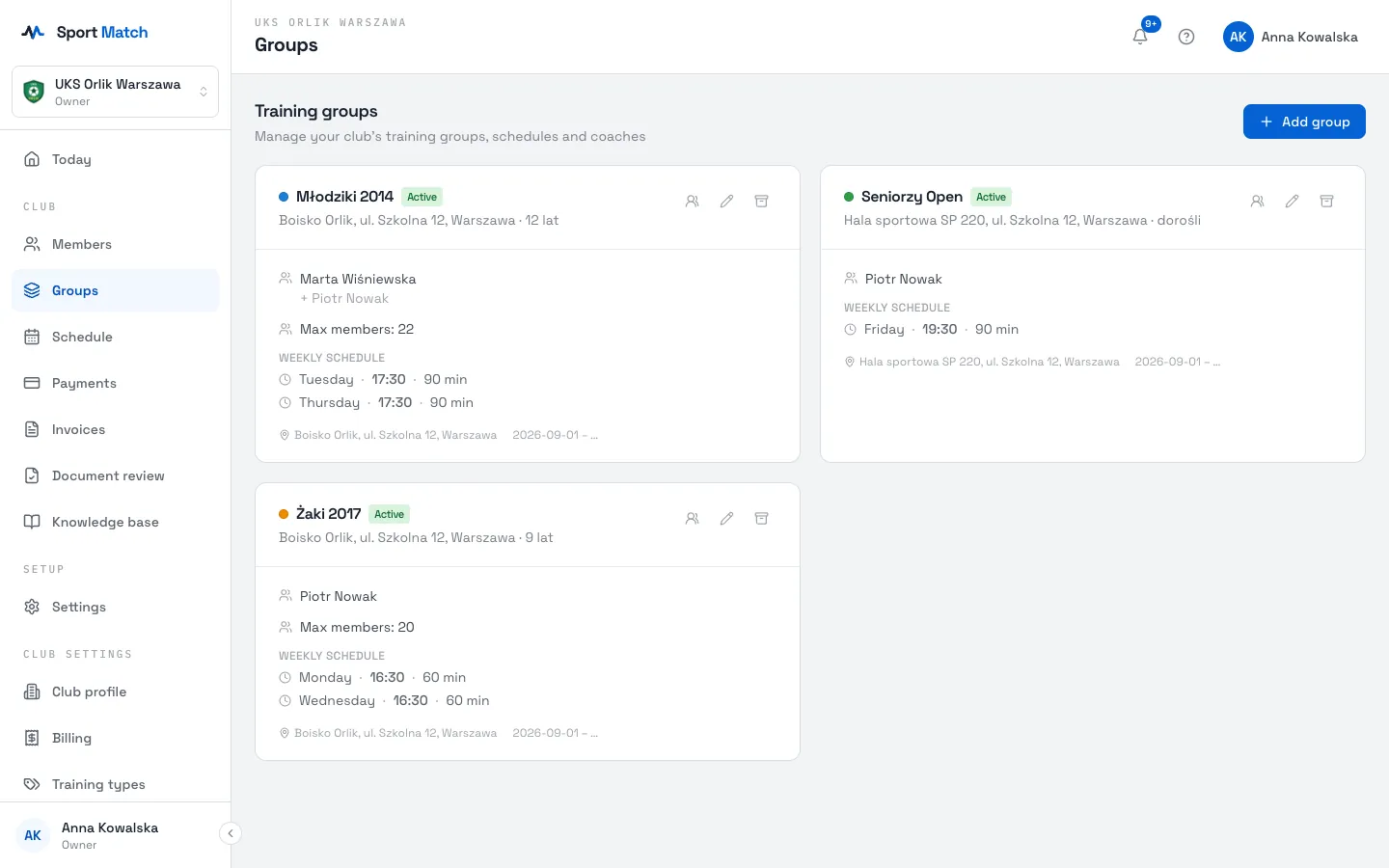
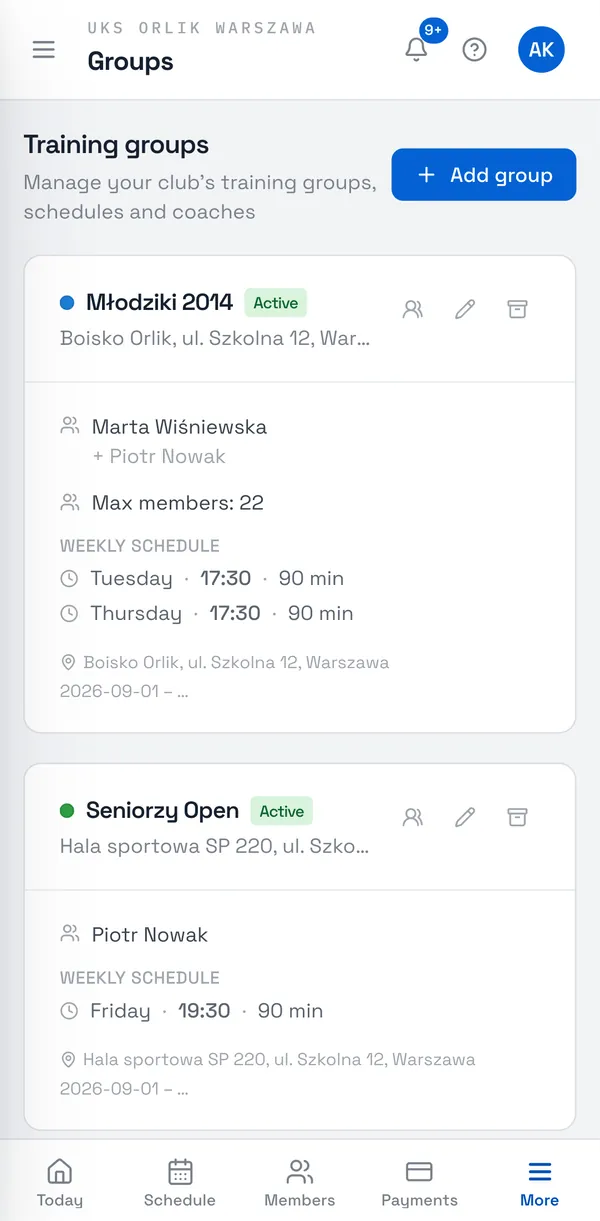
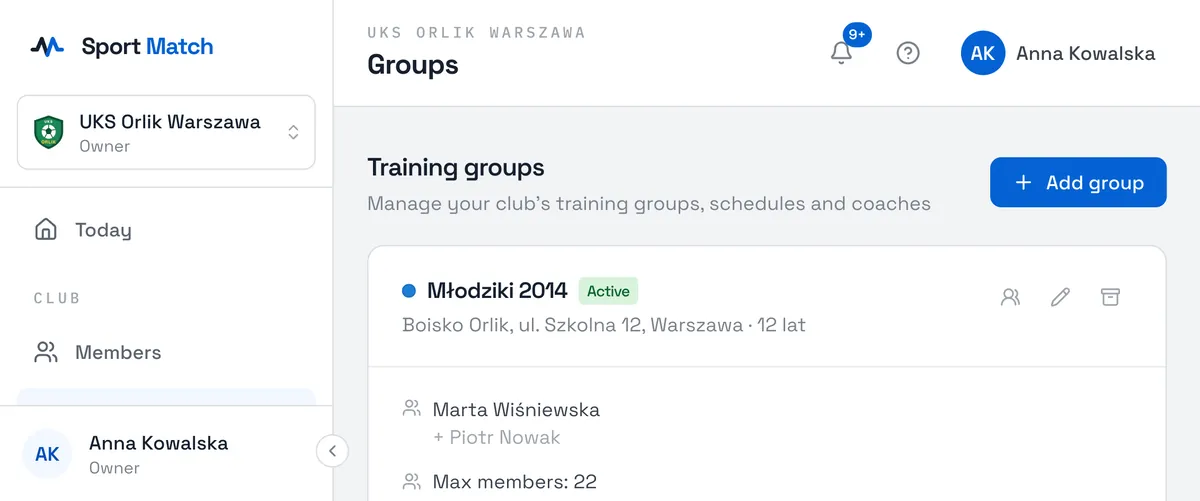
-
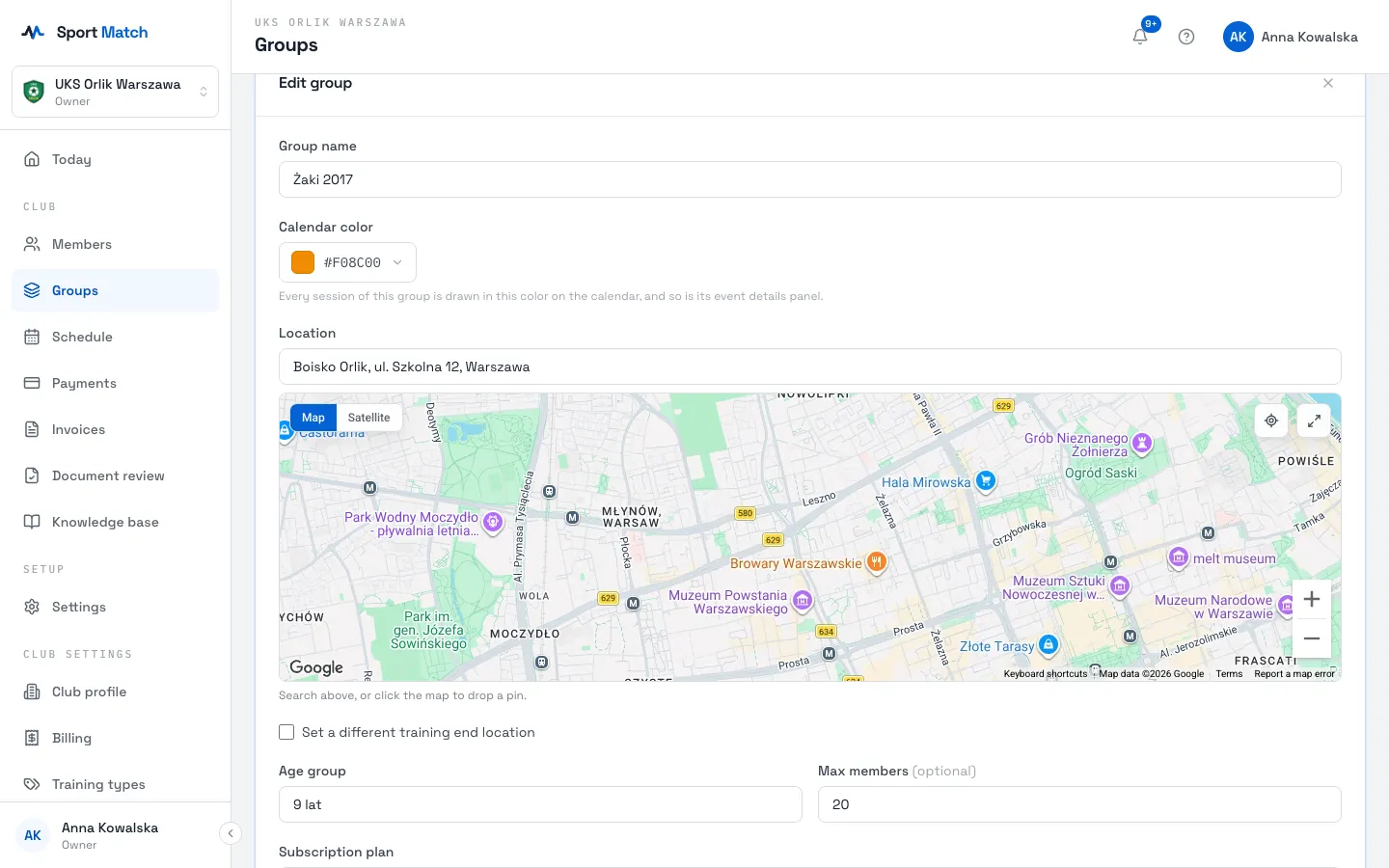
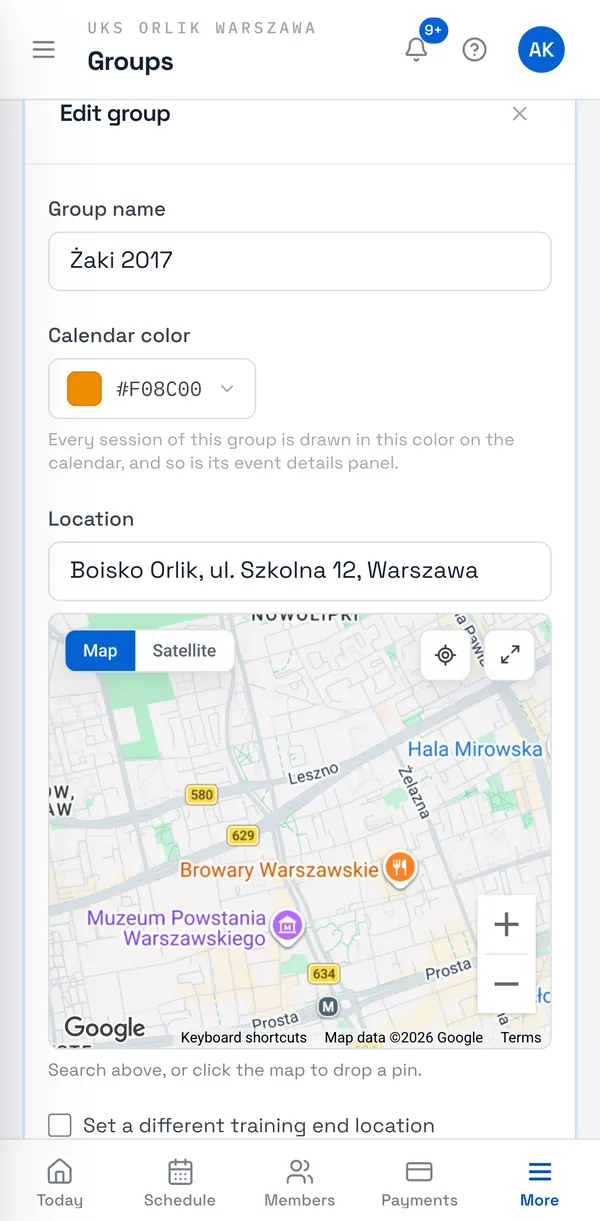
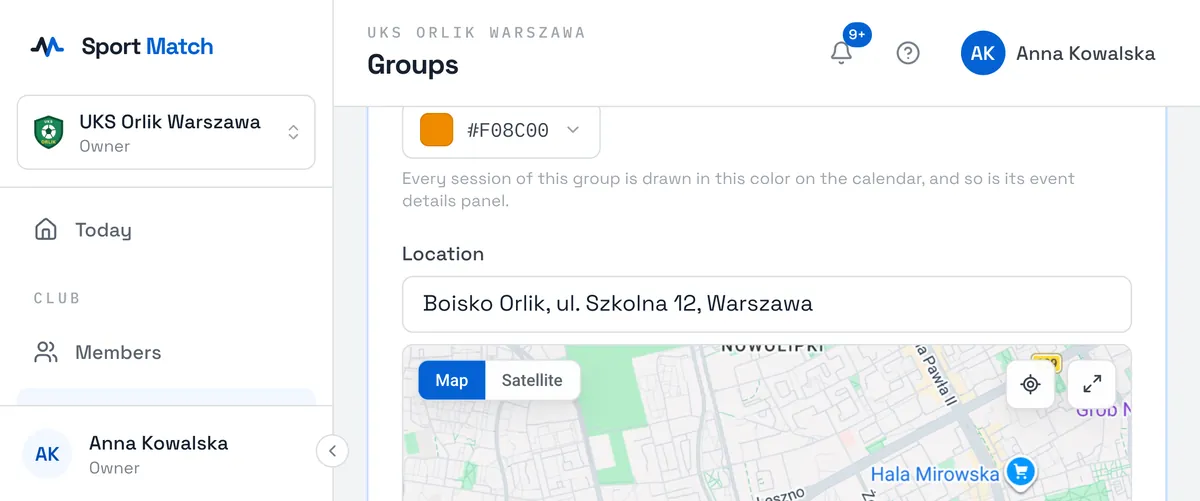
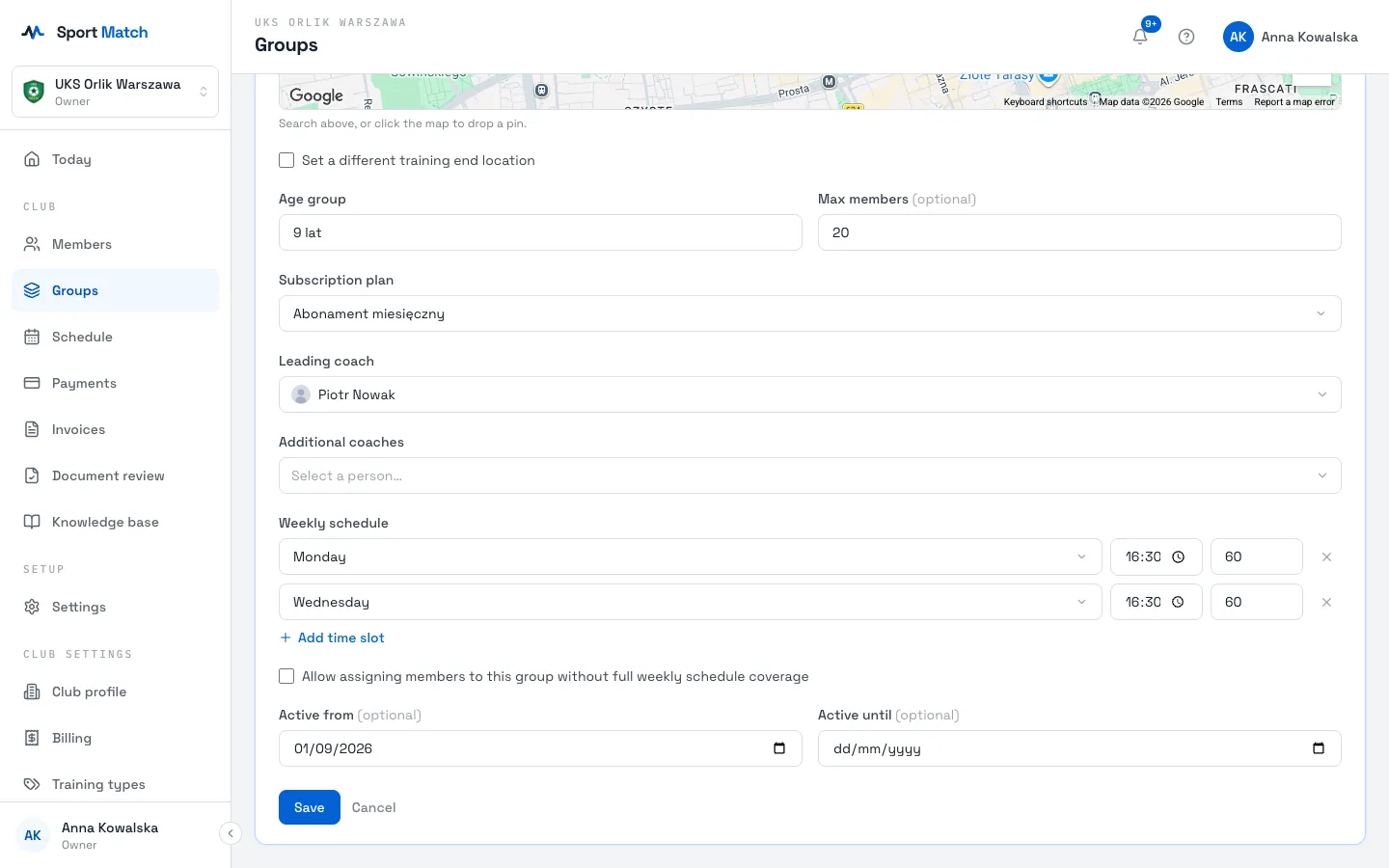
Enter the Group name, choose a Calendar color and the Location (search for an address or click on the map). If sessions end somewhere else, tick Set a different training end location.
-
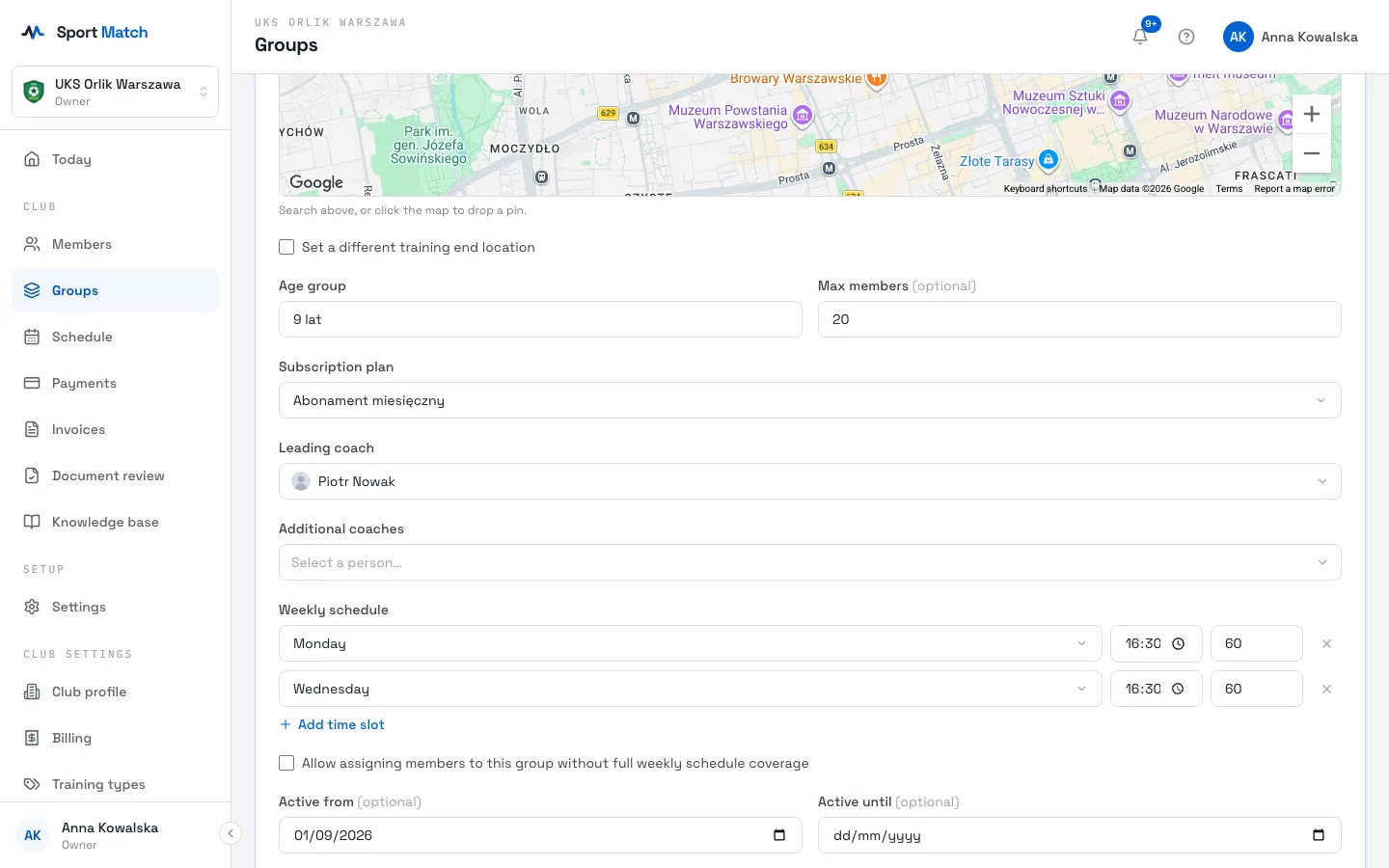
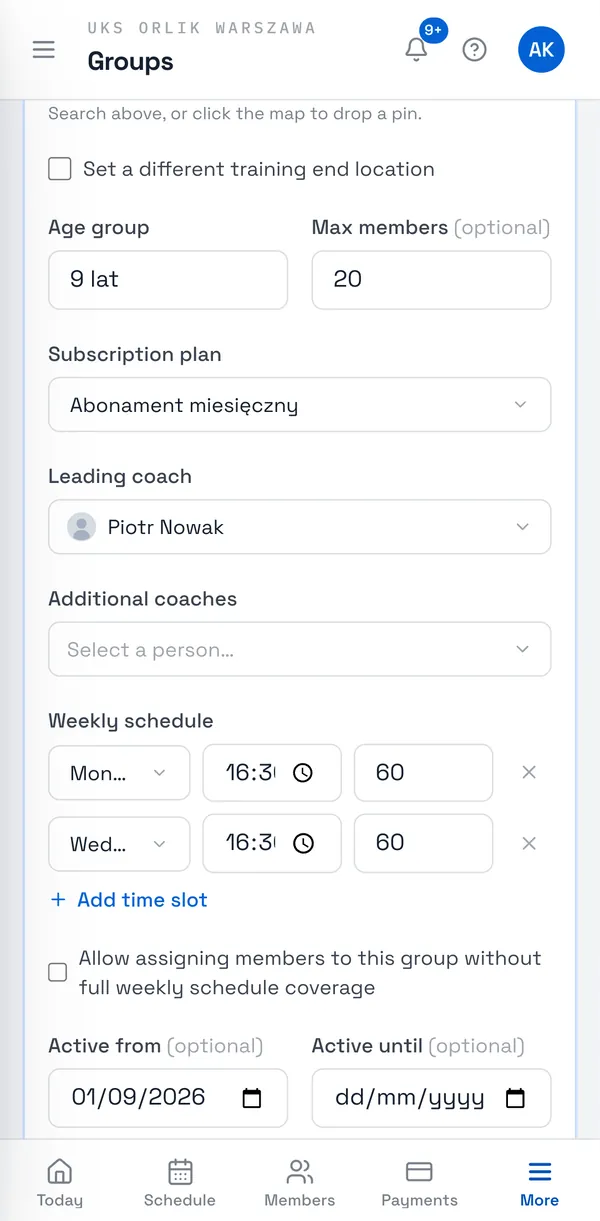
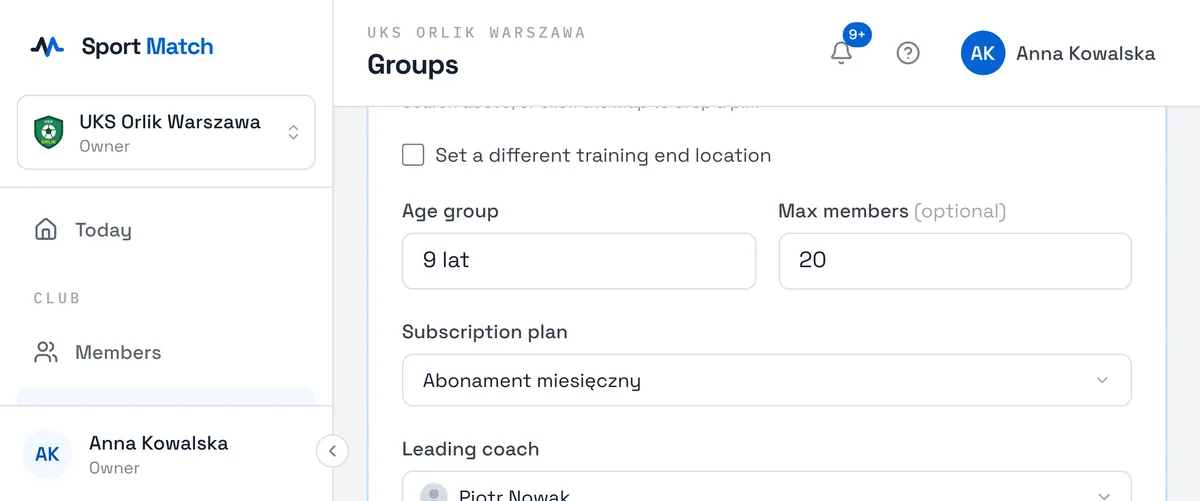
Enter the Age group and, optionally, Max members. Pick the Subscription plan (the training type with its price list), the Leading coach and any Additional coaches.
-
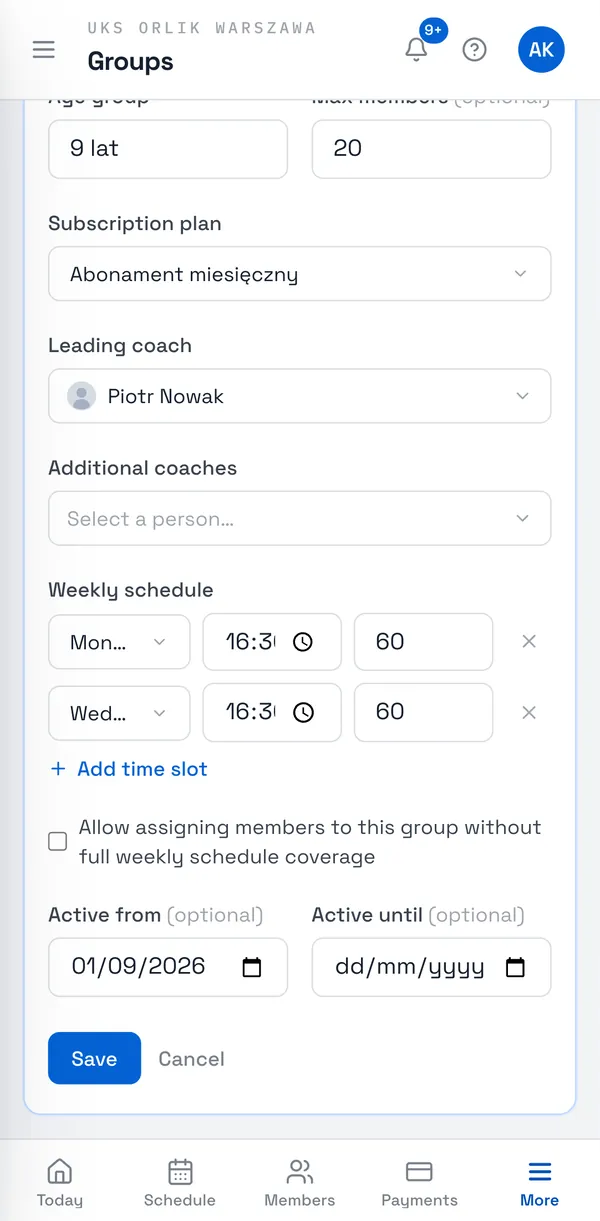
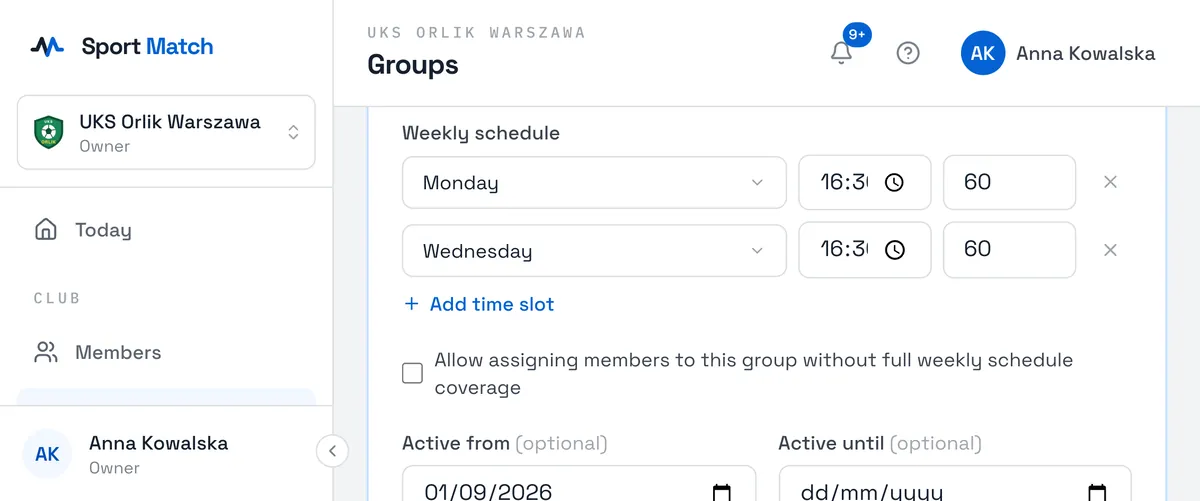
Under Weekly schedule, choose Add time slot and set the day, time and duration (in minutes) of each session. The cross removes a slot.
-
Optionally set Active from and Active until (e.g. a September–June season) and choose Save.
Sessions from the weekly schedule appear on the calendar automatically, about 3 months ahead, only within the group’s active dates, and only once the group has a Subscription plan. You can then move or cancel single sessions in the Schedule.
The Leading coach and Additional coaches lists show only people with the coach role in your club. Someone missing? Open their page in Members and choose Coach under Role in the club — see Roles in the club.
The group’s calendar colour
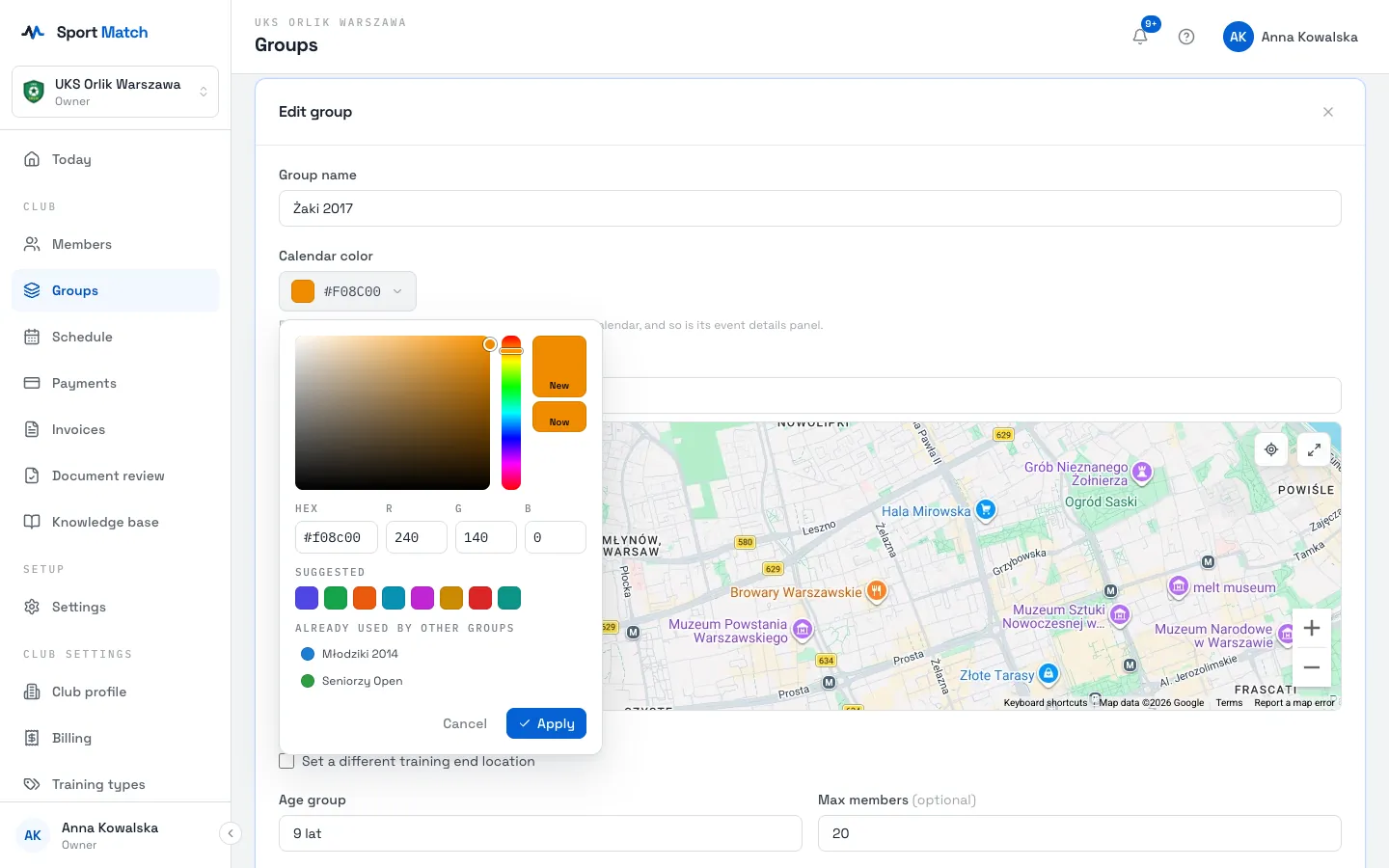
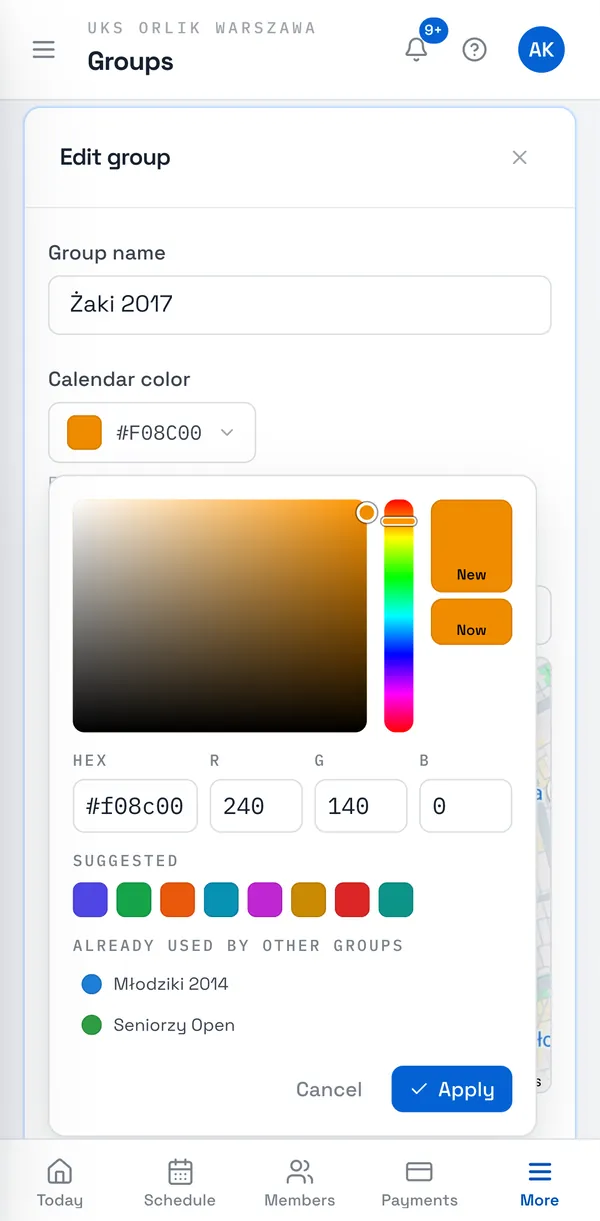
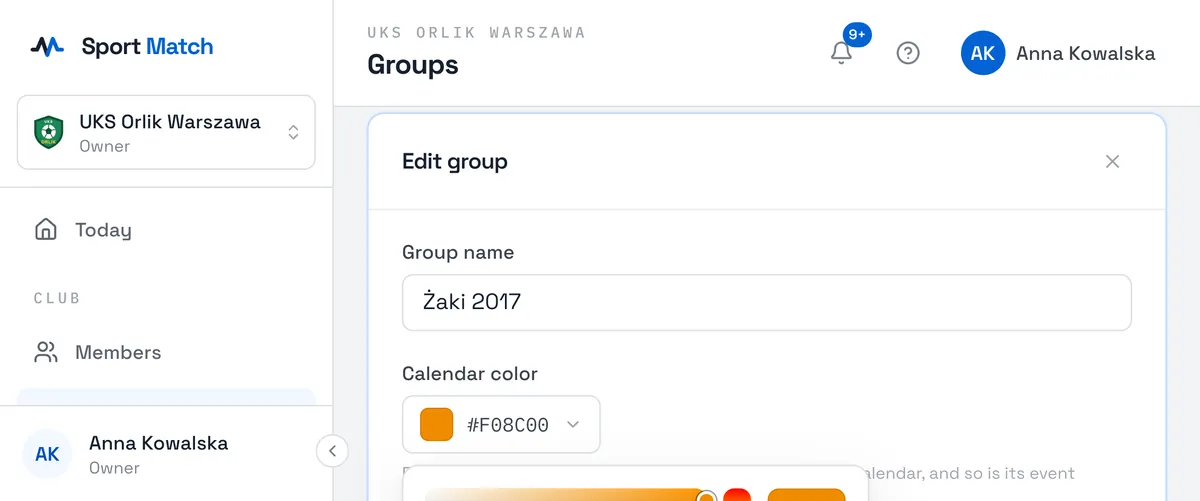
Click Calendar color. Pick a shade on the palette, one of the Suggested colours, or type a hex code. Already used by other groups shows what you already use. Choose Apply, then Save the group. All the group’s sessions are drawn in this colour on the calendar — for you, the coaches and members.
Assign members to a group
-
On the group’s card, choose the Members & details icon.
-
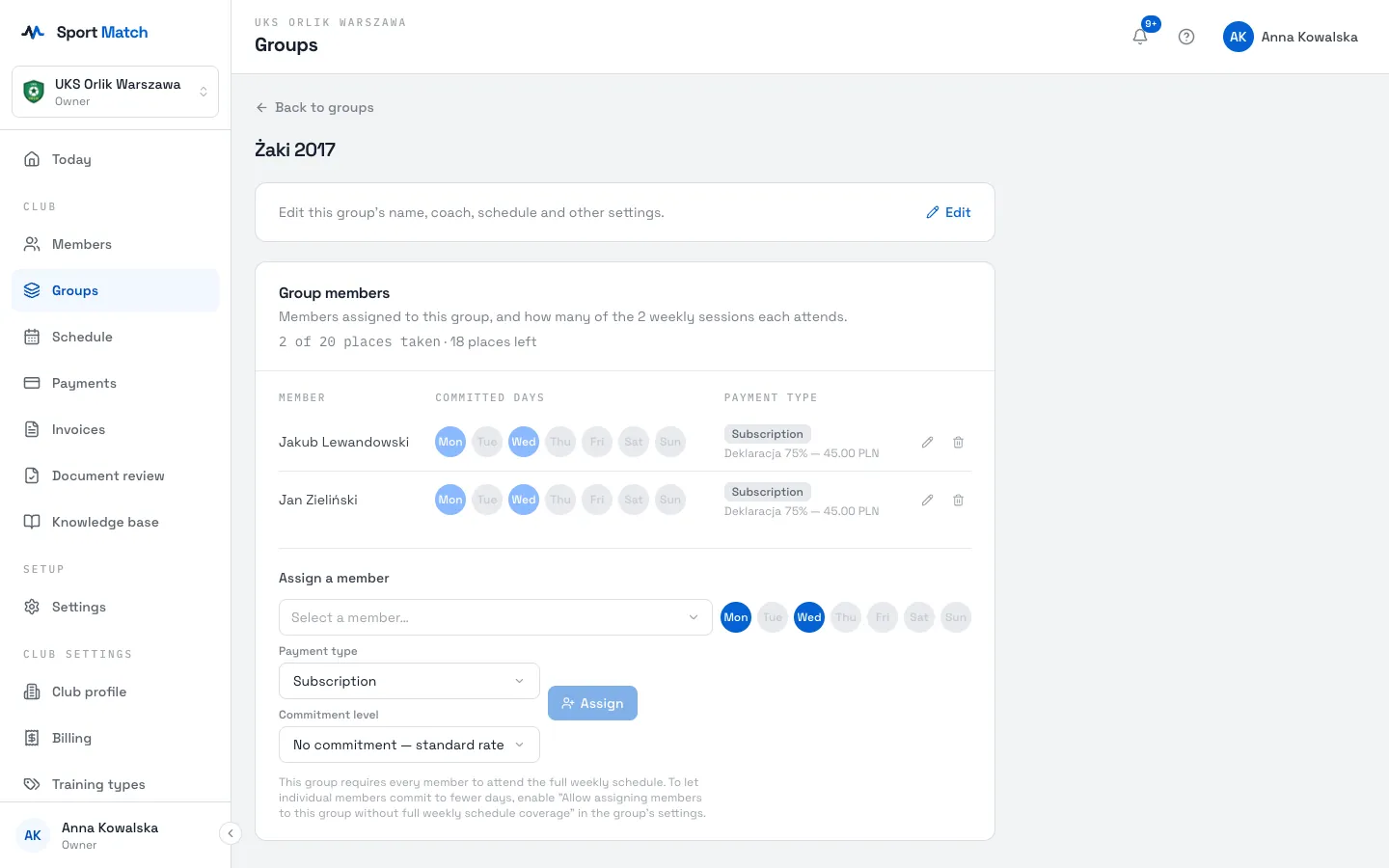
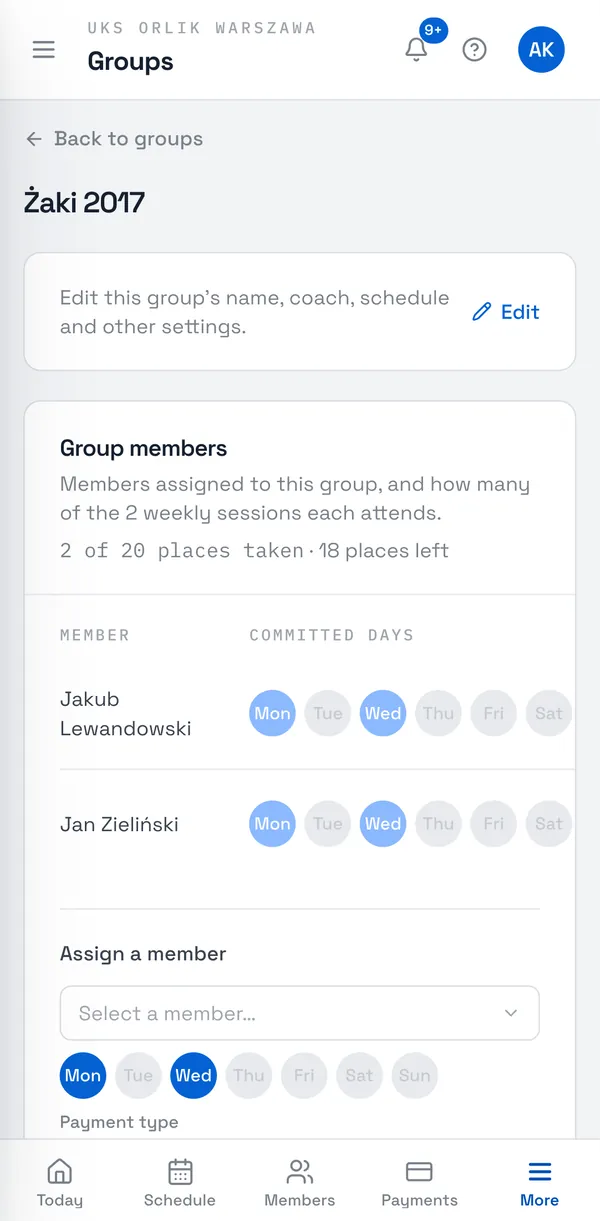
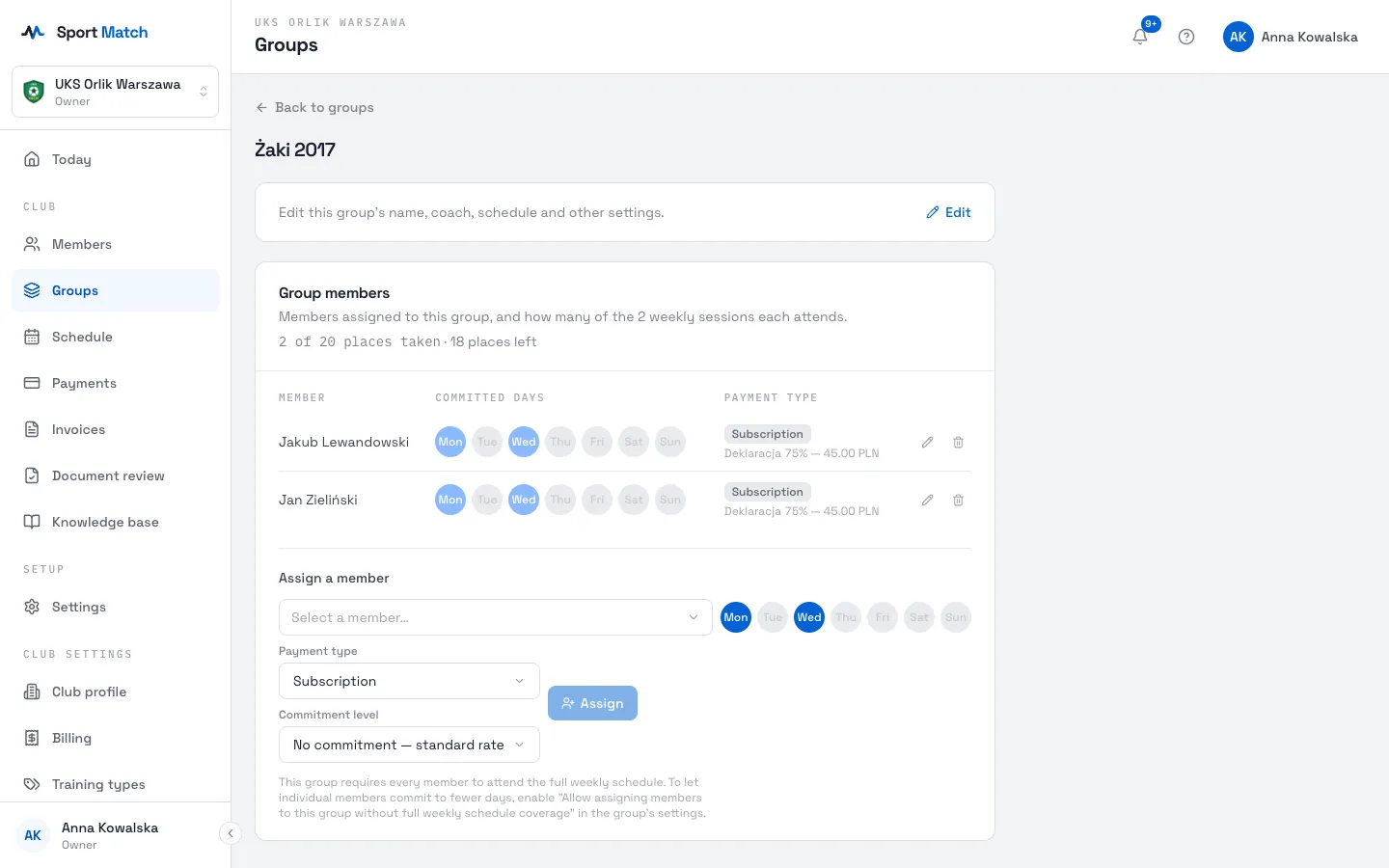
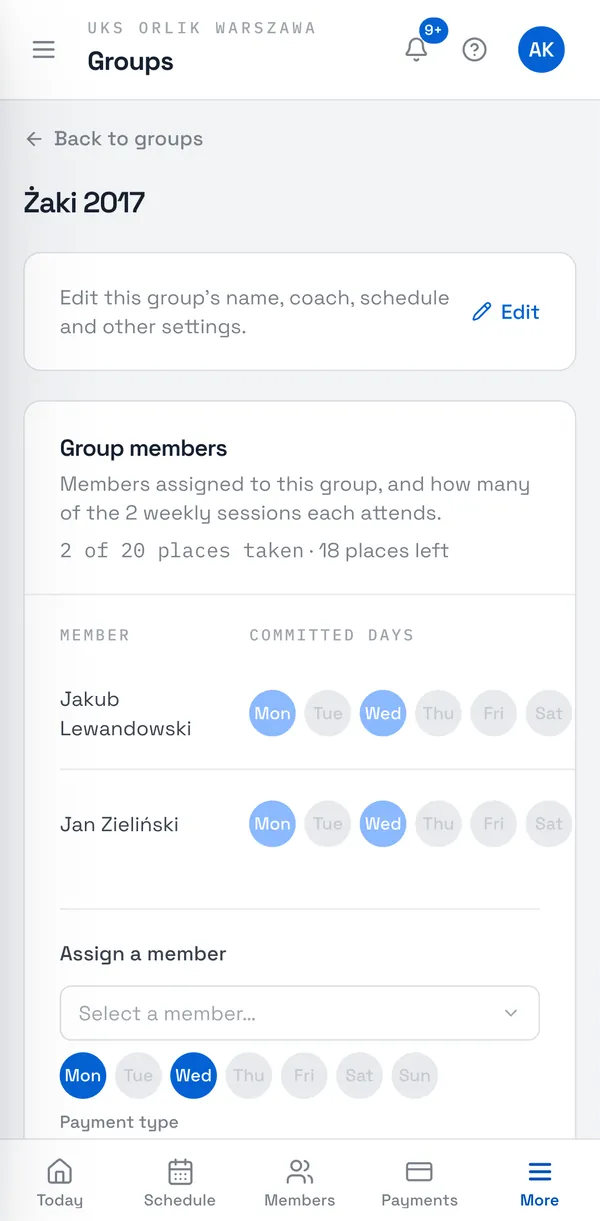
Under Assign a member, pick someone from Select a member…, set the Payment type (Subscription or Pay as you go) and, for a subscription, the Commitment level. Choose Assign.
-
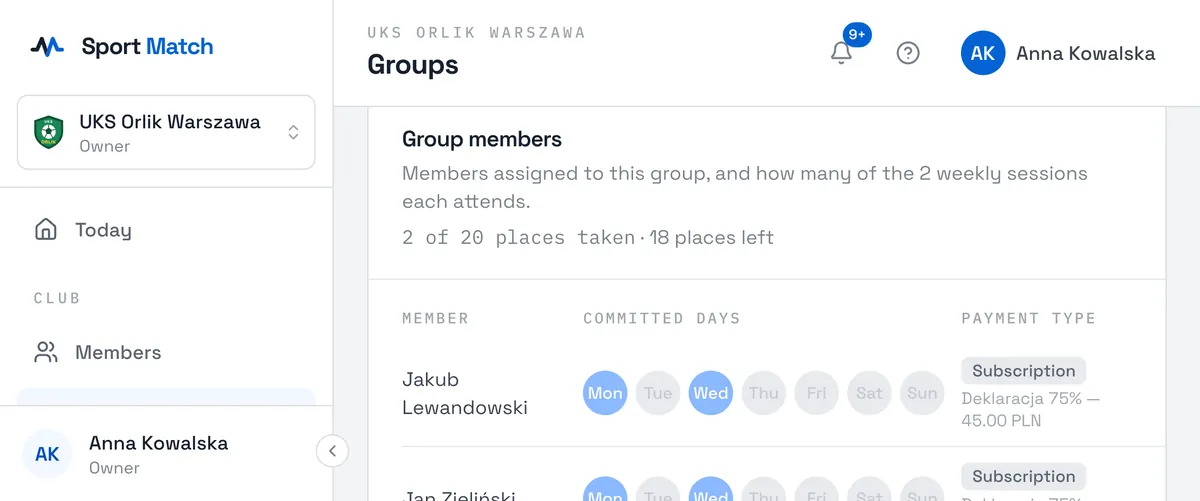
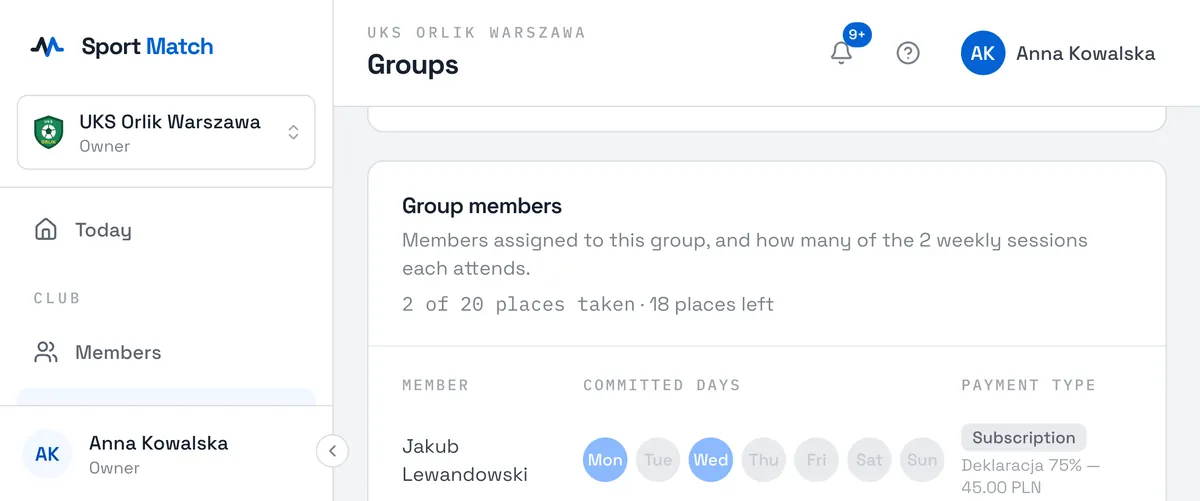
If the group has Max members set, the page shows how many places are taken and how many are left (e.g. “2 of 20 places taken · 18 places left”). Nobody more can be assigned to a full group — remove someone first, or raise the limit in the group’s settings.
-
The new member is added to the group’s upcoming sessions. Their Committed days show in the Group members table; the pencil changes their payment type, and the bin — Remove from group — takes them out of the group (their payment history stays).
Tip: By default every member of a group attends all its weekly sessions. To let someone commit to, say, Mondays only, tick Allow assigning members to this group without full weekly schedule coverage in the group’s settings — then you choose the days when assigning.
Archiving a group
Groups aren’t deleted — you archive them with the Archive icon on the group’s card (and bring them back with Unarchive). An archived group gets no new sessions, but its attendance and payment history stays. Sessions already planned stay on the calendar — cancel them in the Schedule if needed.
Frequently asked questions
A coach wants to change where a group trains — do they have to ask me?
No. The group’s leading and additional coaches can change its location themselves in Groups → My groups. Every other group setting is the owner’s.
Can a member be in several groups?
Yes — assign them to each. They can have a different payment type in each group.
Didn’t find an answer?
Write to us in the chat — it opens on this page, no login needed — or email contact@sportmatch.pl.