Open sessions with sign-up
An extra skills session, a friendly or a holiday camp day? Instead of picking attendees, create an open session: players from the chosen groups are notified and sign up themselves.
Screenshots
Creating an open session
-
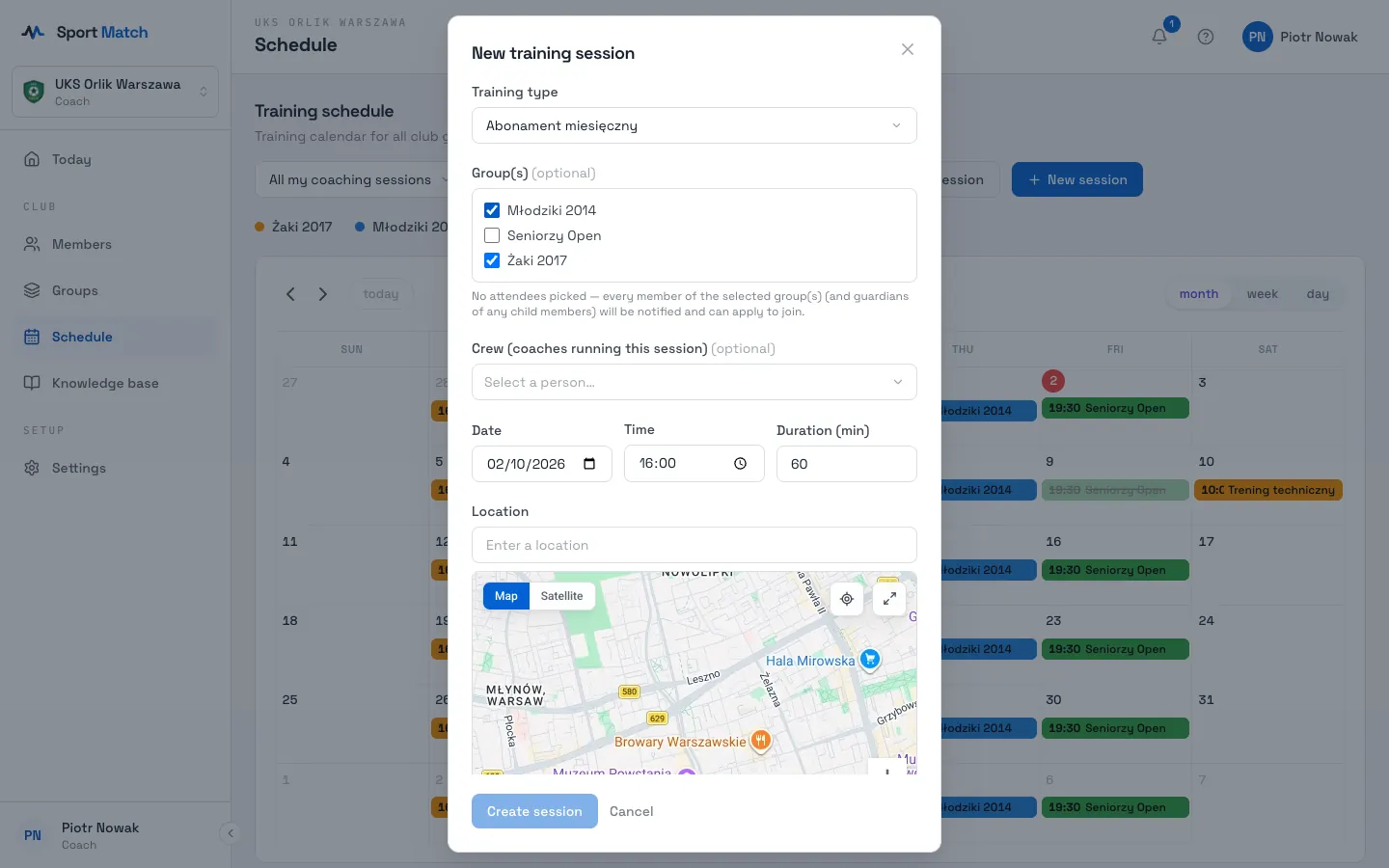
In Schedule click New session and pick a Training type.
-
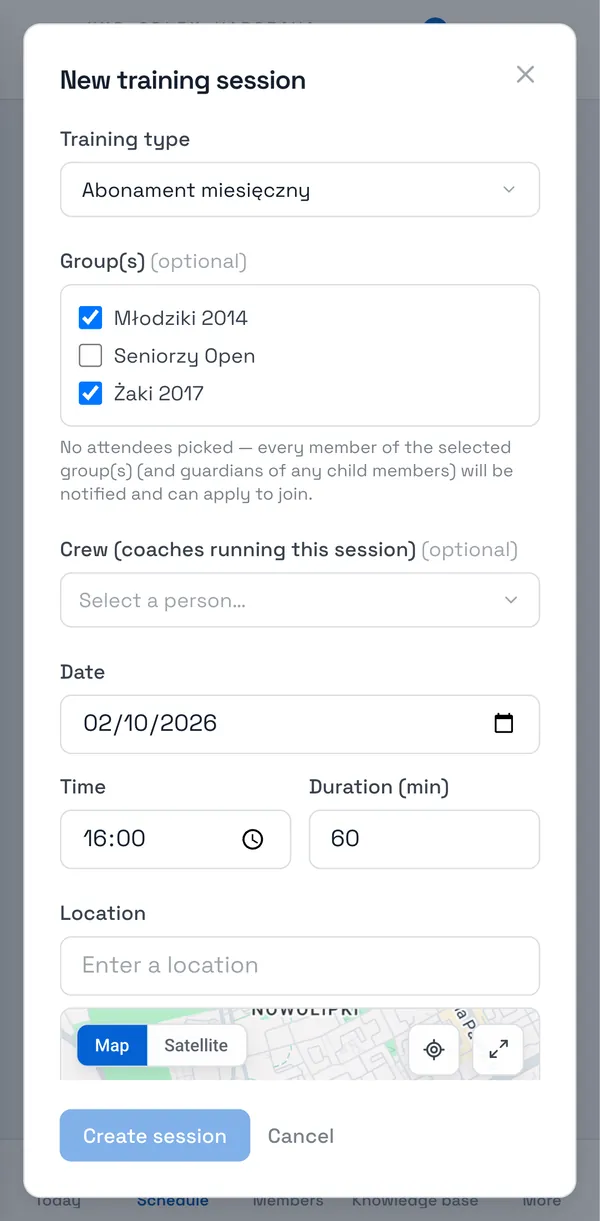
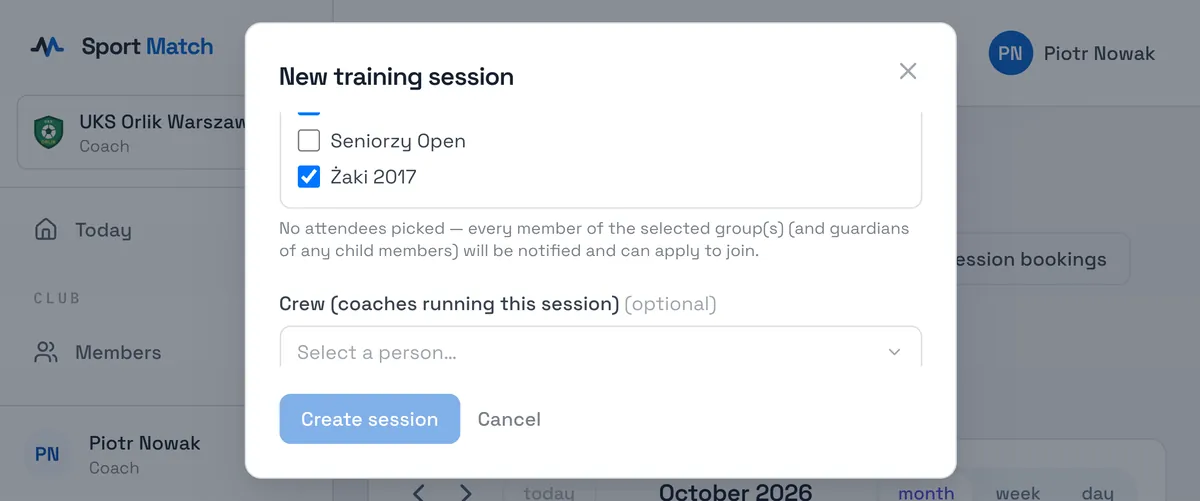
Tick one or more groups under Group(s) and leave Attendees empty. A note appears below the groups: every member of those groups (and the parents of children) is notified and can apply to join.
-
Fill in the time, place and Description — it tells players what they’re signing up for — and click Create session.
How players sign up
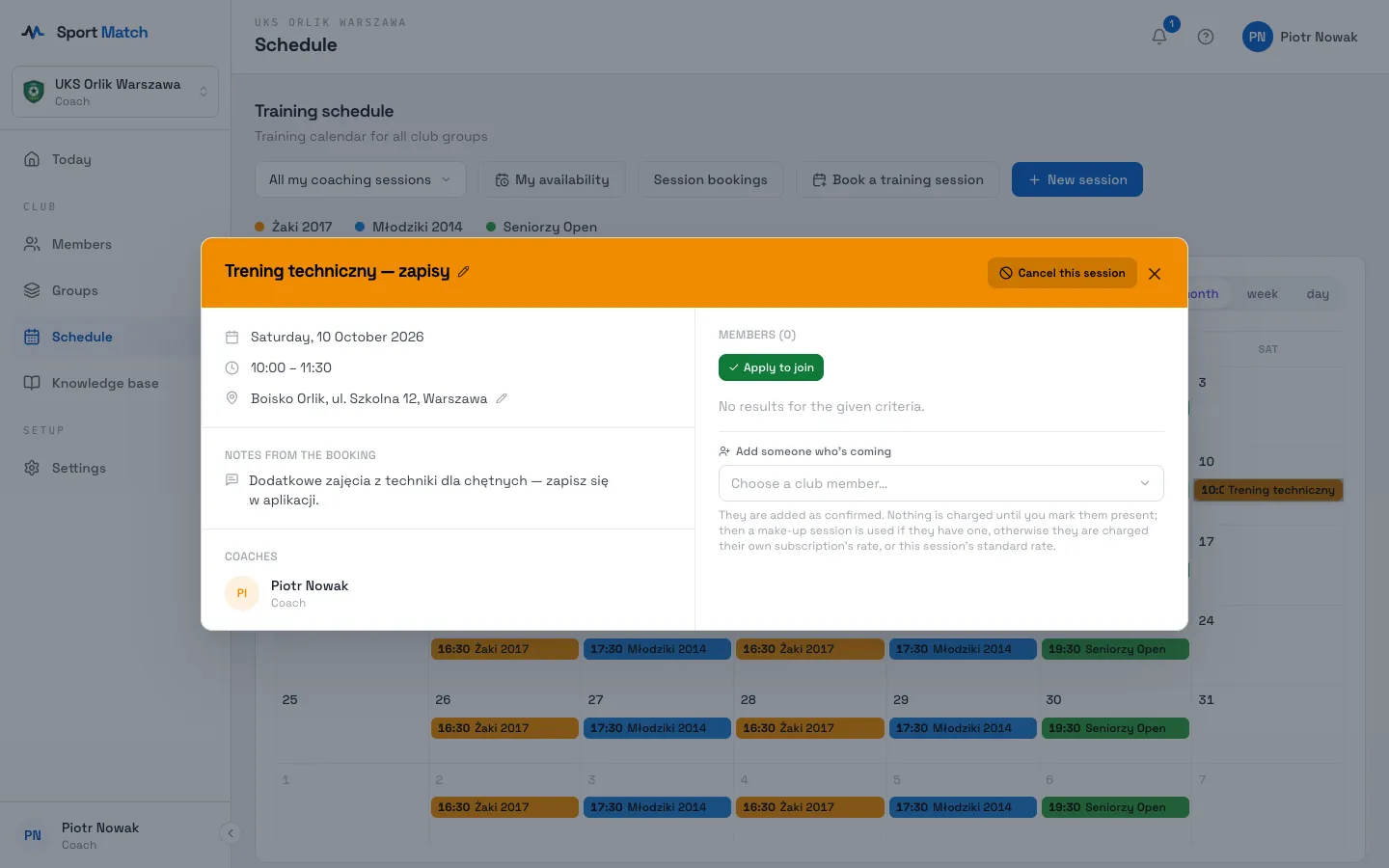
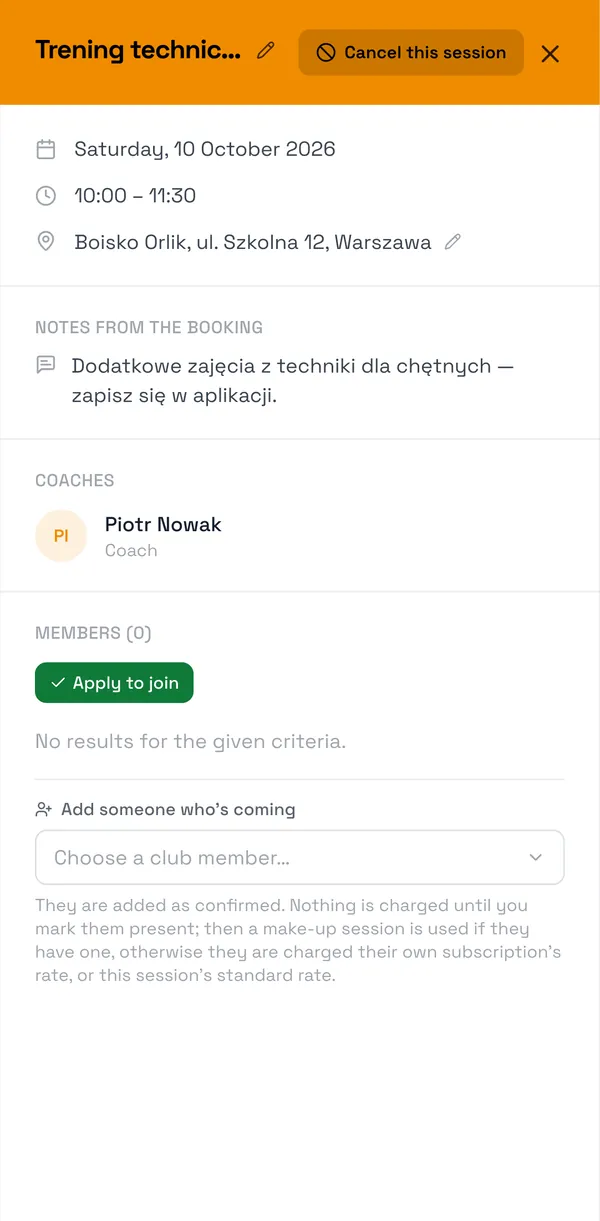
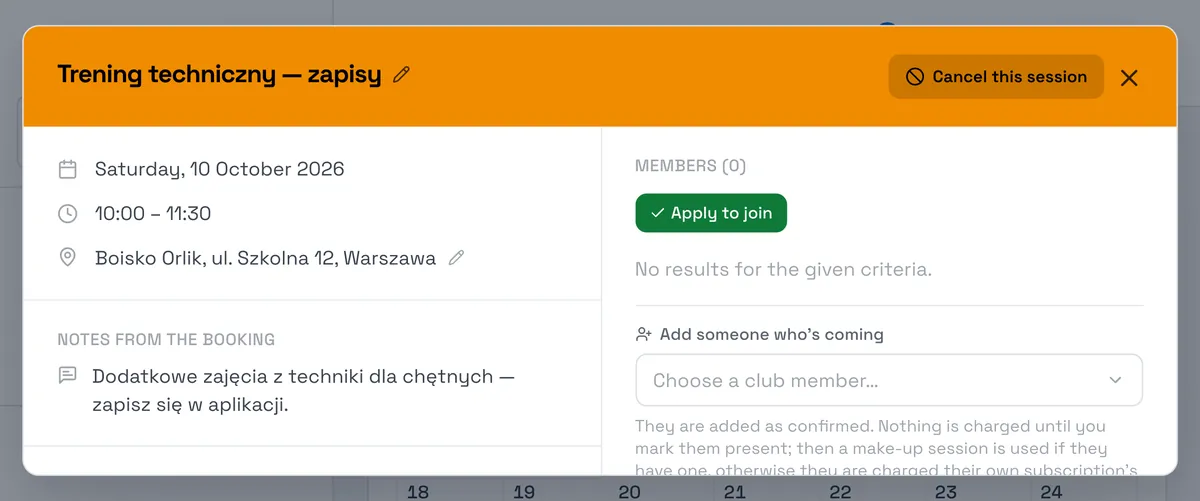
Players get a New optional training notification. They open the session in the schedule and click Apply to join (a parent can sign up several children at once — Apply for all). They can back out with Withdraw. Sign-ups close 24 hours before the session, just like ordinary attendance answers.
You see who signed up on the session’s attendee list. Once it starts, take attendance as usual — see Taking attendance.
Didn’t find an answer?
Write to us in the chat — it opens on this page, no login needed — or email contact@sportmatch.pl.