Required documents and reviewing them
Decide which consents and declarations everyone who trains must hand in, and how: accepted in the app, as a signed file or as a paper original. Members and parents see what they are missing, and you see who hasn’t handed theirs in yet and what is waiting for your decision.
Screenshots
Choose the required documents
-
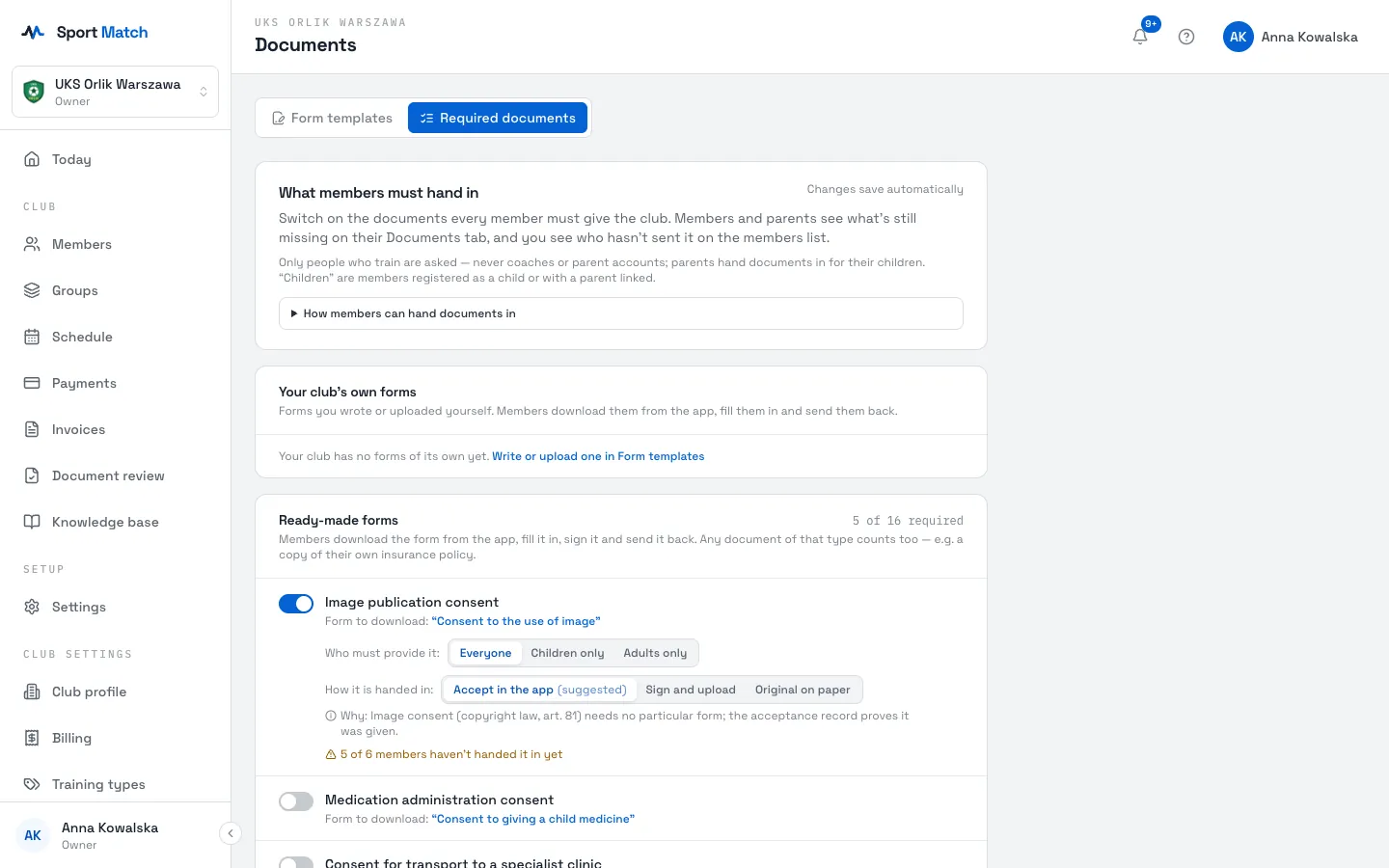
Under Club settings in the menu, open Documents, Required documents tab.
-
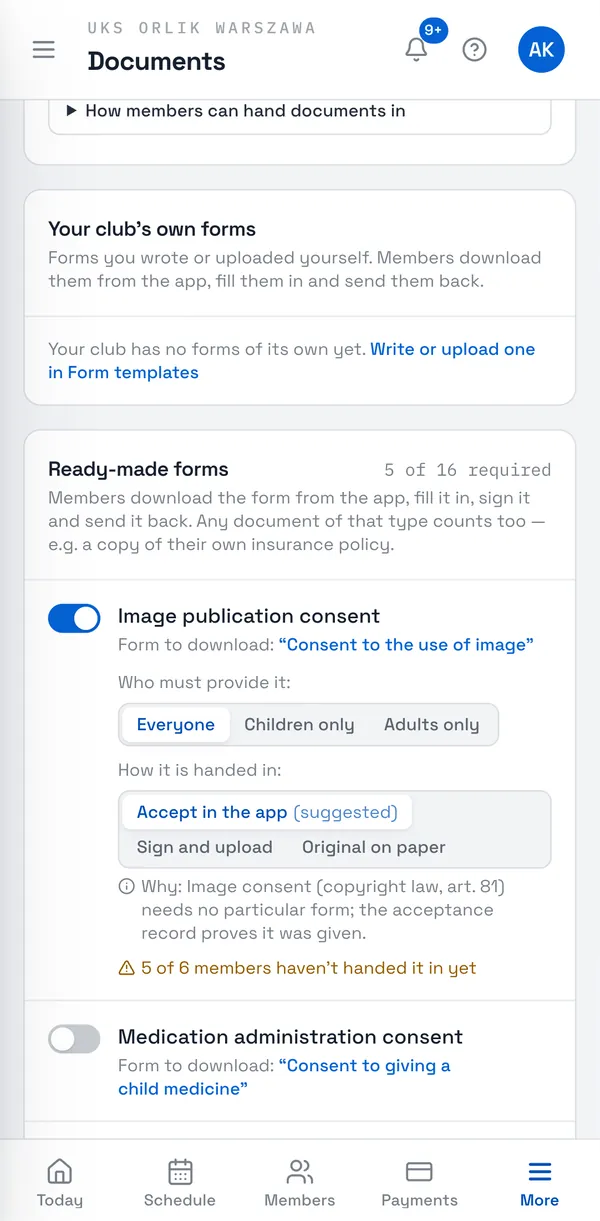
Switch on each document your club requires. The list has three parts: Your club’s own forms, Ready-made forms, and Documents members bring themselves (such as an insurance policy).
-
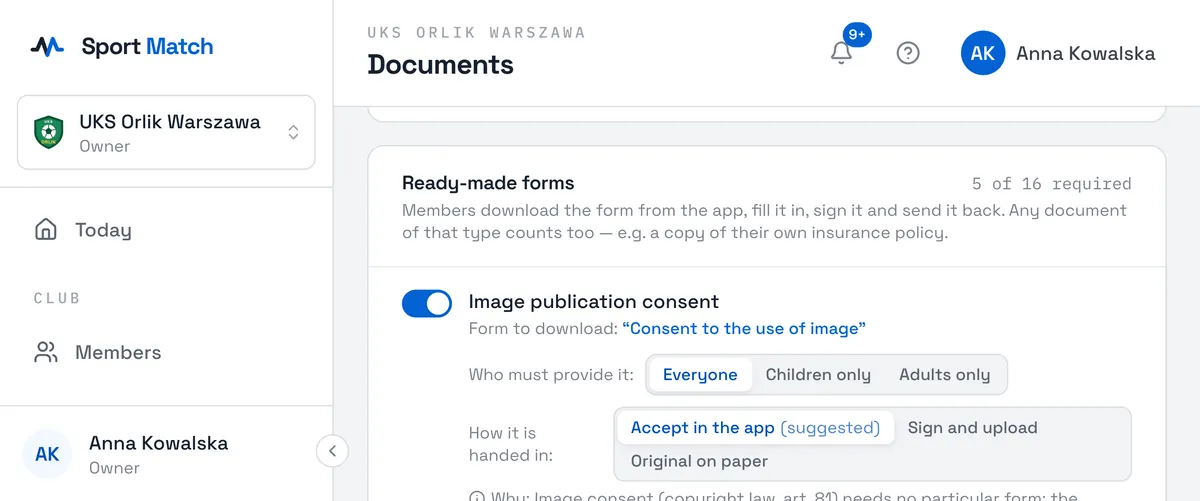
For a document that is on, choose Who must provide it: Everyone, Children only or Adults only. Below it you see how many members are still missing it.
Tip: Changes save automatically — there is no Save button. Undo a mistake with Undo in the message at the bottom, and Go back to the suggested list restores the starter list.
Under More options you can make only your copy of a form count, or require a particular version — anyone who signed an older one is asked to sign again.
Documents are only asked of people who train — never of coaches or parent accounts. Parents hand documents in for their children.
How members hand a document in
For each document that is on, choose under How it is handed in:
- Accept in the app
- members read the document in the app, fill in its fields, tick “I have read and accept” and press Accept and submit. The app records who, when, from which IP address and device, and which version — and files a PDF copy for your review.
- Sign and upload
- members download the form, sign it — electronically, or on paper and scan it — and upload it.
- Original on paper
- members sign on paper and hand you the original; the scan they upload is only a confirmation. It counts once you mark the original received.
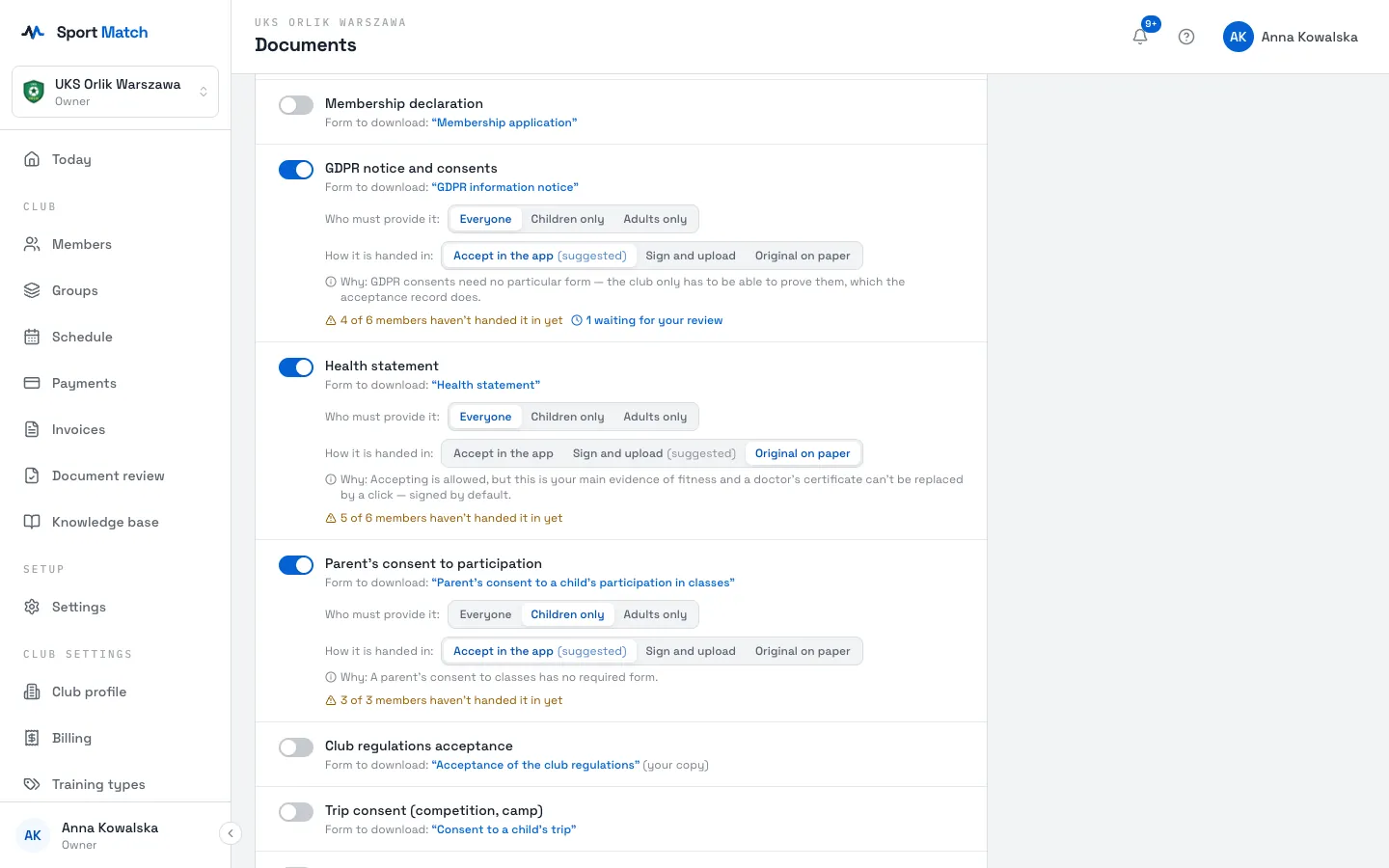
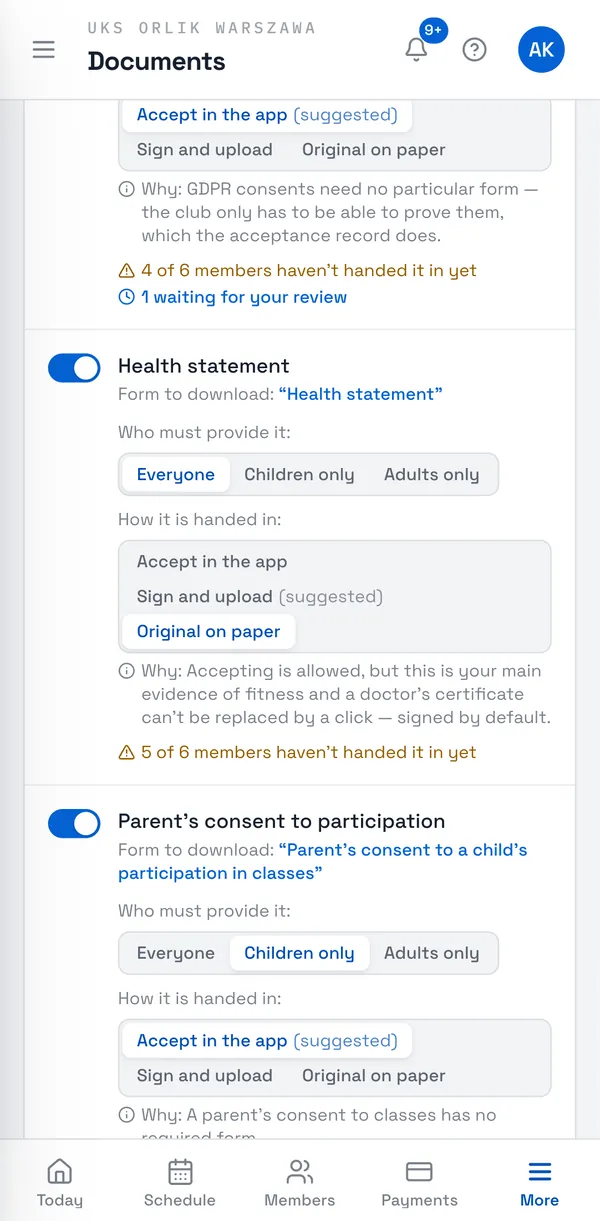
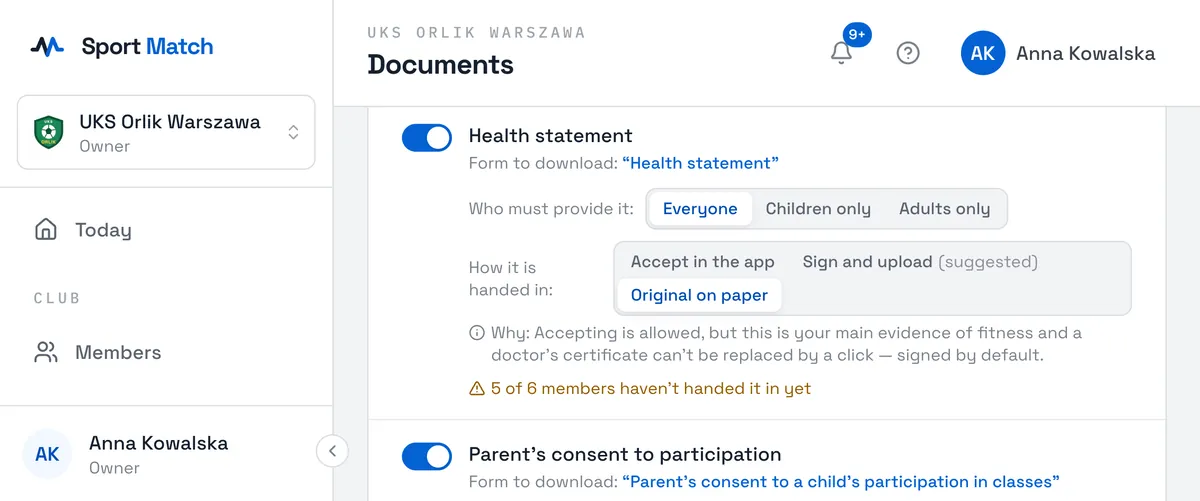
- The option marked suggested is the default for that kind of document, and the Why: line explains it in a sentence. You can always choose a more formal way.
- Accepting in the app isn’t offered where a signature is needed — such as a membership declaration, which a club’s statute usually requires in writing. The option is then struck through.
- Members can accept in the app once you have approved their consent to electronic communication (switch it on in the required list). Until then they sign and upload. The consent itself can always be accepted in the app.
- Switching to Original on paper applies to documents already approved too: they will wait for the original. Switching from accepting in the app to signing doesn’t cancel earlier acceptances.
Tip: Expand How members can hand documents in at the top of the list for an explanation of all three ways. The guide for members and parents is in Documents to hand in.
The suggestions follow what Polish law typically requires of each kind of document, but they are not legal advice — check with your club’s lawyer if in doubt.
Reviewing uploaded documents
-
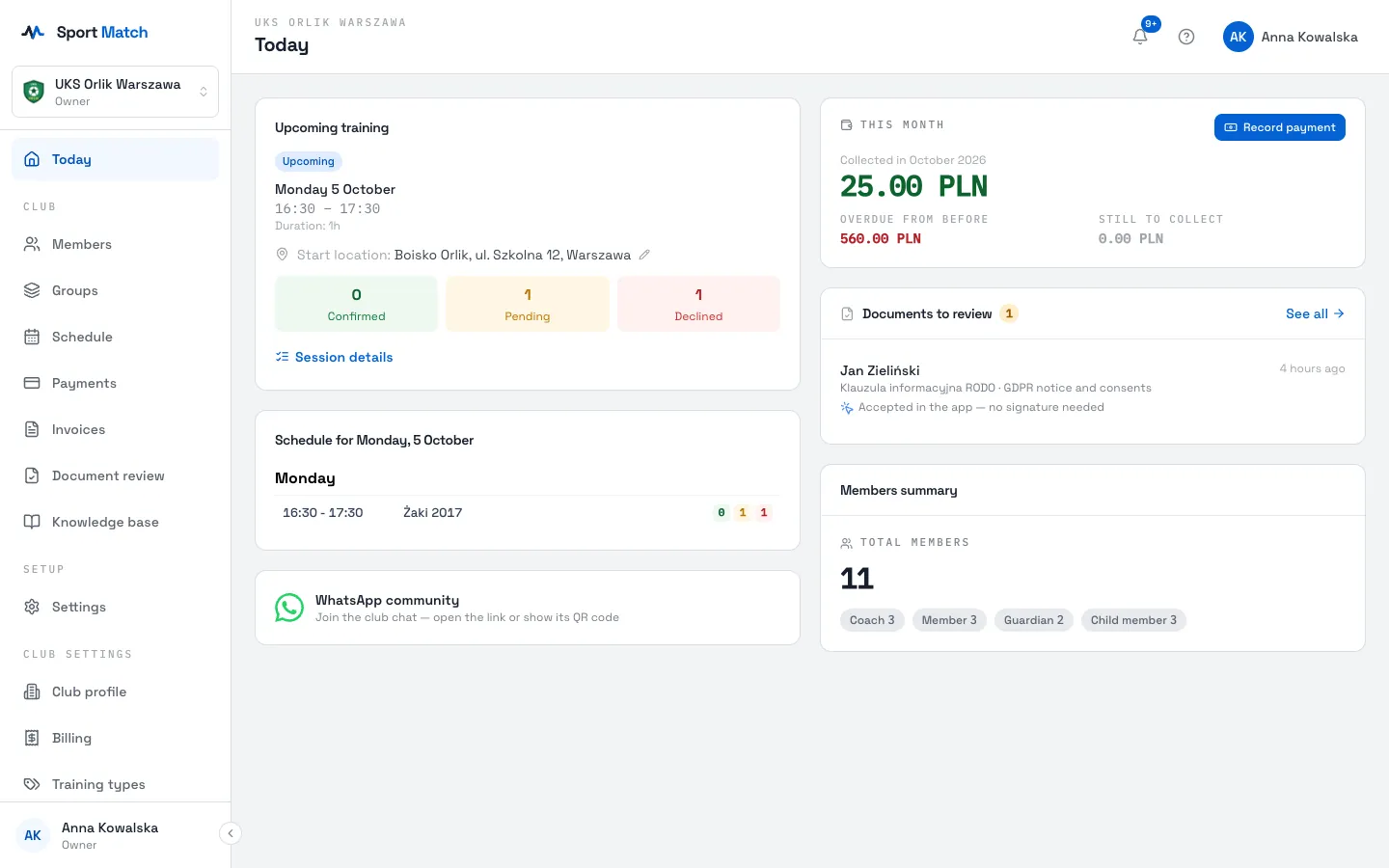
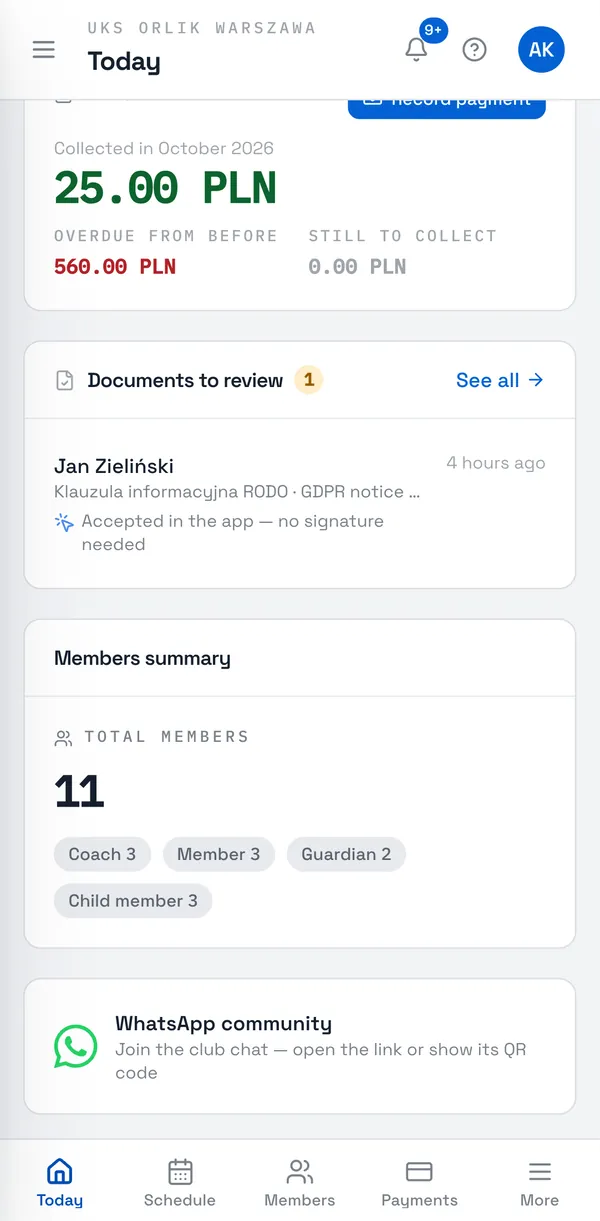
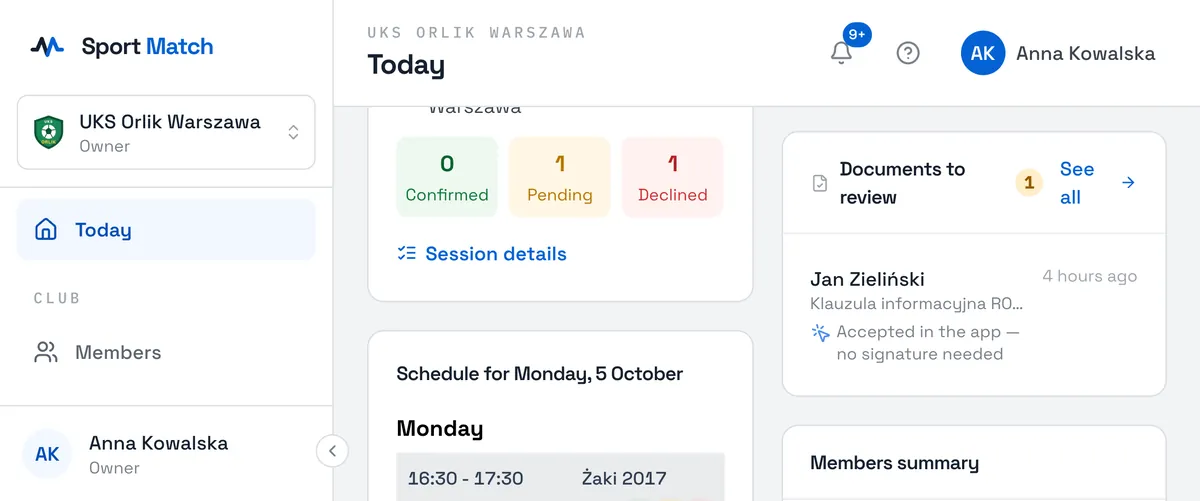
New documents show up on Today in the Documents to review card, and you get a notification about each one.
-
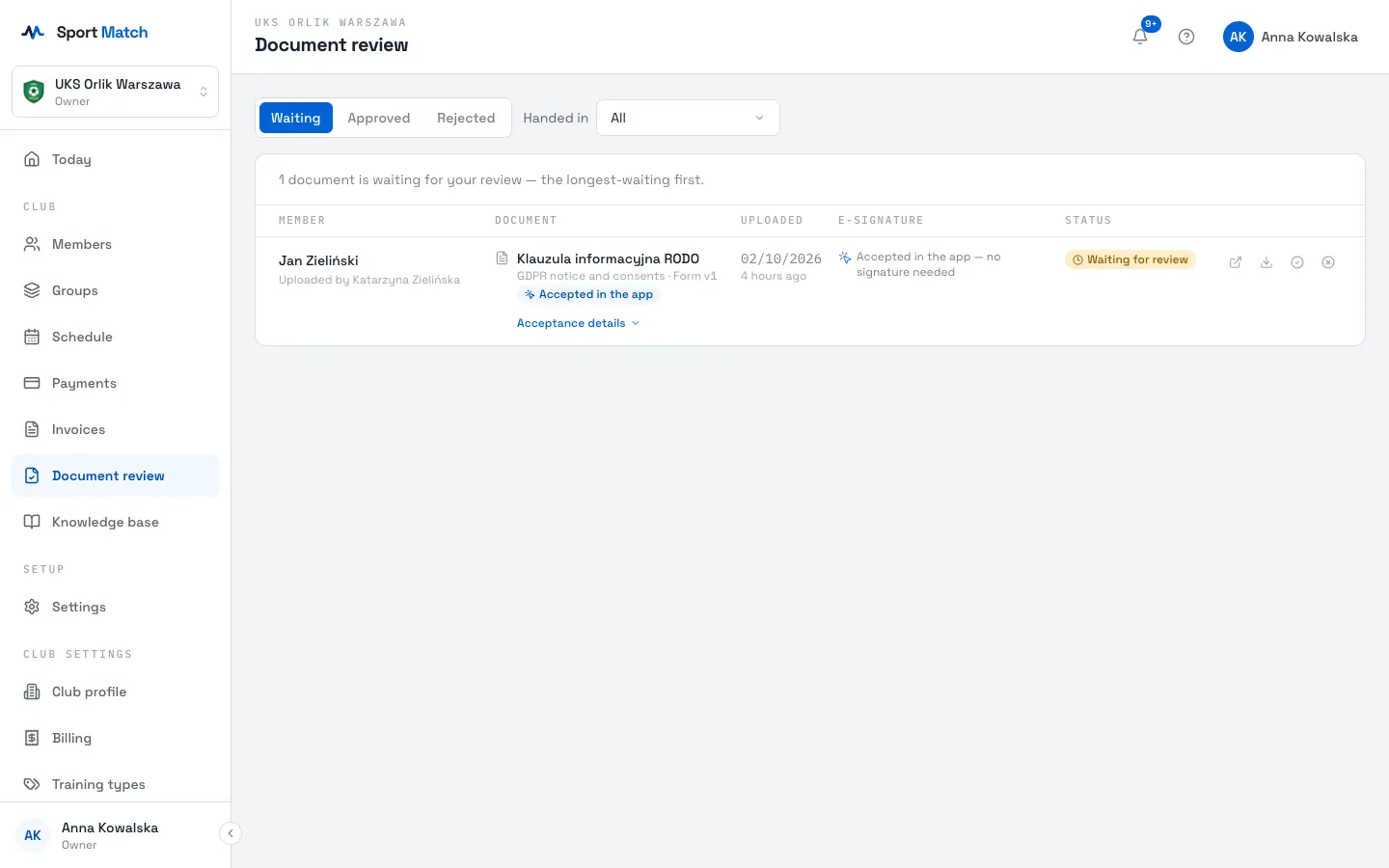
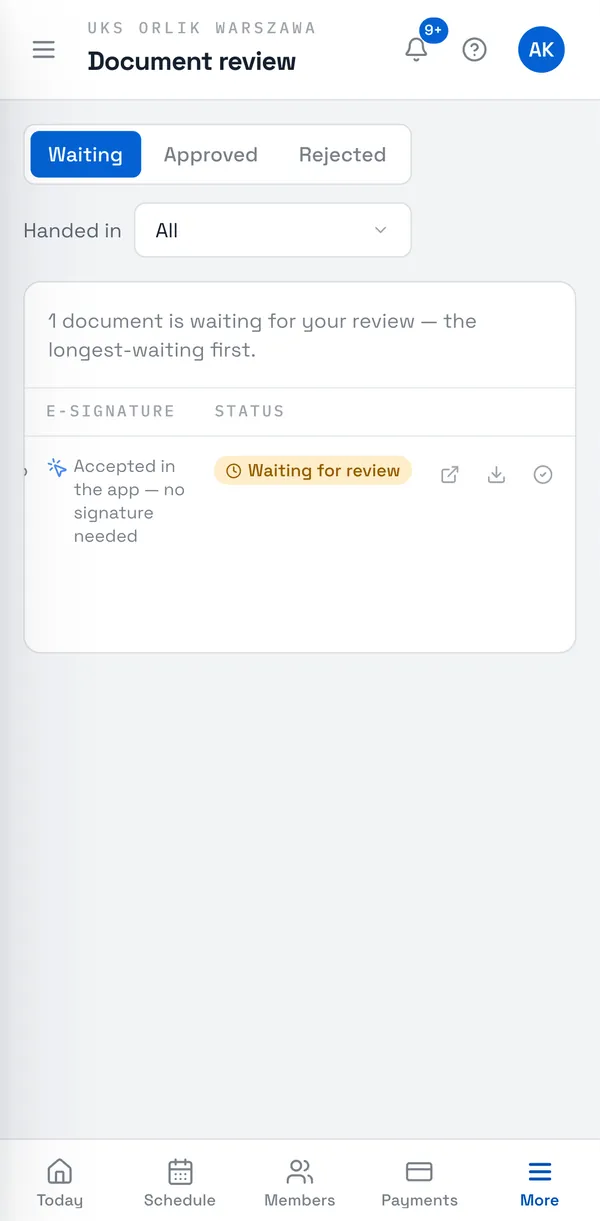
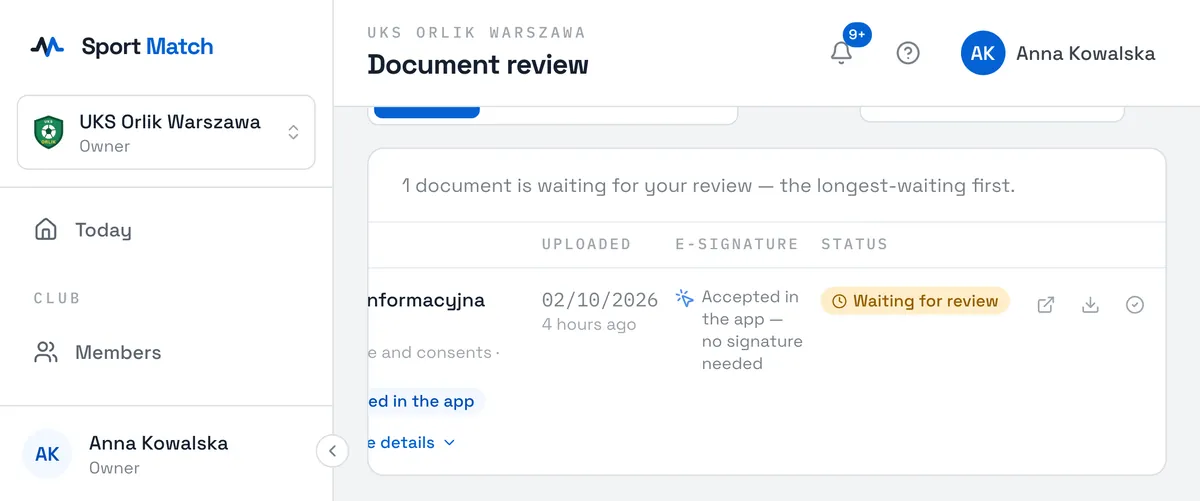
Open Document review in the menu. The Waiting (longest-waiting first), Approved and Rejected tabs list the whole club’s documents.
-
Download the file and check it. Approve it with the tick icon.
-
If something needs fixing, click Reject, type the Reason for rejecting — the member will see it — and confirm with Reject document.
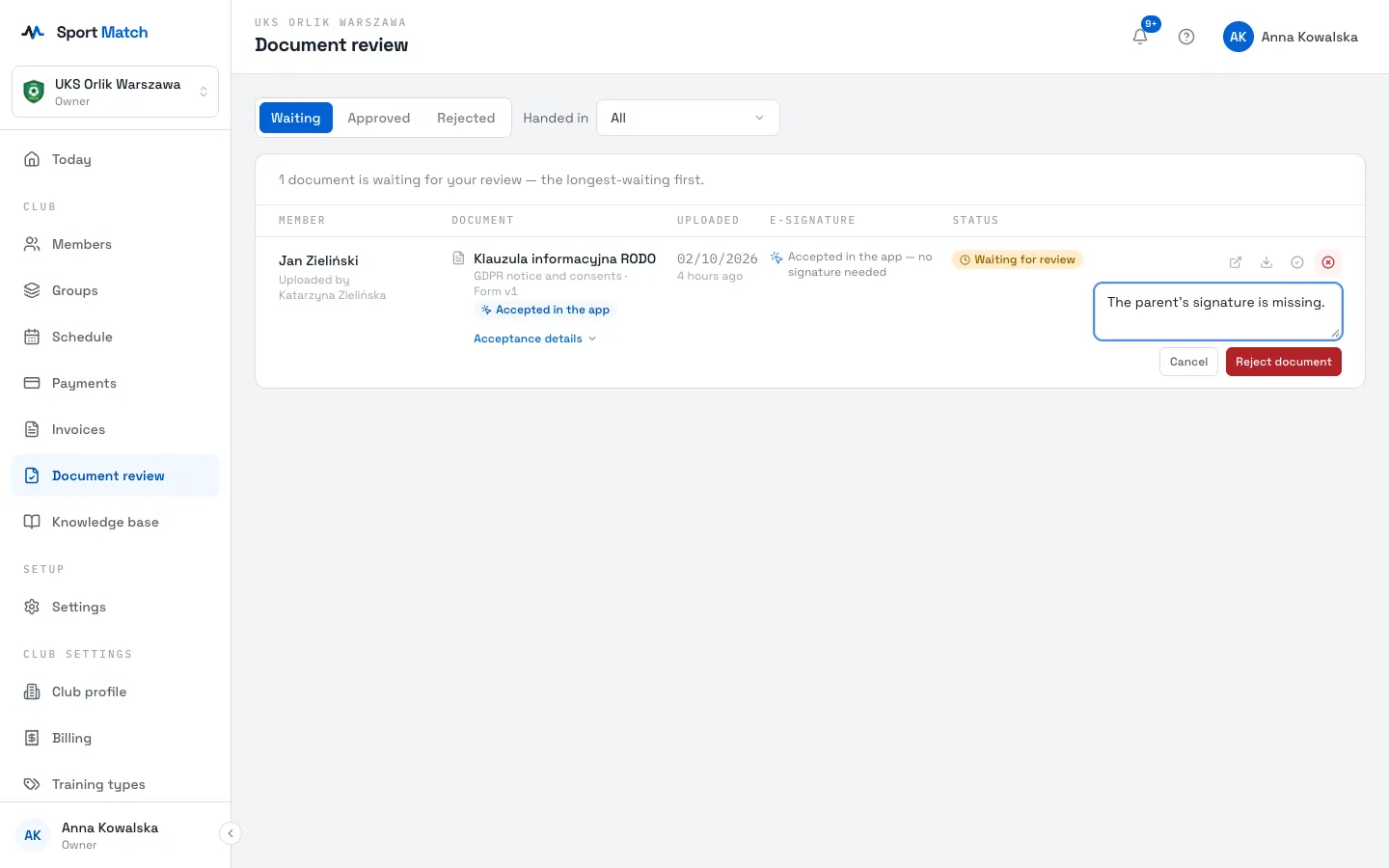
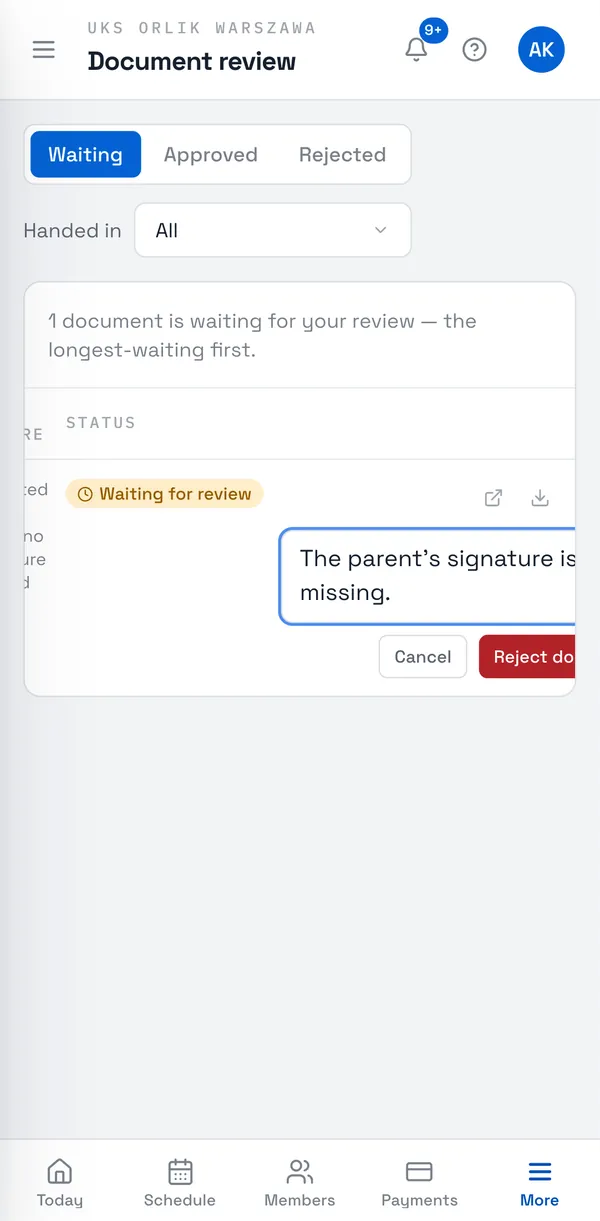
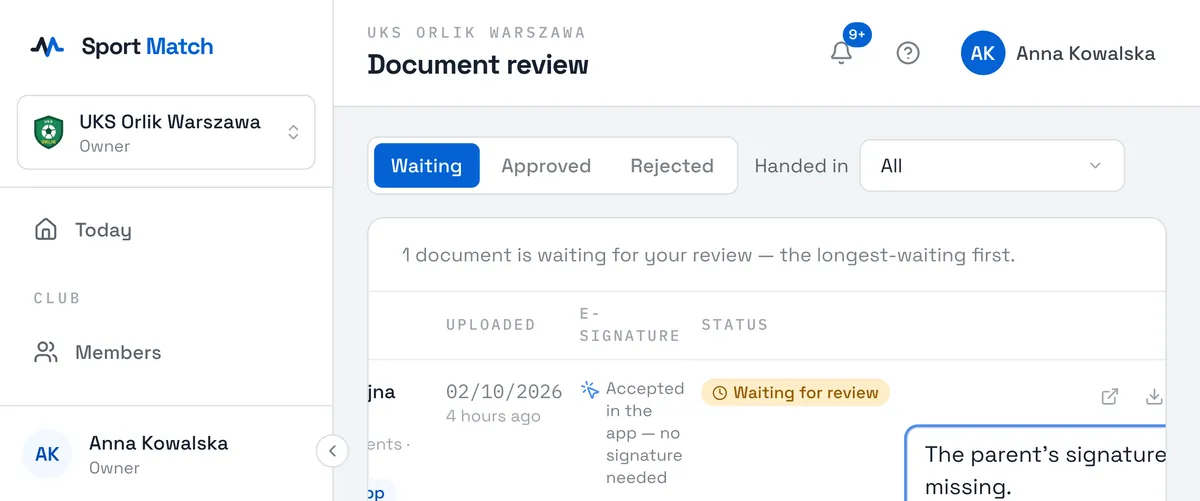
You can do the same on the member page’s Documents tab (the Open in the member’s documents icon). When a member corrects a document, it goes back to waiting.
Documents accepted in the app
A document accepted in the app lands in Waiting just like an upload — marked Accepted in the app, with “Accepted in the app — no signature needed” in the signature column. Download it to read the PDF copy with the answers (allergy information, say), then approve or reject it. Click Acceptance details to see the record: when, who and on whose behalf, the IP address, browser and device, the document version, the statement accepted, the consents and the details entered — and confirmation that the record is unchanged since it was made.
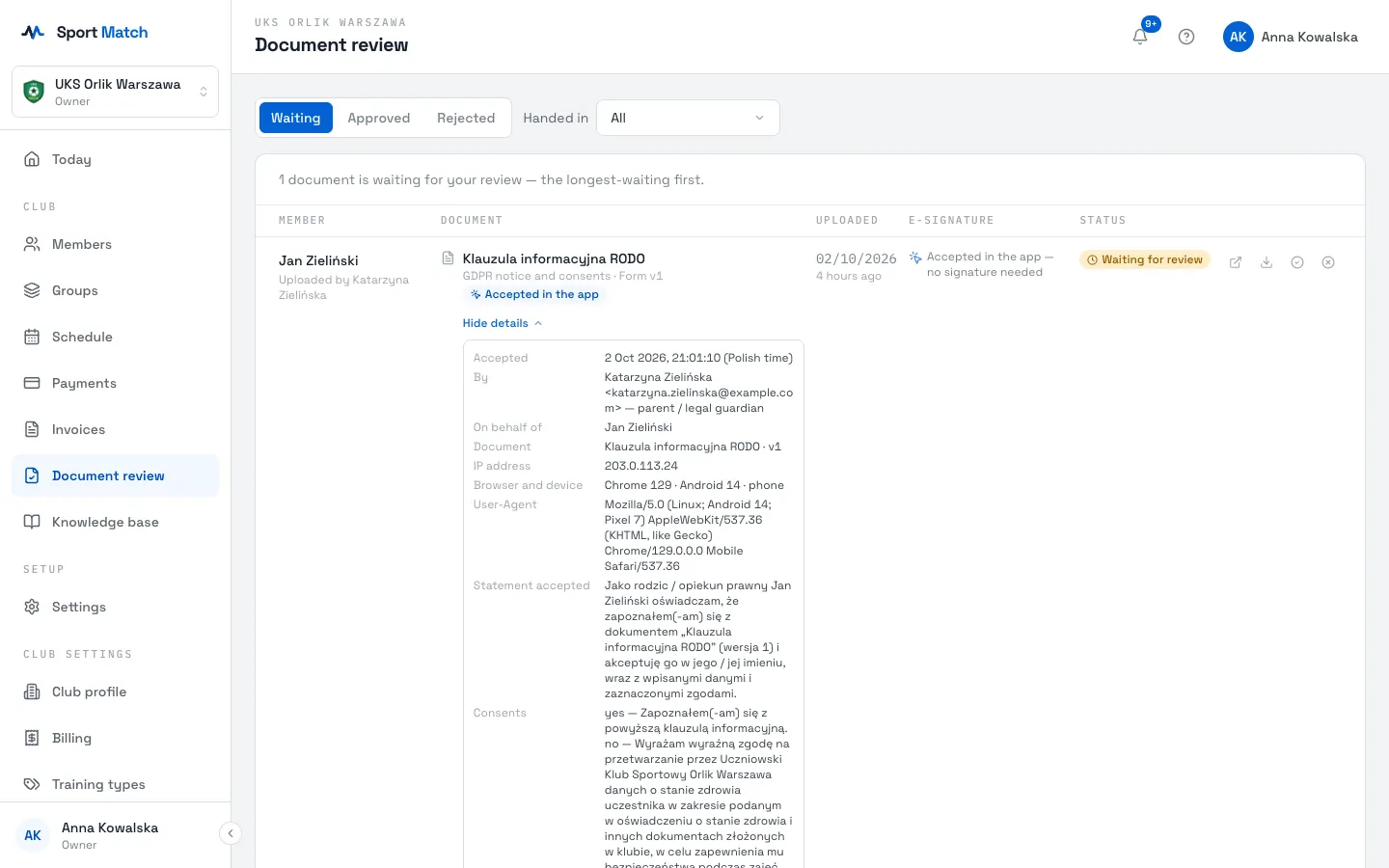
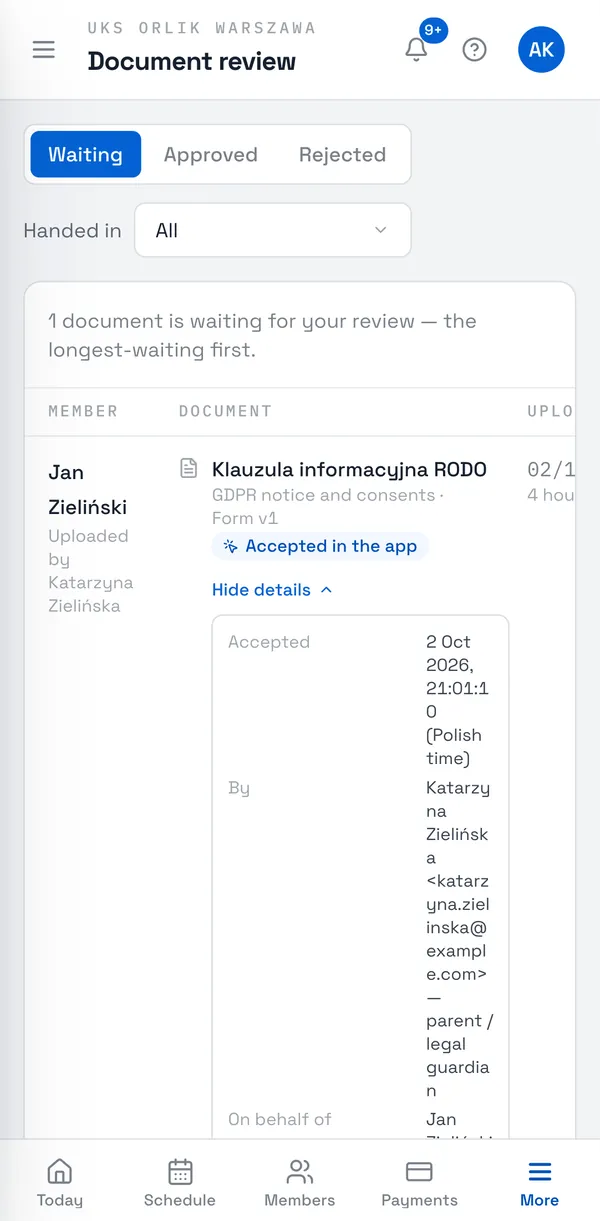
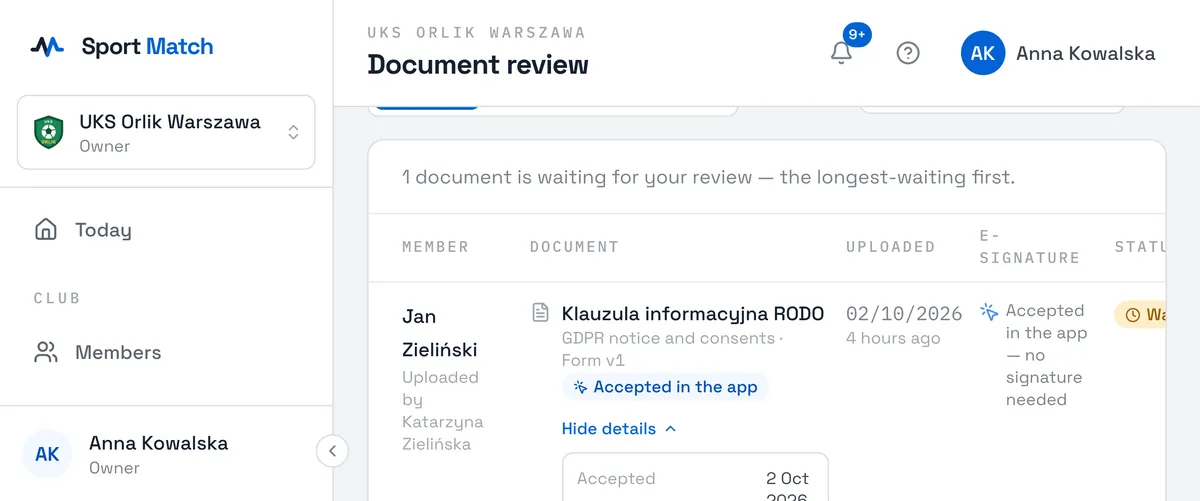
The Handed in list next to the tabs filters the documents: In the app, Uploaded, Paper or Original not received. The IP address and device in an acceptance record are visible to you and the person who accepted — not to coaches or the other parent.
Paper originals and scans you file
-
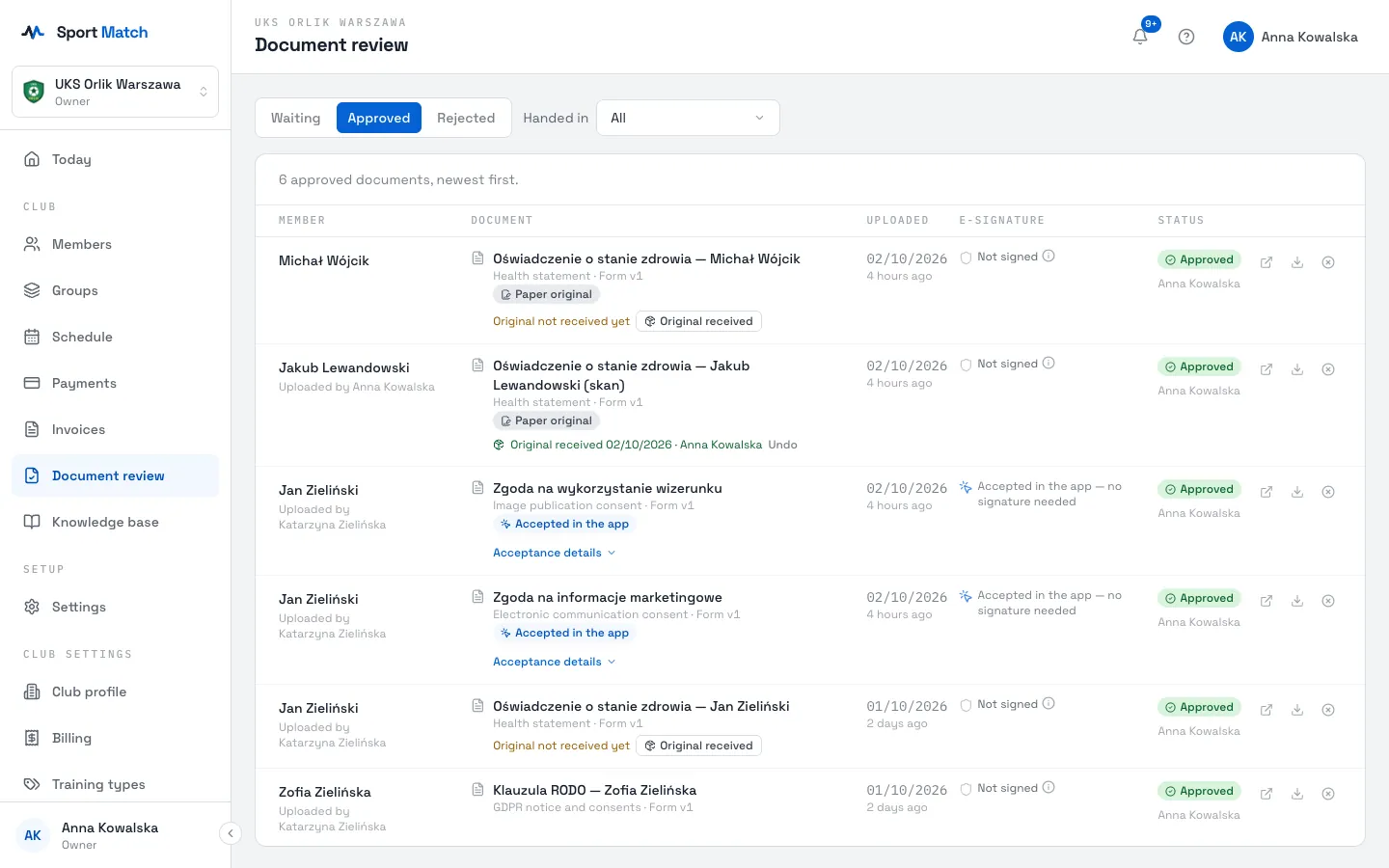
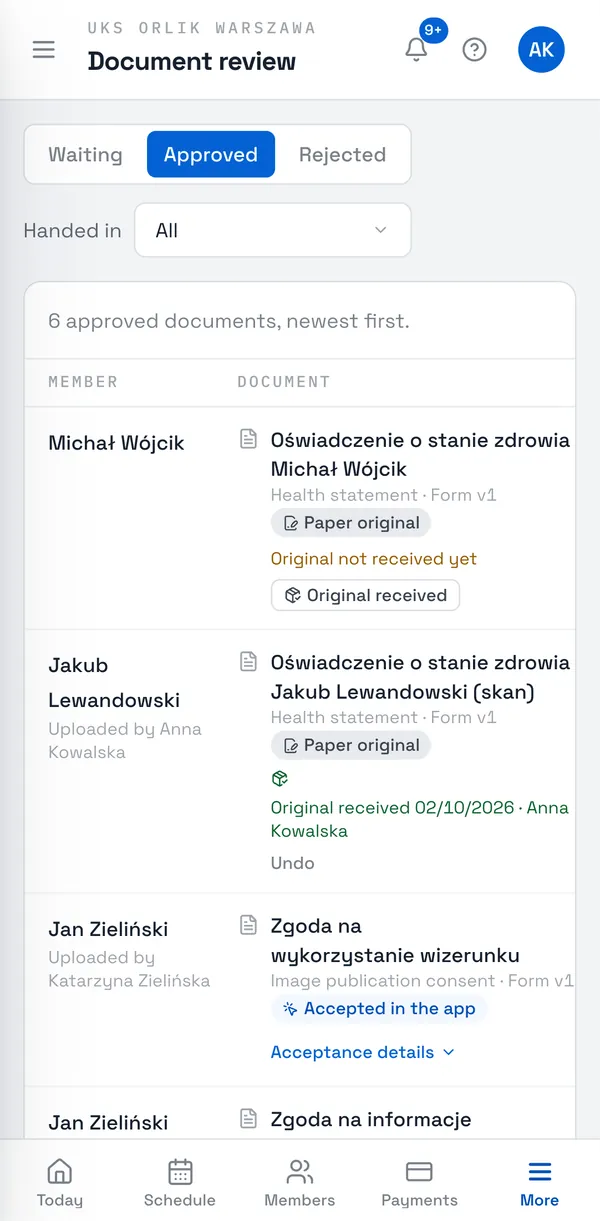
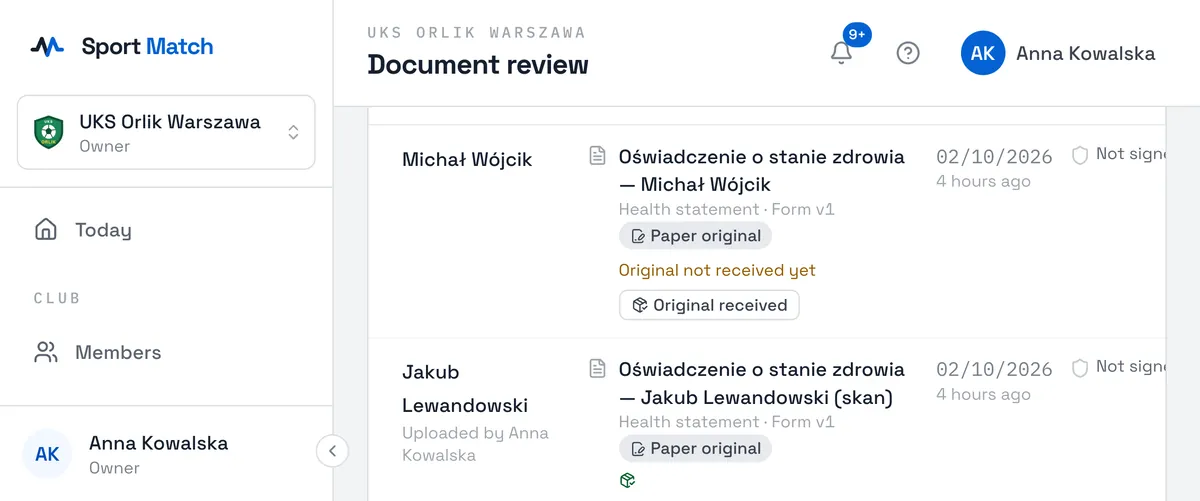
When the signed original reaches the club, find the document in the list (e.g. the Approved tab, filter Original not received) or on the member’s page, and next to “Original not received yet” choose Original received.
-
Check the Received on date — today by default; you can enter an earlier one — and choose Save. The document then shows “Original received” with the date and your name; undo a mistake with Undo.
A document handed in as a paper original counts only once it is approved and its original is marked — until then the member sees “hand in the signed original”. You can note an original on any document, even one accepted in the app.
Upload a scan of a paper document for a member
-
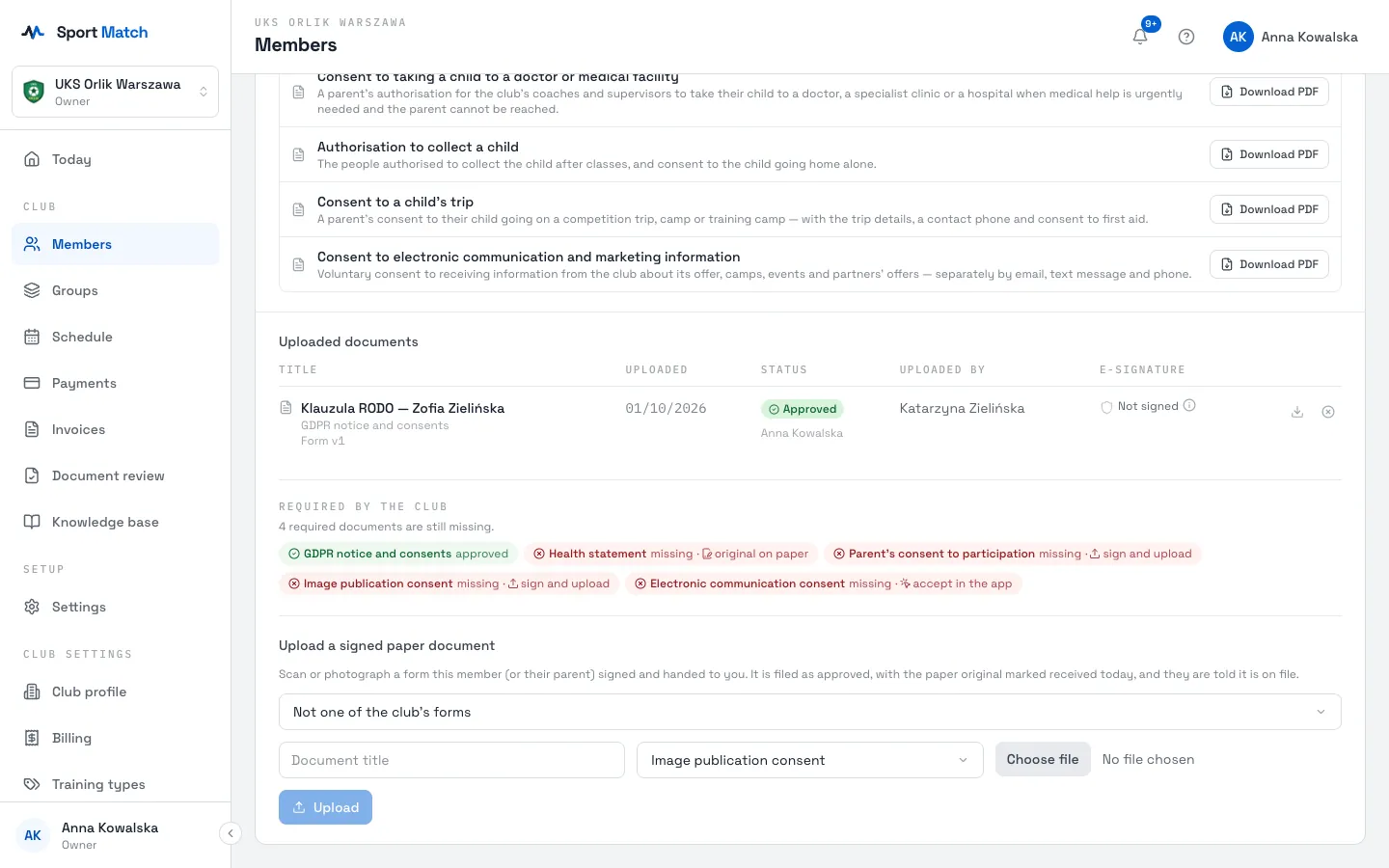
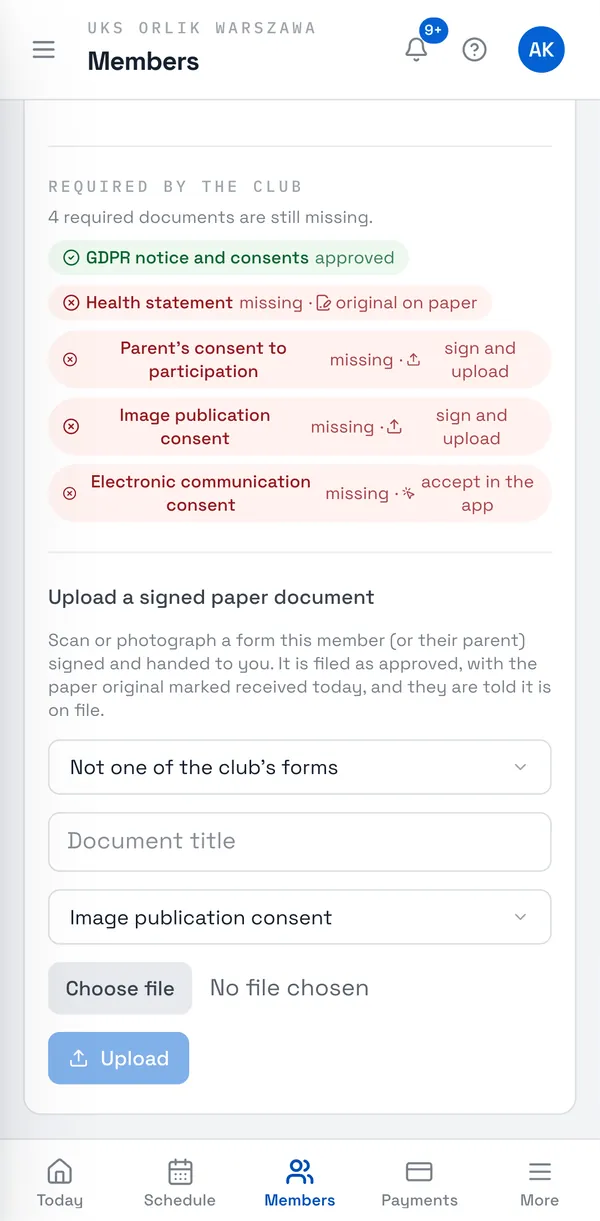
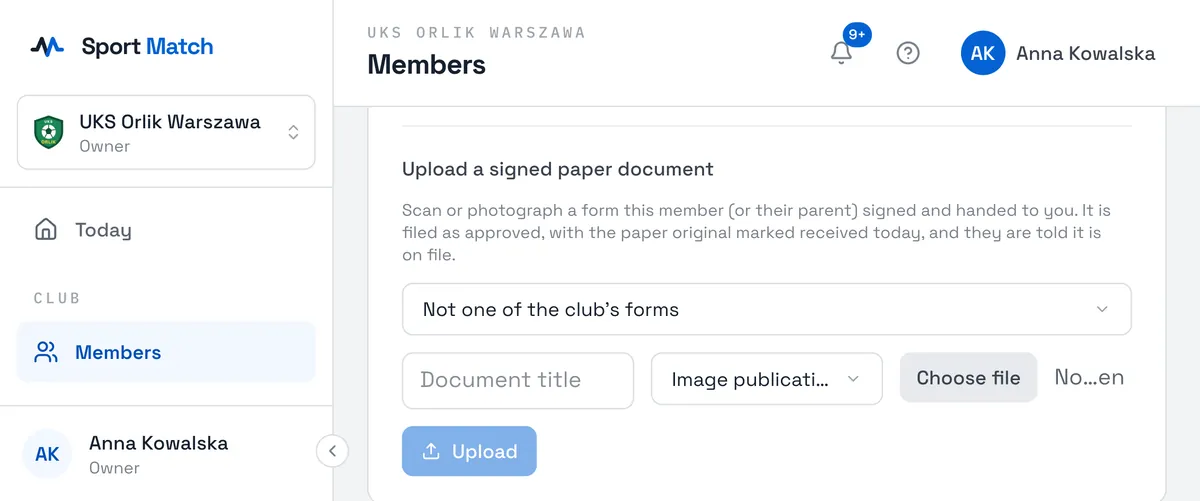
Someone handed you a signed paper form? Open the member’s page (for a child, the child’s page), the Documents tab and Upload a signed paper document. Or click the missing document under Required by the club.
-
Choose the form, enter a title, pick the scan or photo and upload it.
The document is approved straight away and marked Paper original with the original received today, and the member (for a child, their parents) is told it is on file. The member can download it, but only you can change or delete it. Only the club owner can file documents this way.
What the signature badge tells you
Sport Match checks every uploaded PDF: whether it carries an electronic signature, whether the file changed after signing, and whether the certificate comes from a provider on the EU trusted lists or from the Polish e-ID card system. The result is in the E-signature column; click the i icon for details.
-
Qualified electronic signature · Trusted profile signature · Personal signature (e-ID card)
The signature is intact and the certificate verified. You see who signed. Similar: Advanced signature (qualified certificate) and Electronic seal (confirms an organisation, not a person).
-
Signature intact — signer not verified
Nothing changed since signing, but the certificate couldn’t be confirmed — on its own this doesn’t prove who signed.
-
Signature found, not checked
For example an .xml (XAdES) file from the trusted profile. Check it yourself, e.g. in the gov.pl service.
-
Signature invalid
The file was changed after signing, or the certificate was revoked. Ask for it to be signed again.
-
Not signed
A scan or a photo, say. Whether you accept it is up to your club.
Every uploaded file is also scanned for viruses. Until that is done it shows Checking for viruses…; a file marked Malware detected can’t be downloaded or approved.
The guide for members and parents — how to sign a form without printing it — is in Sign a document electronically.
Didn’t find an answer?
Write to us in the chat — it opens on this page, no login needed — or email contact@sportmatch.pl.