Club profile
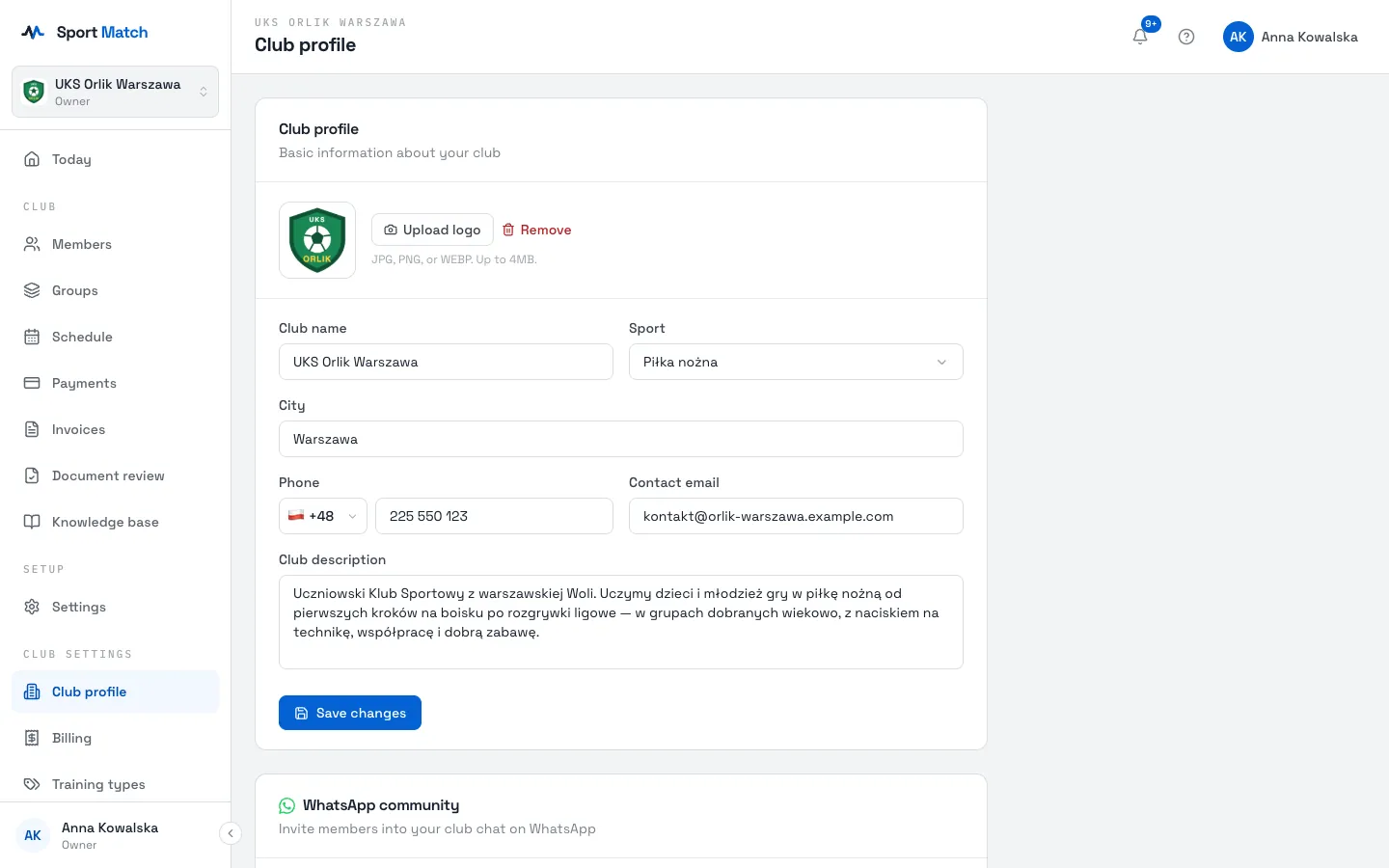
The club profile is what your members see and what goes on your documents. Open Club settings → Club profile. Each card on this page has its own Save changes button.
Screenshots
Logo and basic information
-
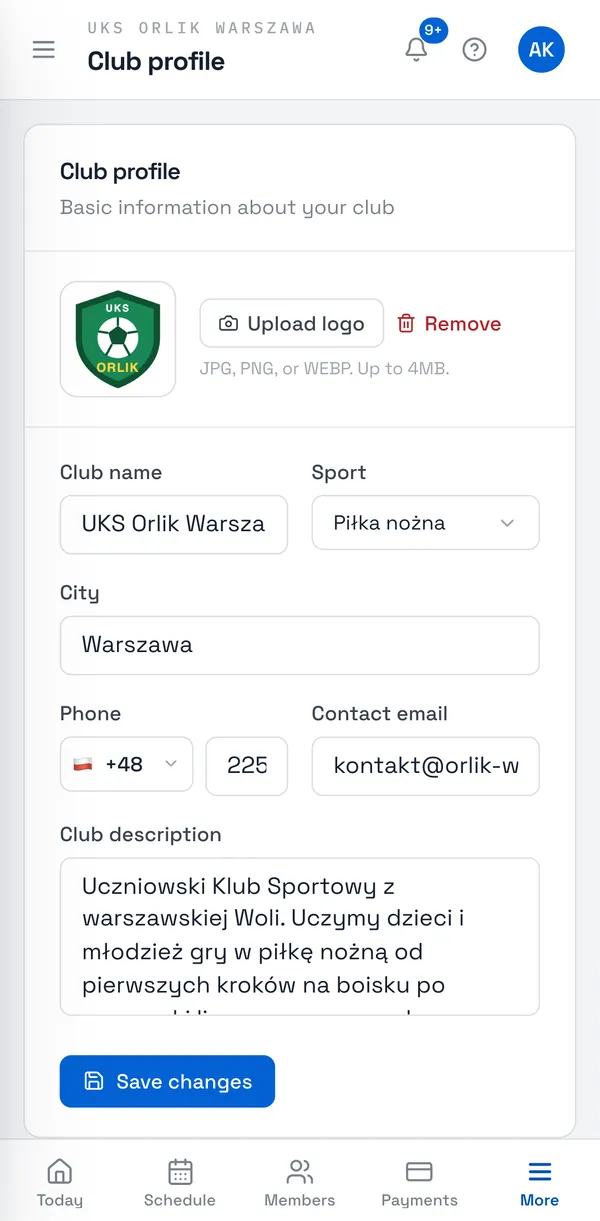
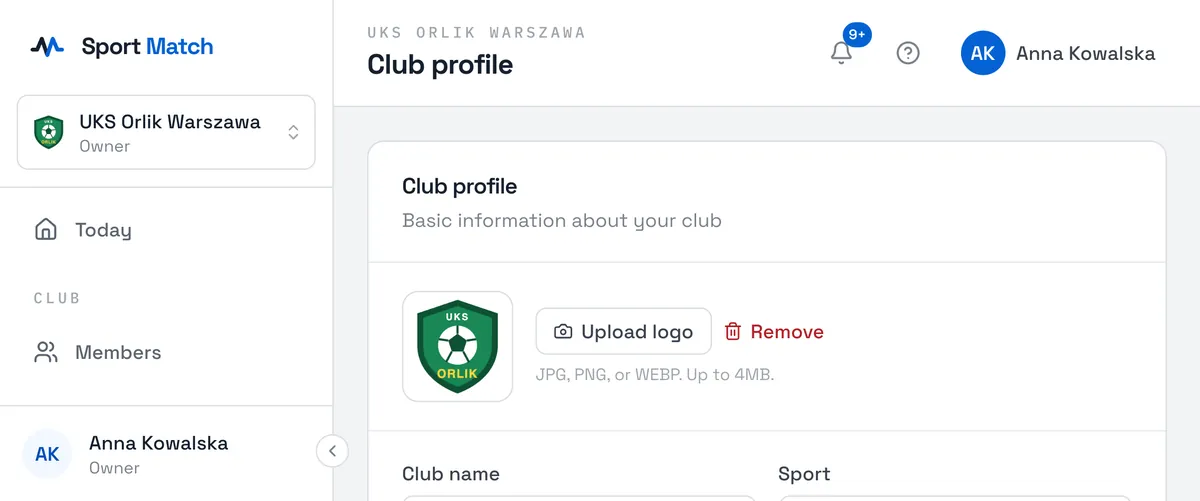
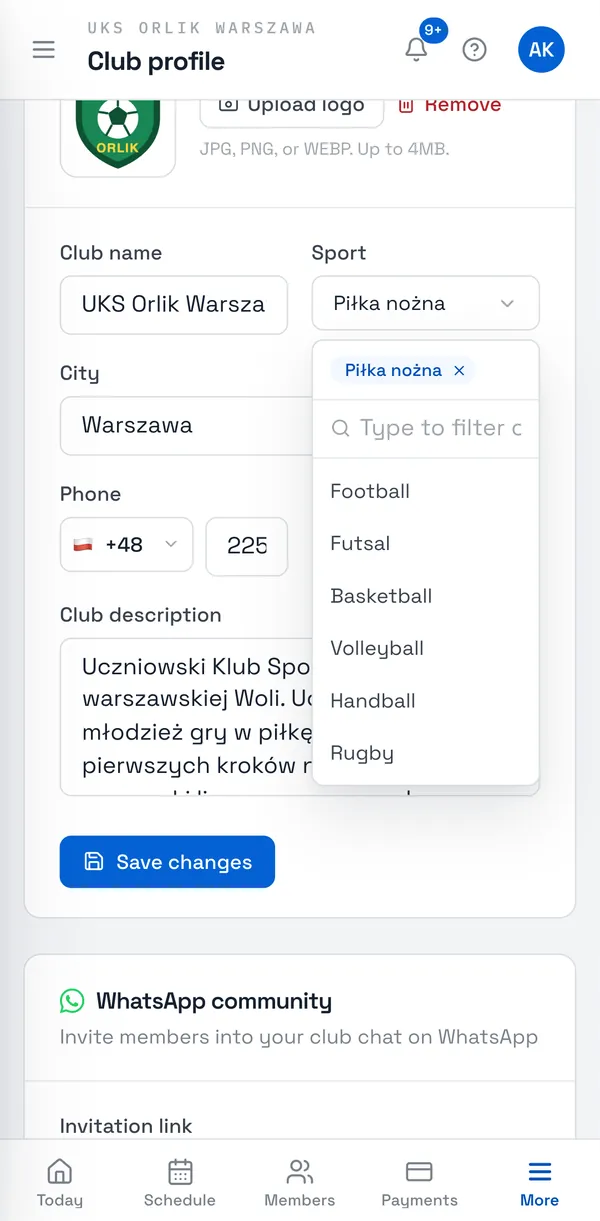
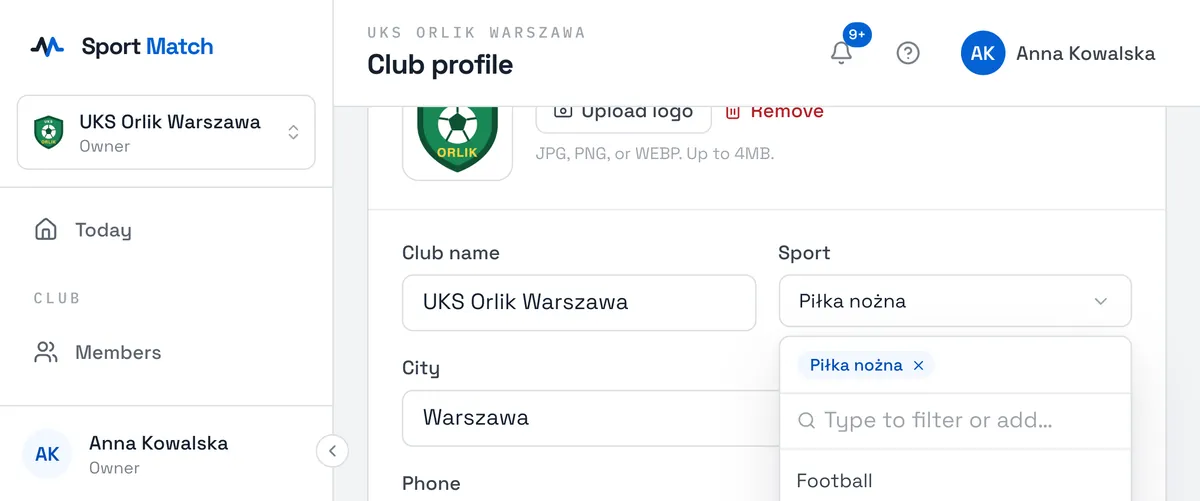
Choose Upload logo and pick a JPG, PNG or WEBP file (up to 4 MB). The logo appears in the club switcher, on invitation QR codes and on every PDF the app generates for your club (document templates, invoice preview). Remove takes it off.
-
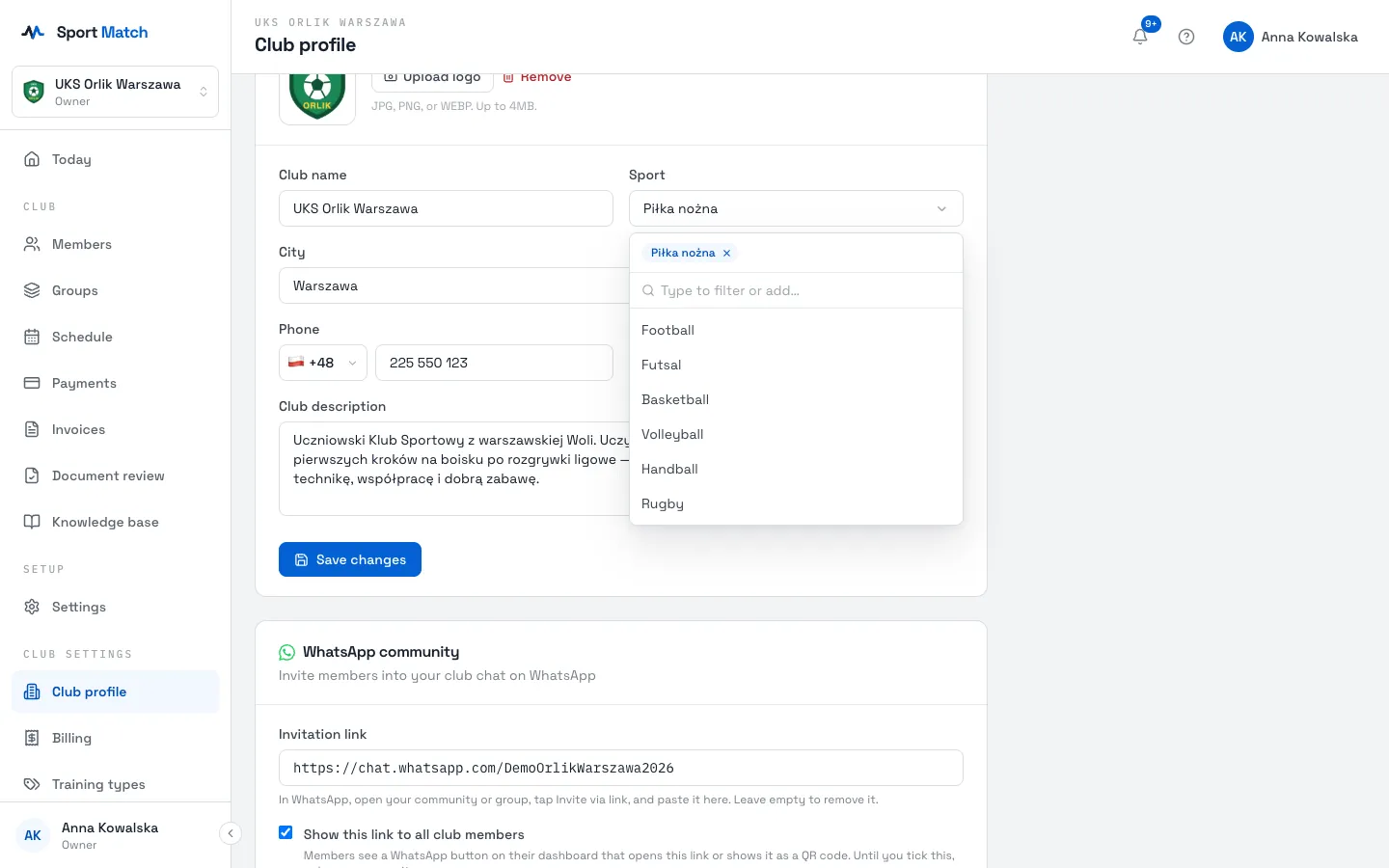
Under Sport, pick one or more sports from the list, or type your own and add it.
-
Fill in City, Phone, Contact email and Club description, then choose Save changes.
WhatsApp community
If your club has a WhatsApp group or community, members can join it with one tap from their Today screen.
-
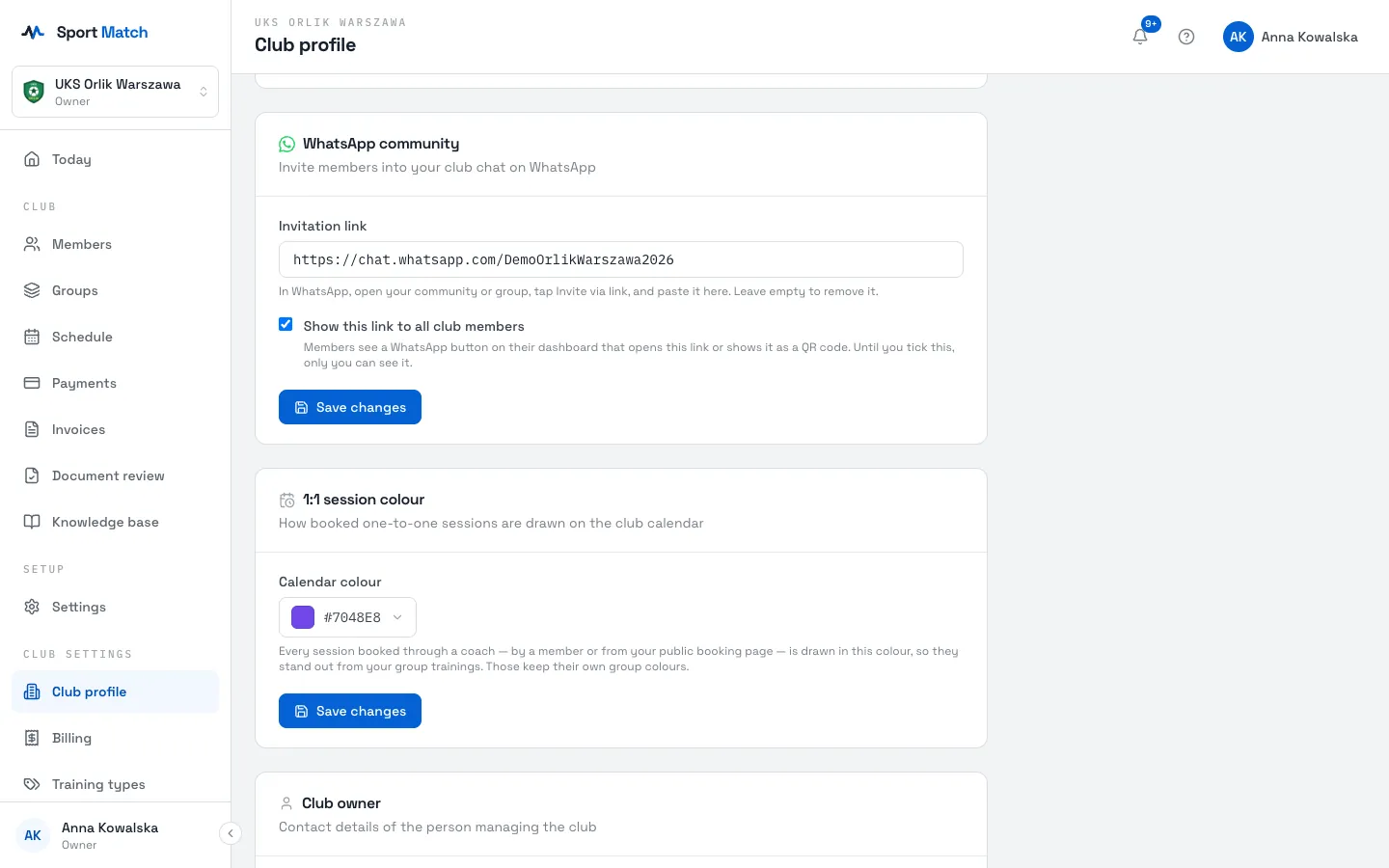
In WhatsApp, open your community or group, choose Invite via link and copy the link.
-
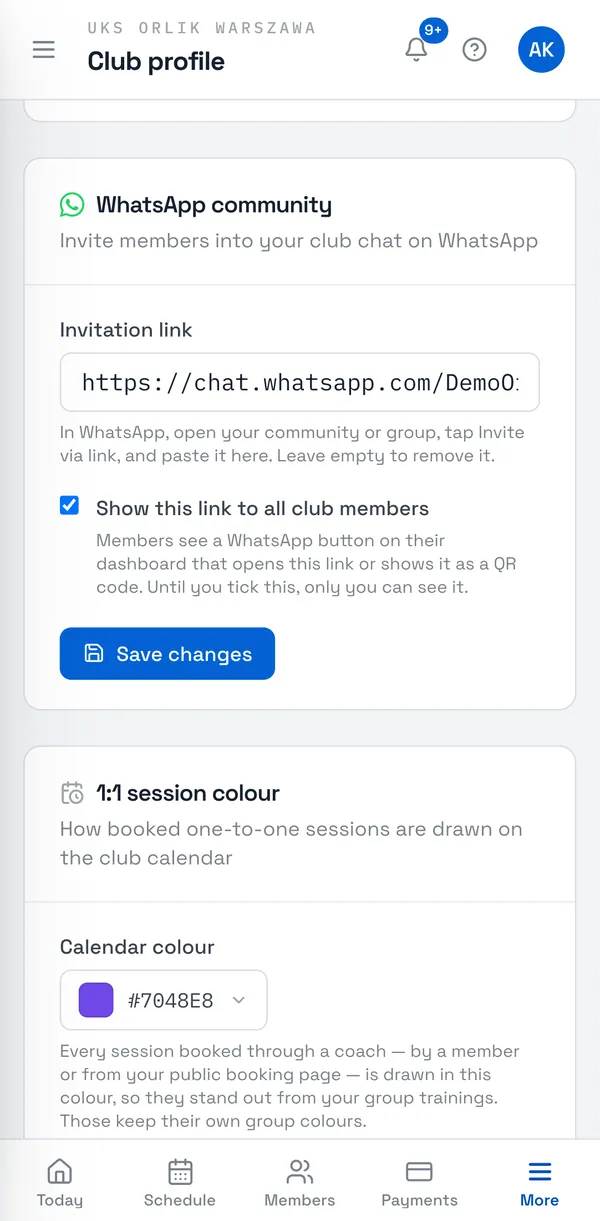
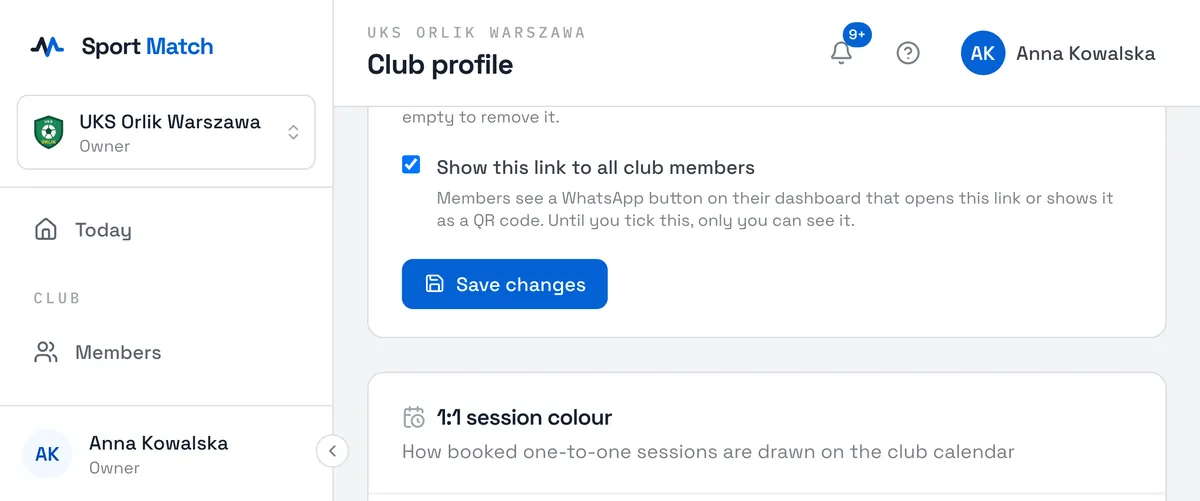
Paste it into Invitation link, tick Show this link to all club members and choose Save changes. Until you tick it, only you can see the link.
-
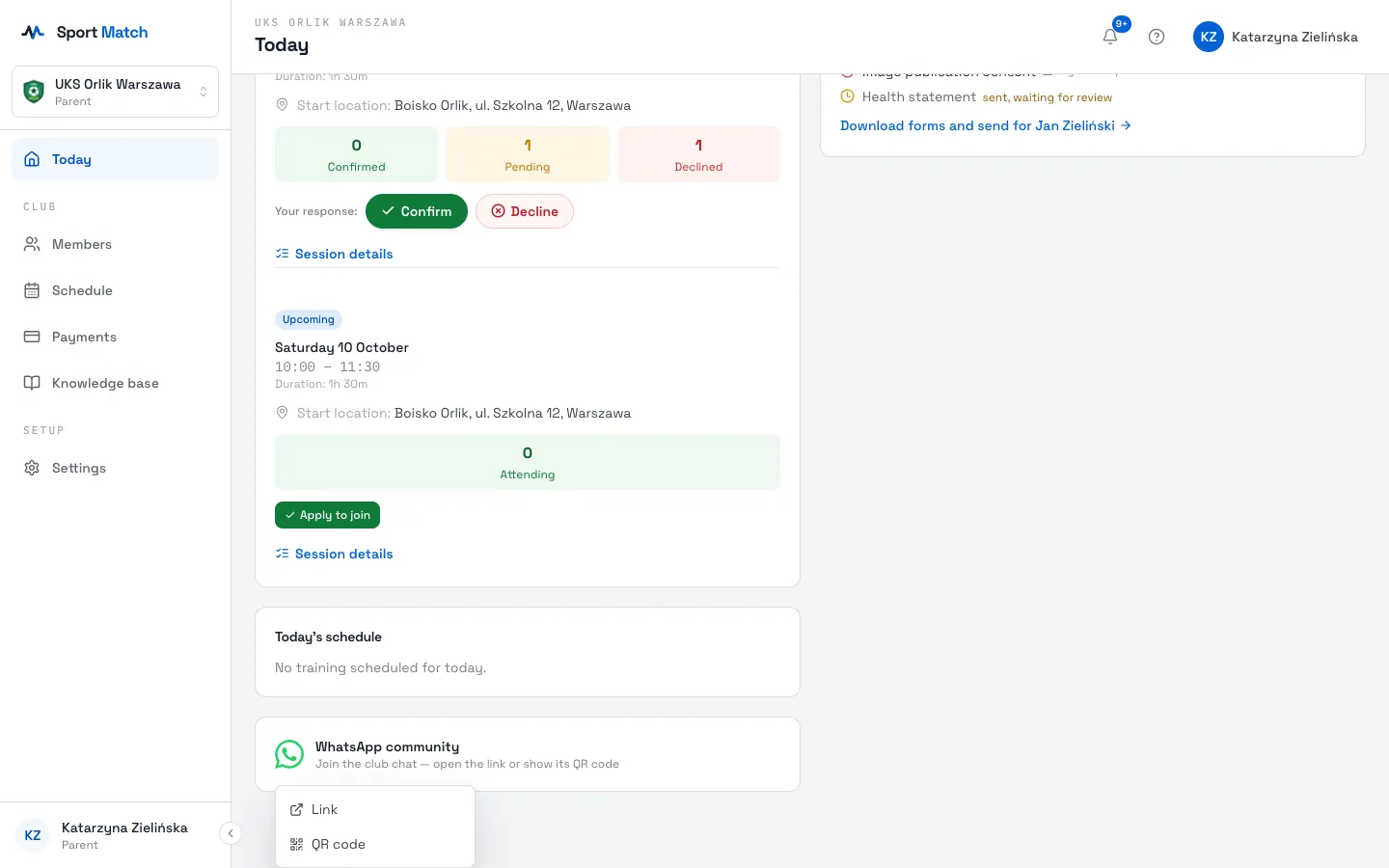
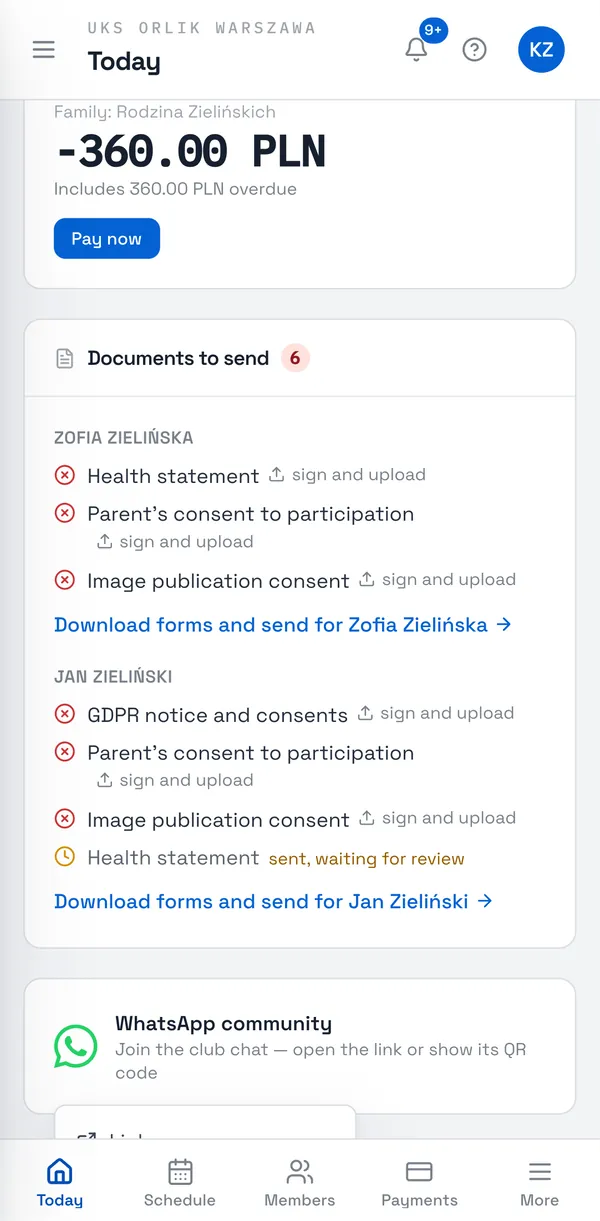
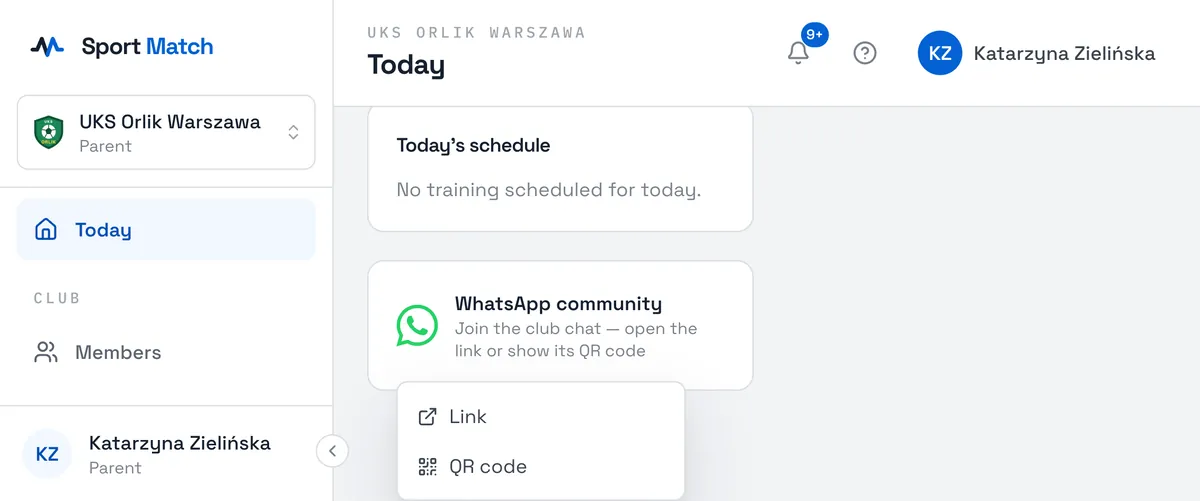
Members see a card with the WhatsApp icon on their Today screen. Tapping it offers Link (opens WhatsApp) or QR code (to scan with another phone).
To remove the link, clear the field and save.
1:1 session colour
-
In the 1:1 session colour card, click Calendar colour, pick a colour (from the palette, the suggestions or by typing a hex code), choose Apply, then Save changes.
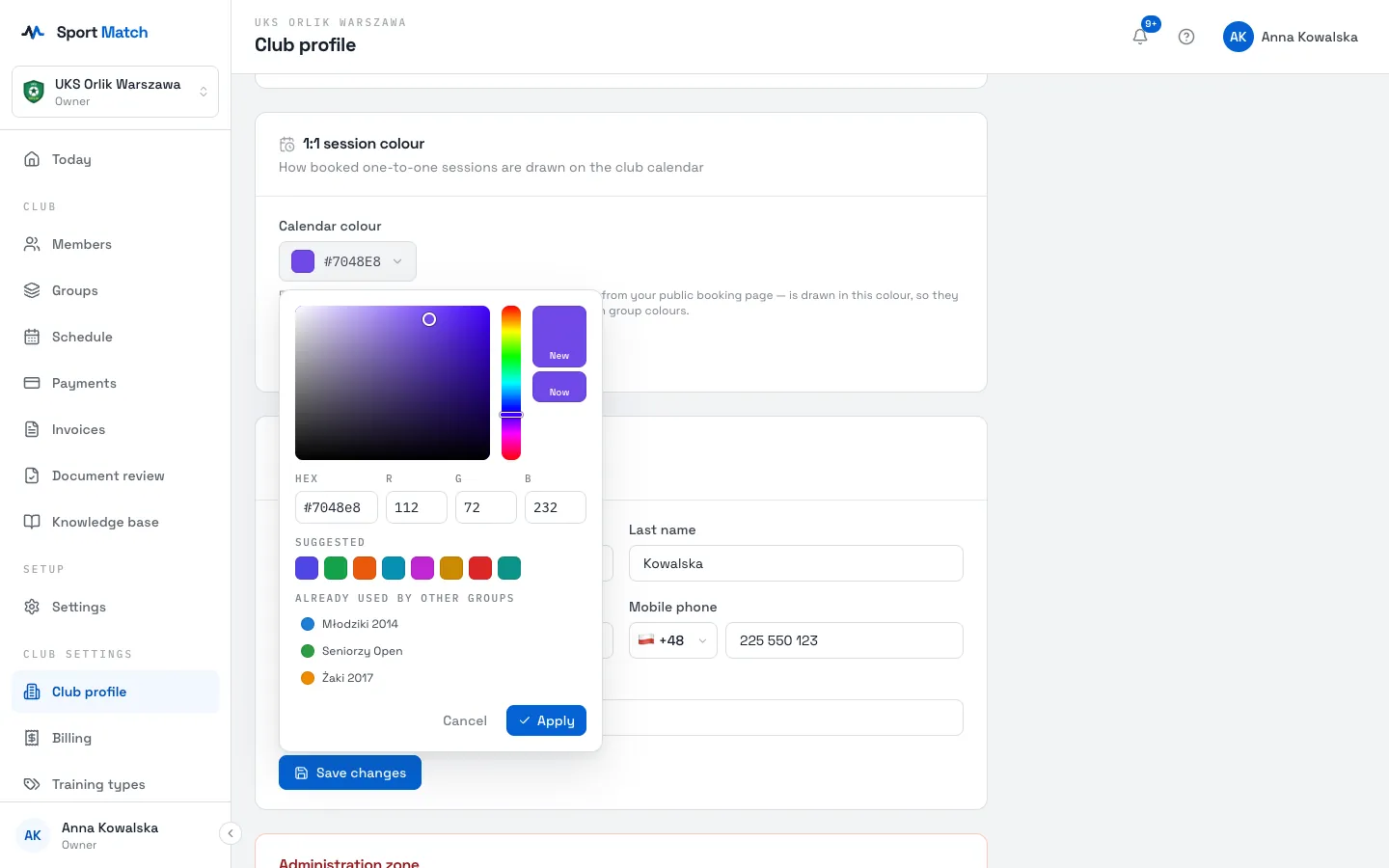
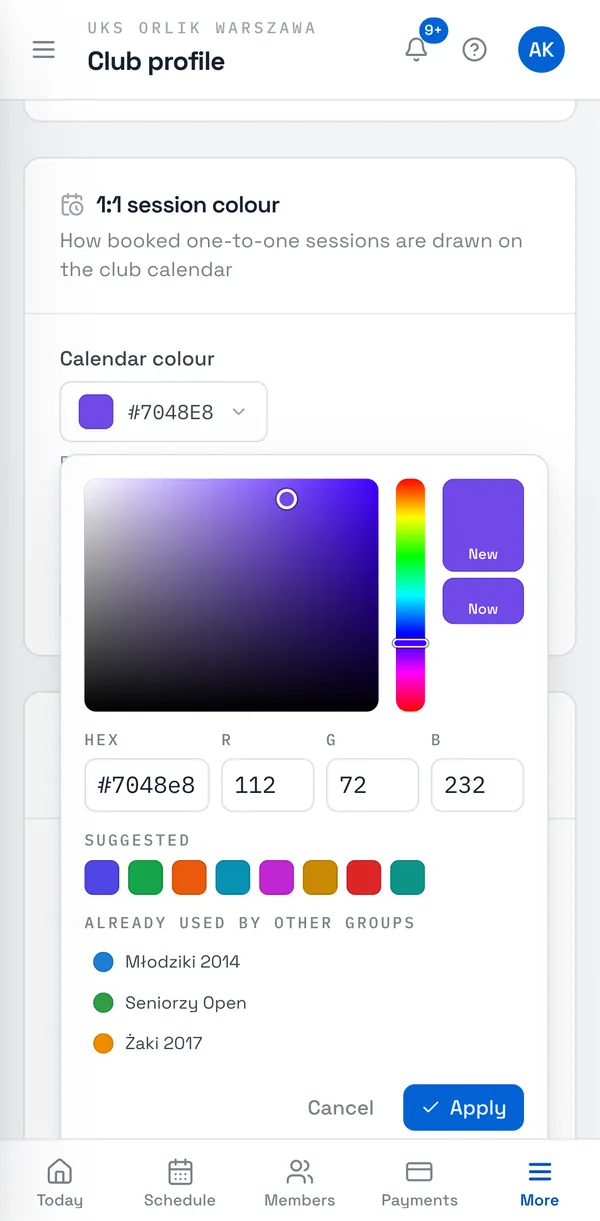
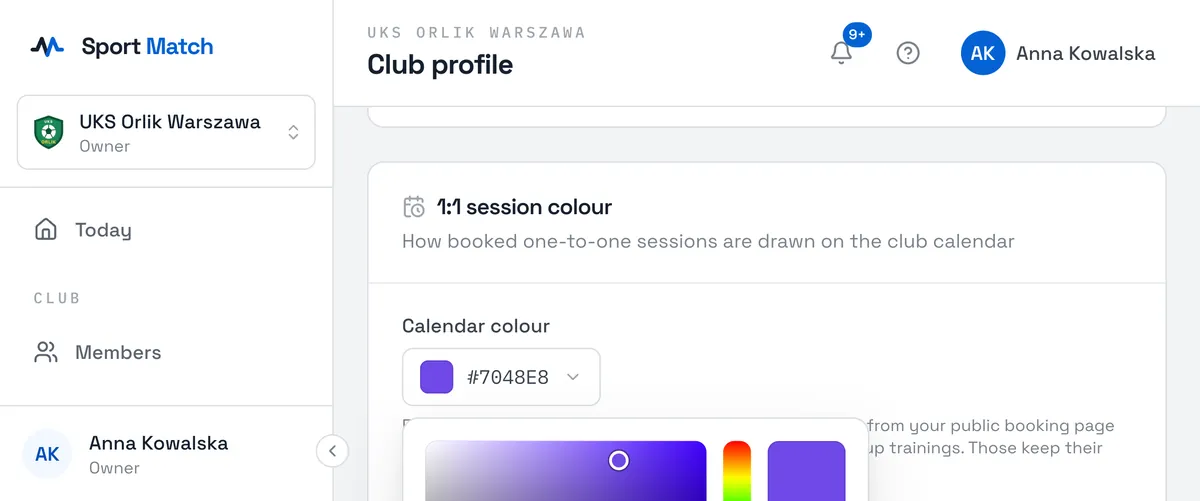
Every session booked with a coach — by a club member or through the widget on your website — is drawn in this colour on the calendar. Group sessions keep their own group colours, so the Already used by other groups list helps you pick one that stands apart. More: Availability and one-to-one bookings.
Club owner
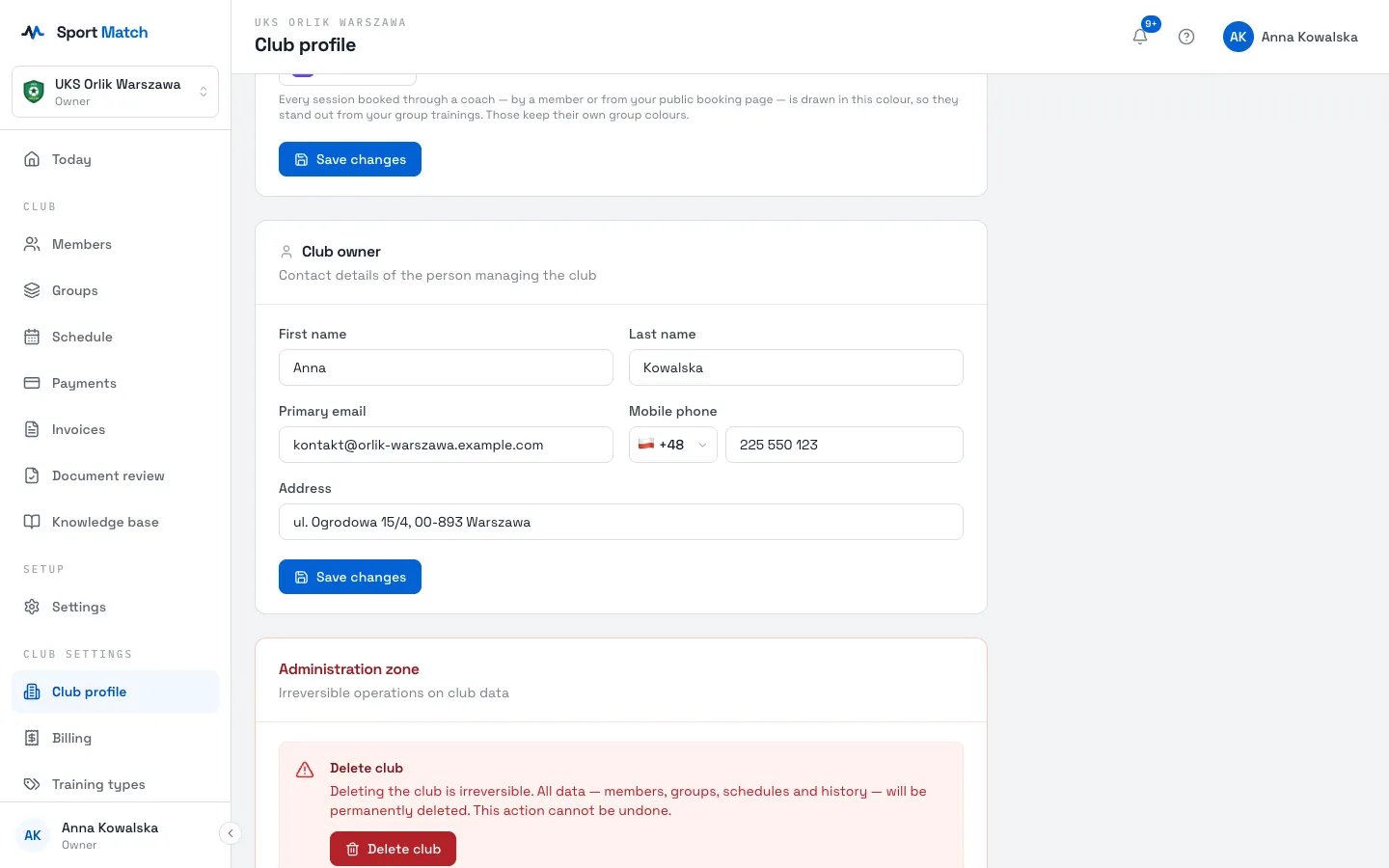
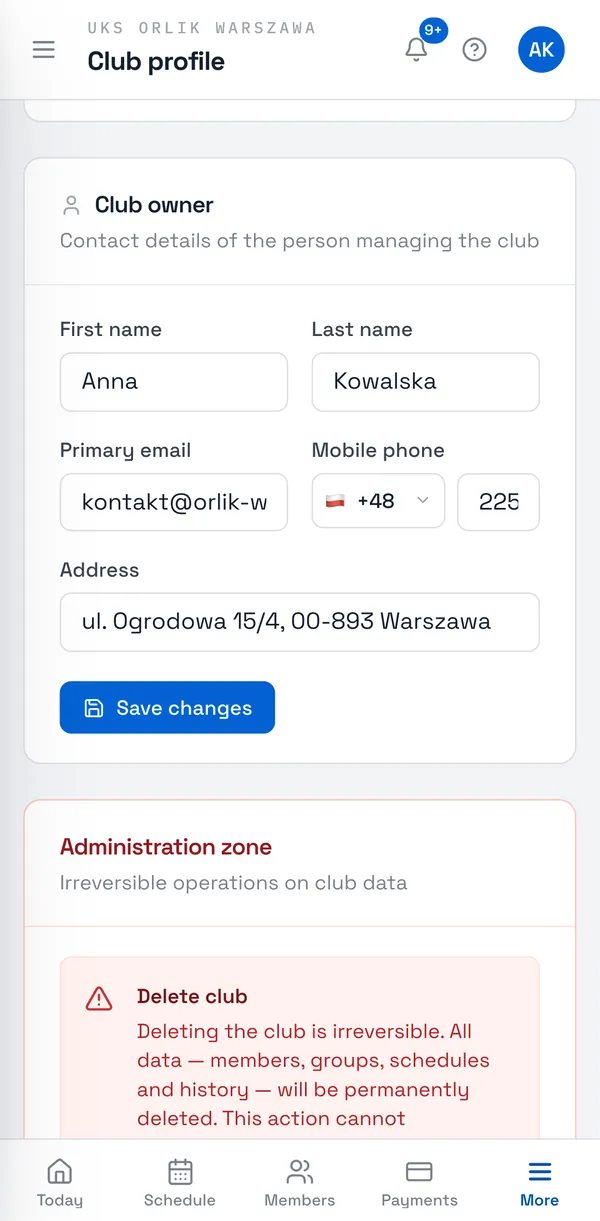
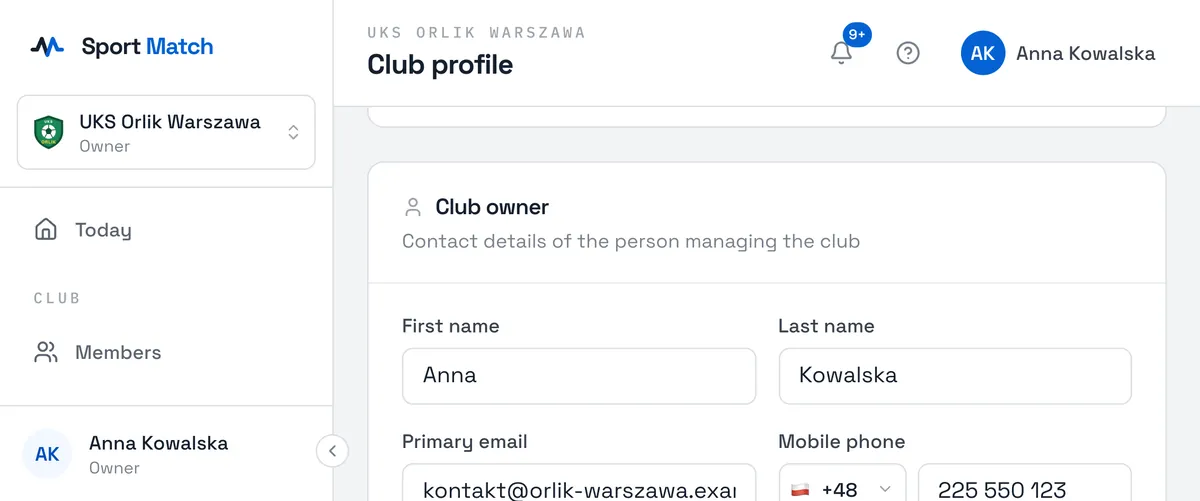
The Club owner card holds the first and last name, Primary email, Mobile phone and Address of the person running the club. Change them and choose Save changes. Invoice details and the bank account live separately — under Billing.
Deleting a club
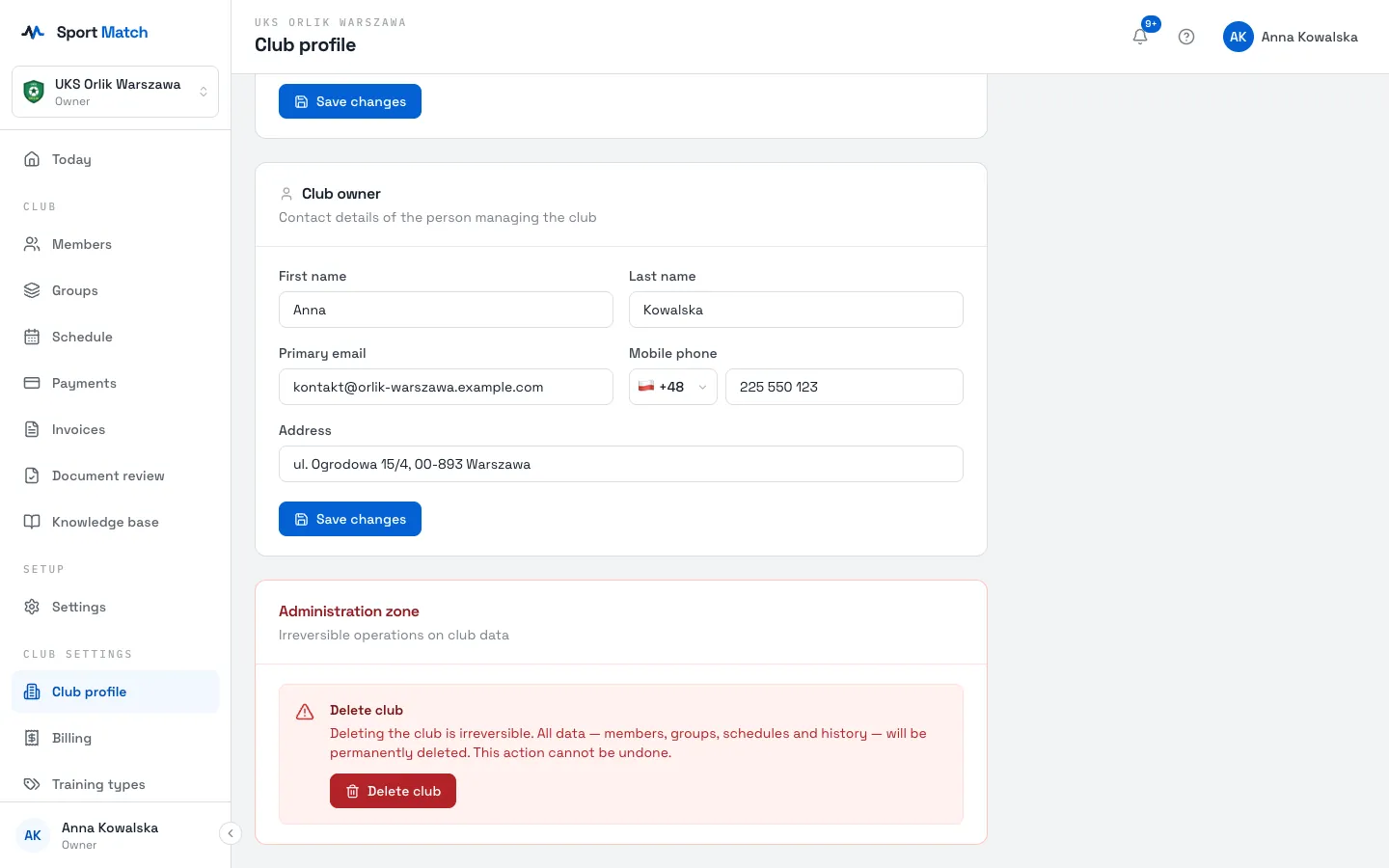
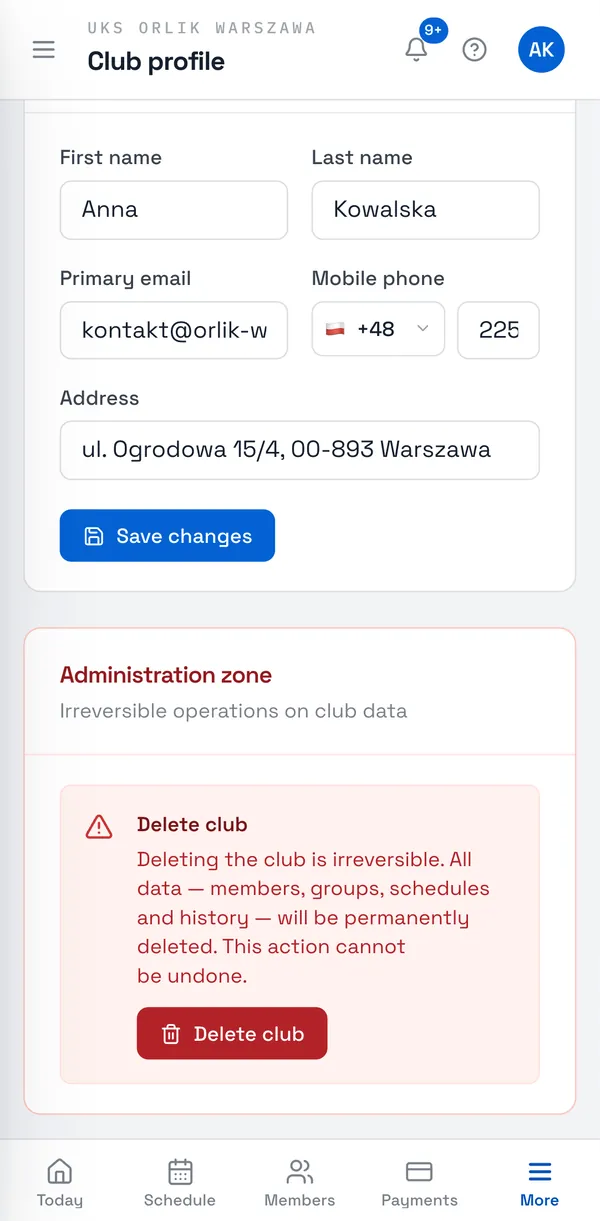
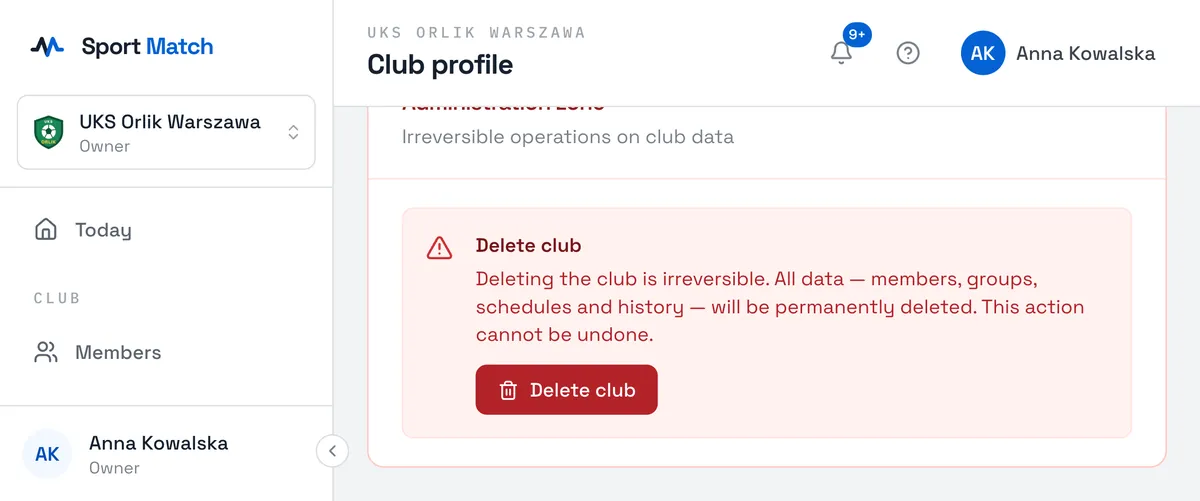
Important: Delete club in the Administration zone permanently deletes the club and all its data — members, groups, schedules and history. The app asks you to confirm (Yes, delete). If you only want to take a break, write to us before deleting anything.
Didn’t find an answer?
Write to us in the chat — it opens on this page, no login needed — or email contact@sportmatch.pl.