Documents to hand in
Consents, declarations and health information without a trip to the club: many documents can be accepted right in the app with one button, and the rest you download, sign and upload. The club decides how each document is handed in.
Screenshots
What the club needs
On Today, the Documents to send card shows what the club still needs — separately for you and for each child. Each document says how to hand it in (Read and accept, sign and upload or original on paper) and its state: waiting for review, rejected, new version to sign or hand in the signed original. When everything is in, you’ll see “All required documents are sent.”
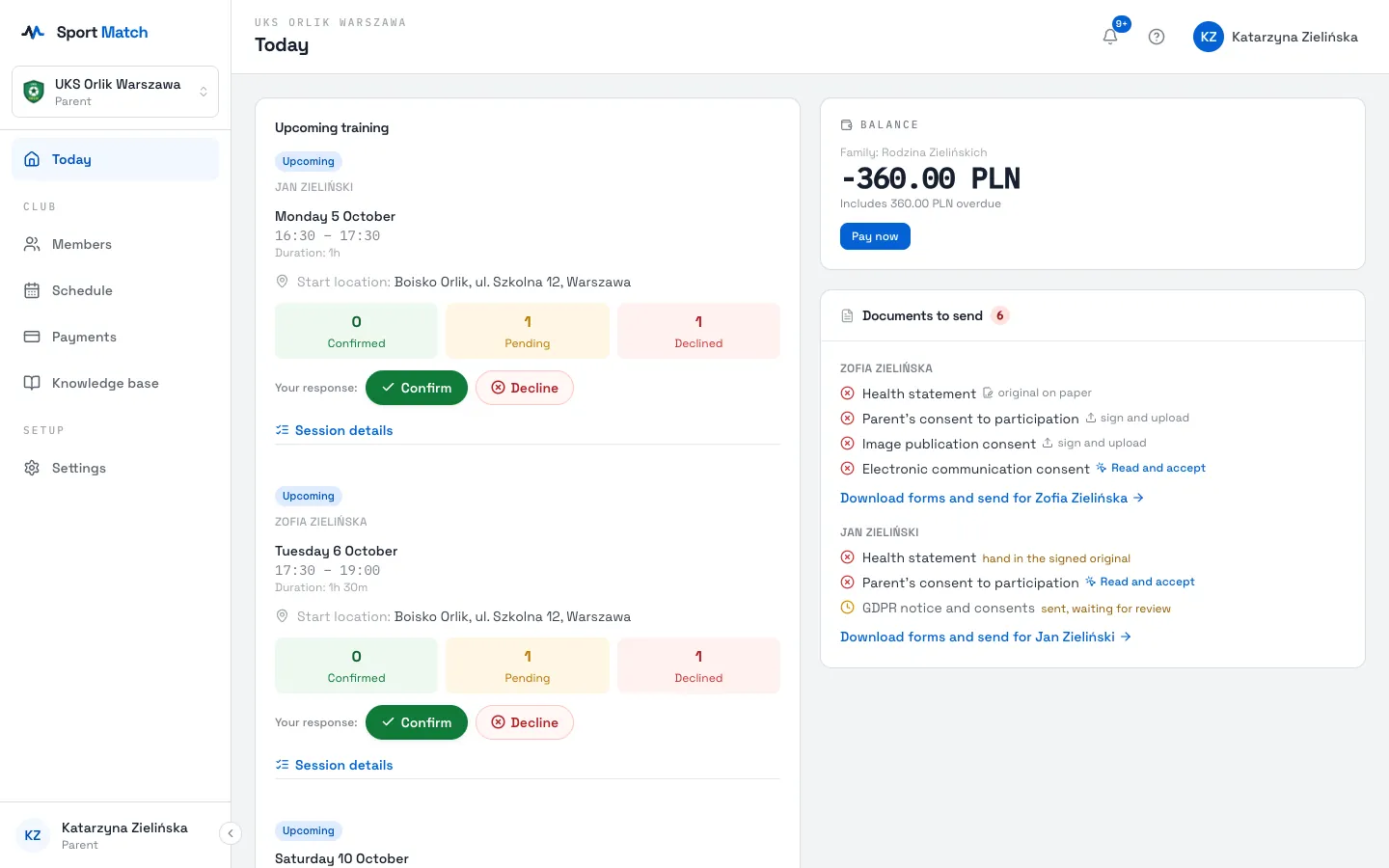
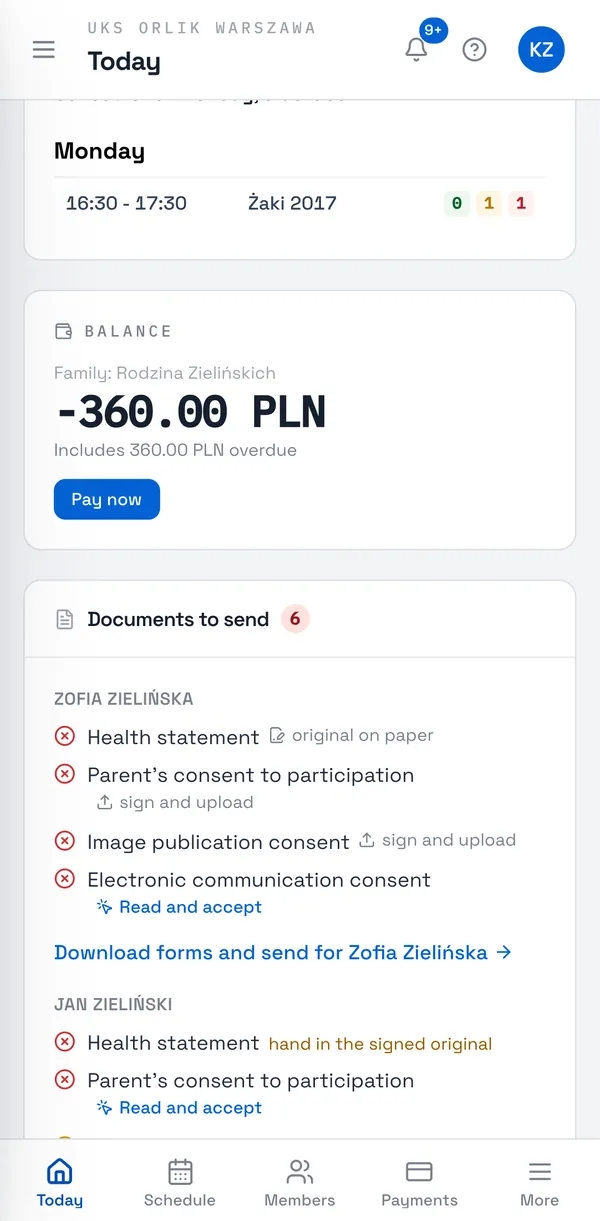
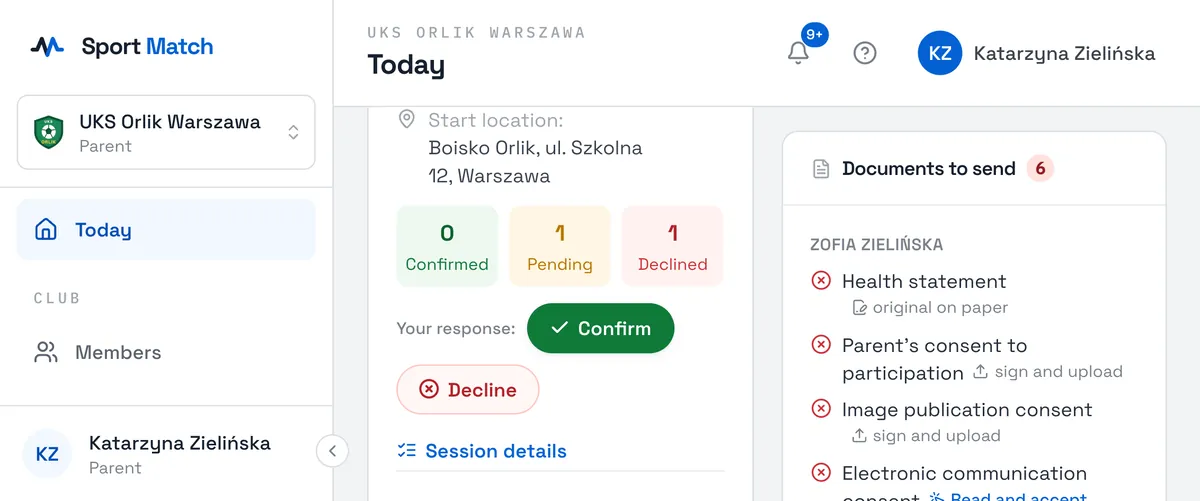
Documents are for the people who train. A parent hands in a child’s documents on the child’s page (Members → the child → the Documents tab) — parents don’t hand in their own.
Three ways to hand a document in
For each required document the club picks one way:
- Accept in the app
- You read the document in the app, fill in its fields, tick the consents and press Accept and submit. No printing and no signature. See below.
- Sign and upload
- You download the form, sign it — ideally electronically, or on paper and scan it — and upload it in the app.
- Original on paper
- You sign on paper and hand the original to the club, and upload a scan in the app as confirmation. It counts once the club notes that it has the original.
First: the consent to electronic communication
Accepting in the app is unlocked by one document: the consent to electronic communication (the form “Consent to electronic communication and marketing information”). Until the club approves it, the Documents tab shows a yellow box with Read and accept the consent, and other documents are downloaded, signed and uploaded.
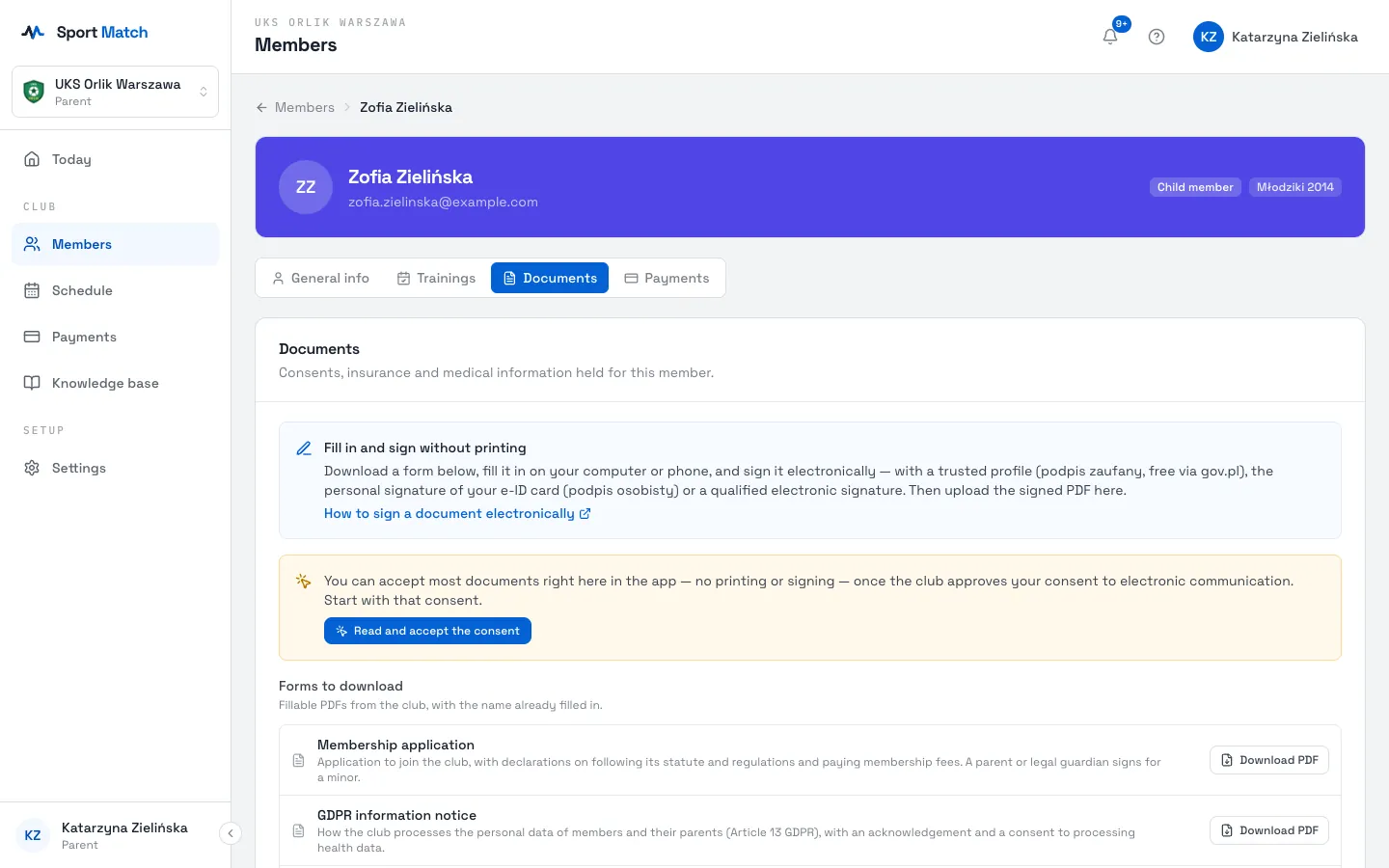
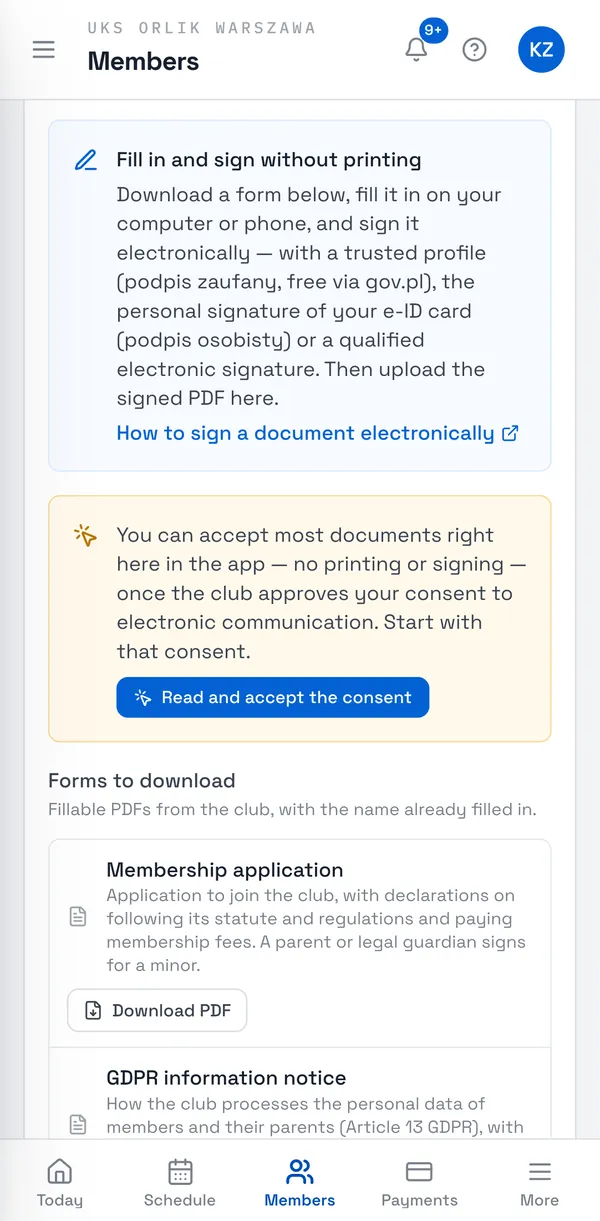
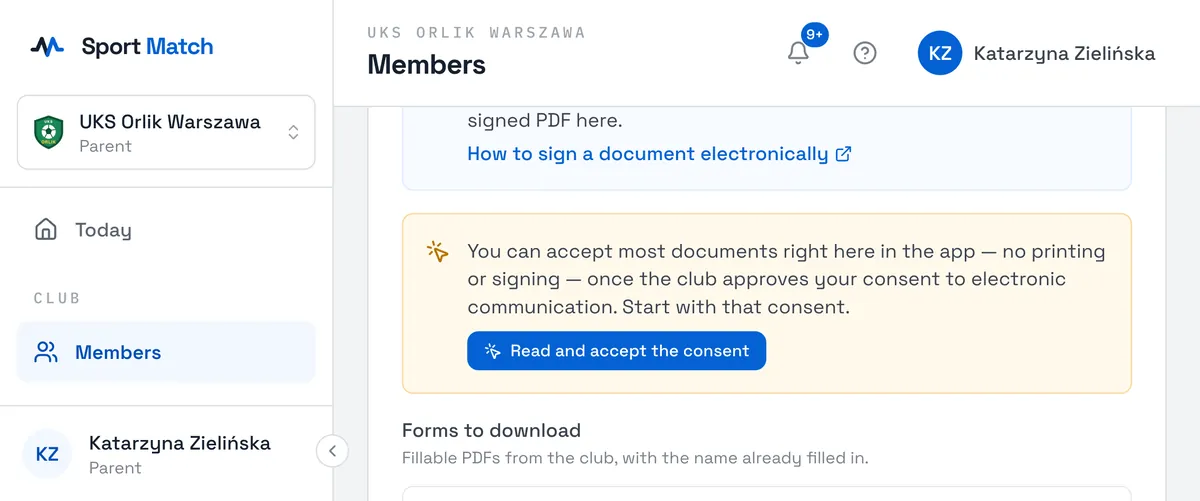
- The consent itself can always be accepted in the app. The per-channel consents in that form (email, text message, phone) are optional.
- Once you accept it, the box says the consent is waiting for the club’s approval. When the club approves it, the documents show Read and accept buttons.
- A parent accepts the consent separately for each child — on the child’s page.
Accept a document in the app
-
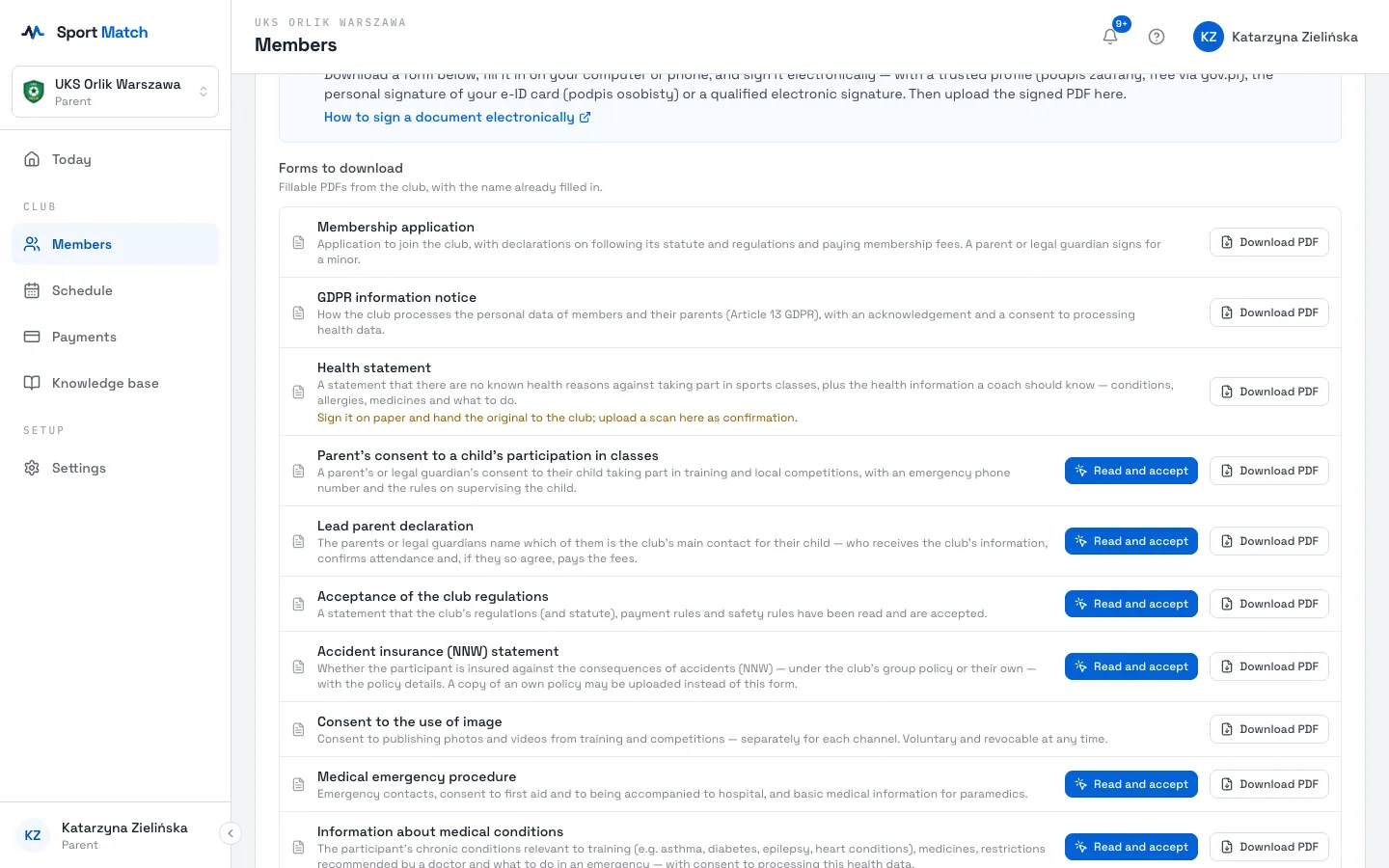
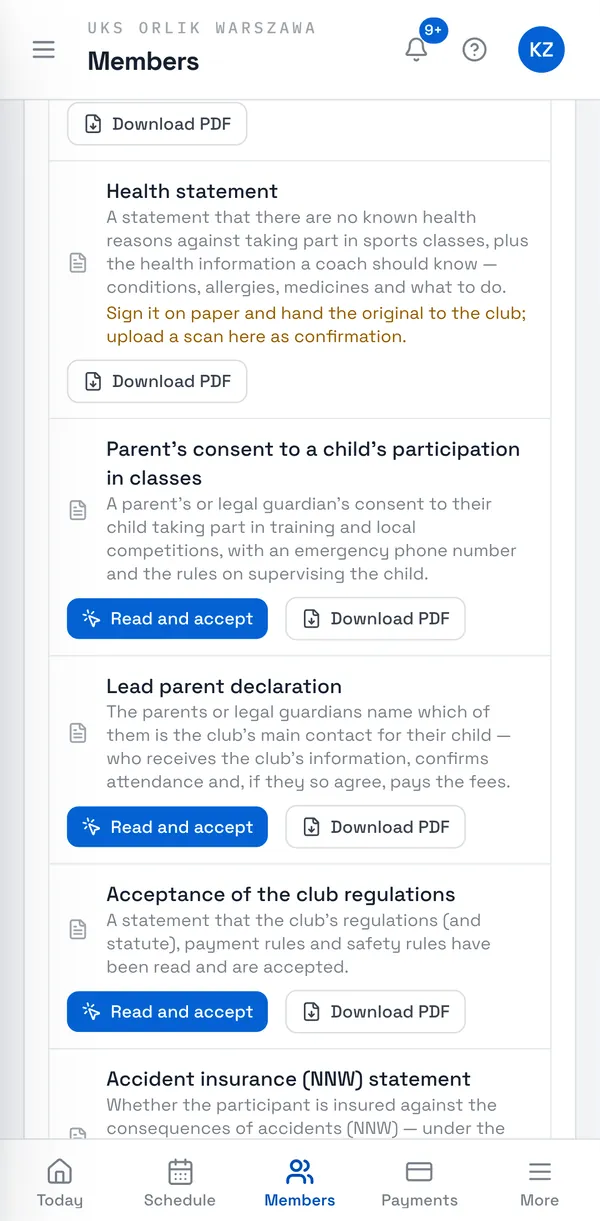
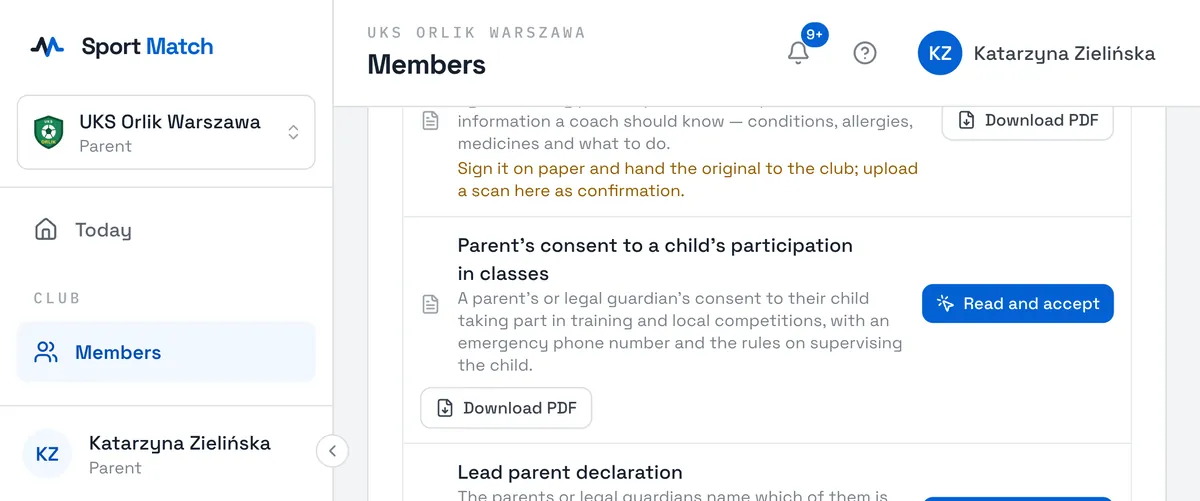
On the Documents tab choose Read and accept next to the form (or click the missing document under Required by the club, or the Read and accept link on Today).
-
The document opens with fields to fill in — the name and other details the app knows are already there. Read it, fill in the fields marked with an asterisk and tick the consents you give.
-
At the bottom tick the statement that you have read and accept the document (for a child — on their behalf, as their parent or legal guardian), and choose Accept and submit.
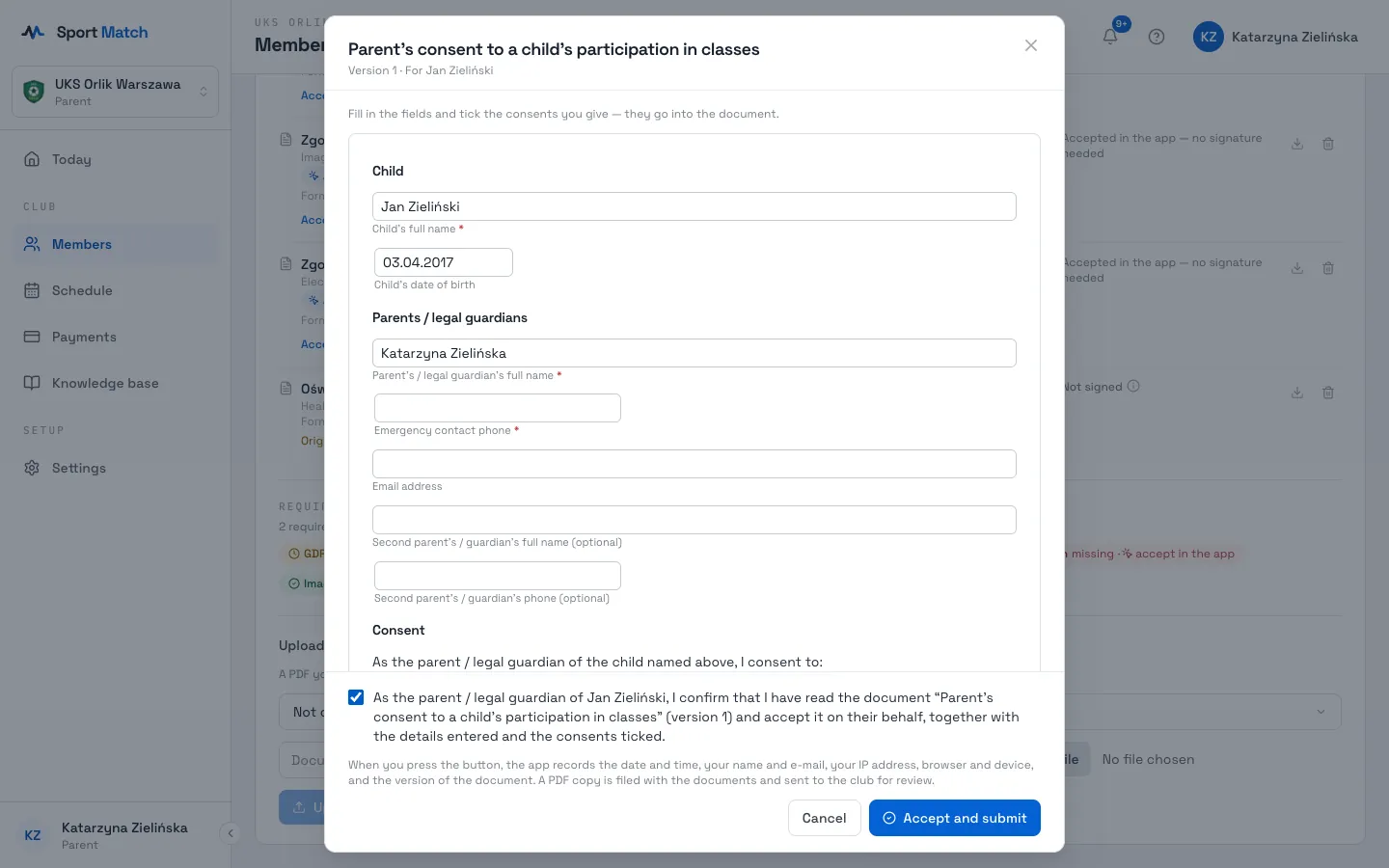
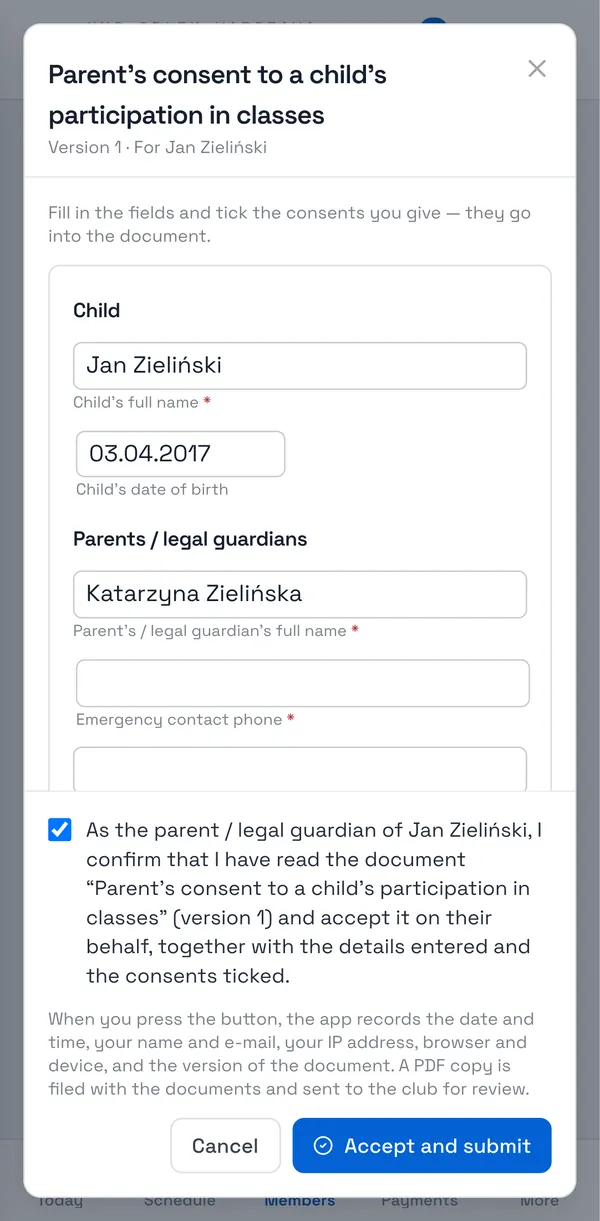
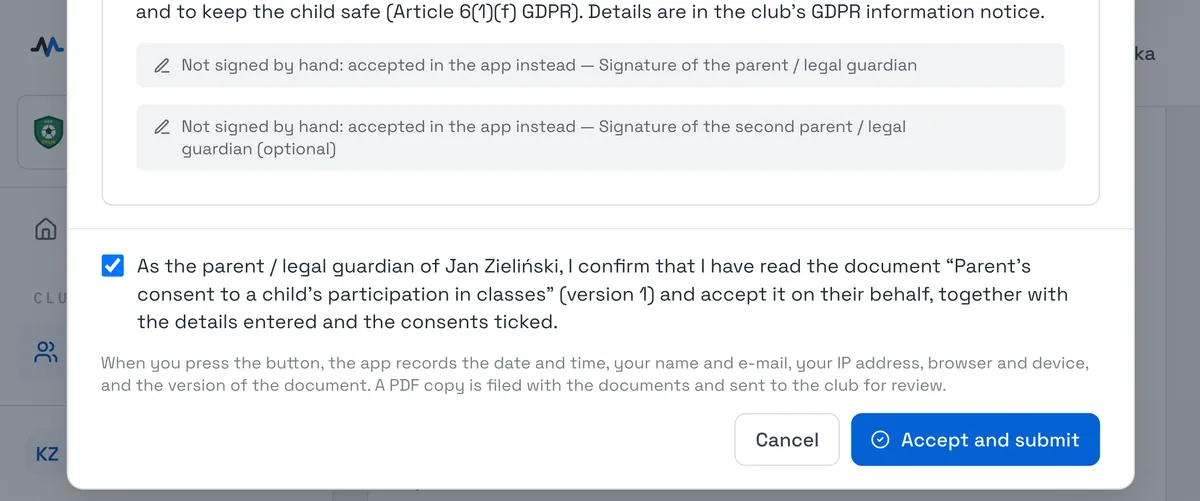
When you accept, the app records the date and time, your name and email, your IP address, browser and device and the version of the document, and a PDF copy with your answers is filed with your documents. The document then waits for the club’s review, like an upload.
No Read and accept button? Either the club hasn’t approved your consent to electronic communication yet (see above), or the club asks for a signature on this document — then follow the steps below.
Download and fill in a form
-
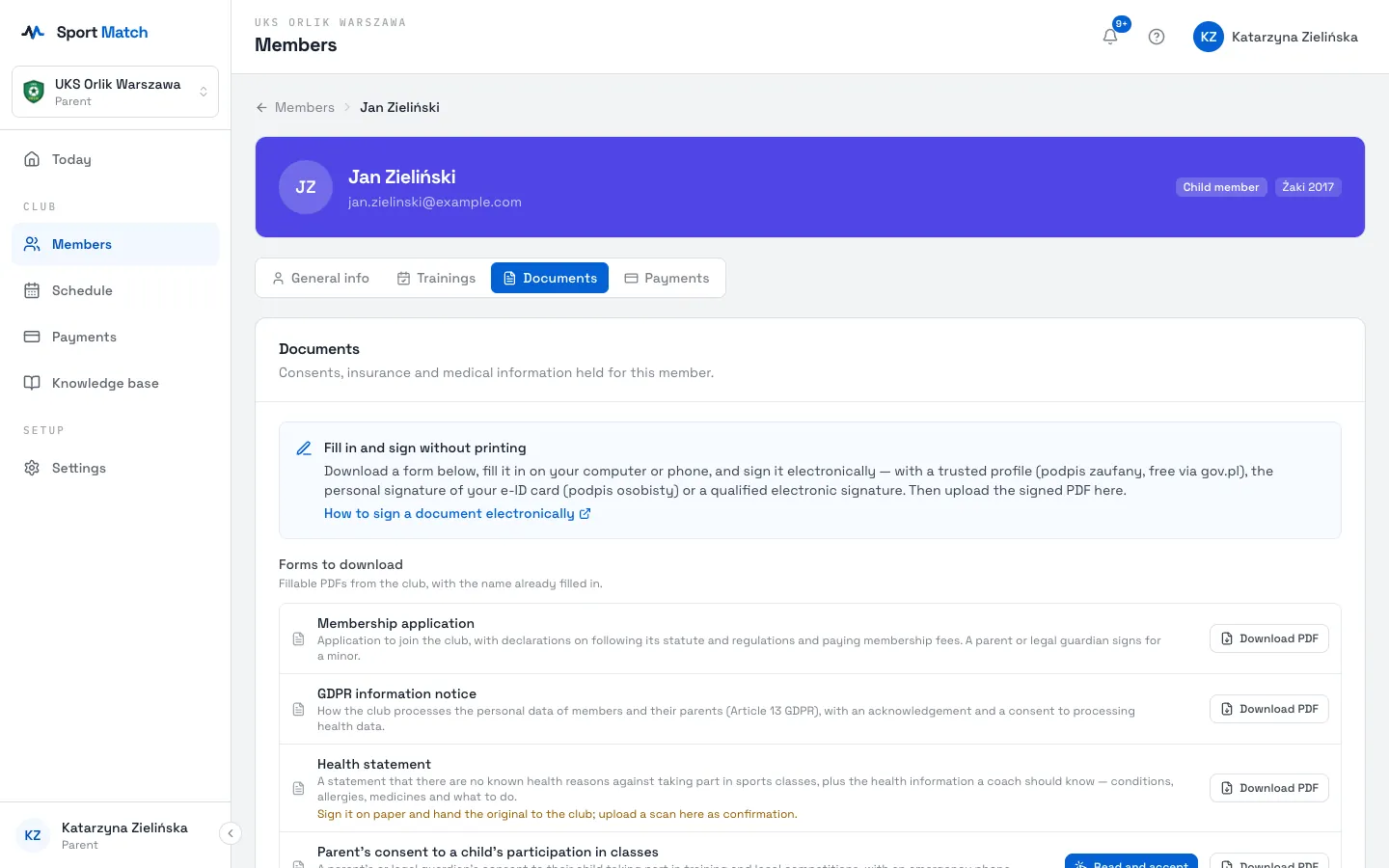
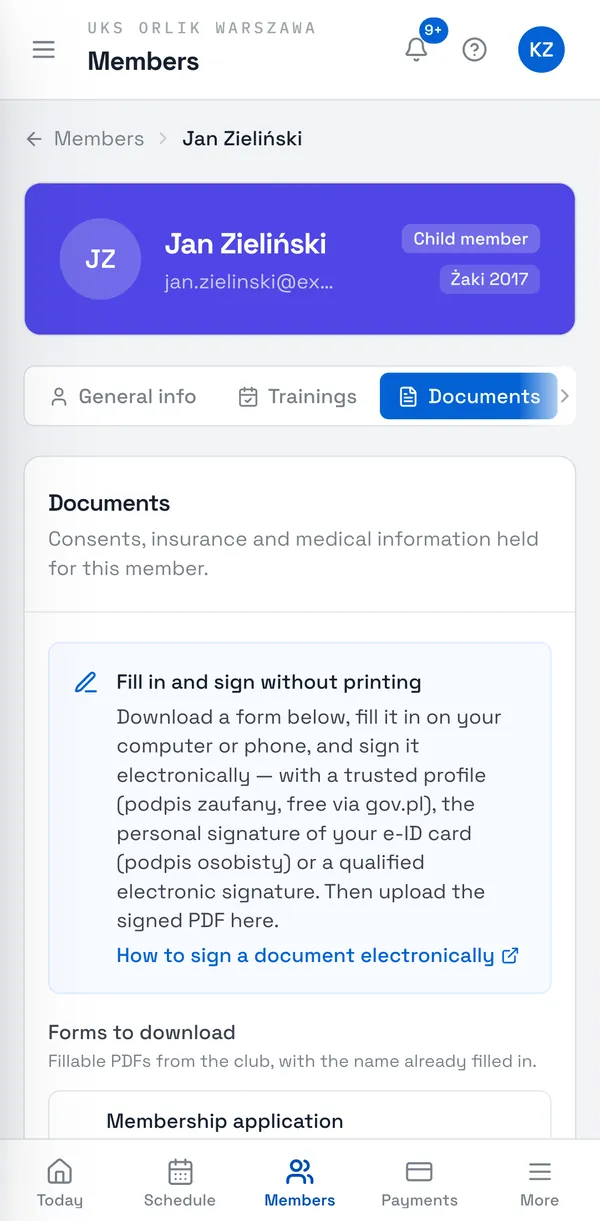
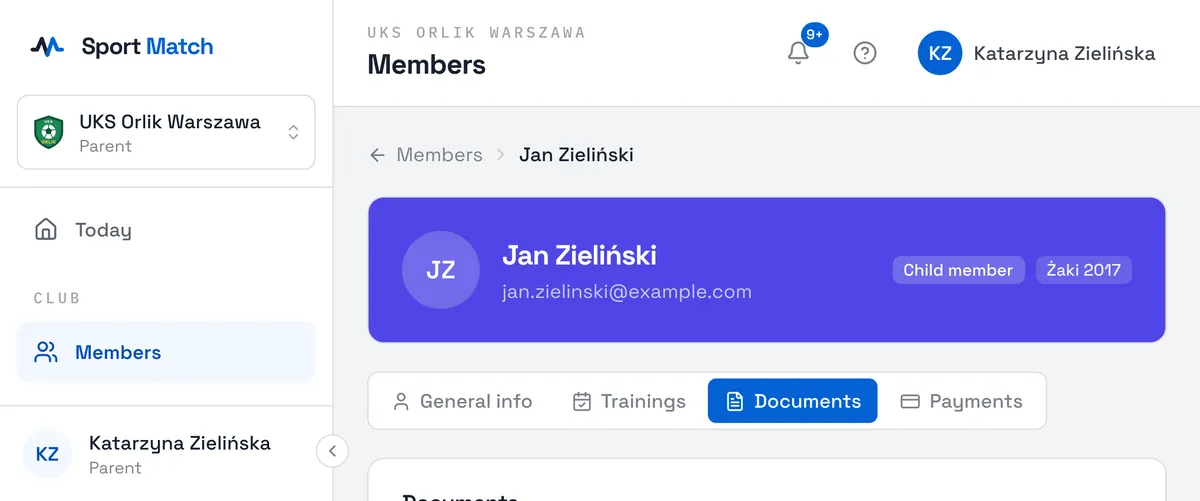
Click Download forms and send on the card on Today (or open Members → yourself or your child → the Documents tab).
-
Under Forms to download choose Download PDF next to the document you need. It’s the club’s fillable PDF, with the name already filled in.
-
Fill in the form on your computer or phone and sign it — ideally electronically, with no printing. The step-by-step guide is in Sign a document electronically.
Upload a document
-
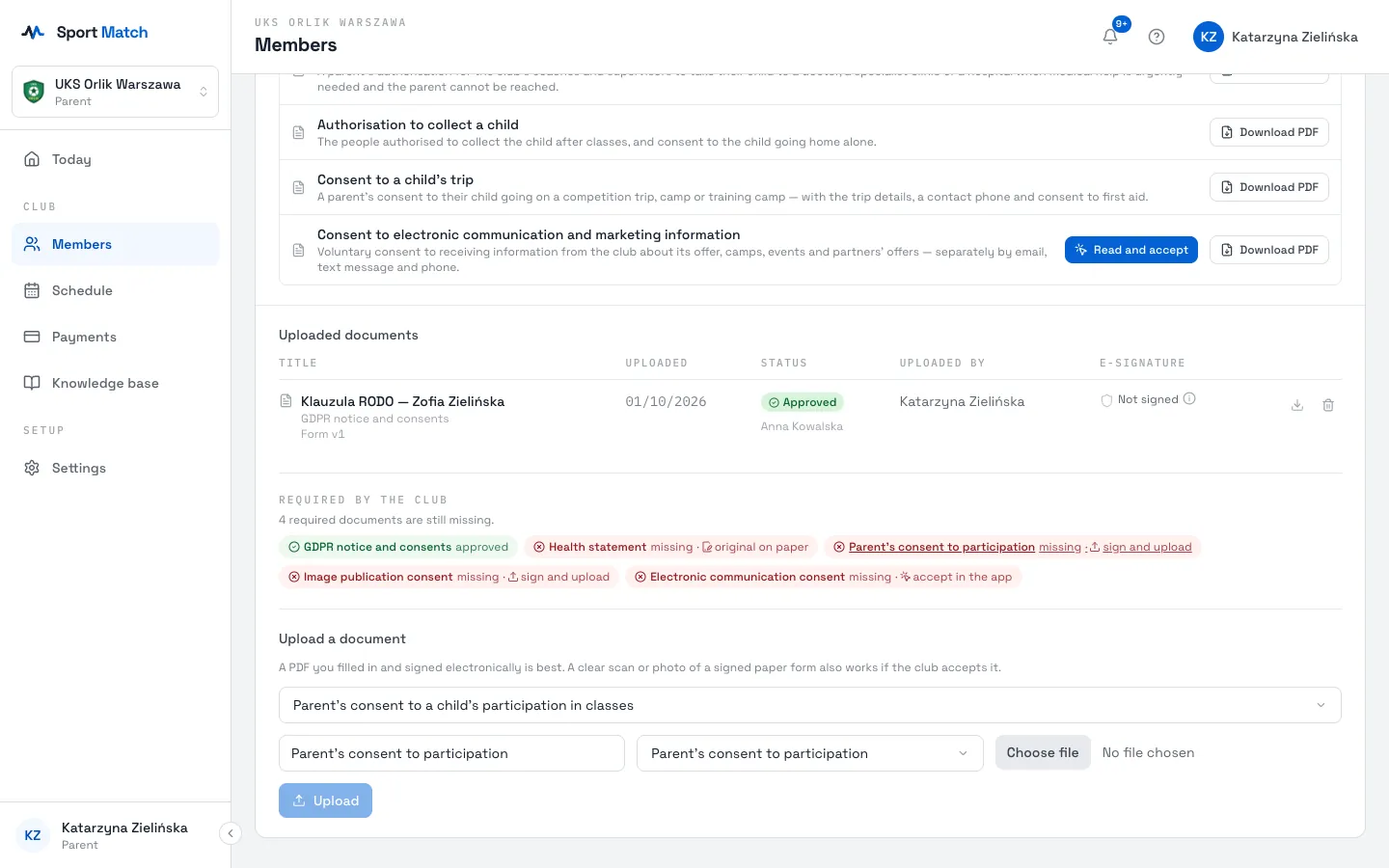
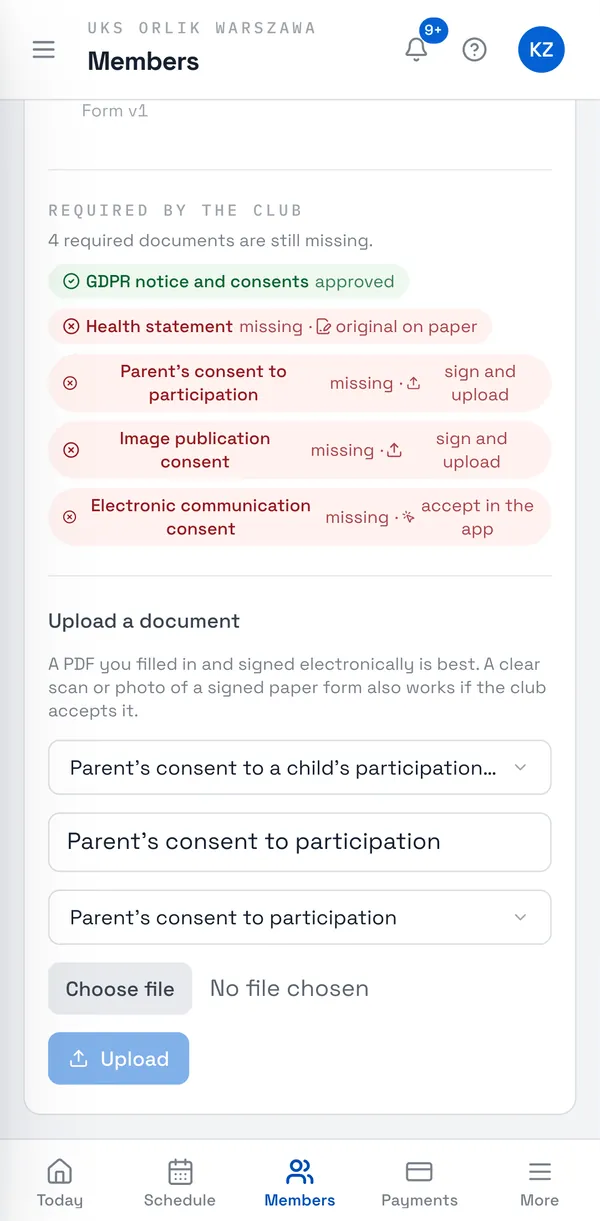
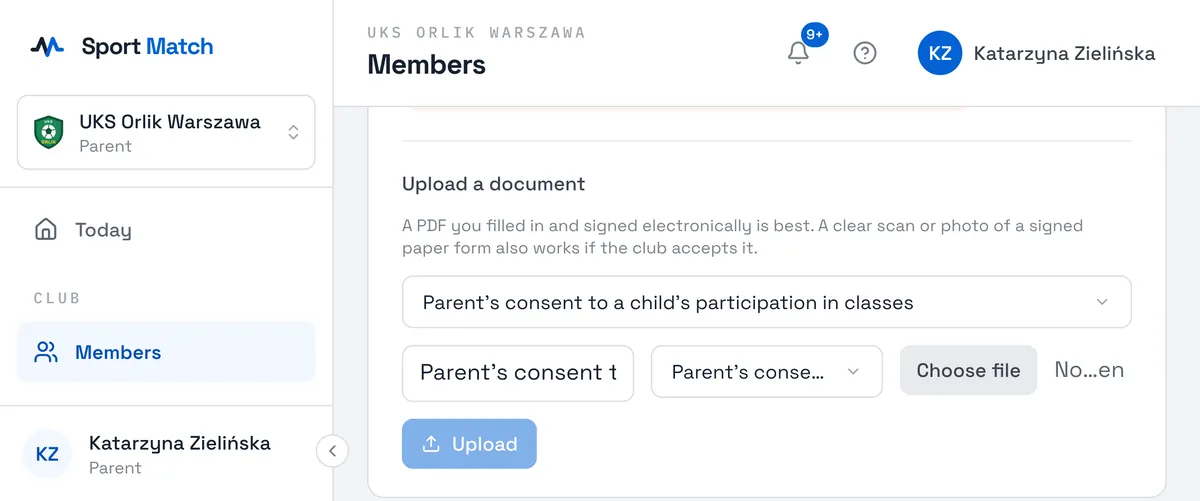
On the Documents tab, under Required by the club, click a missing document marked sign and upload — the upload form opens with that document already chosen. Or scroll down to Upload a document.
-
Check which of the club’s forms it is, enter a title, choose the document type and pick the file.
-
Choose Upload. The document appears under Uploaded documents as Waiting for review.
Tip: A PDF filled in and signed electronically is best. If your club accepts it, a clear scan or photo of a signed paper form works too.
An original on paper
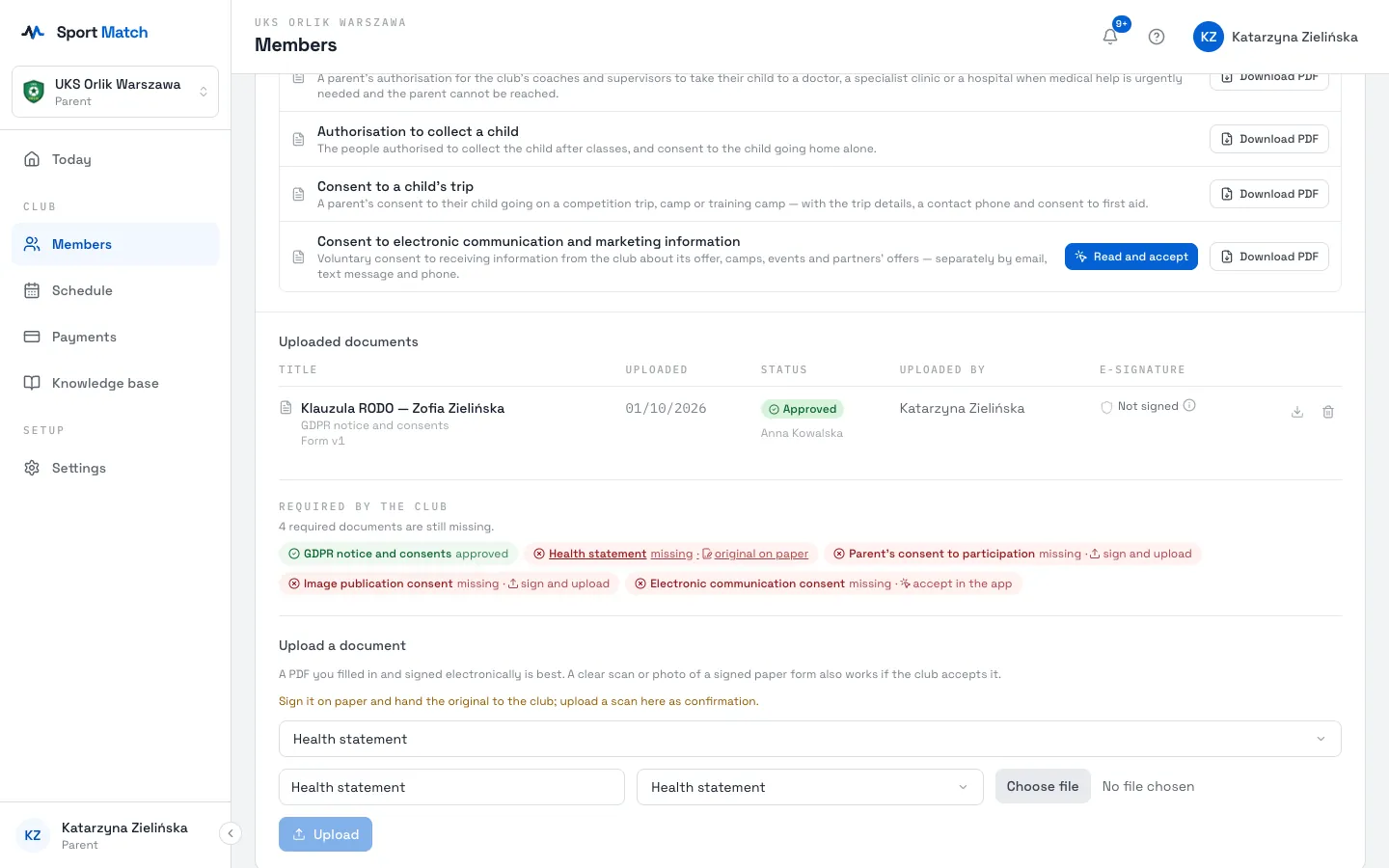
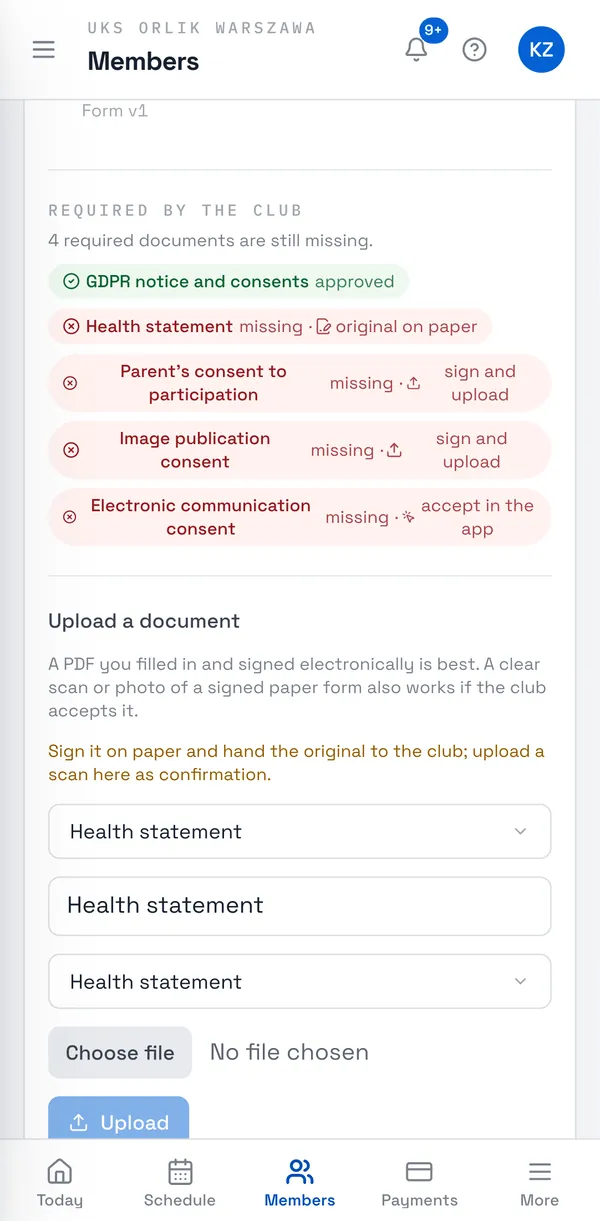
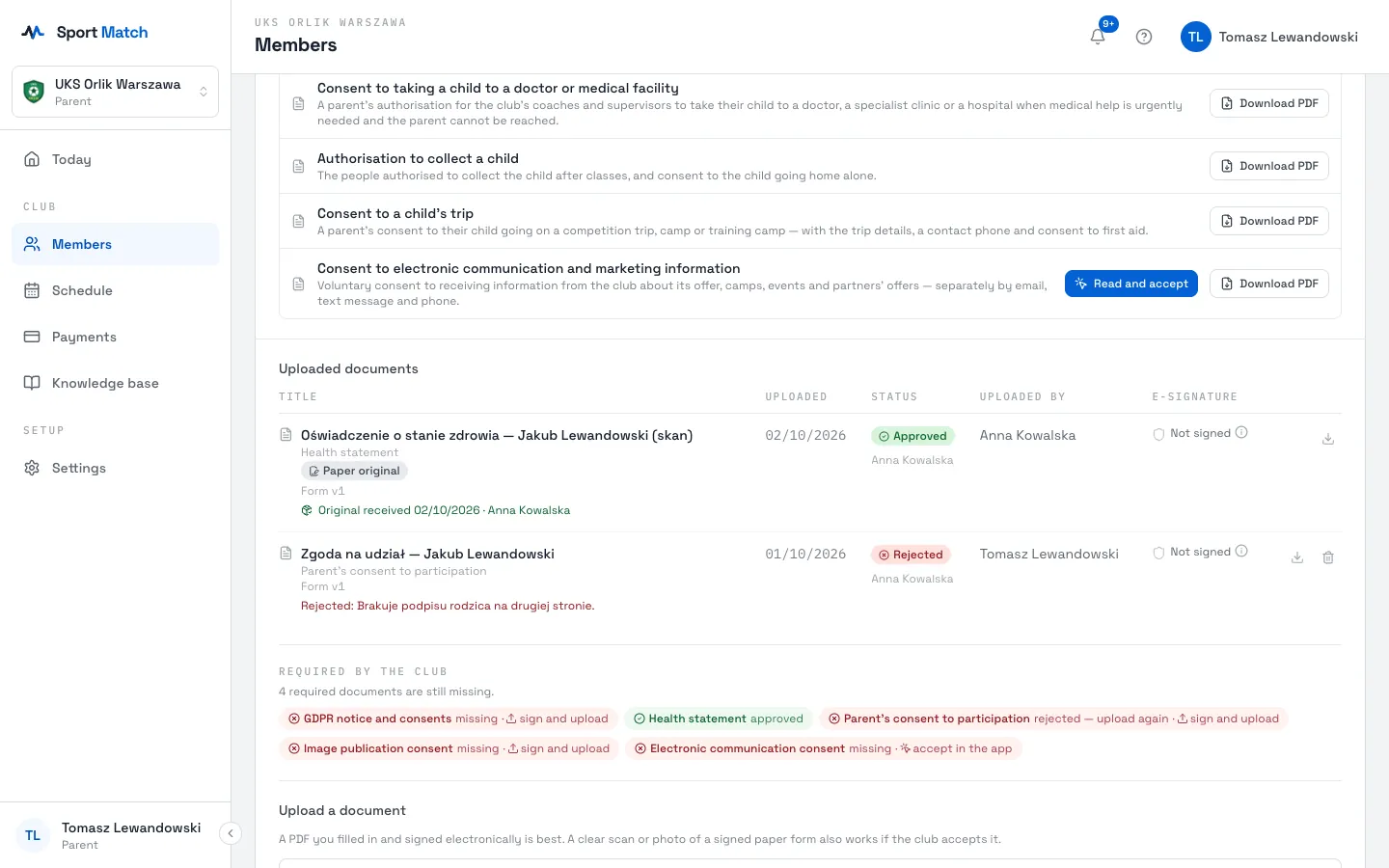
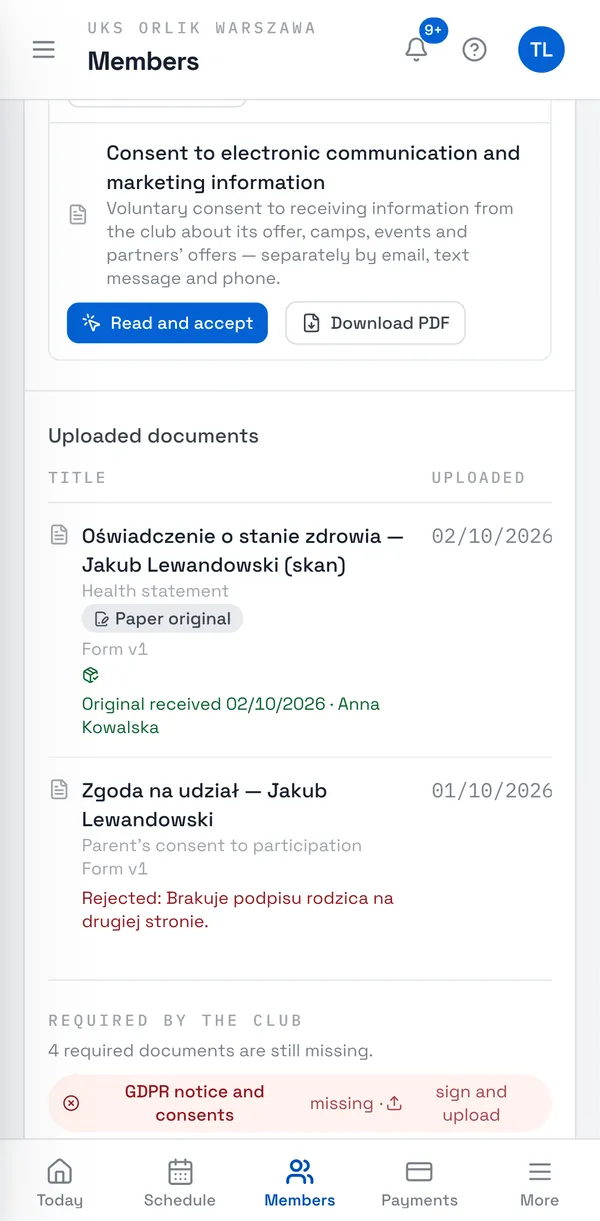
For some documents the club needs the original with a handwritten signature — a health statement, say. Such a document is marked original on paper, and the upload form says: “Sign it on paper and hand the original to the club; upload a scan here as confirmation.”
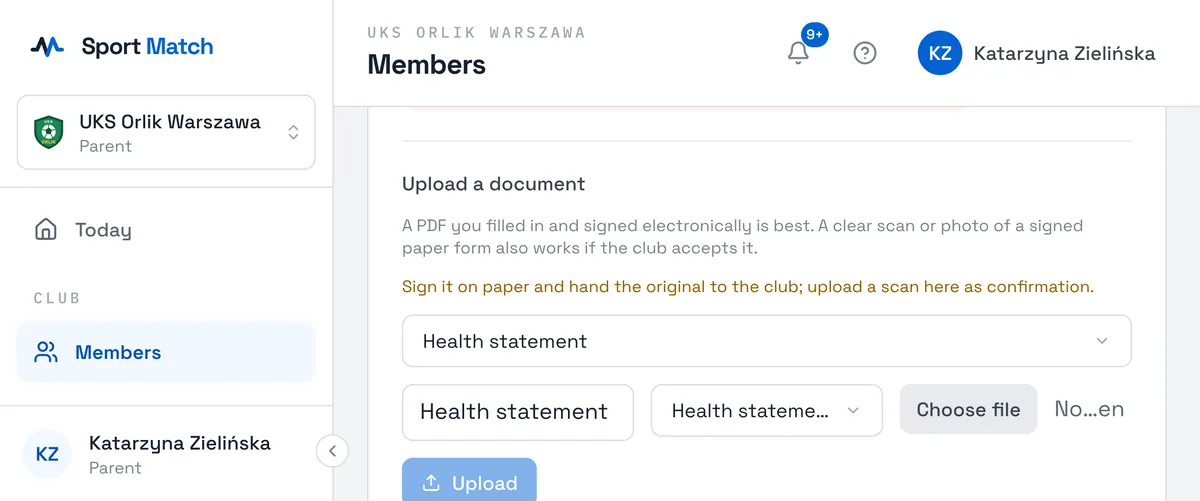
-
Print the form (Download PDF), fill it in and sign it.
-
Upload a scan or photo of it, like any document.
-
Hand the signed original to the club — to the coach at a session, for example. Until then the document shows Original not received yet, and Today says hand in the signed original. Once the club notes it, you’ll see Original received with the date.
Review and rejected documents
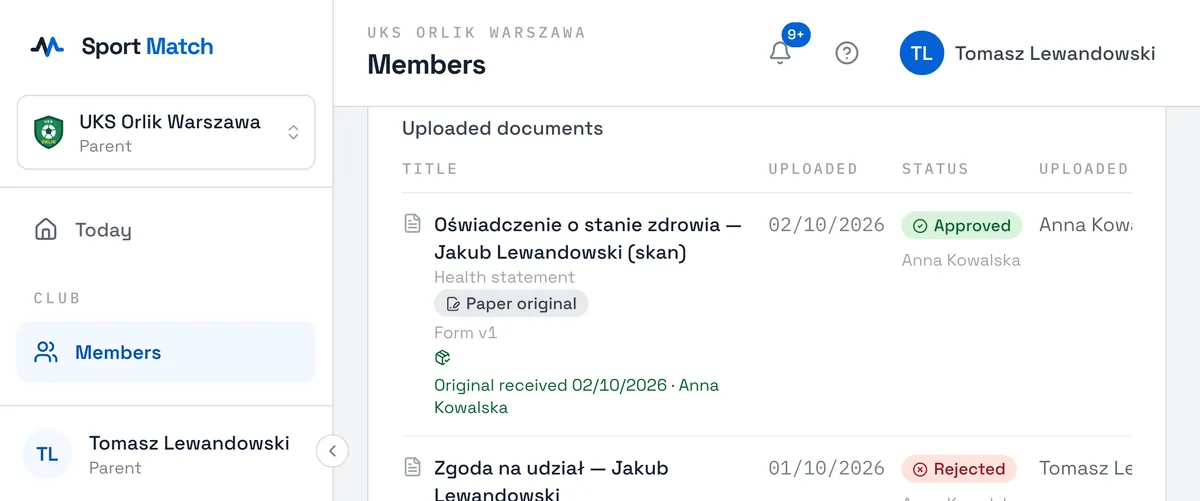
The club reviews every document — uploaded or accepted in the app — and marks it Approved or Rejected. You get a notification either way. A rejected document shows the reason, e.g. “Brakuje podpisu rodzica na drugiej stronie” (the parent’s signature is missing on page two). Fix it and hand it in again.
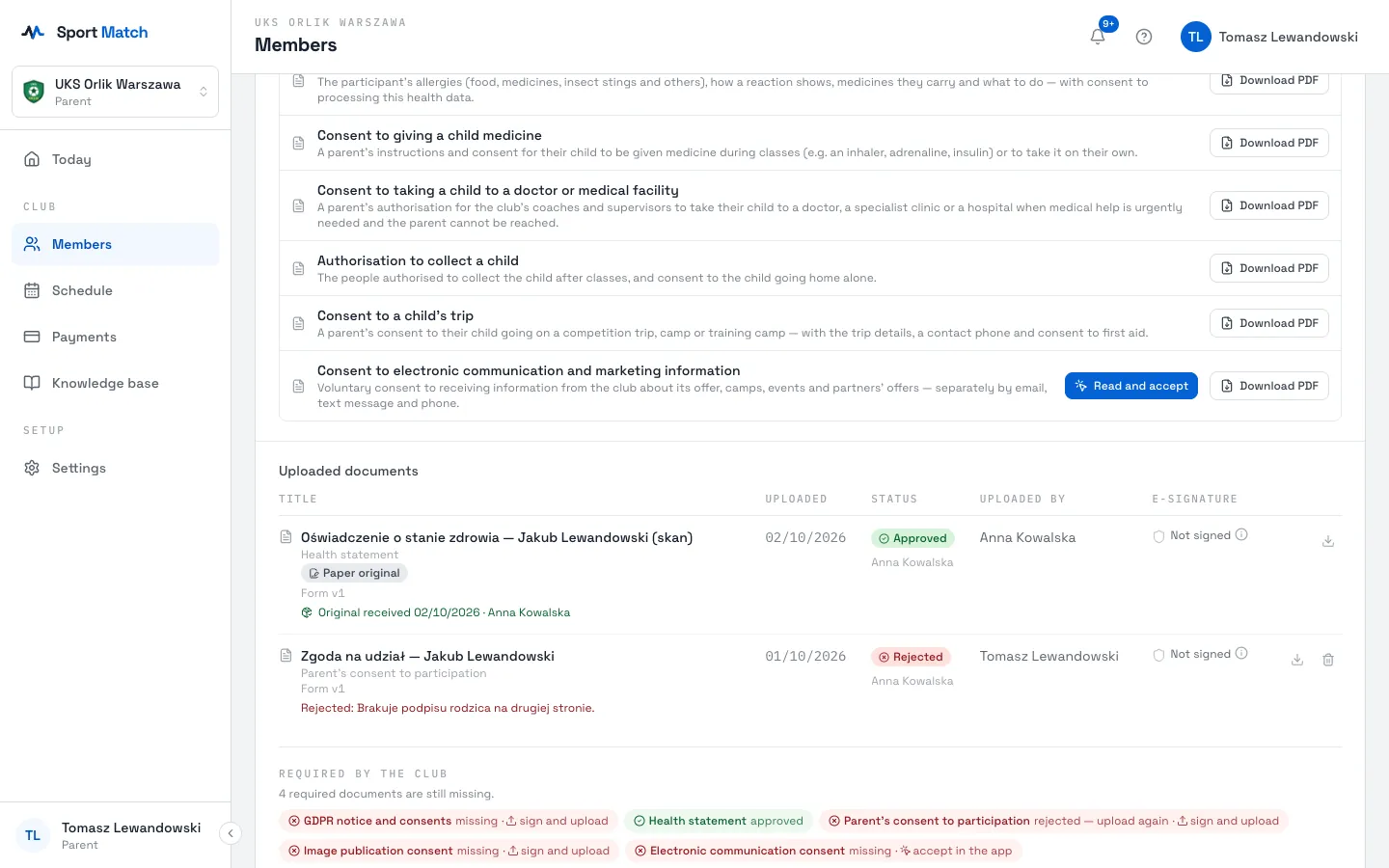
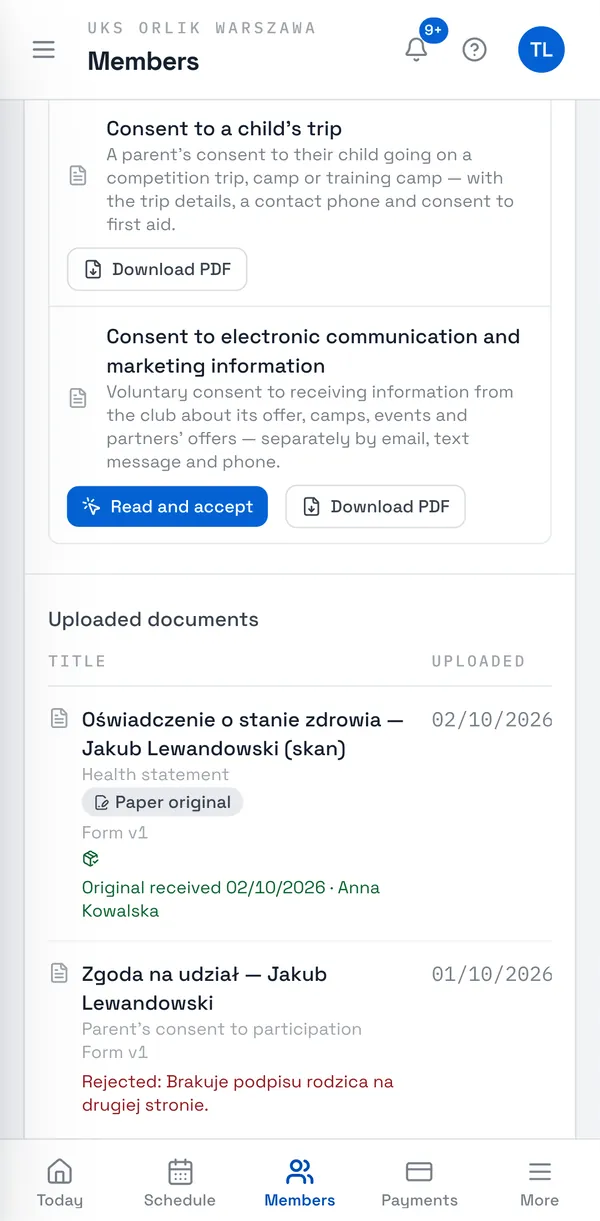
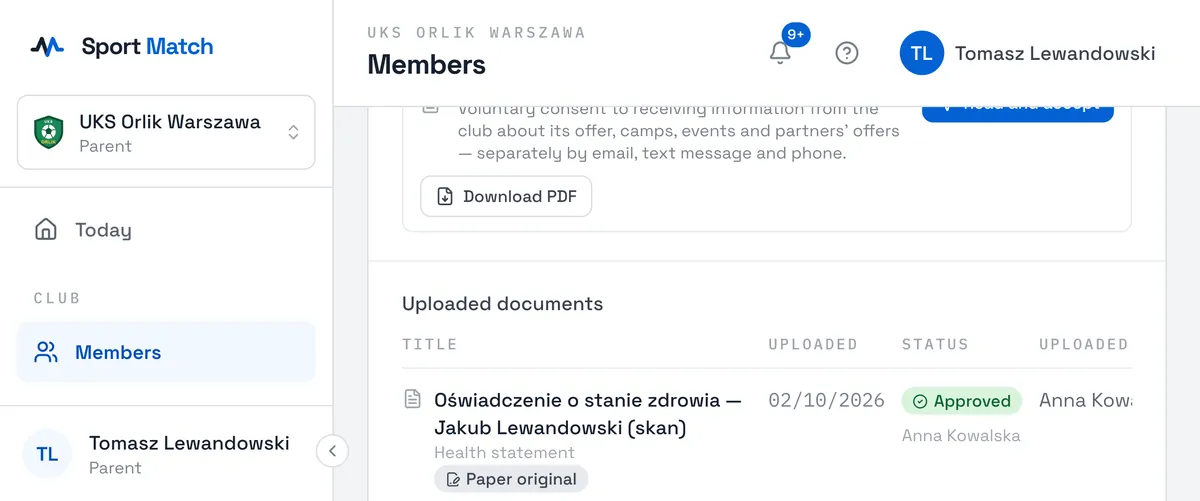
In Uploaded documents each document shows how it was handed in: Accepted in the app, Uploaded or Paper original. One accepted in the app reads “Accepted in the app — no signature needed” in the signature column, with Acceptance details below — who accepted it, when and on which device. Uploaded files show the electronic-signature badge — see Electronic signature for what each one means.
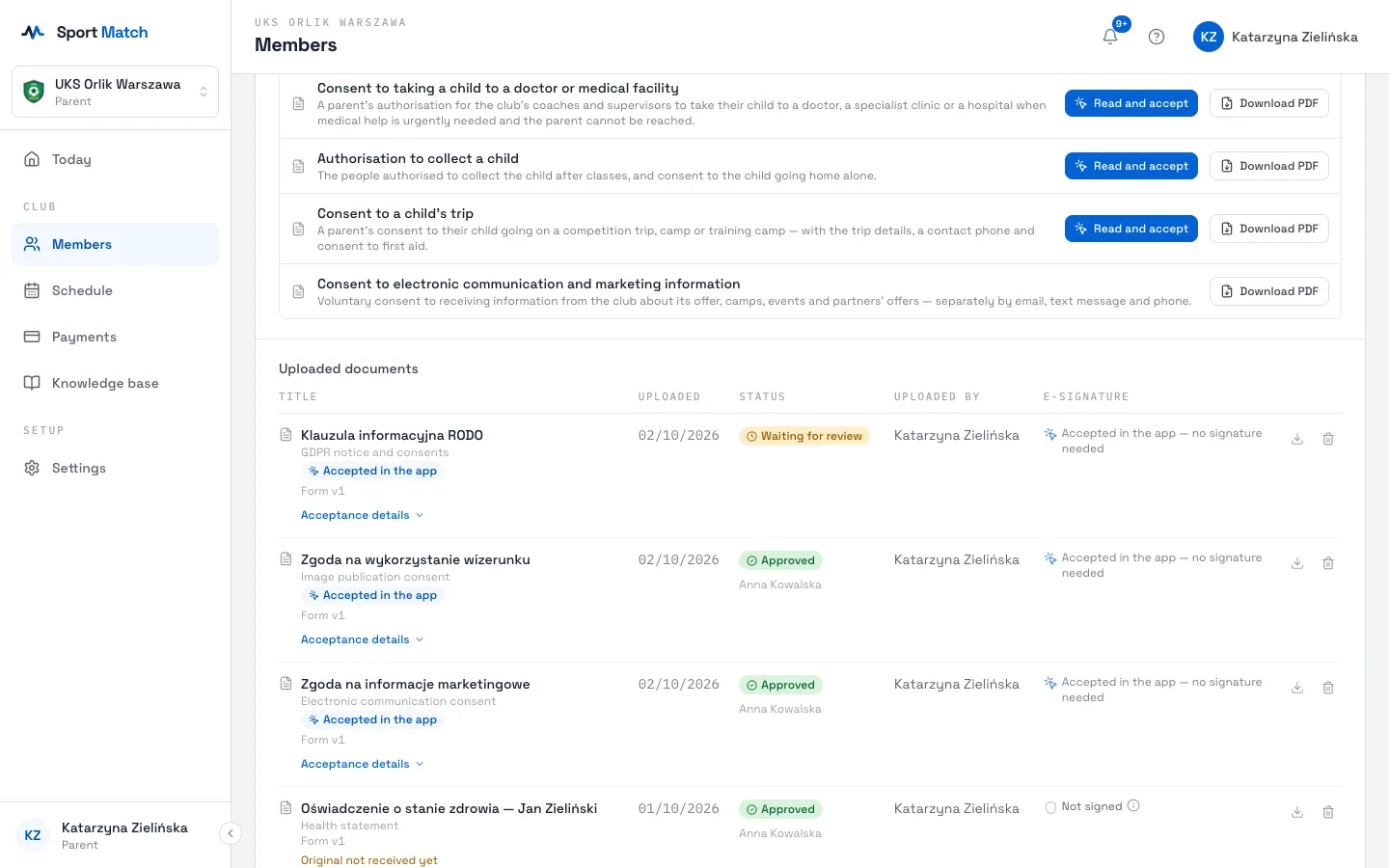
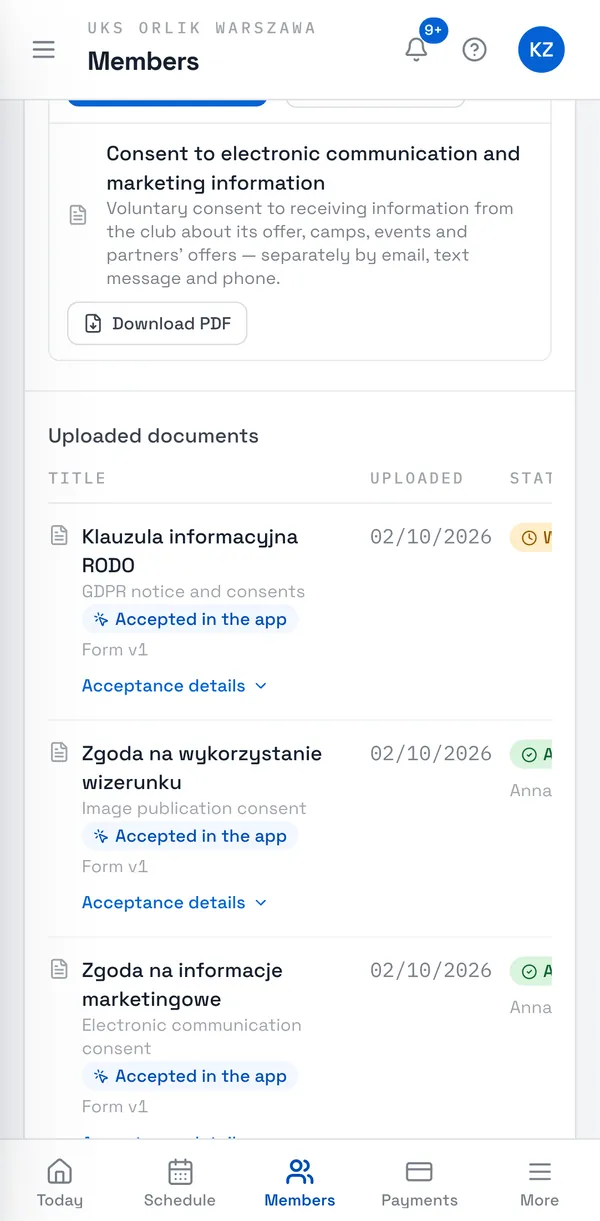
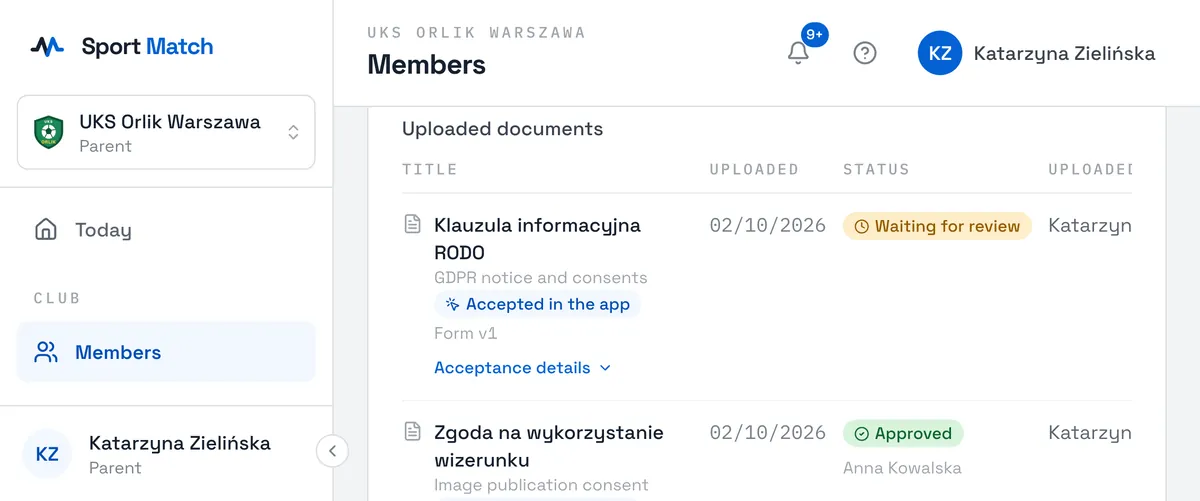
Important: Changing an uploaded document’s title or type sends it back for review. When the club publishes a new version of a form and asks everyone to sign it again, the document shows new version to sign — hand it in again in the new version.
Documents the club filed for you
Handed a signed paper form to the club? The club owner can scan it and file it with your documents (or your child’s). You then get a notification that the document is approved. It is marked Paper original and Original received, and Uploaded by shows the person from the club. You can download it, but only the club can change or delete it.
Frequently asked questions
Does accepting in the app replace a signature?
For the documents your club lets you accept in the app — yes: the acceptance record (who, when, on which device and which version) is the club’s evidence. Documents that need a handwritten or qualified signature, such as a membership declaration, can’t be accepted in the app.
Do I get a PDF of a document I accepted?
Yes. Once you accept, a PDF copy with your answers and the acceptance record appears under Uploaded documents — download it with the download icon.
Didn’t find an answer?
Write to us in the chat — it opens on this page, no login needed — or email contact@sportmatch.pl.